

Rafina Panel guide
All your store’s settings are gathered in Rafina Panel: site appearance and content, products, orders and customers, payment gateway and shipping, SMS and email. This guide explains every option section by section, with images.
Where is it? WordPress dashboard → Rafina Panel
What’s New in Version 2.1.4
- Page builder zip takes pages with their layout and images to another site, and Zip of all media gives all library files in one go.
- Wholesale card (formerly “Two-piece”) was redesigned and its rows are turned on and off from Site Content ← Shop ; the new “Consumer price” field in Edit product builds the wholesale buyer’s profit.
- Sticky free-shipping bar: three optional colors in Site color scheme and a “Smooth gradient” option.
- Authentication: a national ID card image in the buyer’s profile, and reading and checking the national ID from the image with Zohal.
- Edit product: hide the price calculation breakdown for one product (bullion and coins).
- Page builder With WPML and Polylang: build a second-language version of each page card.
- The category drawer and search of the phone’s bottom bar are swiped open and closed with a finger, and search opens full height with no wait; on a tablet-sized window, the header search box takes its own row.
- Fixes: white page after updating from old versions until a full refresh, the ALTCHA captcha that was slow on phones, and DigiPay payment with a mobile number in a different format.
- “Shortcode” element In the page builder: any plugin’s shortcode inside a page.
- Installment sales From the store itself: plans, the “My installments” page, reminders and late fees, and the installment orders list.
- Wallet withdrawal to IBAN or card, with a fee and optional identity check.
- Payment gateway ← Show for which categories: each payment method for all categories or only selected ones.
- “Before and after” and “Mouse effect” in the page builder, and a minimum height for each section.
- Sales count beside the product page rating, and separate rates bar beside the Top Bar.
- A cart with no shared payment method: a message to the buyer or rejecting the incompatible item.
The full list of all versions with dates is in Version changelog .
What’s New in Version 2.1.3
- Size chart: build the table or paste it from Excel and assign it to all products, several categories, or selected products; YITH plugin tables are also shown and transferred.
- Page builder: motion on appearance for each section and each row box, and in the “Product category tab” up to 200 products with a “Show more” button and separate columns for desktop, tablet, and mobile.
- Site Content ← Shop: the second gallery image on card hover, and gold weight and karat under the card price.
- Payment gateway ← Pay in several installments: the “When to offer to the buyer” option with a status line telling why it isn’t seen, a fixed amount for the first payment, and pay-in-installments-only for large carts.
- Currency settings ← Gold shop mode: general tax, the “Only this product’s setting” profile, extras cost, and a “Gold specs” box in Edit product for hallmark and lab and where each attribute is shown.
- Jeweler's formula: labor fee is calculated as a percentage of gold value, the price breakdown shows the 750 weight, and price rounding has its own row; on the product card weight, karat, and 750 weight appear stacked.
- Add and edit product More compact: optional boxes are closed at first and boxes tied to another option are visible only when needed.
- Currency settings ← Currency position beside the price: Toman or Rial on the left or right of the number, for the whole site and app; and in Gold shop mode the “Condition” attribute (new, like new, used), the “name: value” line on the card, karat in thousandths and weight with three decimals. Outside gold shop mode, no gold attribute appears on the site.
- Settings ← Site identity: three new boxes for Day and night mode, How the site appears on Google and Site name and address.
- Optional identity verification beside the required mode: the customer signs in with no barrier and verifies their identity from the user panel whenever they like.
- Artificial Intelligence: the Iranian GapGPT service was added to the services list.
- Import from another site: the “Product vendor” option for stores that have the Dokan plugin.
- Fabric yardage calculator In the category form: the buyer writes their height and weight and the suggested size fills in the length field.
- Fixes: page builder section colors on the text banner, call to action, newsletter, and story name; category description clauses; the last category in the web app bottom bar drawer; subcategory chips on mobile; the “Until free shipping” bar in the custom app; the cart button of single-row cards even with extra rows on one line; several footer phone numbers each on its own row; free shipping for one city with no overall threshold and with names like “Holy Mashhad”; the footer switch on the cart page on mobile; image and item code on the invoice and proforma invoice.
Opening Rafina Panel
- Sign in to your site’s WordPress dashboard.
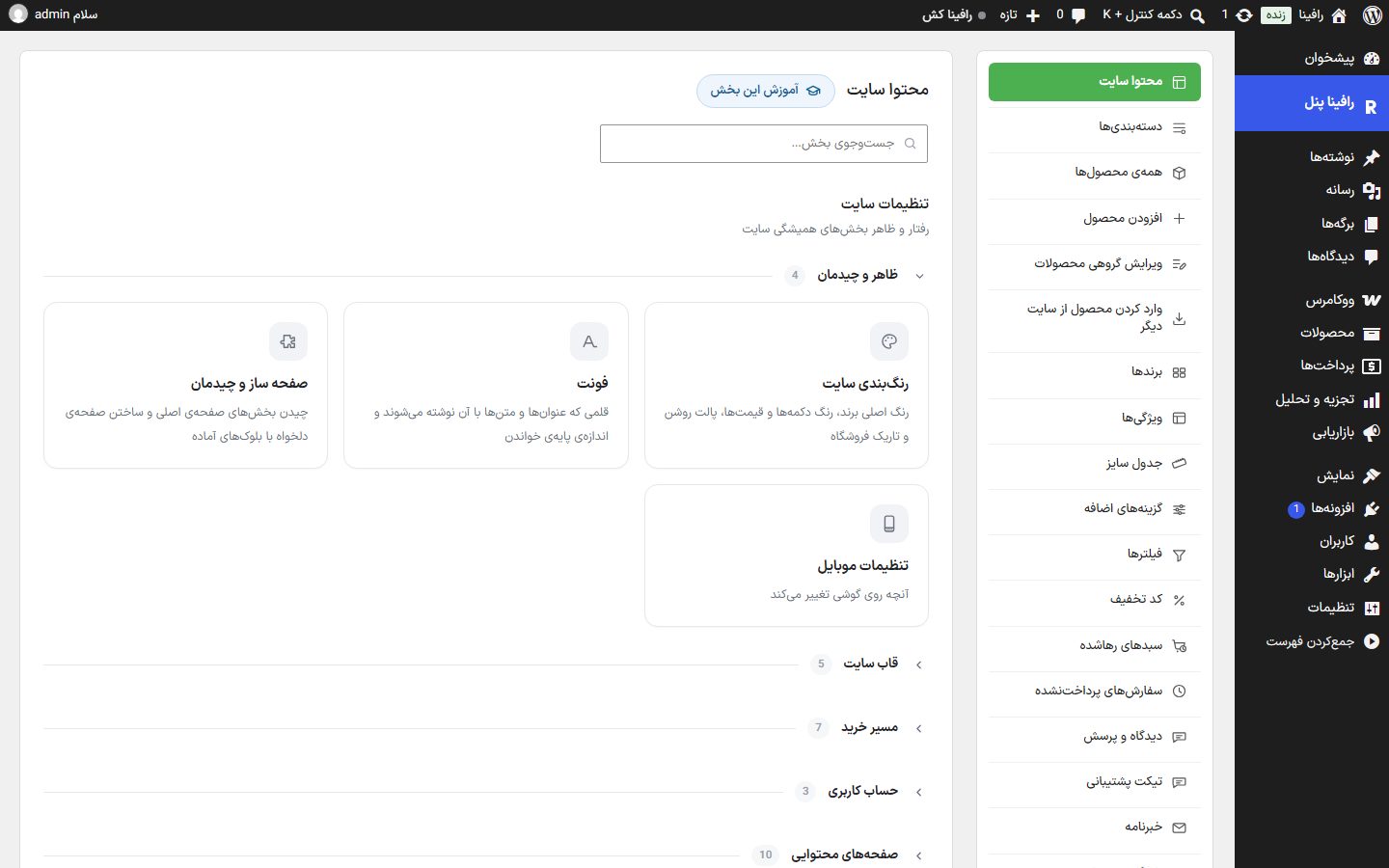
- In the WordPress side menu click “Rafina Panel”. If you hold the mouse pointer over this row, the list of all sections opens beside the menu and you can go straight to any section.
- The first page of the panel is “Site Content”.
Page layout
Every panel page has three parts:
- Sections menu, the column beside the page: Site Content, Categories, All Products, Add Product, Bulk Edit Products, Brands, Attributes, Filters, Discount Codes, Abandoned Carts, Support Tickets, Payment Gateway, Shipping, SMS Panel, Settings, and more. The current section is green. Moving between sections doesn’t reload the page and is fast.
- Section title and beside it the “Tutorial for this section” button, which opens this guide’s page for that section in a new tab. In sections that have tabs (like “Site Content” and “Settings”), the guide for the tab you’re on opens.
- Section content, usually several boxes each with a title and a one-sentence description. In “Site Content” the sections are cards arranged in collapsible groups (appearance and layout, site frame, purchase path, user account, content pages, and homepage sections), and at the top of the page is a “Search sections…” box to find any card by name.
Most long rows (gateways, shipping methods, SMS templates) are collapsible: click the title to open. The on/off switch beside the title works without opening the row.
Saving

No change takes effect on the site until you click the save button. The save bar sticks to the bottom of the page and is always visible. On its other side it shows the status: “You have unsaved changes” with a colored dot, or “All changes saved”. If saving fails, the reason appears there. Pages with several tabs have their own save button for each tab.
Who sees what
The site’s main administrator sees all sections. For a store manager, you decide in Settings ← Access which sections they can reach. Gateway, SMS, and service keys are hidden from the store manager, and a few sensitive settings can be changed only by the main administrator.
All sections
Click any section to open its guide. You can also find a section by name from the search bar at the top of this site.