

Connecting users
If the store had another theme before, old customers who sign in with an SMS code land in a fresh, empty account and don't see their orders. This tool extracts each old account's number from the username and the WooCommerce phone field and suggests which account should be linked to which number.
Where is it? Rafina Panel → Settings → Connecting users
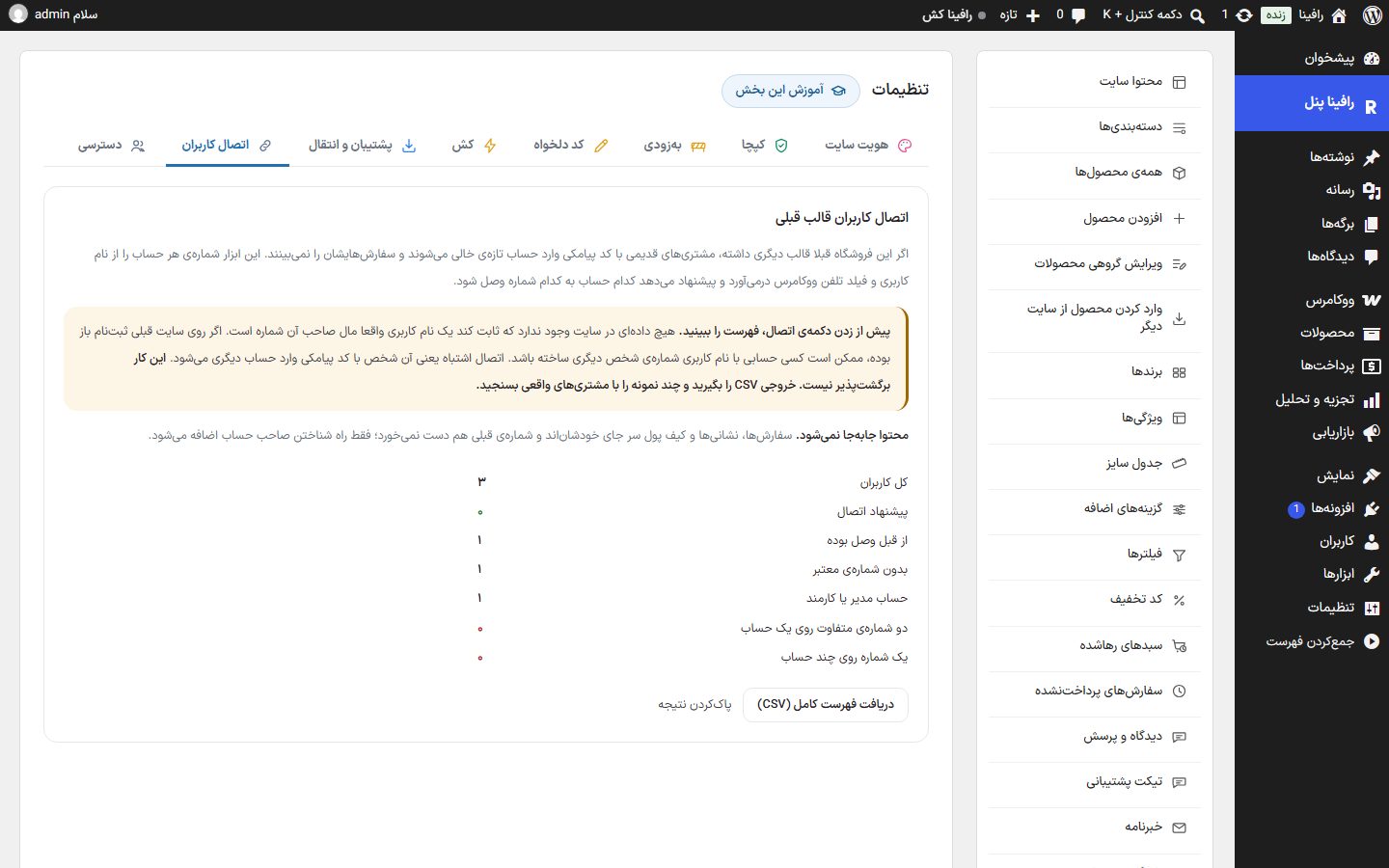
Look at the list before pressing the link buttonNothing on the site proves that a username really belongs to the owner of that number. If sign-up was open on the old site, someone may have created an account with another person's number as username; a wrong link means that person signs in to someone else's account with an SMS code. This can't be undone. Download the CSV export and check a few samples with real customers.
No content is movedOrders, addresses and wallet stay where they are and the old number isn't touched; only a way of identifying the account owner is added.
How it works
- Press “Scan users”. It only scans and writes nothing to the accounts. On a store with many users the scan takes several rounds; press “Continue scan” each time until “N of M users scanned” finishes.
- Read the count table (explained below).
- Press “Download full list (CSV)” and check a few rows with customers.
- Press the “Link N users” button and accept the confirmation question. A mobile number is registered for those N users and from then on anyone with that number signs in to that account with an SMS code.
Count table
| Row | Meaning |
|---|---|
| Total users | All accounts that were scanned. |
| Link suggestions | Accounts that have one valid, conflict-free number and will be linked. |
| Already linked | Their number is already registered; they need nothing. |
| No valid number | Neither the username nor the WooCommerce phone has a valid mobile number. |
| Admin or staff account | Deliberately not linked. |
| Two different numbers on one account | The username and the WooCommerce phone say two different numbers. |
| One number on several accounts | One number was found in several accounts. |
Rows marked in red aren't written; the tool doesn't guess, because a wrong guess means a user landing inside someone else's account. Decide yourself in WordPress “Users” and scan again.
Buttons
| Button | What it does |
|---|---|
| Scan users / Continue scan | Start or continue the scan; it writes nothing. |
| Start over | Begins the scan from the start and the current count is lost (it has a confirmation question). |
| Download full list (CSV) | All rows with the reason for each. |
| Link N users | Only when there is a suggestion; it registers the numbers. If an account has been linked or changed in the meantime, it is skipped and counted. |
| Clear result | Clears the scan result; linked accounts are not touched. |
NoteIf the “Authentication” section is on, a linked user sees the first authentication step on their first login and then enters the account. This tab is visible only to the site Administrator.