

Guides / Site content / Top Bar
Top Bar
A slim bar that sits above the header and gives a short message, such as free shipping or the support number. It works with all header designs.
Where is it? Rafina Panel → Site content → Site frame → Top Bar
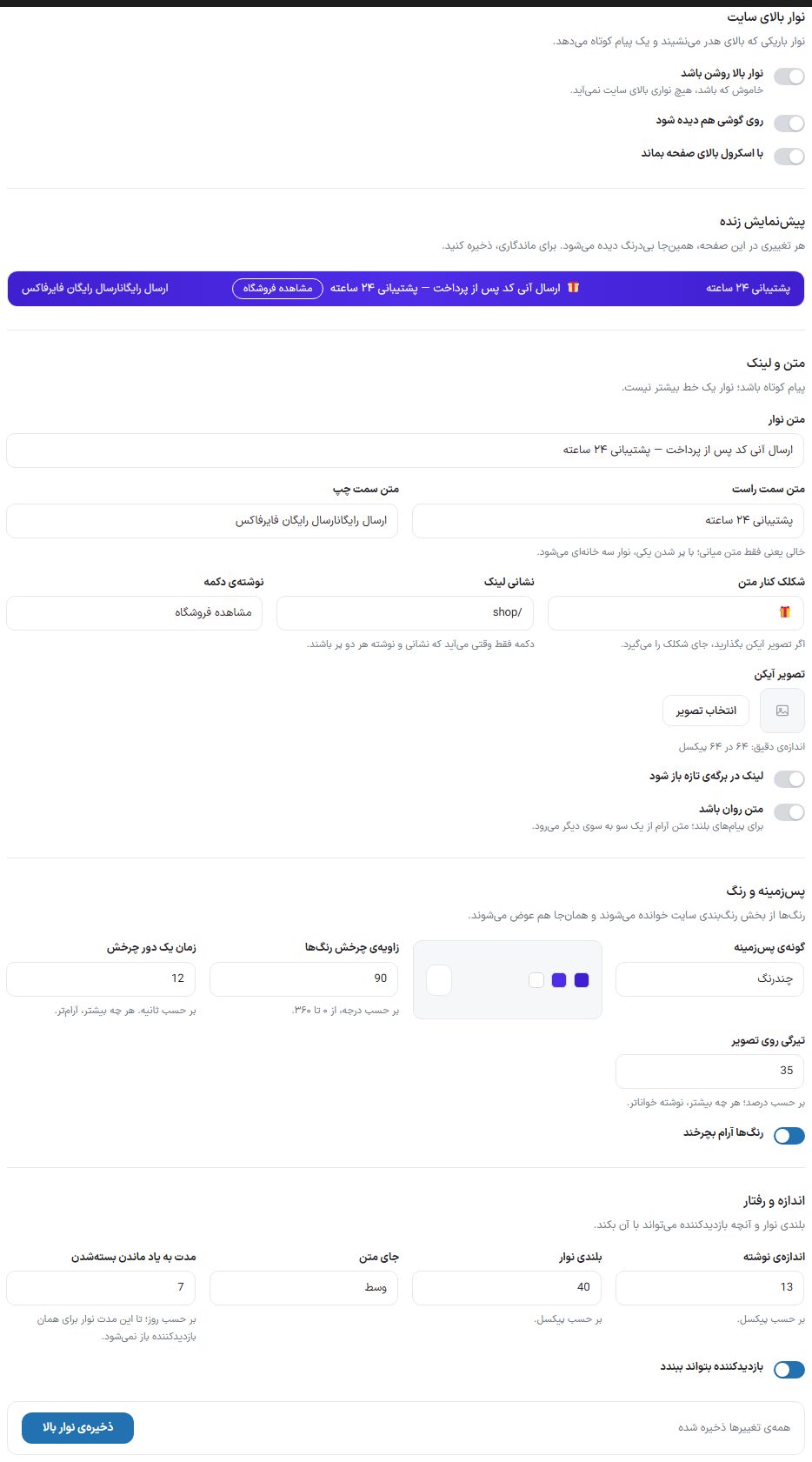
Setup
- Turn on the “Top bar on” switch.
- In “Bar text”, write the short message. The live preview at the top of the page updates instantly.
- If you want a button, fill in both “Link address” and “Button label”.
- Adjust the color and size, then click “Save top bar”.
On and off
| Option | What it does |
|---|---|
| Top bar is on | When off, no bar appears above the site. |
| Show on mobile too | Show the bar on mobile. |
| Keep at top when scrolling | The bar sticks to the top as the page scrolls down. |
Text and link
Keep the message short; the bar is only one line.
| Option | What it does |
|---|---|
| Bar text | The main message that sits in the middle (or the start) of the bar. |
| Right-side text | A side cell. Empty means only the middle text; when one of the two side cells is filled, the bar becomes three cells. |
| Left-side text | The other side cell. |
| Emoji beside the text | A small emoji beside the message. If you set an icon image, it replaces the emoji. |
| Link address | The button’s destination. The button appears only when both the address and the label are filled in. |
| Button text | Bar button text. |
| Icon image | An image icon beside the text. Exact size 64 × 64 pixels. |
| Open link in a new tab | The button opens in a new browser tab. |
| Scrolling text | For long messages; the text slowly scrolls from one side to the other. |
Background and color
Colors are read from “Site colors” and are changed there too.
| Option | What it does |
|---|---|
| Background type | Multi-color (gradient), solid color, or image. |
| Color rotation angle | For multi-color mode, in degrees from 0 to 360. |
| Time for one rotation | In seconds; the higher, the slower. |
| Colors drift slowly | Animate the multi-color colors. |
| Darkness over the image | For image mode, in percent; the higher, the more readable the text. |
Size and behavior
| Option | What it does |
|---|---|
| Text size | In pixels. |
| Bar height | In pixels. |
| Text position | Middle or start of the bar. |
| Visitor can close it | A close button (×) appears on the bar. |
| How long to remember it was closed | In days; for this long the bar doesn’t reopen for that visitor. |
NoteIf you have ticked a rate (such as coin or dollar) for the top bar in “Currency settings”, the bar is shown with the list of rates even if it is off or has no text here; the rates take the place of the text and button, and the color, height, and stickiness still come from this tab.
FAQ and troubleshooting
I changed the text but I don’t see the bar
If you previously closed the bar with ×, it stays hidden in that browser for the “How long to remember it was closed” duration. It reappears when the bar text changes; to test, use the browser’s incognito window.