

Payment gateway
All of the store’s payment methods are turned on and configured from this page: bank gateways, BNPL gateways, card-to-card and split payment. The order of the gateways is the order the buyer sees on the checkout page.
Where is it? Rafina Panel → Payment gateway
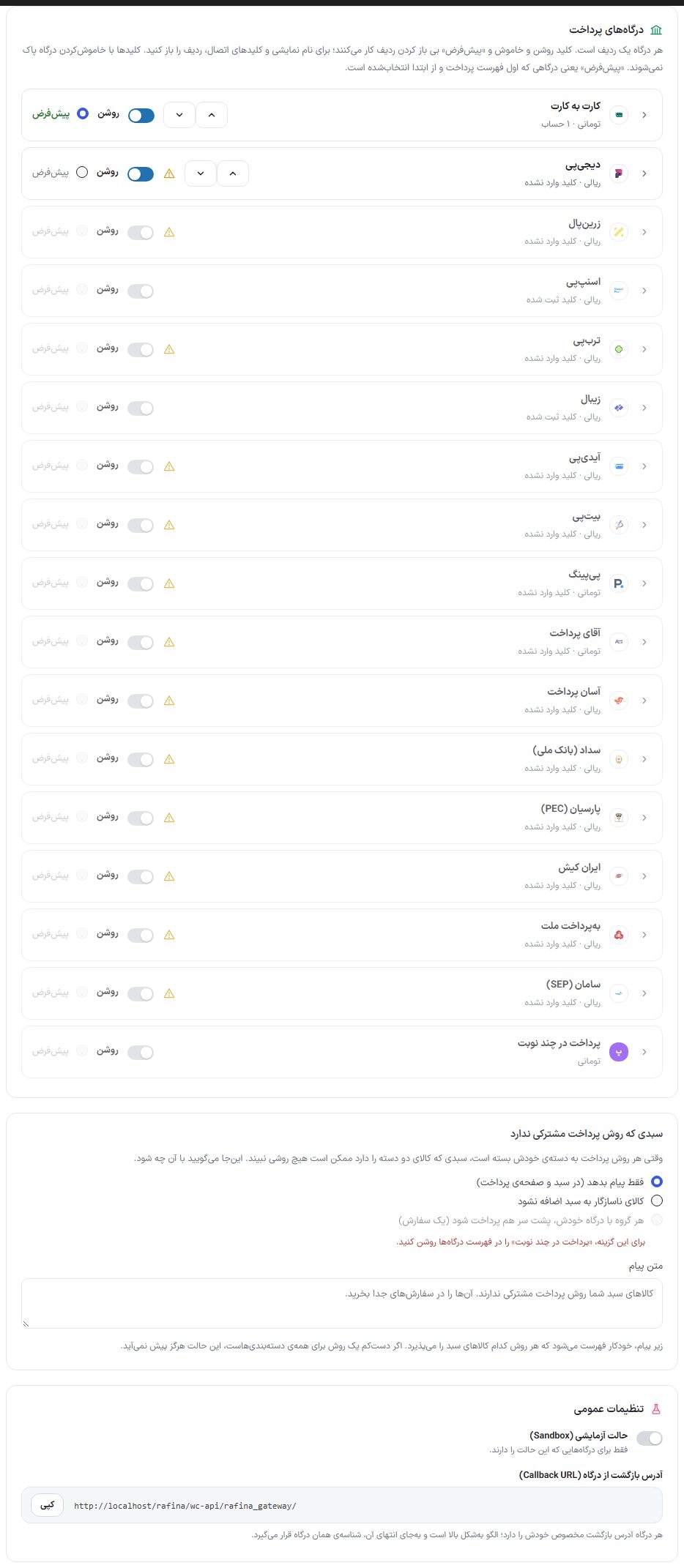
Setting up a gateway
- First register for a gateway on its own site. The “Register and get gateway” link inside each gateway’s row takes you to that site.
- In the gateway’s panel, enter the “Return address” (callback URL). Copy the address from this page’s “General settings” box using the “Copy” button.
- Open the gateway’s row by clicking its name and enter the keys the gateway gave you.
- Click “Test connection”. A green message means the keys were accepted; a red message gives the reason.
- Turn the “On” switch, and if you want this gateway first in the list and preselected, choose “Default”.
- Click “Save gateway settings” in the bar at the bottom of the page.
Gateway list
Two things are written under each gateway’s name: the amount unit that gateway works in (Rial or Toman) and the key status (“Key saved” or “Key not entered”). If a key is missing, a yellow warning badge appears beside the row so you can tell which gateway is incomplete without opening the rows. Toman and Rial conversion is automatic for each gateway and you don’t need to do anything.
| Option | What it does |
|---|---|
| “On” switch | Shows or hides the gateway on the checkout page. Turning it off does not erase the entered keys. It works without opening the row. |
| “Default” | The gateway that sits first in the payment list and is preselected. Only one enabled gateway can be the default. |
| Up and down buttons (“Move up one” and “Move down one”) | They appear only beside enabled gateways and change their order on the checkout page. Disabled gateways are always at the bottom of the list. |
Options shared by every gateway
When you open the row of any bank gateway you see these fields:
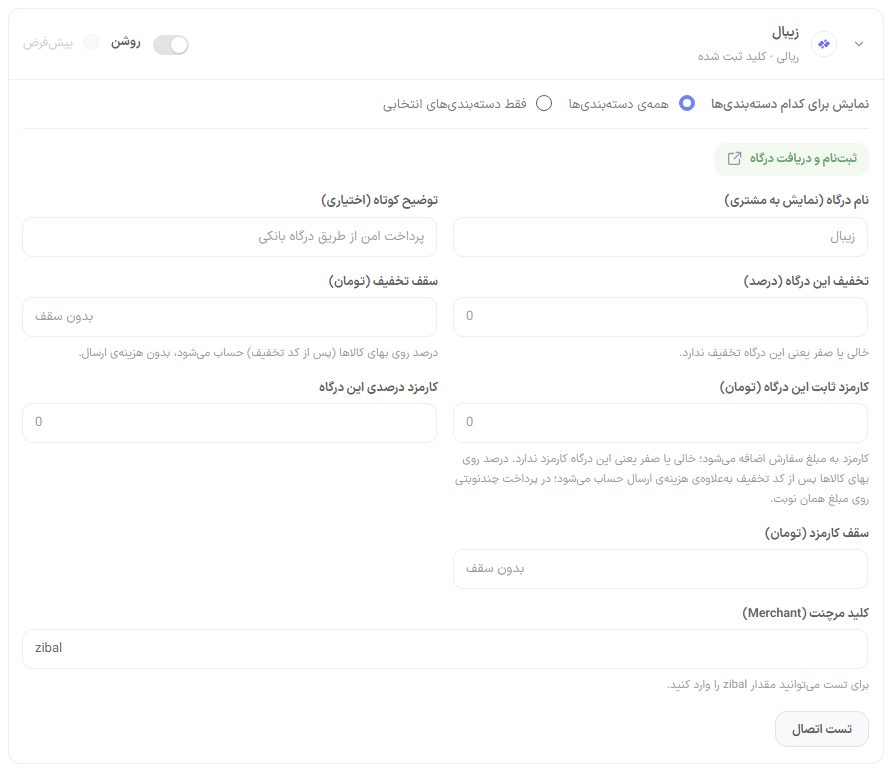
| Option | What it does | Default |
|---|---|---|
| Register and get gateway | A link to the gateway’s own site for registering and getting a key. It opens in a new tab. | — |
| Gateway name (shown to customer) | The name the buyer sees on the checkout page. | The gateway’s own name |
| Short description (optional) | A sentence under the gateway’s name on the checkout page. | Empty |
| This gateway’s discount (percent) | If the buyer chooses this gateway, this percent is deducted from the price of goods (after the discount code and excluding shipping). A green discount badge appears beside the gateway name. | Zero (no discount) |
| Discount cap (Toman) | The maximum discount amount for this gateway. | No cap |
| This gateway’s fixed fee (Toman) | An amount added to the order when this gateway is chosen. It appears in the payment summary as a “Payment gateway fee” row. | Zero (no fee) |
| This gateway’s percentage fee | A percent added to the order; calculated on the price of goods after the discount code plus shipping, and in a split payment on the amount of that installment. | Zero |
| Fee cap (Toman) | The maximum fee for this gateway, fixed plus percentage combined. | No cap |
| Test connection | Checks the keys with the gateway itself without creating an order and writes the result under the button. If you have typed a key and not yet saved it, that one is tested; an empty field means the saved key. | — |
Show for which categories
At the top of every open payment method row (gateways, card-to-card and split payment) there are two options:
| Option | What it does |
|---|---|
| All categories | The method appears for any cart on the checkout page. This is each method’s default. |
| Only selected categories | A searchable category list opens. The method appears on the checkout page only when all of the cart’s items are in one of these categories or their subcategories. Until you tick a category, the method stays available for everyone. |
Each change is saved immediately and “Saved” appears beside it; you don’t need to click the save button at the bottom of the page. The same check also runs when the order is placed, so a restricted method can’t be accepted by any trick.
A cart with no shared payment method
When each method is restricted to its own category (for example Zarinpal only for gold and PayPing only for cosmetics), a cart with items from both categories sees neither method. The “Cart with no common payment method” box under the gateway list says what happens with such a cart:
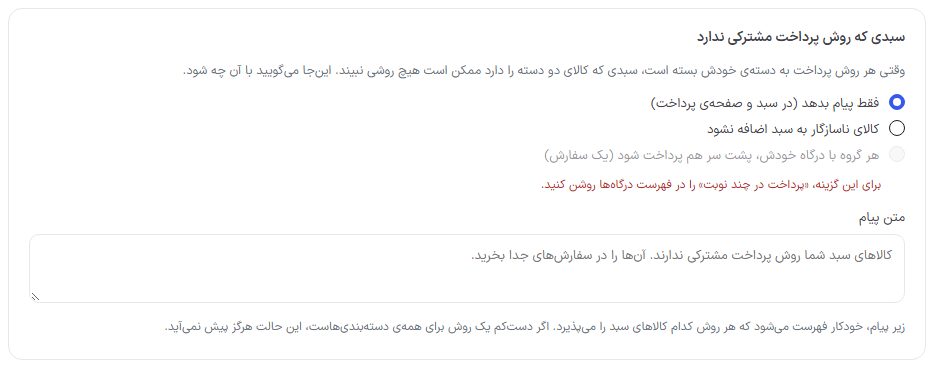
| Option | What it does |
|---|---|
| Message only | Default. The buyer can add any item to the cart, but a message appears in the cart and on the checkout page saying which cart items each method accepts, so they can buy the cart as two orders. |
| Don’t add incompatible items to the cart | An item that has no common payment method with the items in the cart is not added, and the buyer immediately gets a message to place the current order first or empty the cart. This check applies to every way of adding (product page, card, buy again, buy next). |
| Pay each group with its own gateway, one after another | The buyer places one order and sees only the “Separate payment for each group” option on the checkout page. On the installments page, each group’s amount (the items one gateway accepts) is paid with that gateway: for example a ring with Zarinpal and then a lipstick with PayPing. Each installment’s amount is fixed and shipping goes with the first group. The order is finalized after the last group is paid. This option needs “Split payment” turned on, and that section’s deadlines apply to it as well. |
The “Message text” is optional; if left empty, the default text is shown. Changes are saved immediately.
Each gateway's keys
| Gateway | Gateway-specific fields |
|---|---|
| Card-to-card | has its own section; explained below. |
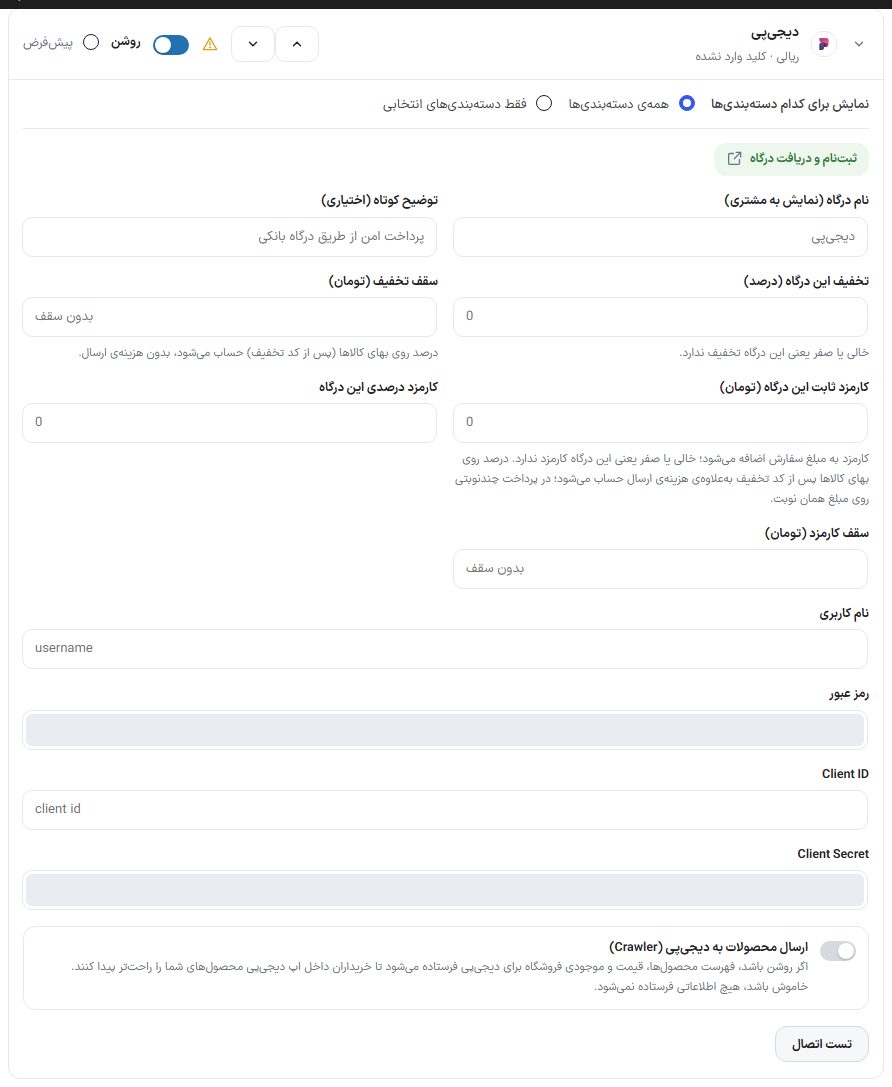
| DigiPay (BNPL) | The “Username”, “Password”, “Client ID” and “Client Secret” that DigiPay gives you, and the “Send products to DigiPay (Crawler)” switch: if on, the product list, prices and stock are sent to DigiPay so buyers can find them inside the DigiPay app; if off, no information is sent (off by default). |
| Zarinpal | “Merchant code (Merchant ID)”, the 36-character code Zarinpal gives after approving the gateway. |
| SnappPay (BNPL) | “Service address (Base URL)” (for real sales, the default value), “Merchant ID (Client ID)” and “Merchant key (Client Secret)” from the merchants portal, and the “Service username” and “Service password” issued for calling the service (not the portal username). |
| Torob Pay (BNPL) | The same five fields as SnappPay. The “Merchant ID” is called “Torob Pay merchant code” and the “Merchant key” is called “Torob Pay key” in the Torob Pay panel. |
| Zibal | “Merchant key”. For testing you can use the value zibal there. |
| IDPay | The “API key” from the “Web service” section of the IDPay panel. |
| BitPay | The “API key” from the web service section of the BitPay panel. |
| PayPing | The “API token” from the PayPing panel. |
| Aghayepardakht | The “Gateway PIN”. With the value sandbox it works in test mode. |
| Asan Pardakht | “Web service username”, “Web service password” and “Merchant configuration ID (MerchantConfigurationId)”, the number given beside the username. |
| Sadad (Bank Melli) | “Merchant number (MerchantId)”, “Terminal number (TerminalId)” and “Terminal key”, the base64 string that Sadad gives with the terminal. The amount is sent in Rial; there is no public test environment and the connection is tested on the site itself. |
| Parsian (PEC) | “Merchant ID (LoginAccount)”, a 20-character string from the Parsian panel. It is not the same as the terminal number. |
| Iran Kish | “Terminal number (Terminal ID)”, “Terminal password (Password)” and “Acceptor ID”, all digits only, and the “Public key”, the full text from BEGIN to END. A note under this gateway says to run a connection test and a trial purchase before serious use. |
| Behpardakht Mellat | “Terminal number (terminalId)”, “Username (userName)” and “Password (userPassword)” that the bank gives with the terminal; the web service username and password, not the panel login. |
| Saman (SEP) | “Terminal number (Terminal ID)”. It is the same terminal for BluPay too, provided BluPay is activated on it. |
Card-to-card
The buyer transfers the amount to one of your cards and sends a receipt image. Until the receipt arrives, the order is “Pending payment” and does not hold stock; once a receipt is submitted it becomes “Pending review” so you can approve or reject it. Until at least one account is added, this method is not visible on the checkout page. Only the site’s main administrator can change card-to-card accounts and settings. The card-to-card row has no registration link or fee fields; its display name, short description, discount and discount cap work like the other gateways.
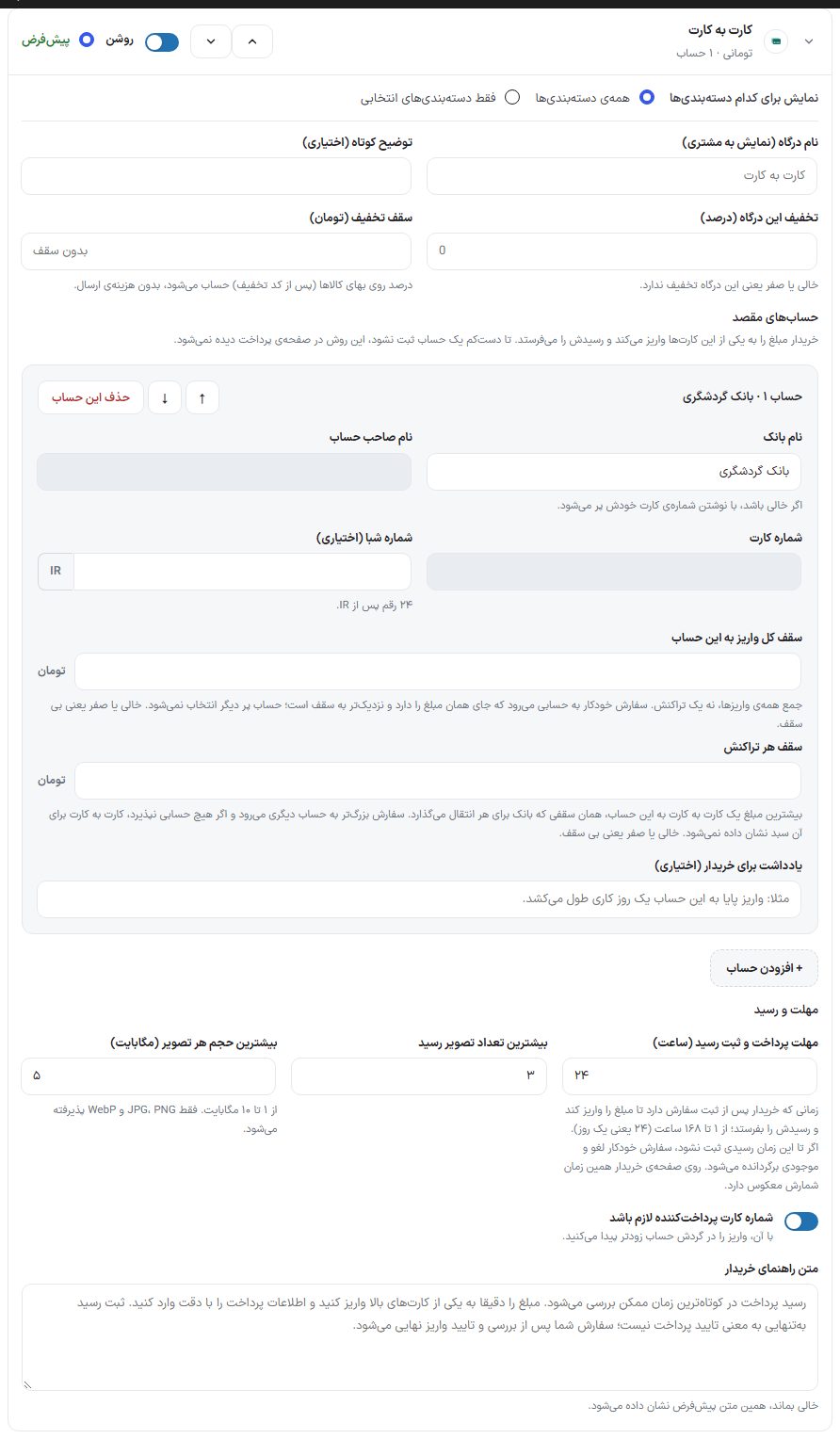
Destination accounts
| Option | What it does |
|---|---|
| Bank name | If left empty, it is filled in automatically from the card number. |
| Account holder name | Required; the buyer uses this name to confirm they are paying into the right account. |
| Card number | 16 digits. An invalid number gets an error right there. |
| IBAN (optional) | 24 digits after IR. |
| Total deposit cap for this account | The sum of all deposits into this account, not one transaction. An order automatically goes to the account that has room for its amount and is closer to its cap; a full account is no longer chosen. Empty or zero means no cap. |
| Per-transaction cap | The maximum amount of one card-to-card transfer to this account, the limit the bank sets per transfer. A larger order goes to another account, and if no account accepts it, card-to-card is not shown for that cart. Empty or zero means no cap. |
| Note for buyer (optional) | A sentence shown to the buyer under this card, for example “A Paya transfer takes one business day”. |
| Up, down and “Delete this account” | Reorders the accounts or removes an account. |
| “+ Add account” | Adds a new account. |
When a total cap is set for an account and saved, a usage line appears under that field: “Approved · Pending · Remaining”. The “Reset approved” button zeroes that account’s approved amount (for example when the account’s monthly limit has renewed) and does not touch the amount of pending orders.
Deadline and receipt
| Option | What it does | Default |
|---|---|---|
| Payment and receipt deadline (hours) | The time the buyer has after placing the order to deposit the amount and send the receipt, from 1 to 168 hours. If no receipt arrives, the order is cancelled automatically and the stock is returned. The buyer’s page has a countdown. | 24 |
| Maximum receipt images | How many images are accepted per receipt, 1 to 5. | 3 |
| Maximum size per image (MB) | 1 to 10 MB. JPG, PNG and WebP only. | 5 |
| Require payer’s card number | The buyer must enter the card they paid from; you can find the deposit in the account statement sooner. The number is stored masked only. | On |
| Buyer guidance text | The text shown above the receipt form. If left empty, the default text appears. | Default text |
Pay in several installments
Every bank card has a daily payment limit. With this method, the buyer pays a large order in several installments and by several methods, for example part by gateway and part by card-to-card. The order is held until fully paid. BNPL gateways (SnappPay, Torob Pay, DigiPay) never become installments.
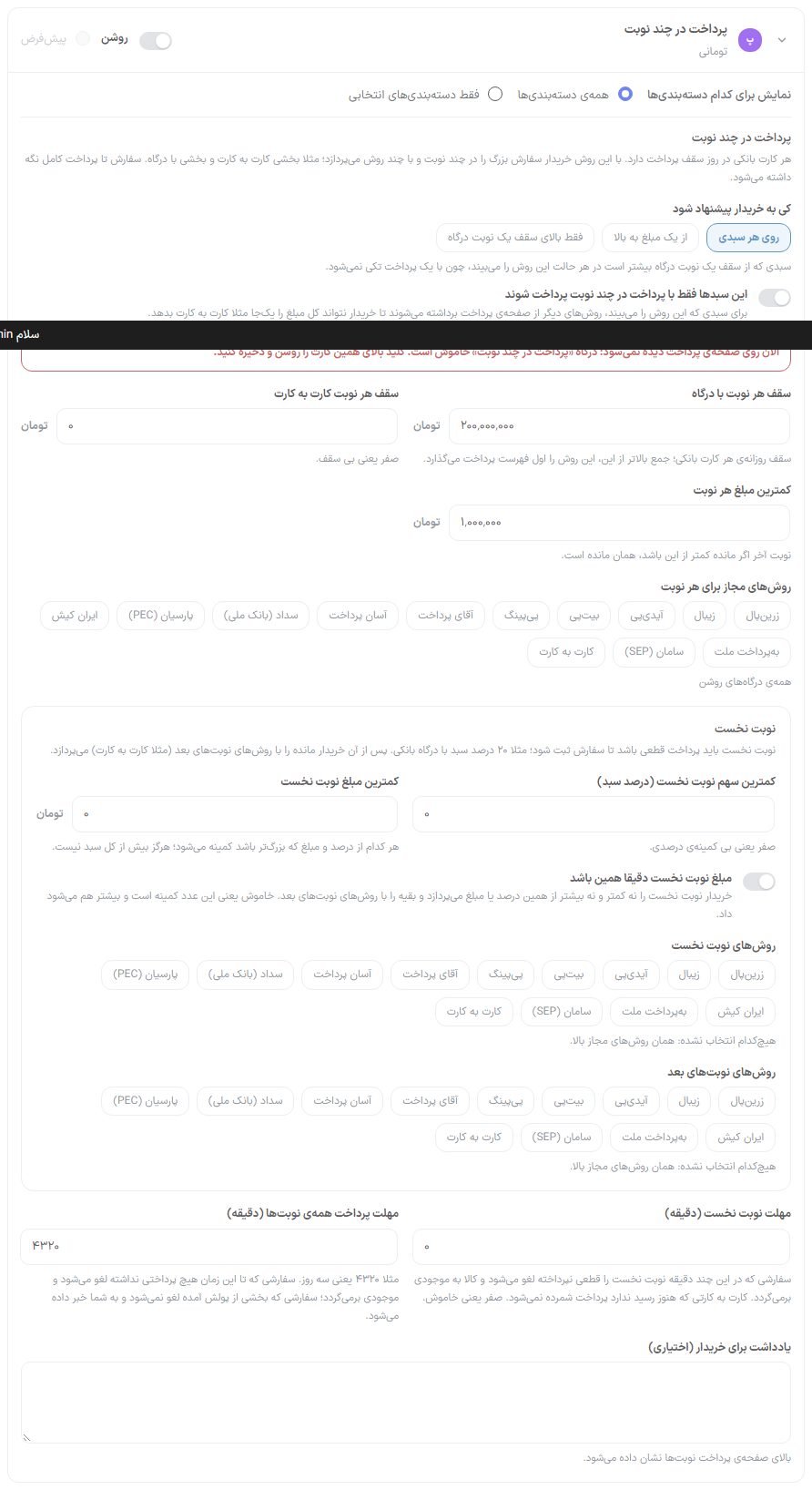
| Option | What it does |
|---|---|
| When to offer to the buyer | Three modes: “On any cart”, “From an amount and above” and “Only above one gateway installment’s cap”. A cart larger than one gateway installment’s cap sees this method in every mode, since it can’t be paid in a single payment. A status line under this option says which carts this method is currently shown for, or why it isn’t shown. |
| From what amount to offer | Only in “From an amount and above” mode: carts with a total from this amount up see this method. |
| These carts can be paid only by split payment | Only in the “On any cart” and “From an amount and above” modes. On means a cart that sees this method sees no other payment method on the checkout page. Useful for a store that wants card-to-card to be paid only as an installment: leave card-to-card on in the gateway list and tick it in “Later installment methods”. Off by default. |
| Cap per gateway installment | The daily limit of a bank card. A total above this puts this method first in the payment list. |
| Cap per card-to-card installment | Zero means no cap. If the card-to-card accounts have caps, those caps are respected too. |
| Minimum amount per installment | The buyer does not pay an installment smaller than this. If the remainder is less for the last installment, the remainder is the amount. |
| Allowed methods for each installment | Tick the gateways allowed in installments. “All enabled gateways” means every enabled gateway. |
| Minimum share of first installment (percent of cart) | The first installment must be a final payment for the order to be placed. Zero means no percentage minimum. |
| Minimum first installment amount | Whichever is larger of the percent and the amount becomes the minimum; it never exceeds the whole cart. |
| First installment exactly this amount | On means the first installment is accepted at neither less nor more than this minimum; on the installments page the amount box is locked and the amount shortcut buttons are hidden. Later installments are free. If the whole cart is less than this amount, the first installment is the whole cart. Off by default. |
| First installment methods | The gateways allowed for the first installment. If none is selected, the allowed methods above apply. |
| Later installment methods | The gateways for later installments, for example only card-to-card. None means the allowed methods above. |
| First installment deadline (minutes) | An order whose first installment hasn’t been finally paid within this many minutes is cancelled and the items return to stock. A card-to-card that has no receipt yet doesn’t count as paid. Zero means off. |
| Deadline for all installments (minutes) | For example 4320 means three days. An order with no payment at all by this time is cancelled and stock is returned; an order with part of its money received is not cancelled and you are notified. |
| Note for buyer (optional) | Shown at the top of the installments payment page. |
General settings
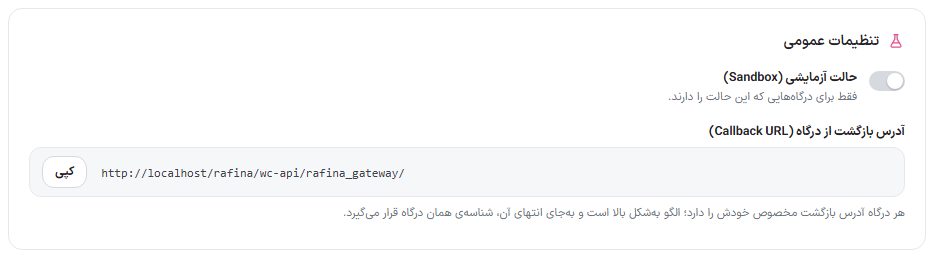
| Option | What it does | Default |
|---|---|---|
| Test mode (Sandbox) | Moves gateways that have a test environment to that environment. No real money moves. Turn it off before real sales. | Off |
| Gateway return address (Callback URL) | The address you must enter in the gateway’s panel. Each gateway has its own address: this same pattern, with that gateway’s ID in place of the end of the address. The “Copy” button copies it. | — |
Save
The bar at the bottom of the page says whether you have unsaved changes (“You have unsaved changes” or “All changes saved”). No change takes effect on the site until you click “Save gateway settings”. If part of the card-to-card settings can’t be saved, a “These items were not saved:” list is shown with the reason for each.
FAQ and troubleshooting
Zarinpal gives the error “code -10” or “Terminal ip not valid”.
It means the IP address of the server the site uses to call Zarinpal is not registered for this merchant, or the merchant is a test one. Ask hosting support for the outgoing IP address (on shared hosting it differs from the site’s IP) and register it in the Zarinpal panel.
SnappPay or Torob Pay says “access denied” or code 403.
These services only accept requests from a server IP registered with them. Send the server’s IP to that service’s support.
Torob Pay gives the error “invalid Basic header” or code 1017.
The “Torob Pay merchant code” or “Torob Pay key” was not entered correctly. Copy both again from the Torob Pay panel.
The Torob Pay connection test says the amount is invalid.
BNPL gateways have a minimum amount. As long as the “Connection is established” message appears, the keys are right; the service’s message is written only beside it.
Card-to-card is not shown on the checkout page.
Either no account is registered, or the cart total exceeds the per-transaction cap and remaining room of all accounts.
I don’t see “Split payment”.
The status line under “When to offer to the buyer” gives the reason. The most common is that the option is on “Only above one gateway installment’s cap”, so a small cart doesn’t see it; choose and save “On any cart” or “From an amount and above”. If the status line says no other method is on for installments, turn on at least one more gateway; card-to-card with no destination account doesn’t count.