

Filters
You build the filter column of the shop page and category page from here: which filters, in what form, in what order, and on which pages.
Where is it? Rafina Panel → Filters
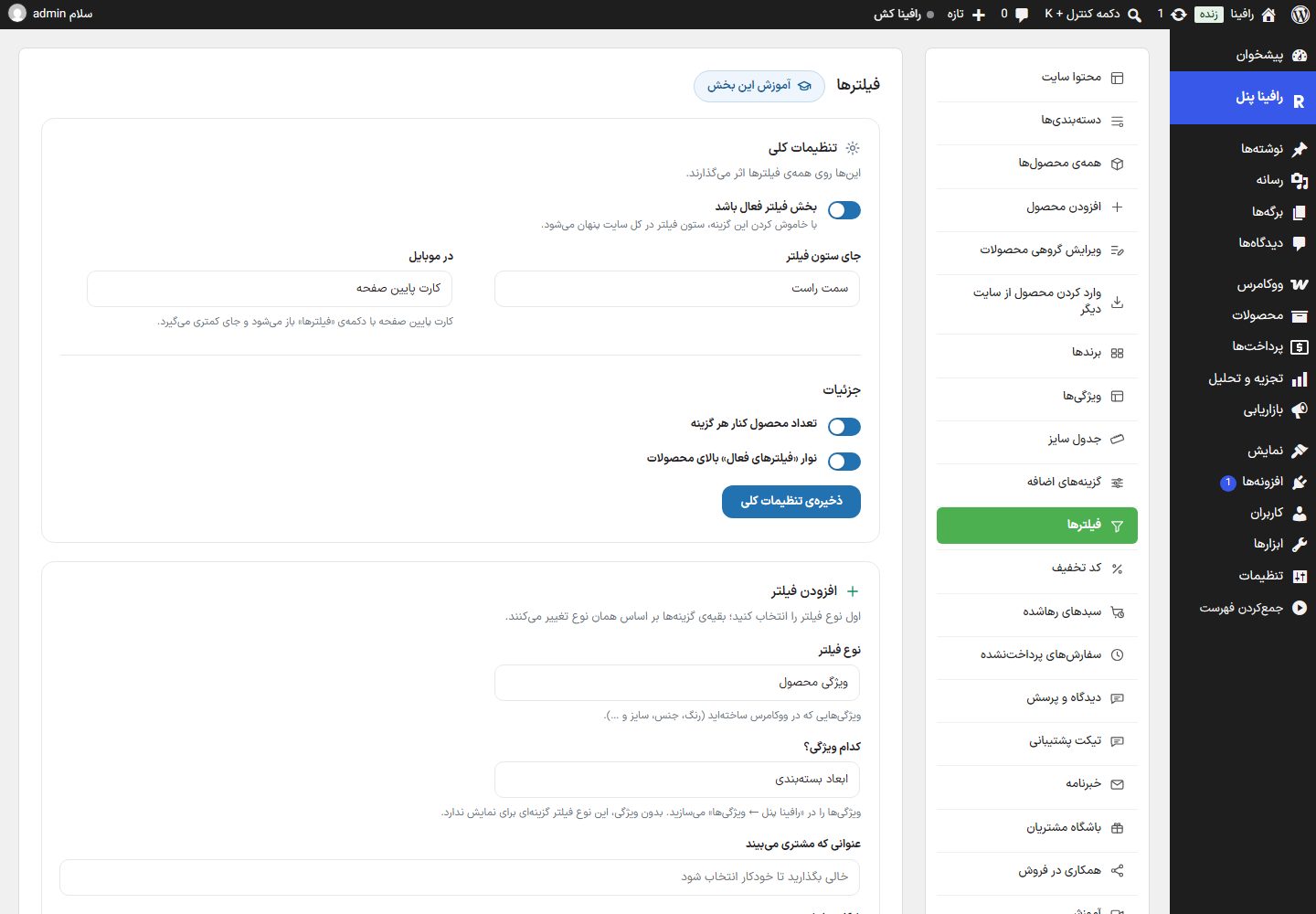
General settings
These affect all filters and are saved with “Save general settings”.
| Option | What it does | Default |
|---|---|---|
| Filter section enabled | Off means the filter column is hidden across the whole site. | On |
| Filter column position | Right or left side of the page. | Right side |
| On mobile | “Bottom sheet” (opens with the “Filters” button and takes less space) or “Above the product list”. | Card at the bottom of the screen |
| Product count beside each option | Shows the number of products for each option beside it. | On |
| “Active filters” bar above the products | Puts the selected filters as tags above the list so they can be removed with one click. | On |
Add filter
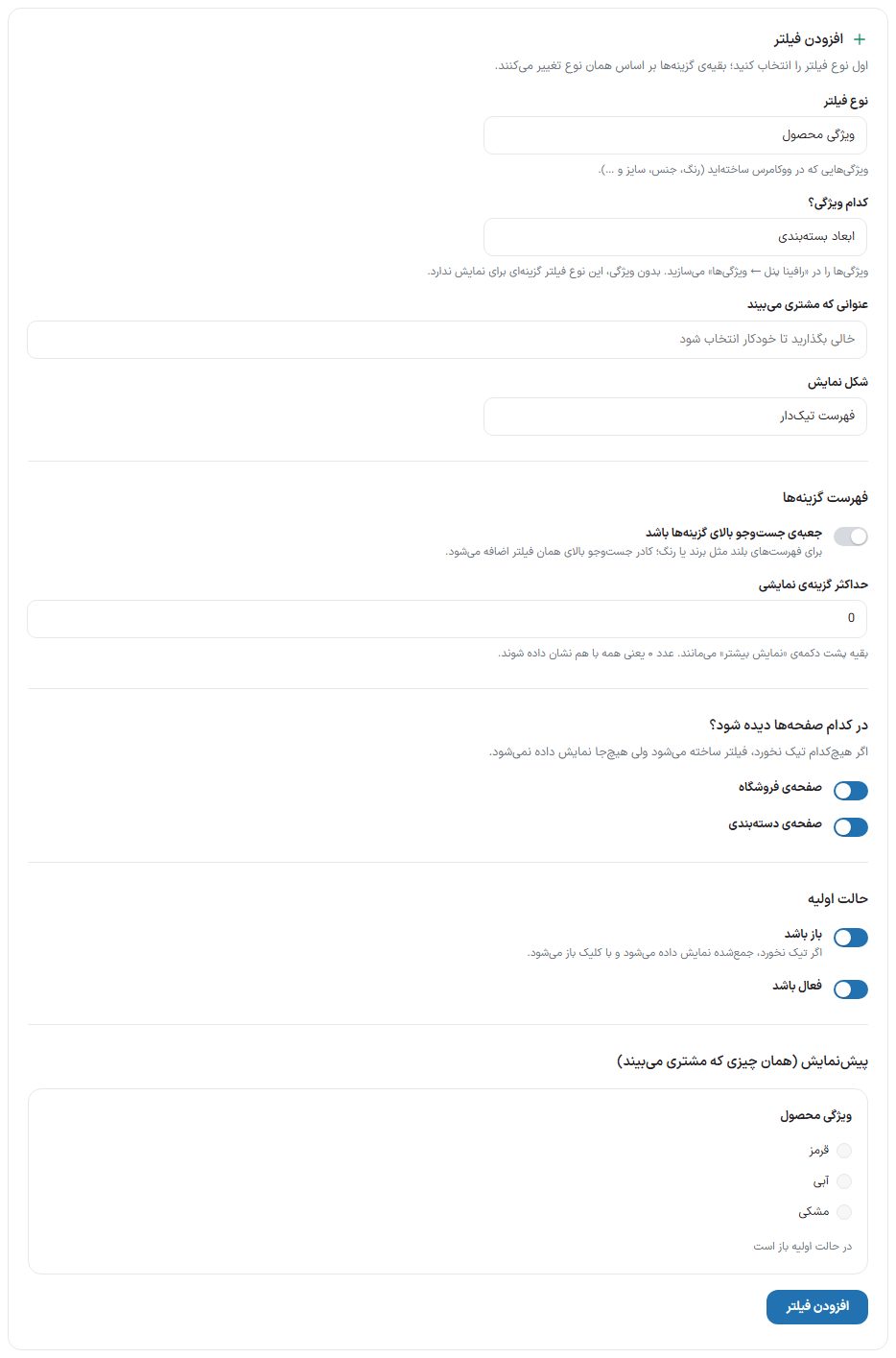
First choose the filter type; the other options change according to that type. The “Preview (what the customer sees)” beside the form updates with every change.
| Filter type | What it does | Display styles |
|---|---|---|
| Product attribute | Attributes you built in WooCommerce (color, material, size, and so on). Choose “Which attribute?”; you build attributes in Attributes . | Checklist, side-by-side buttons, dropdown list |
| Brand | Brands Brands. For a long list, turn on the search box. | Checklist, side-by-side buttons, dropdown list |
| Category | Category list. Inside a category page, only that category’s subcategories appear. | Checklist, side-by-side buttons, dropdown list |
| Price range | The lowest and highest price, from the products on that page (subcategories included). | Two-handle slider, two number fields |
| In stock | Only items in stock. | On/off switch |
| On sale | Only products that have a sale price. | On/off switch |
| Customer rating | Products with an average rating above the chosen level. | Checklist |
| Search | A live search box on the item name and code of that page; the list updates with every letter. It always sits above the other filters. | Search box |
| Option | What it does | Default |
|---|---|---|
| Title the customer sees | The filter’s title in the column. | Empty = automatic (attribute name or type) |
| Display style | From the allowed styles of that type (table above). | — |
| Button display | Only for “Side-by-side buttons”: “Value name” or “Value color or image” (the color or image you registered in attributes or brands; the name appears on hover). | Value name |
| Search box above the options | For long lists such as brand or color; inside that filter. | Off |
| Maximum options shown | The rest stay behind a “Show more” button. 0 means all at once. | 0 |
| Box placeholder text | Only for the “Search” type; the faint text inside the box. | Product name or item code… |
| Which pages should show it? | The shop page and the category page. If neither is ticked, the filter is created but not shown anywhere. | Both |
| Initial state: open | If not ticked, the filter appears collapsed and opens on click. For the search type it is always open. | Open |
| Enabled | The filter stays created but off, and doesn’t appear on the site. | On |
The button at the bottom of the form is “Add filter”, and in edit mode “Save changes”; “Cancel” empties the form. A product attribute filter is not created without choosing an attribute.
Created filters
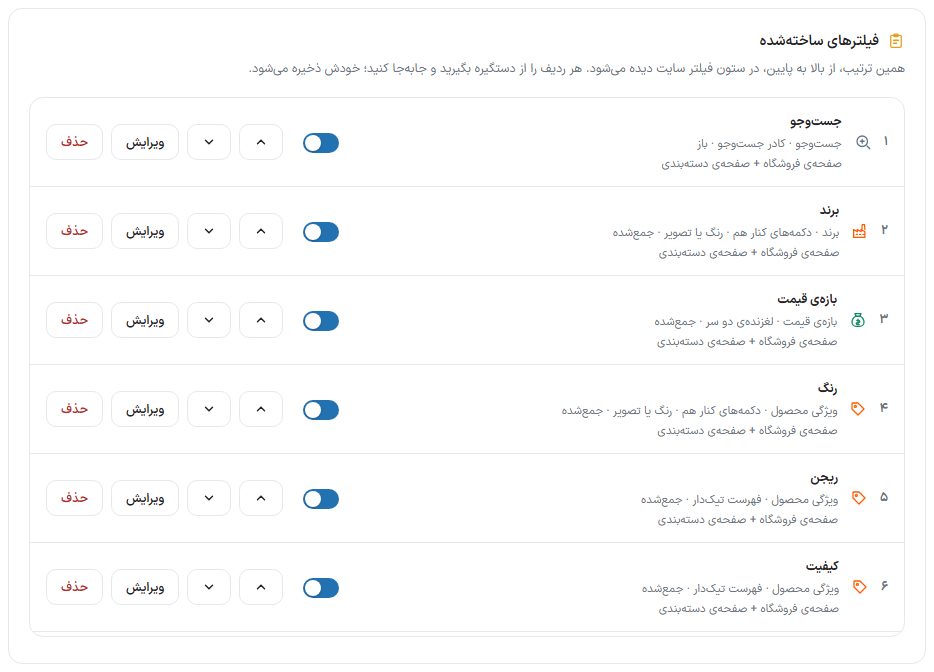
This same order, top to bottom, is seen in the site’s filter column. Each row summarizes type, display style, initial state, and its pages, and has these controls:
- On/off switch: Removes the filter from the site or restores it without deleting it.
- Up / down one step (two arrow buttons): changes the order and saves by itself. The sentence above this list talks about a “handle” and dragging, but reordering is only with these two buttons.
- Edit and delete.
Building a color filter with color swatches
- In Attributes Install the “Color” attribute or build it with the “Color” display.
- Here set the “Product attribute” type and “Which attribute?” to “Color”.
- Set the display style “Side-by-side buttons” and “Button display” to “Value color or image”.
- Tick the pages and click “Add filter”. Then fix its position with the up and down buttons.
Frequently Asked Questions
The price filter doesn’t appear on a category page.
If all items in that category have the same price, a useless slider is not created.
The “Category” filter shows nothing on a category page.
Inside a category page only subcategories appear; a category with no subcategories doesn’t get this filter.