

Artificial Intelligence
From this page, the theme's three smart sections connect to an AI service: answering shoppers' questions on the site, generating images for products and banners, and writing product descriptions and articles. Each section has its own service, key, and spending cap.
Where is it? Rafina Panel → Artificial Intelligence
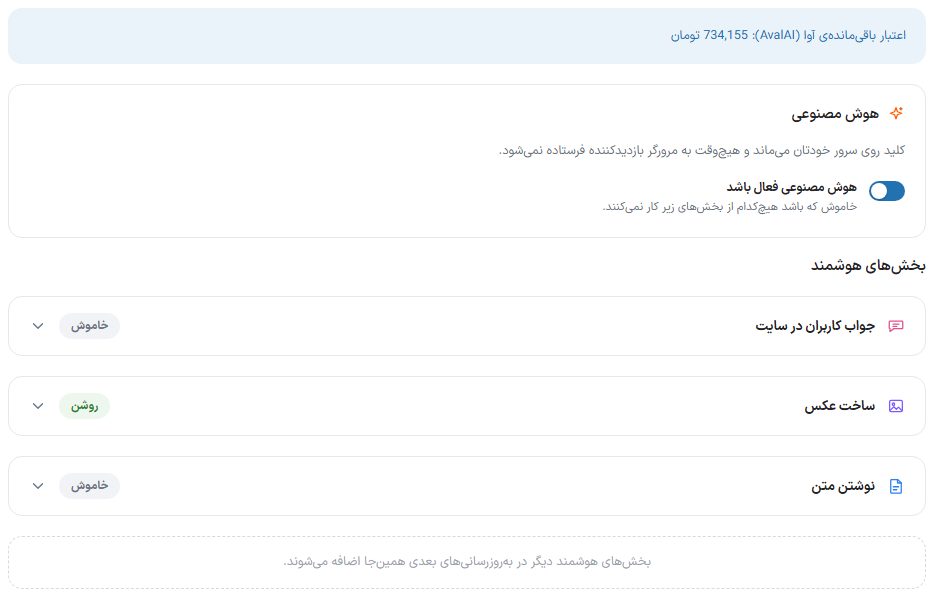
Setup
- Create an account on the AI service's website, buy credit, and get an API key. The "Get API key" link inside each section takes you to that site.
- Turn on "AI enabled".
- Click one of the smart sections, turn on "This section enabled", choose the service, and enter the key.
- Click "Save and test connection"; the message "Connection successful." means it is ready.
- Set the daily cap and click "Save settings".
Master switch
| Option | What it does |
|---|---|
| AI enabled | When off, none of the smart sections work. |
An "On" or "Off" label appears next to each section's name. Only one section is open at a time.
Connection for each section
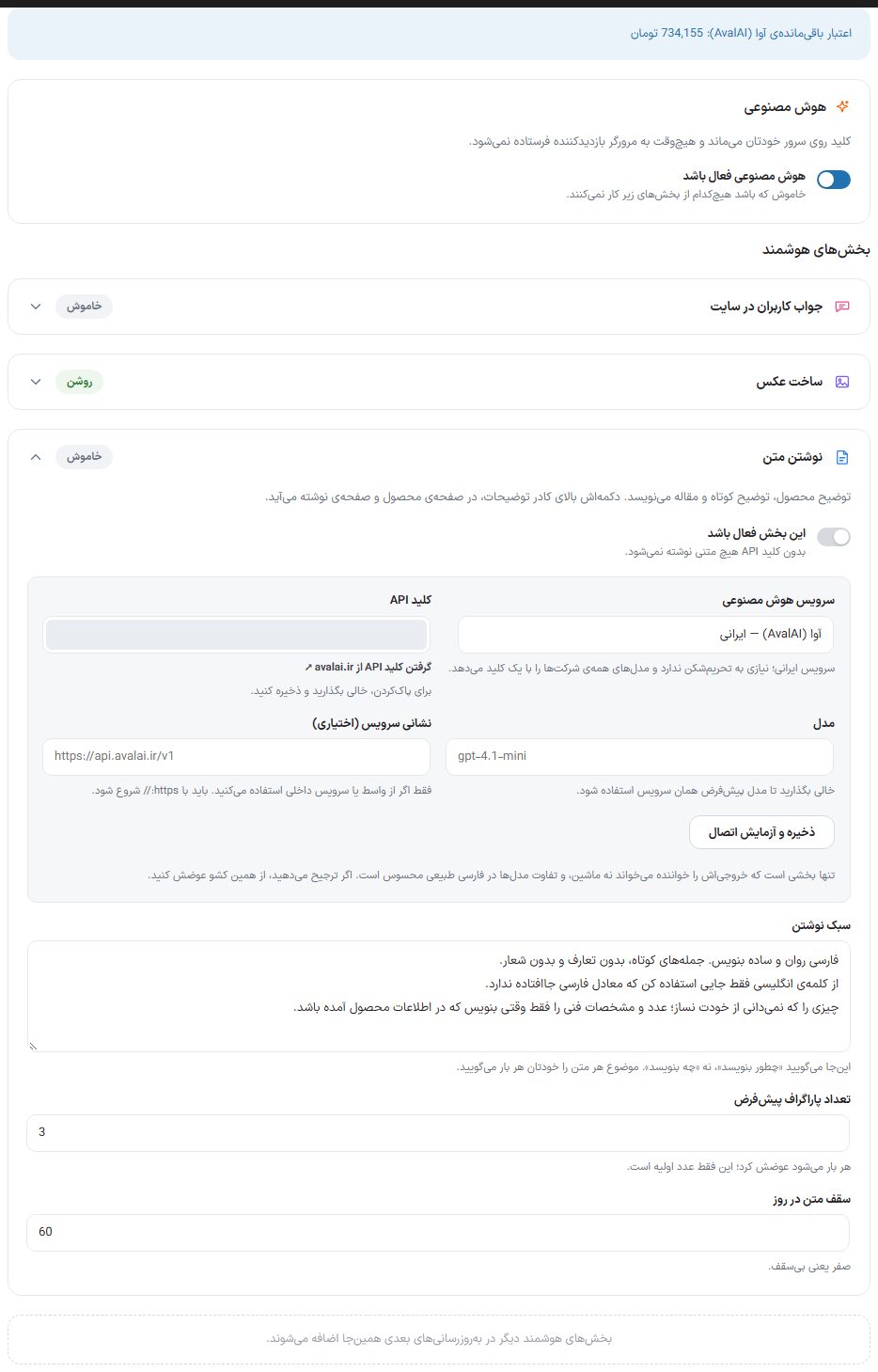
These fields exist in all three sections, and each section can use a different service:
| Option | What it does |
|---|---|
| This section enabled | Turns just this section on or off. Without an API key, the section does nothing on the site. |
| AI service | OpenAI (ChatGPT), Anthropic (Claude), Google Gemini, DeepSeek, xAI (Grok), AvalAI (Iranian), or GapGPT (Iranian). GapGPT works for both chat and text writing as well as image generation; get its key from that service's panel. In the "Image generation" section, the dropdown lists only services that generate images: OpenAI (ChatGPT), Google Gemini, xAI (Grok), AvalAI, and GapGPT. |
| API key | The key for that service. It is hidden after saving; leaving it empty means unchanged. To clear it, leave it empty and save. The key stays only on your server and is never sent to the visitor's browser. |
| Model | Model name. Leave empty to use that service's default model. |
| Service address (optional) | Only if you use a proxy or an internal service; it must start with https:// . |
| Save and test connection | Saves the settings and tests the connection. For "Image generation" the test is free and does not generate an image. |
Answering users on the site
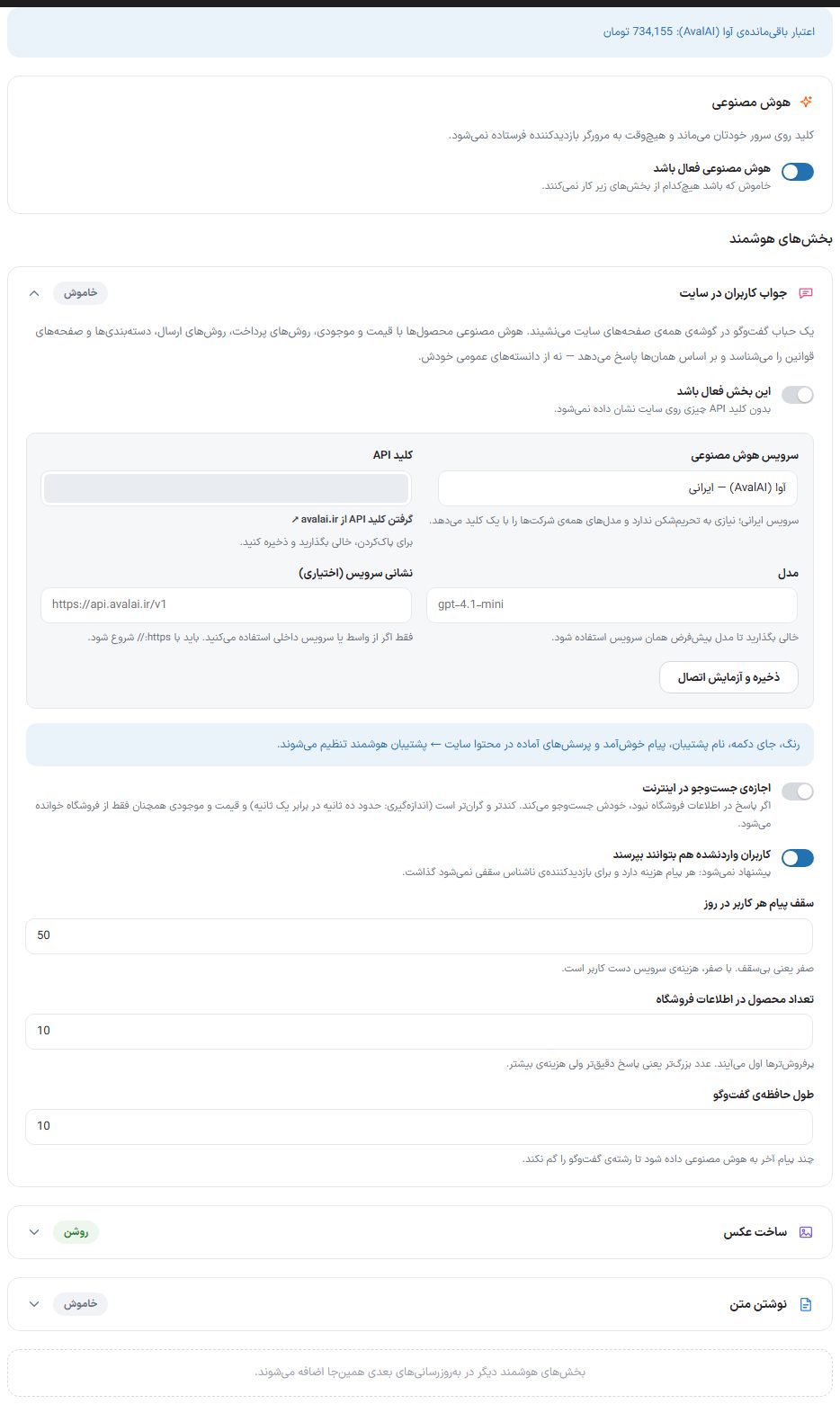
A chat bubble sits in the corner of every page of the site and answers shoppers using the store's own data (products with price and stock, payment and shipping methods, categories, and so on). Color, button position, assistant name, welcome message, and ready-made questions are set in Site content → Smart assistant .
| Option | What it does |
|---|---|
| Allow internet search | If the answer is not in the store's data, it searches on its own. It is slower and more expensive (about ten seconds versus one second); price and stock are still read only from the store. |
| Let logged-out users ask too | Not recommended: every message costs money, and no exact cap can be set for an anonymous visitor. |
| Daily message cap per user | Zero means no cap, meaning the service cost is left to the user. |
| Number of products in store data | How many products (best sellers first) are given to the AI. A larger number means more accurate answers and higher cost. |
| Chat memory length | How many recent messages are given to the AI so it does not lose the thread of the conversation. |
Image generation
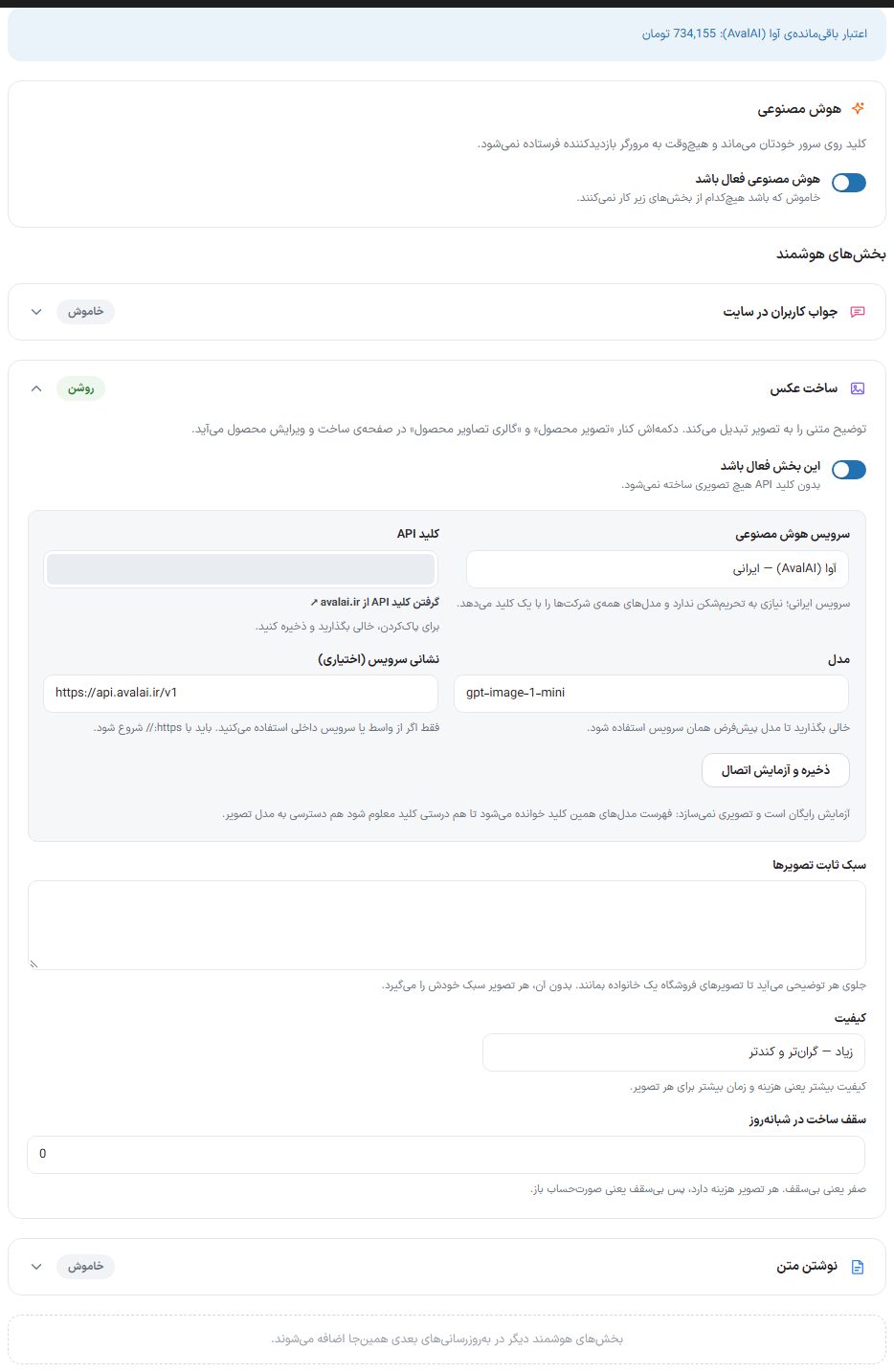
Turns a text description into an image. The "Generate with AI" button appears next to the product image and gallery on the product page, and next to most image fields in the panel and page builder (banners, slider, login page, and so on). The image is generated at the exact size of that slot, and you can also provide an existing image as a base.
| Option | What it does |
|---|---|
| Fixed image style | Added in front of every description so the store's images stay in one family. Without it, each image gets its own style. |
| Quality | "Low — cheap and fast", "Medium", or "High — more expensive and slower". |
| Generation cap per 24 hours | Zero means no cap. Every image costs money. |
Writing Text
Writes product descriptions, short descriptions, and articles. Its button appears above the description box on the product page and the post page.
| Option | What it does |
|---|---|
| Writing style | Here you say "how to write", not "what to write". You provide the topic of each text every time. |
| Default number of paragraphs | The initial number; it can be changed each time. |
| Daily text cap | Zero means no cap. |
Frequently Asked Questions
"Connection failed."
Check the key and the account credit. Foreign services may not be reachable from a server inside Iran; in that case choose AvalAI.
I see the message "Credit is running low".
When the credit runs out, the smart sections stop working. Top up the service account.