

Store tools
Four small tools, each with one specific job: an email for users who have only a number, a short random product address, counting each product's views, and scheduling the start and end of a sale.
Where is it? This page has no row in the Rafina Panel menu or the dashboard menu and opens only from its own address: wp-admin/admin.php?page=rafina-tools (put your own site address in front of it). Only the Administrator (manage_options capability) sees it.
Each tool has its own tab and its own “Save settings” button. “Domain email”, “Product views” and “Sale scheduling” are on from the start; “Random slug” does nothing until you turn it on.
Domain email
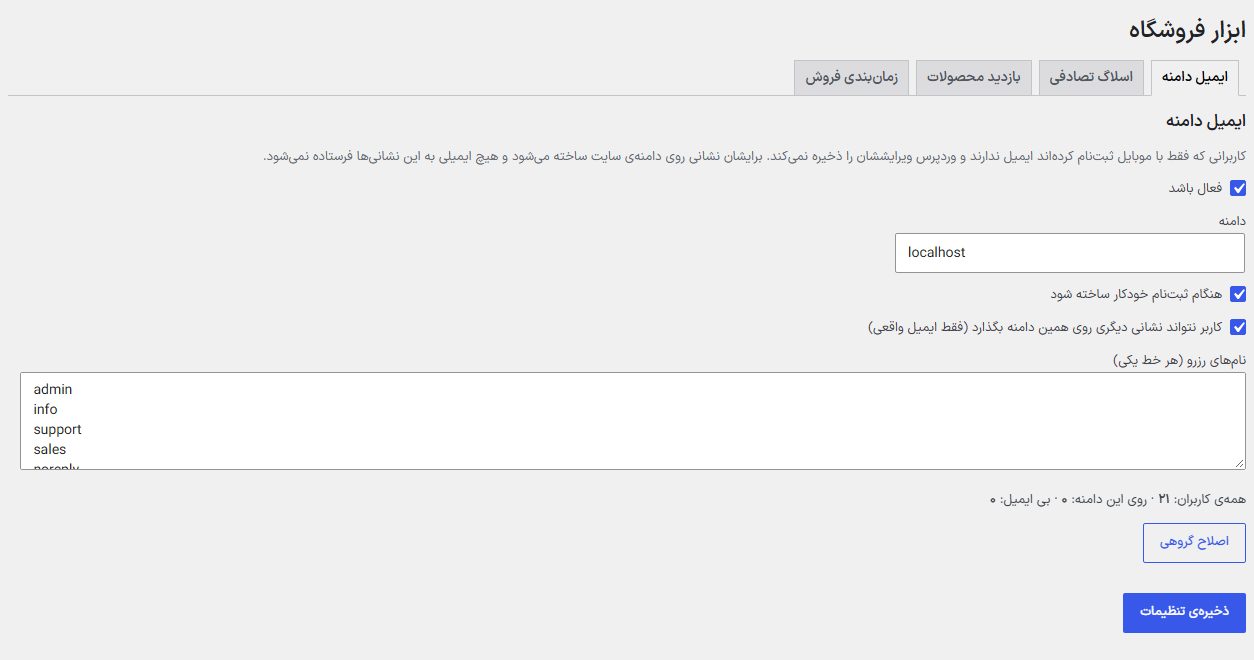
Users who signed up with a mobile number only have no email and WordPress doesn't save their edits; some plugins and gateways also give errors without an email. This tool creates an address on the site's domain for them, and no email is ever sent to these addresses.
| Option | What it does | Default |
|---|---|---|
| Enabled | This tool's master switch. | On |
| Scope | The domain that comes after @. | The site's own domain |
| Create automatically at sign-up | A new user with no email gets an address at the moment of sign-up. | On |
| The user can't set another address on this domain (real email only) | The user can't write another made-up address on this domain in their own account. | On |
| Reserved names (one per line) | Names that are never given to any user, such as admin, info, support, sales, noreply, no-reply, webmaster and postmaster. | These same eight names |
| Bulk fix | Under the count “All users · On this domain · Without email”; it gives existing users without email an address in batches (of fifty) and at the end says how many users were fixed. | — |
Random slug
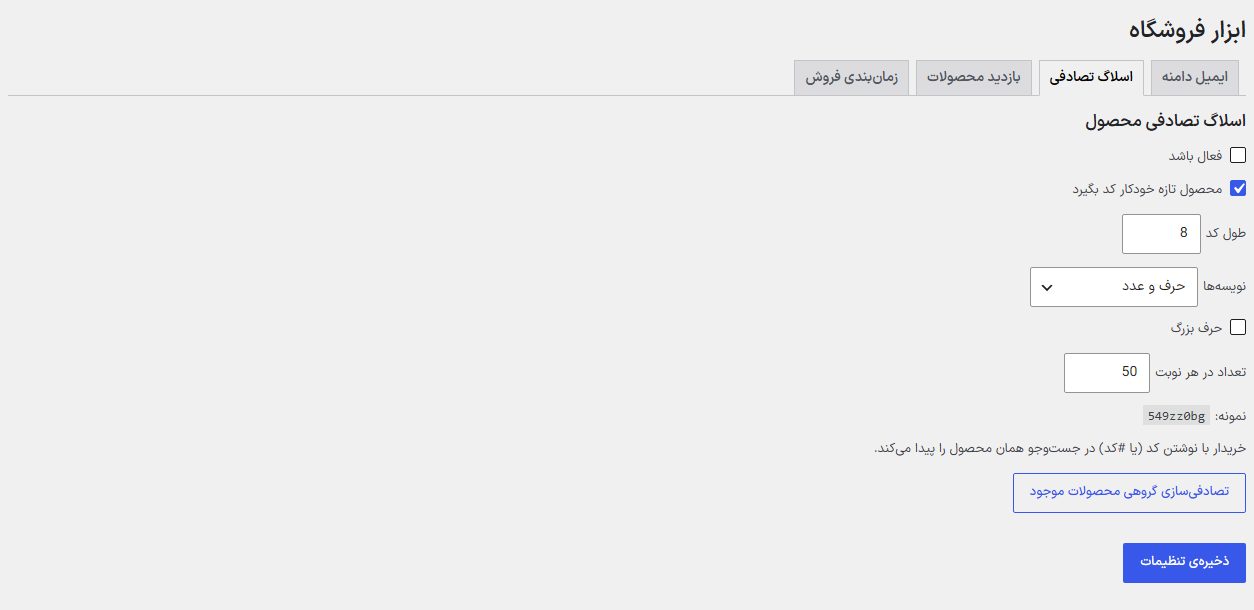
The product address (slug) becomes a short random code instead of a long Persian name. Each product's previous address is kept so old links reach the new page. A buyer finds the product by typing the code (or #code) in search.
| Option | What it does | Default |
|---|---|---|
| Enabled | This tool's master switch. | Off |
| New products get a code automatically | Every product created from now on gets a random slug. | On |
| Code length | From 4 to 32 characters. An “Example:” under the form shows the code's shape. | 8 |
| Characters | “Letters and digits”, “Letters only” or “Digits only (with an n prefix)”. | Letters and digits |
| Uppercase | Uppercase Latin letters may appear in the code too. | Off |
| Number per batch | For bulk randomizing, how many products per batch (5 to 200). | 50 |
| Bulk randomize existing products | Changes the address of all existing products, after a confirmation. Save the settings above before pressing it. | — |
Product views
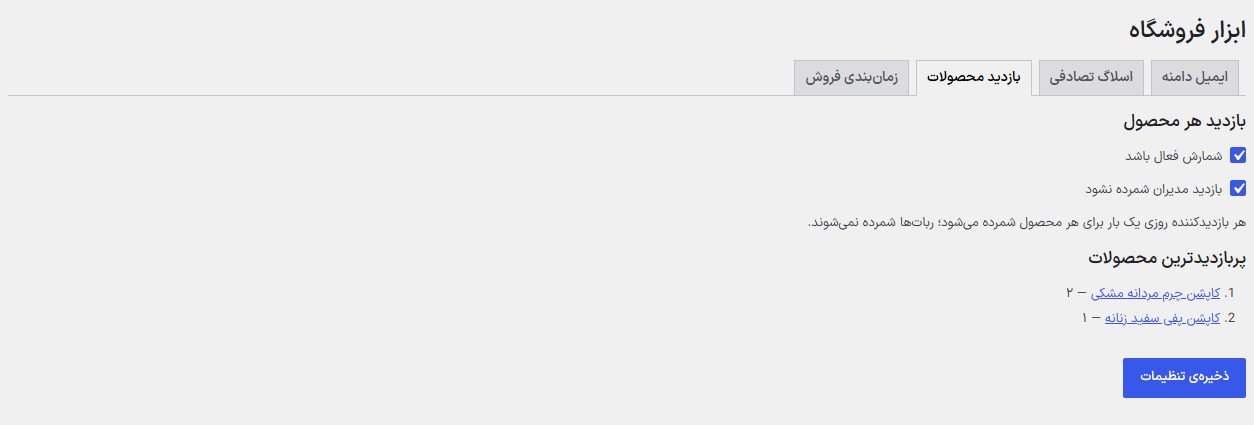
Each product's views are counted, and a “Views” column appears in the products list in the dashboard and you can sort by it. Each visitor is counted once a day per product; bots aren't counted. At the bottom of the tab a list of “Most viewed products” with each one's view count appears.
| Option | What it does | Default |
|---|---|---|
| Counting is active | The counting switch. | On |
| Don't count admin views | Views by anyone with store management access aren't counted. | On |
Sale scheduling
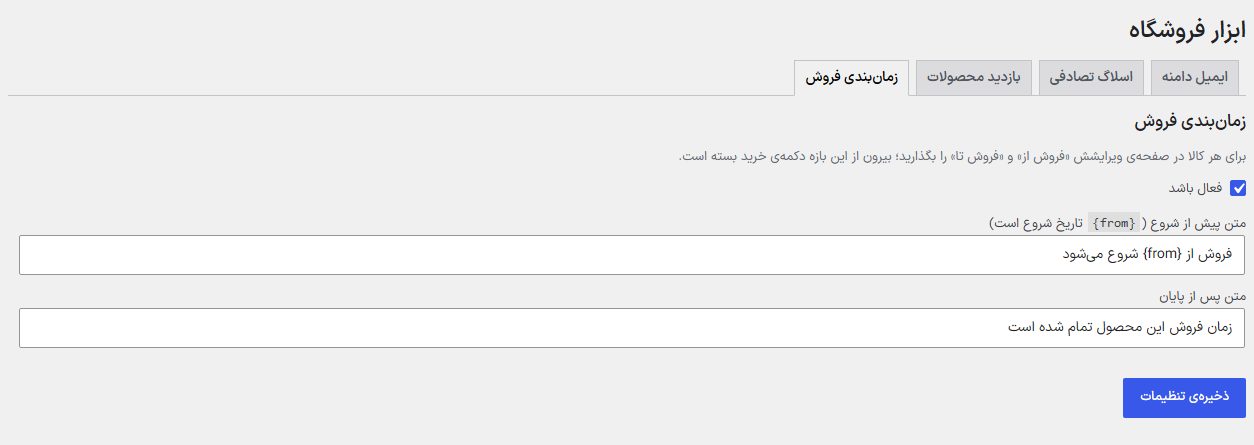
On each product's edit page set “Sale from” and “Sale until” (“General” tab, in Tehran time; Add and edit product). Outside this range the buy button is closed: before the start the product is visible but can't be added to the cart and the before-start text appears on the product page (all four layouts); after the end it can't be bought either.
| Option | What it does | Default |
|---|---|---|
| Enabled | Off means products' “Sale from” and “Sale until” are ignored. | On |
| Before-start text ({from} is the start date) | The sentence that appears on the product page before the sale starts. | Sale starts on {from} |
| After-end text | The sentence that appears after the sale ends. | This product's sale time has ended |
Frequently Asked Questions
The add to cart button is on before the sale starts
The button is visible but the server doesn't treat the product as purchasable and doesn't add it to the cart; the start-time sentence is also above the button.