

Guides / Site content / Smart support
Smart support
A round button in the corner of every page of the site that opens a chat window when tapped. Besides chat, it can also show a column of social networks and the store's contact number. Here you set the look and texts of the button and window.
Where is it? Rafina Panel → Site content → Smart support
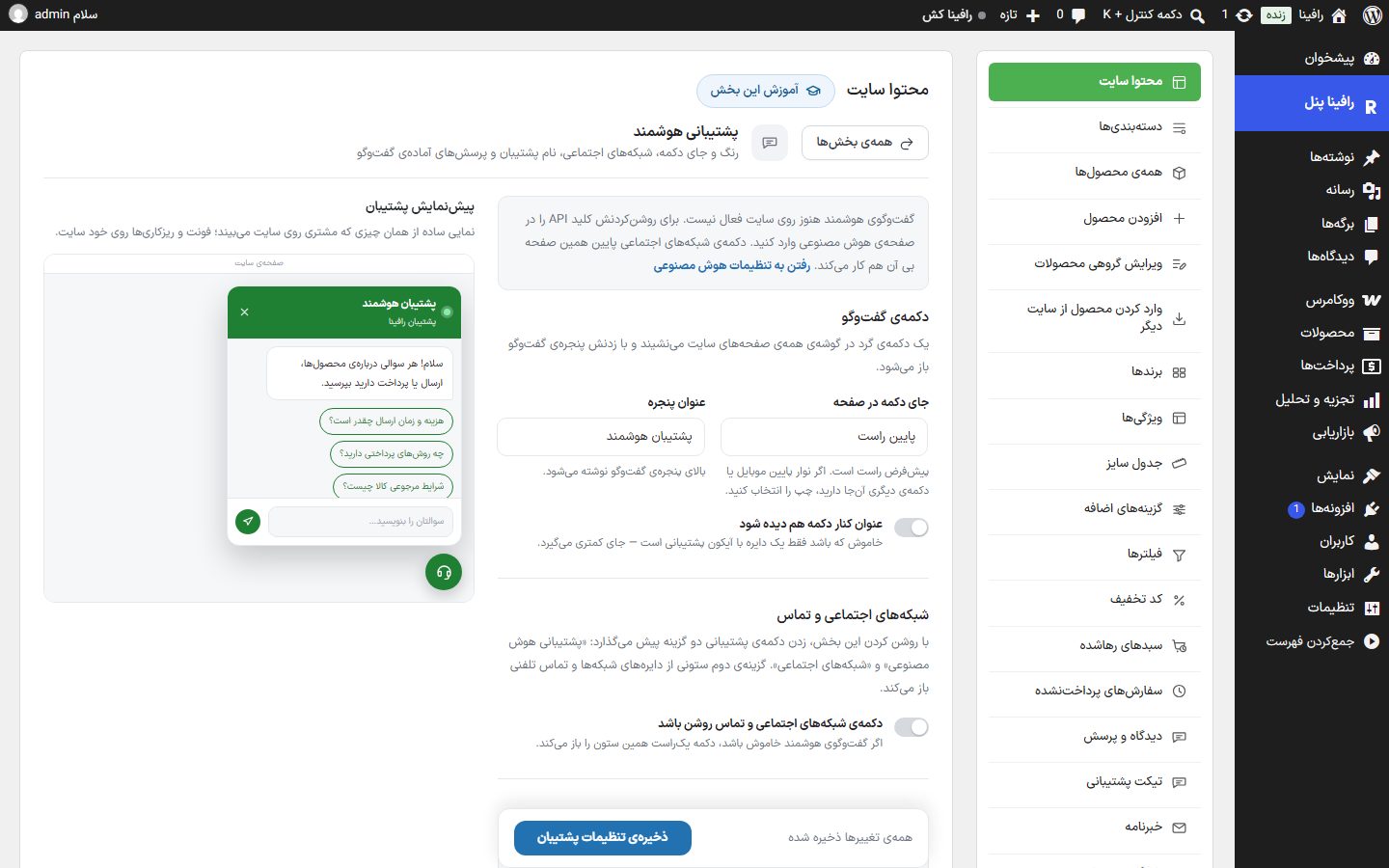
NoteAutomatic answering of questions needs an AI service, whose key and settings are in the Artificial Intelligence section. Until it is set up, a message at the top of this tab says so; the social networks button works without it.
Chat button
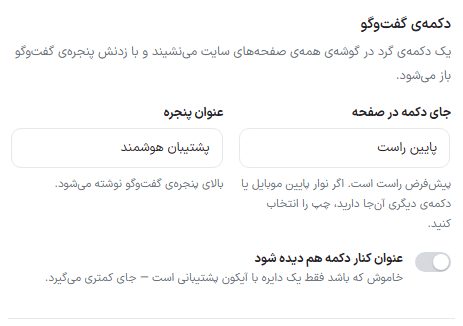
| Option | What it does | Default |
|---|---|---|
| Button position on the page | Bottom right or bottom left. If you have a mobile bottom bar or another button there, choose left. | Bottom right |
| Window title | Written at the top of the chat window. | Smart assistant |
| Also show the title beside the button | When off, it is just a circle with a support icon and takes less space. | Off |
Social networks and contact
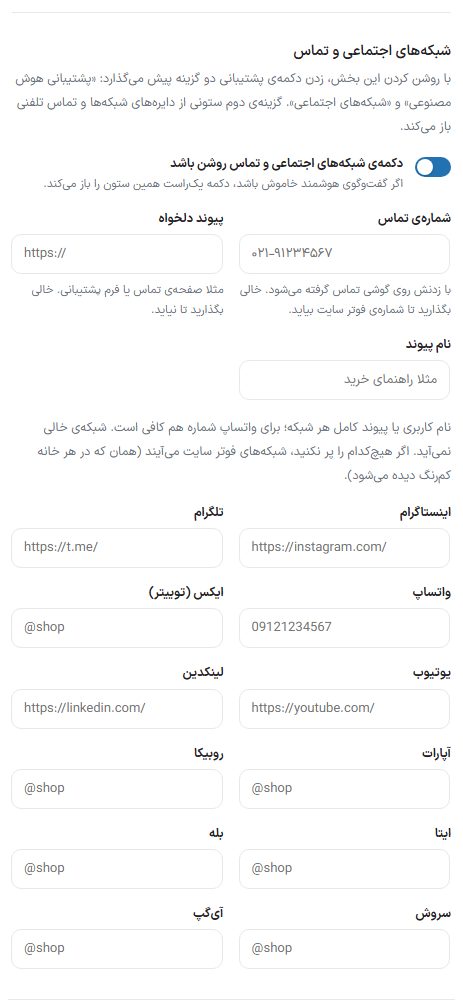
Turning this section on makes the support button offer two options: "AI support" and "Social networks". The second option opens a column of network circles and a phone call. If smart chat is off, the button opens this column directly.
| Option | What it does | Default |
|---|---|---|
| Social networks and contact button on | The switch for the whole section. | Off |
| Contact number | Tapping it dials the number on a phone. Leave empty to use the site footer number. | Empty |
| Custom link / Link name | For example a contact page or a support form, with a name like "Buying guide". Leave empty to hide it. | Empty |
| Each network's box | The username or full link of each network; for WhatsApp a number is enough. An empty network is not shown. If you fill none of them, the site's Footer networks appear (the ones shown faded in each field). | Empty |
Colors, assistant, and texts
| Option | What it does | Default |
|---|---|---|
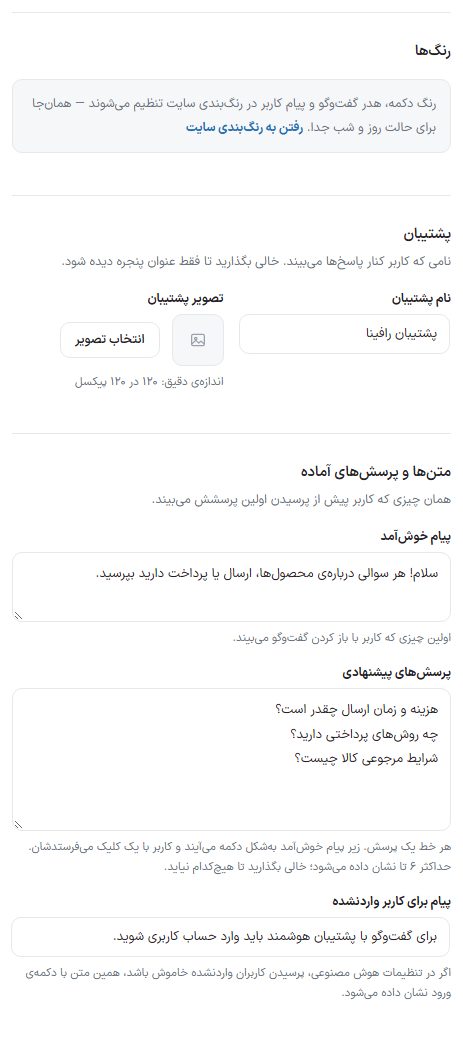
| Colors | The button, chat header, and user message colors are set in Site color scheme ; separately for day and night mode there. | — |
| Assistant name | The name the user sees beside answers. Leave empty to show only the window title. | "Assistant" and the site name |
| Assistant image | The small photo beside answers. Exact size: 120 by 120 pixels. | — |
| Welcome message | The first thing the user sees on opening the chat. | Hello! Ask any question about products, shipping, or payment. |
| Suggested questions | One question per line. They appear as buttons under the welcome message and the user sends them with one click. At most 6 are shown; leave empty to show none. | Three questions about shipping, payment method, and returns |
| Message for logged-out users | If, in the AI settings, asking by logged-out users is off, this text is shown with a login button. | To chat with the smart assistant you need to log in to your account. |
Frequently Asked Questions
The button sits on the mobile bottom bar
Move "Button position on the page" to the other side.