

Categories
Create store categories and subcategories, add an image and description to each, change their order, and use the "Header menu" tab to choose which categories appear in the header category menu.
Where is it? Rafina Panel → Categories
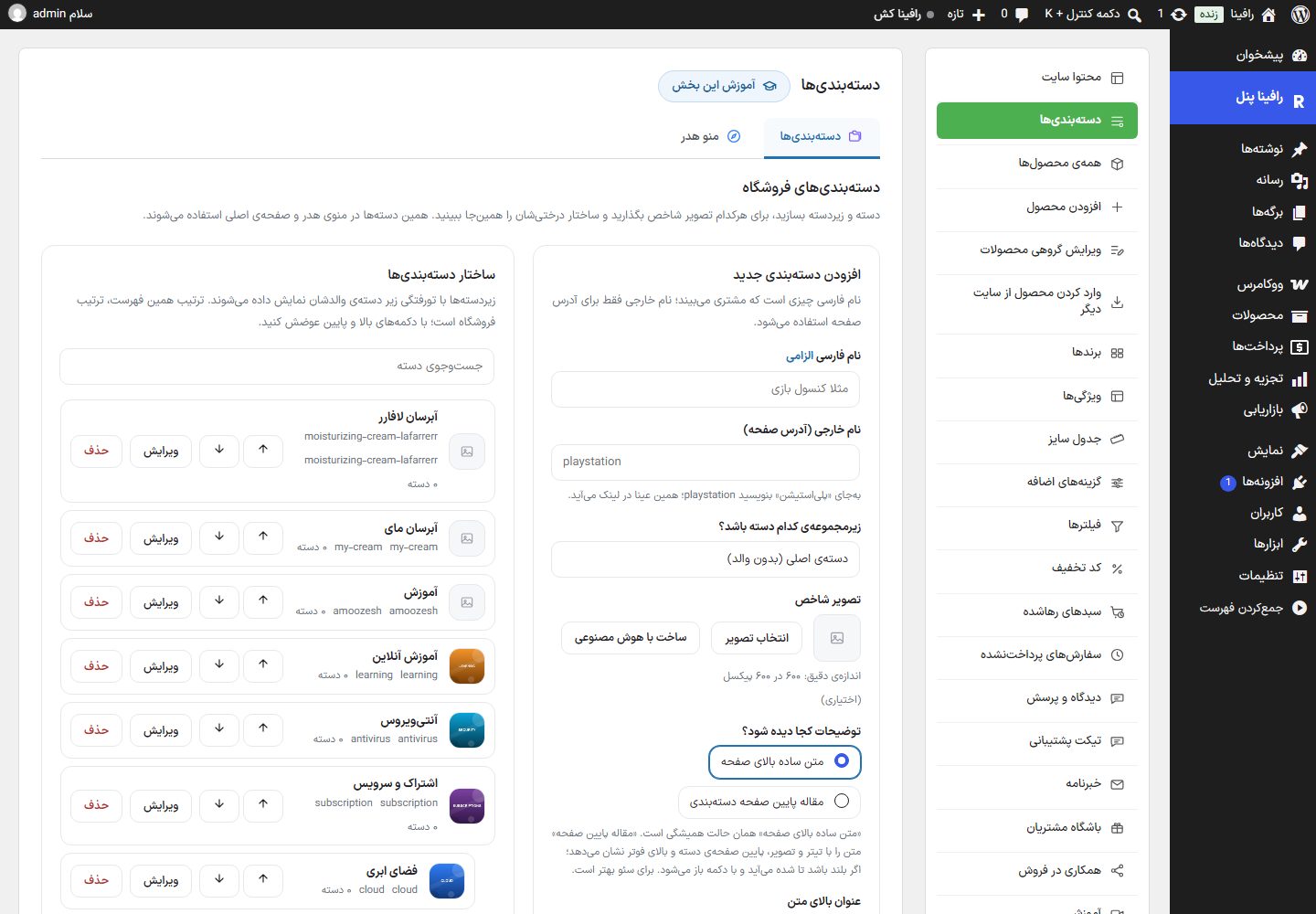
This page has two tabs: Categories and Header menu.
"Categories" tab
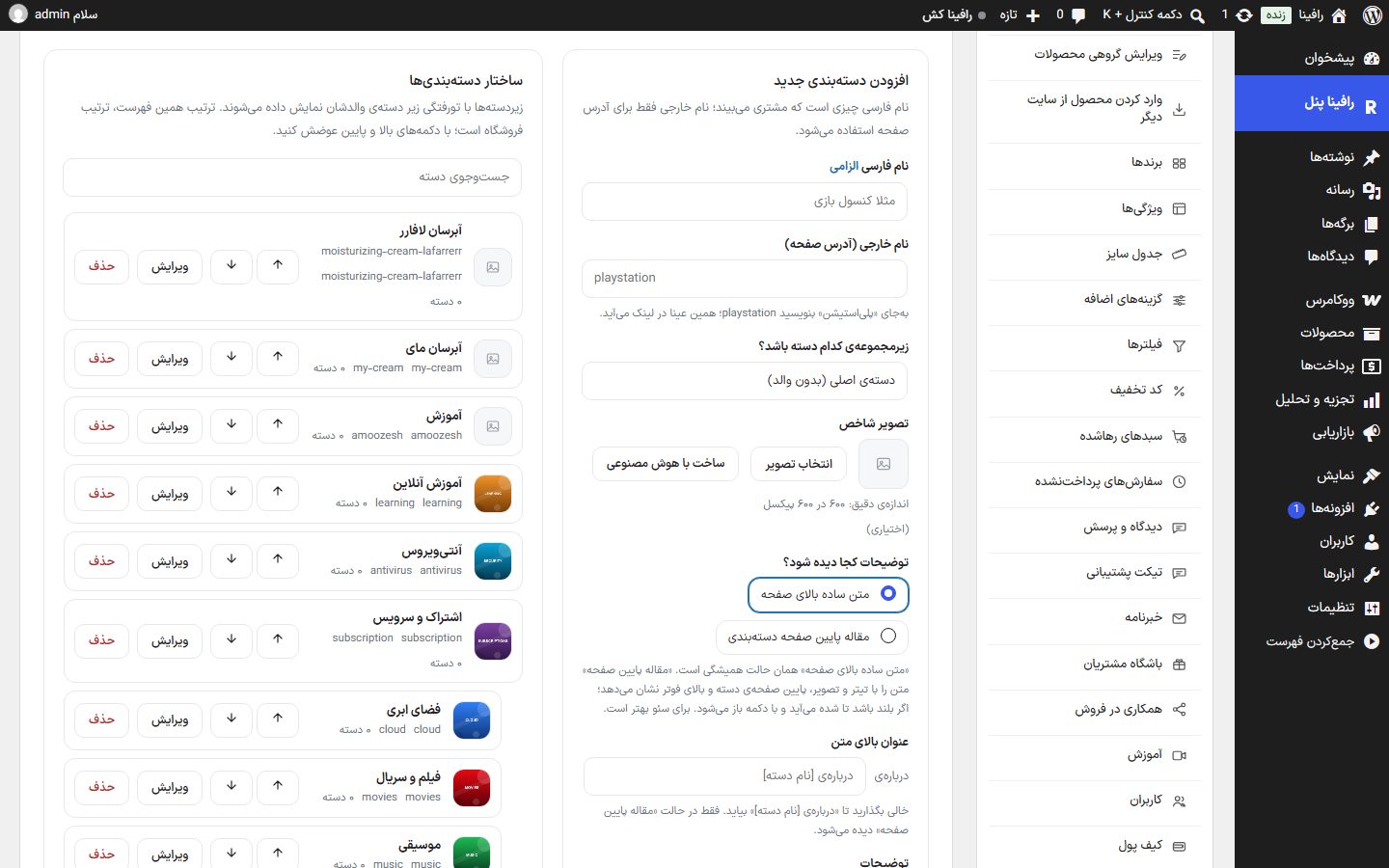
Add and edit category form
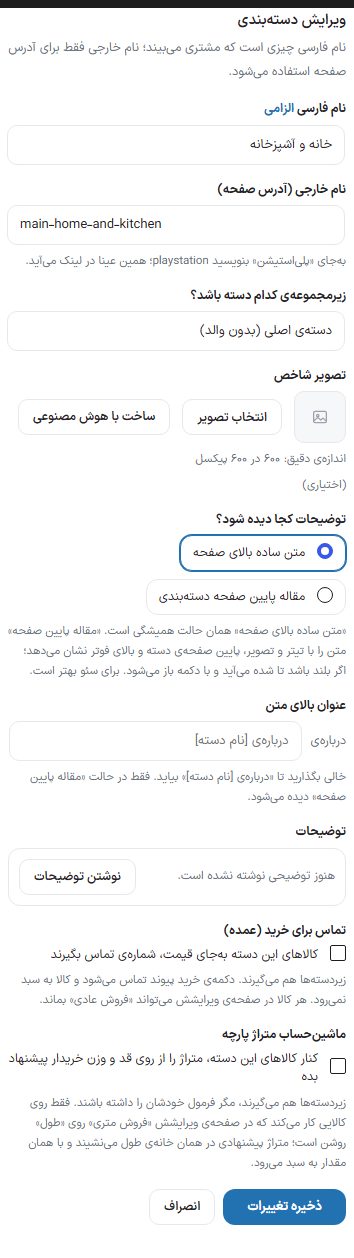
The Persian name is what the customer sees; the Latin name is used only for the page address. Clicking "Edit" on any category fills this same form with that category's values, titled "Edit category".
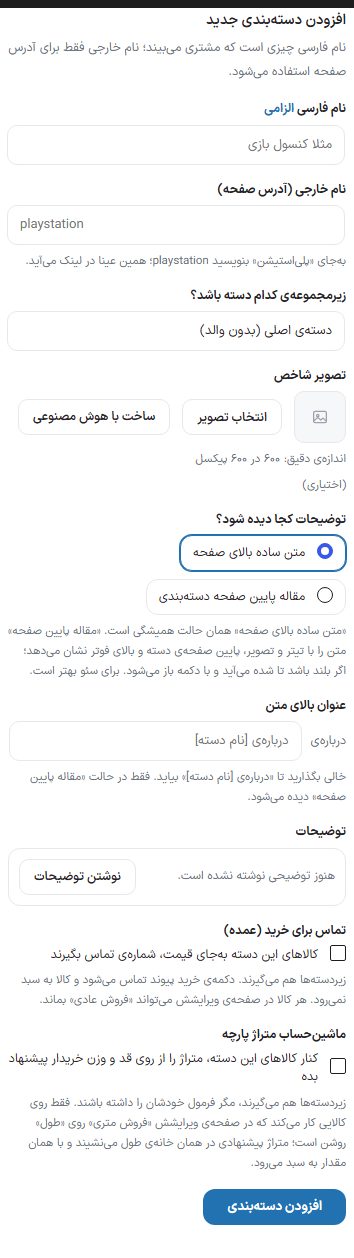
| Option | What it does | Default |
|---|---|---|
| Persian name (required) | The category name on the site, for example "Game console". | — |
| Latin name (page address) | Appears exactly in the page address; instead of "پلیاستیشن" write playstation. | Created from the name |
| Which category should it be under? | The parent category. The list shows subcategories indented. | Main category (no parent) |
| Featured image | "Choose image" from the media library or "Generate with AI". Exact size: 600 by 600 pixels. This image is shown in the category tiles on the home page and at the top of the category page. "Change image" and "Remove image" appear after choosing. | Optional |
| Where should the description appear? | "Plain text at top of page" (the default mode) or "Article below the category page", which shows the text with headings and images at the bottom of the category page above the footer; long text is shown collapsed and opens with a button. Better for visibility on Google. | Plain text at top of page |
| Heading above the text | Only in "Article below the page" mode. | Empty = "About [category name]" |
| Description / Write description | The "Write description" button opens the full WordPress editor in the "Edit category description" dialog (with the media library). It is best to use Heading 2 and Heading 3 inside the text. Line breaks and paragraphs stay on the site as you wrote them, even if you pasted the text from elsewhere. "Confirm" puts the text in the form; saving is with the button at the bottom of the form. | Empty |
| Call for purchase (wholesale) | Check "Products in this category show a contact number instead of a price". Subcategories inherit it; the buy button becomes a contact link and the product cannot be added to the cart. Any product can stay "Normal sale" on its own edit page. | Off |
| Contact number | Only with the checkbox above. | Empty = the site footer number |
| Button text | Only with the checkbox above. | Call for purchase |
| Button link | Only with the checkbox above; for example a WhatsApp address. | Empty = dials that number |
| Hide number | The number is not shown on the site; only "Contact us" appears, and tapping it dials the number. | Off |
The button at the bottom of the form is "Add category" in add mode and "Save changes" in edit mode; "Cancel" returns the form to add mode.
Fabric yardage calculator
For fabric stores: the buyer enters their height and weight on the product page, and the yardage needed to sew a garment is suggested. The formula is set separately for each category, at the bottom of that category's form.
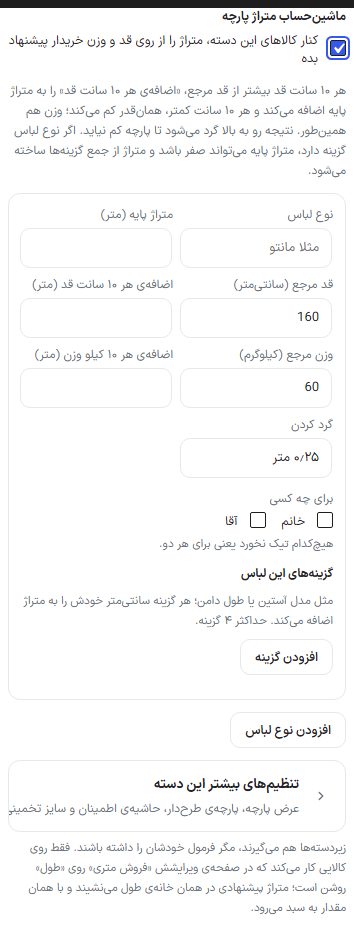
A sentence at the top of the form summarizes the rule: for every 10 cm of height above the reference height, "Extra per 10 cm of height" is added to the base yardage, and every 10 cm below subtracts the same amount; weight works the same way. If the garment type has options, the base yardage can be zero and the yardage is built from the sum of the options.
| Option | What it does | Default |
|---|---|---|
| Next to products in this category, suggest yardage from the buyer's height and weight | The switch for this section. Turning it off removes this category's formula. | Off |
| Garment type | For example "Manteau" or "Trousers". With more than one type, the buyer chooses the garment type from buttons. Up to eight types. | — |
| Base yardage (meters) | The fabric needed for someone with the reference height and weight. It can be zero when there are garment options. | — |
| Reference height (cm) and reference weight (kg) | The height and weight the base yardage is for. | 160 and 60 |
| Extra per 10 cm of height (meters) | Adds this amount for every 10 cm taller than the reference height, and subtracts the same for every 10 cm shorter. | — |
| Extra per 10 kg of weight (meters) | The same rule for weight. | — |
| Rounding | Yardage rounding step: 0.1, 0.25, 0.5, or 1 meter. The result is always rounded up so the fabric never falls short. | 0.25 meters |
| Who it is for | The "Women" and "Men" checkboxes. If neither is checked, it applies to both. If both are on, the buyer picks one and the estimated size is read from that choice's table. | Both |
| Options for this garment | Like sleeve style or skirt length; each option adds its own centimeters to the yardage. Up to 4 options. Each option has an "Option title" and a "Type": Selectable (several rows of "Title" and "Extra (cm)" with "Add choice") or Custom length ("Minimum (cm)", "Maximum (cm)", and "Preset lengths (cm)", for example 90, 100, 110). "Remove this option" deletes the option. | No options |
| Add garment type / Remove | Creates a new row or removes the row. | — |
Below the form, an example such as "Example: height 170 and weight 70 → 3 meters" is shown, using the same formula that is calculated on the site. Subcategories take the formula of the category above unless they have their own.
More settings for this category
Clicking "More settings for this category" (fabric width, patterned fabric, safety margin, and estimated size) opens this section. These apply to all garment types of that category.

| Option | What it does | Default |
|---|---|---|
| Fabric widths | If fabrics in this category come in different widths, give each "Width (cm)" a "Yardage factor"; wider fabric needs less yardage (for example 0.8). Empty means width is not asked. Up to 4 widths, with "Add width". | Empty |
| Extra for patterned fabric (percent) | If the buyer says the fabric is patterned, this percentage is added to the yardage. Zero means the buyer is not asked. | 0 |
| Safety margin type | "Centimeters" or "Percent". | Centimeters |
| Safety margin | Added to all yardages. Zero means no margin. | 0 |
| Chest or hip circumference question (cm) | If you enter a number, it asks the buyer whether their chest or hip circumference is above it; if they check yes, yardage is not calculated and a call for consultation is offered. Zero means it is not asked. | 0 |
| Also show an estimated size from height and weight | Has no effect on yardage; only a suggested size is shown to the buyer and recorded in the cart. Turning it on opens the "Women's size table" and "Men's size table": each pair is "BMI ceiling:size", pairs are separated by commas, from small to large; 999 means anything above the previous pair. | Off |
Category structure
Subcategories appear indented under their parent category. Each row has an image, name, Latin name, and product count (the panel shows this number with the label "category", for example "0 categories", but it is the product count of that category), with these buttons:
- ↑ and ↓: Move the category one step among its siblings. This list's order is the store's order: archive, header menu, footer, and app all follow it. These buttons are off while searching.
- Edit: Fills the side form with this category's values.
- Delete: Deletes the category after asking. The category's subcategories are deleted too. The products themselves are not deleted.
The "Search categories" box above the list finds a category by name.
"Header menu" tab
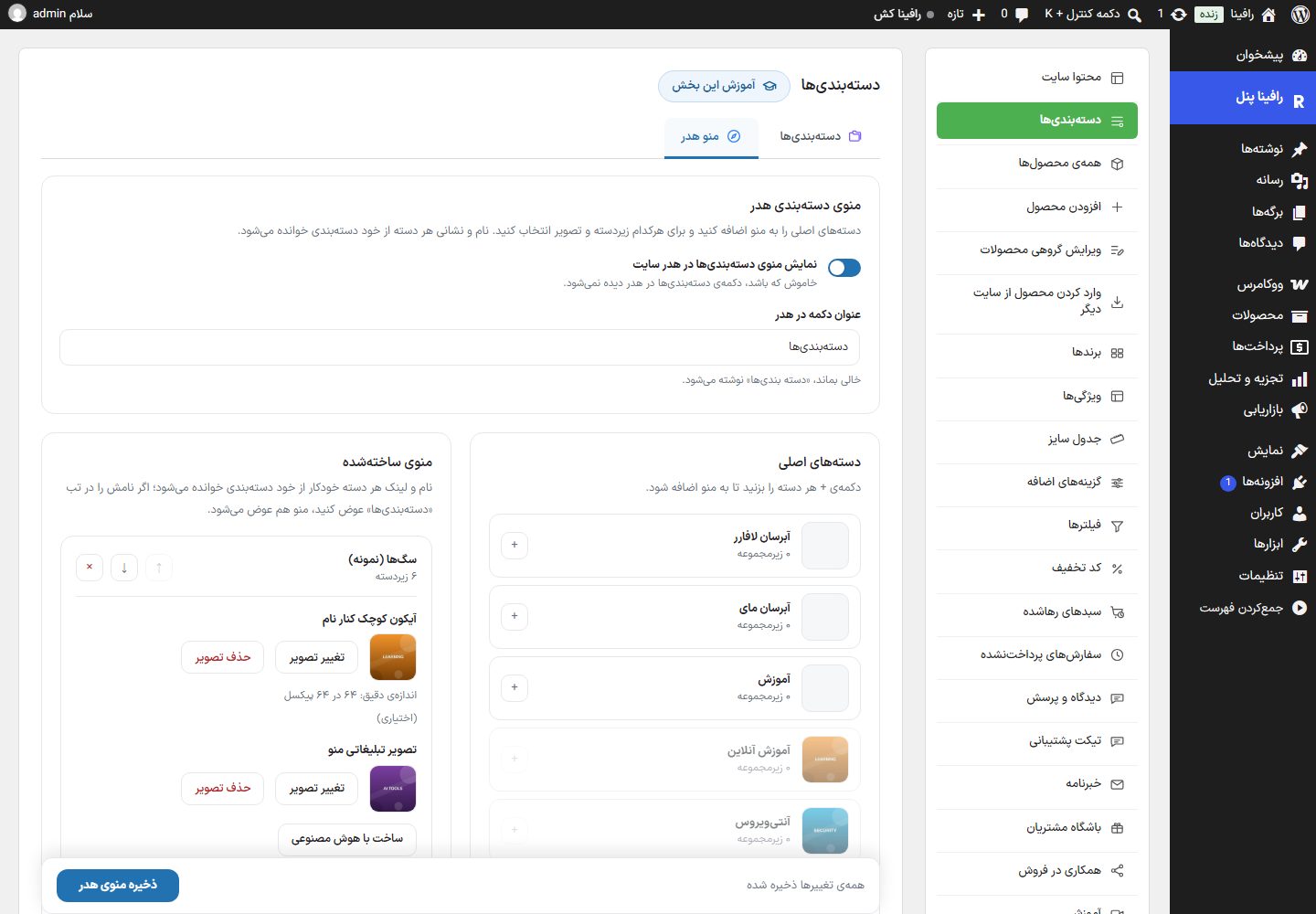
Add main categories to the header category menu and choose subcategories and an image for each. Each category's name and address are read from the category itself; if you rename it in the "Categories" tab, the menu changes too.
| Option | What it does | Default |
|---|---|---|
| Show the categories menu in the site header | When off, the categories button is not shown in the header. | On |
| Button title in header | The menu button's text. | Empty = "Categories" |
| Main categories | The list of parentless categories with their subcategory count. The + button adds each category to the menu. | — |
| Built menu | The menu's categories in display order; ↑ and ↓ move them and × removes one from the menu. | — |
| Small icon next to the name | Exact size: 64 by 64 pixels. | Optional |
| Menu promo image | Exact size: 1360 by 400 pixels (a wide banner under the subcategories), with "Generate with AI". On desktop it appears at the bottom of the menu panel at the same ratio, up to 360 pixels wide (the sentence "300 by 400 box" under this field in the old panel is outdated), and does not appear on mobile. Clicking the image opens that category's page. | Optional |
| Subcategories of "…" | Check each one to include it under this category in the menu. If none is checked, all subcategories are included. | All |
| Done, next | Closes this category's card and opens the next card. | — |
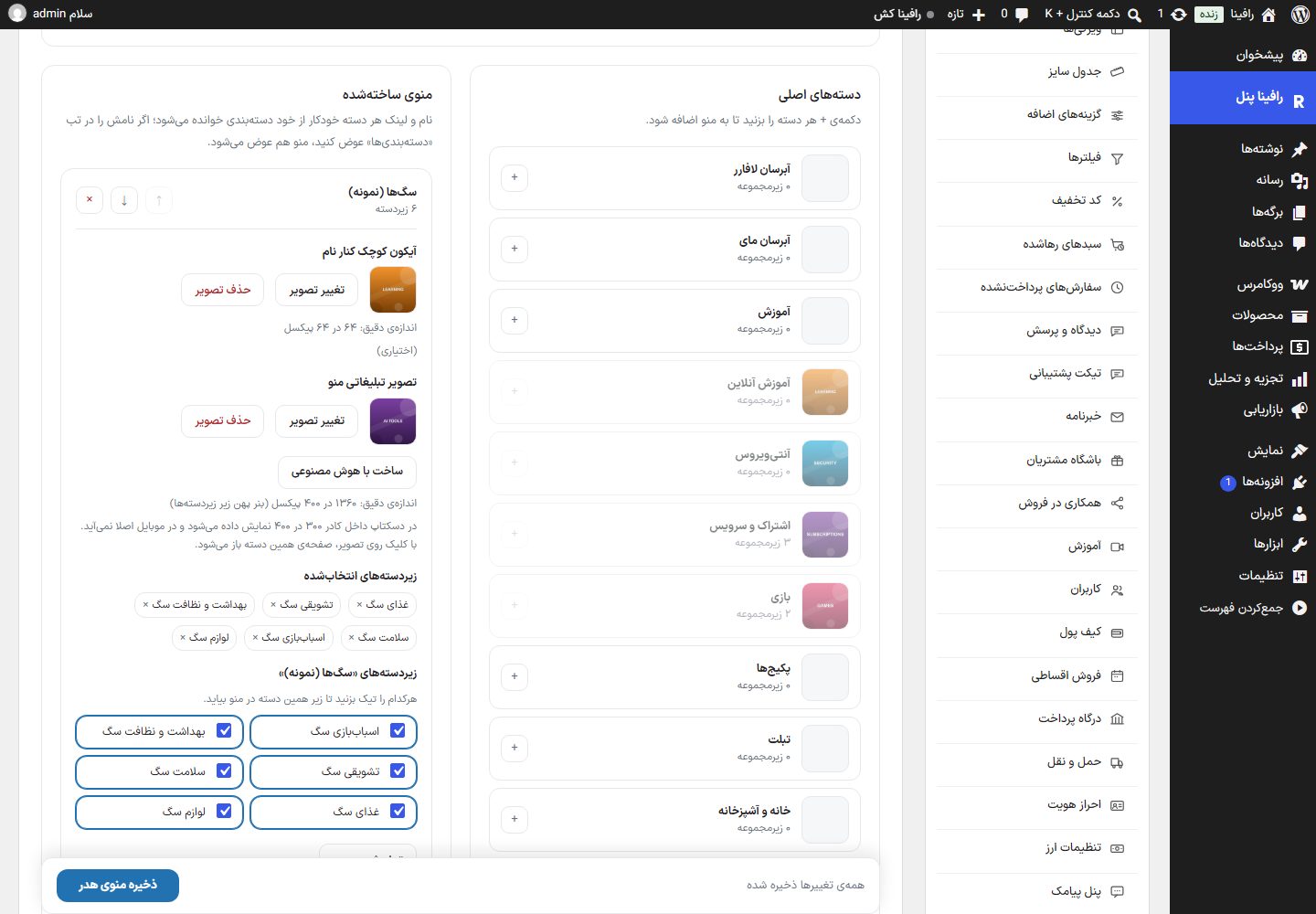
Changes in this tab are saved with "Save header menu" in the bar at the bottom of the page; until you save, the bar says so.
Creating a category with a subcategory and placing it in the menu
- In the "Categories" tab, enter the Persian name and Latin name, set the 600 by 600 image, and click "Add category".
- Do the same for the subcategory, and in "Which category should it be under?" choose the parent category.
- Use ↑ and ↓ to place the category in the right spot in the list.
- Go to the "Header menu" tab, click the + next to the category, check the subcategories, and click "Save header menu".
FAQ and troubleshooting
I wrote the category description with headings and a list, and it became one block of text on the site.
Write the description from this page's "Write description". If you write from WooCommerce's own categories page, the theme keeps its HTML separate; but text saved there before the new version was installed has lost its tags and must be pasted once more.
I entered the Latin name in Persian and the page address came out strange.
The Latin name appears exactly in the address; write it in Latin letters.
The category order did not change on the site.
Order with ↑ and ↓ is saved immediately. If you have page caching, clear the cache (cache).