

Updating the Theme
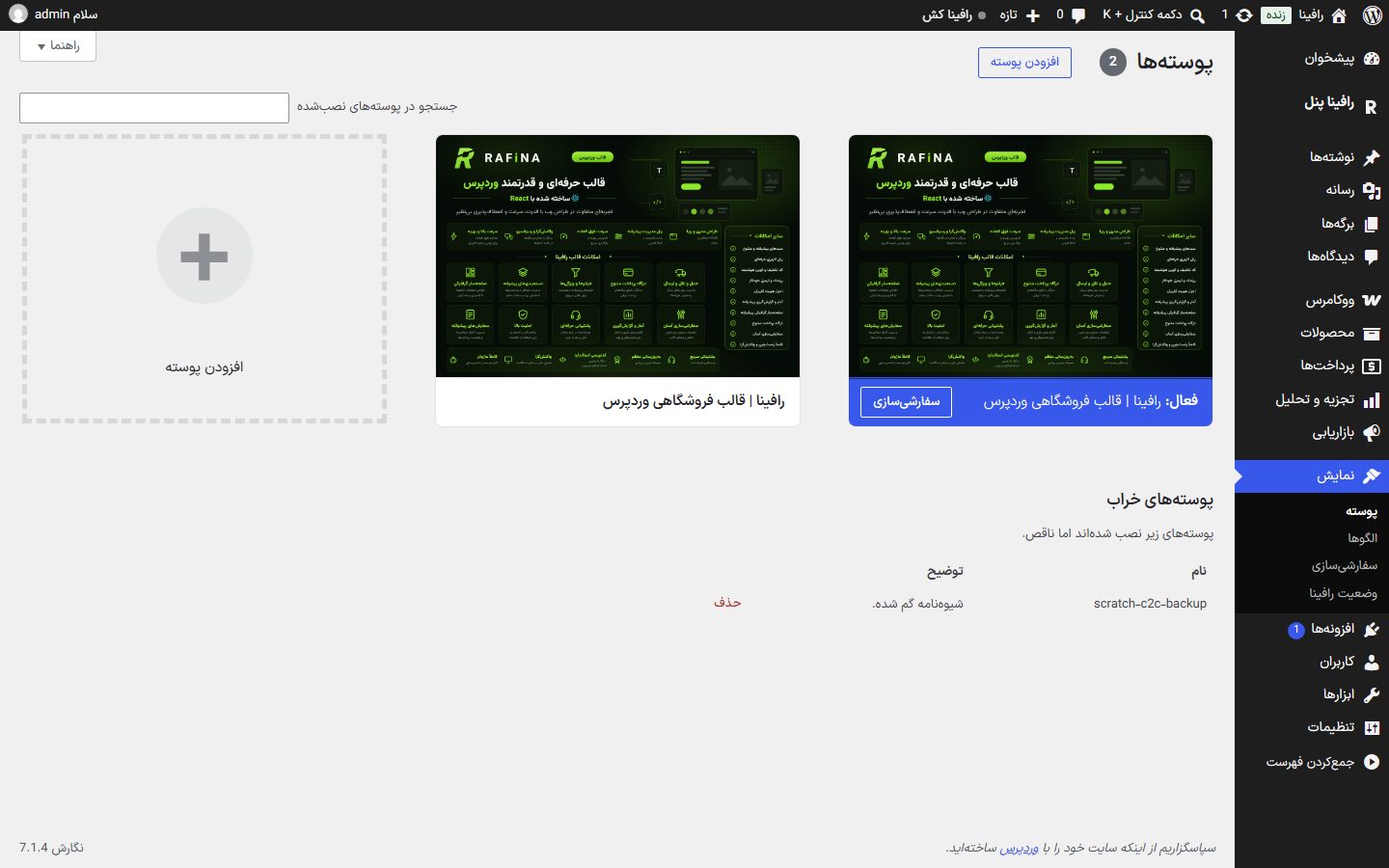
You install the new theme version over the current one from the WordPress dashboard itself, “Appearance ← Themes” section. Settings, products, orders and the pages you built with the page builder are in the database and aren't touched by the update.
Where is it? WordPress dashboard → Appearance → Theme
Before you start
- Download the new version's zip file from where you bought the theme. Don't extract the zip; WordPress wants the zip itself.
- Take a full backup (files and database) from the host panel. Updates are usually painless, but a backup is the only painless way back.
- If you manually changed anything in the theme's own files, the update erases it. Put custom code in Settings ← Custom Code so it stays.
Update steps
- In the WordPress dashboard go to “Appearance ← Themes” and press “Add Theme” at the top of the page.
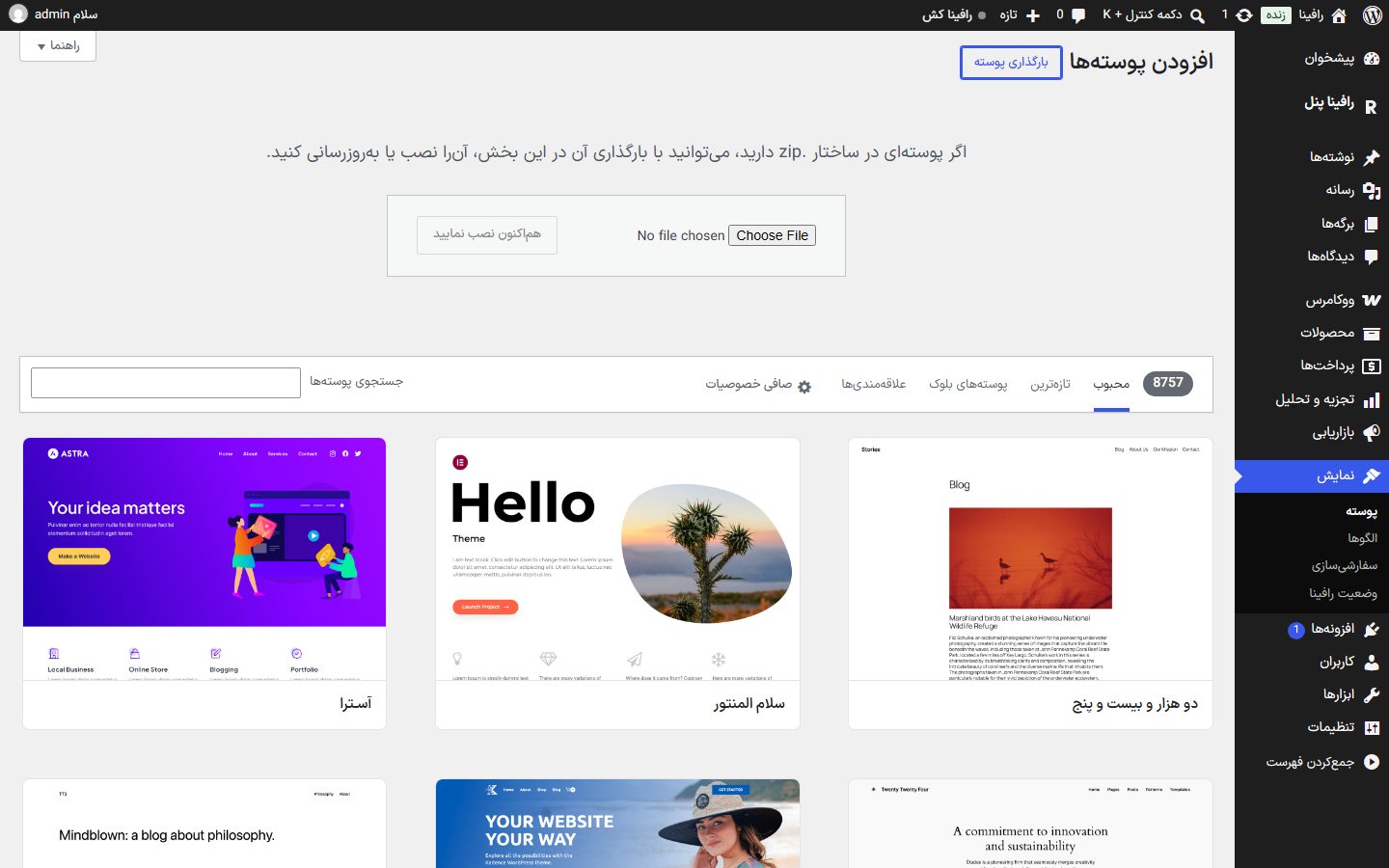
- On the next page press “Upload Theme” at the top. The file chooser opens.
- With “Choose File” select that new-version zip and press “Install Now”.
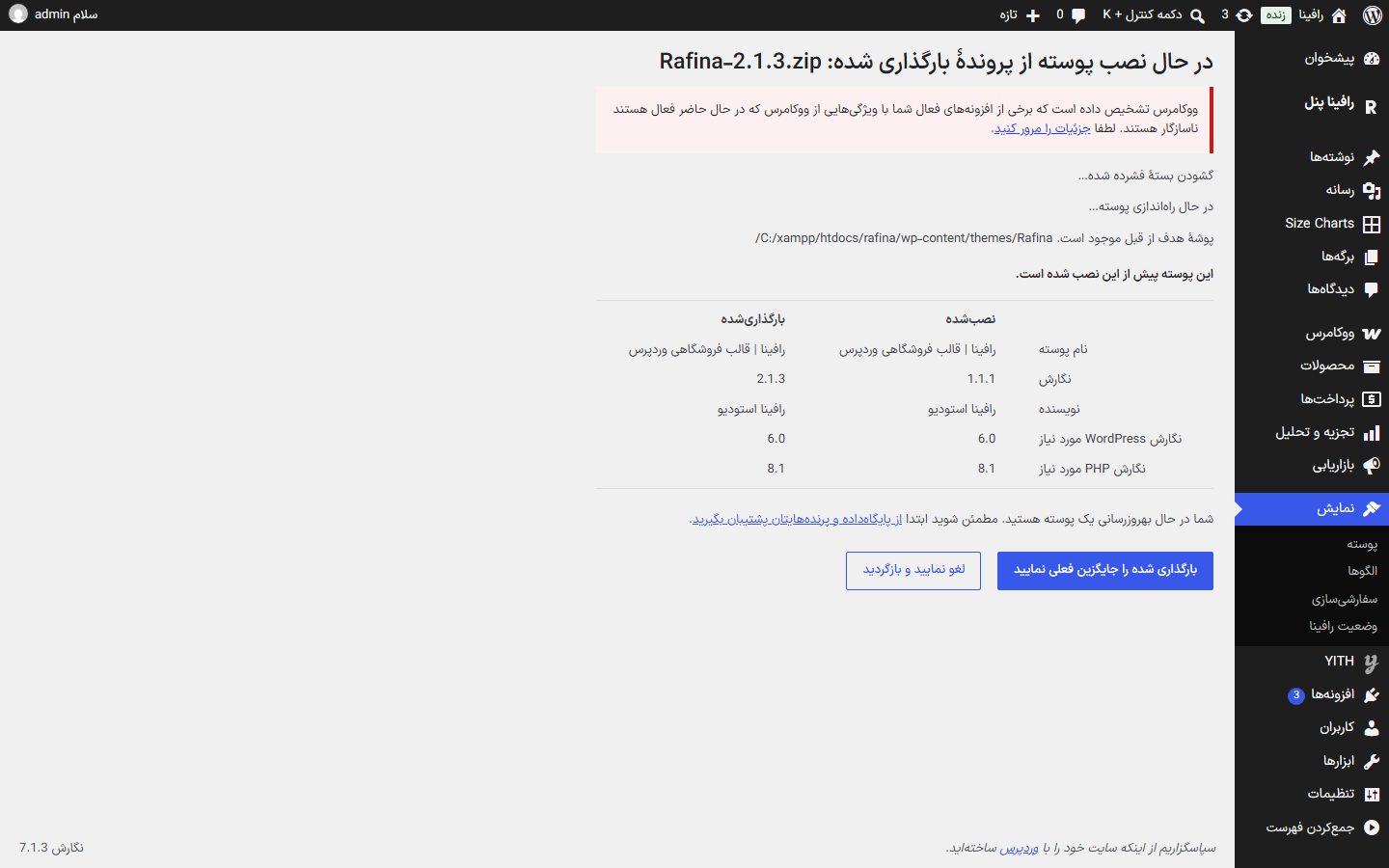
- WordPress says “This theme is already installed” and shows a table placing the installed and uploaded versions side by side. The “Uploaded” column must be the new version.
- Press “Replace current with uploaded” and wait for the completion message. Don't close the page midway.
- Clear the cache (below, “After the update”).
After updating
- In Settings ← Cache Press “Clear the entire theme cache”. If you have a cache plugin or host cache, clear that too.
- Open the site once with Ctrl+F5 (on a phone: close and reopen the browser) so old files leave the browser's memory.
- Visit “Appearance ← Rafina Status”. The theme runs the new version's required steps itself on the first dashboard open; if a step failed, press “Run all install steps again”.
- See the version in “Appearance ← Themes” by clicking the theme itself.
FAQ and troubleshooting
The message “The link you followed has expired” or “The file exceeds the maximum upload size” appears.
The host's upload limit is lower than the theme zip's size. Ask host support to raise upload_max_filesize and post_max_size to at least 64 MB. The second way, from the host's file manager: upload the zip into the folder wp-content/themes and extract it there so the theme folder is replaced.
After the update the site looks broken or old.
Almost always it's cache: theme cache, a cache plugin, host cache or the browser's memory. Clear all four as in “After the update”.
White screen or critical error after the update.
Most often the upload was incomplete (internet dropped or size limit). Replace with the same zip once more by this same route. If the dashboard won't open, replace the theme folder with the zip's contents from the host's file manager, or restore the backup.
Should I deactivate or delete the theme before updating?
No. It's not necessary, and changing the active theme moves the settings WordPress ties to the theme (such as menu and widget placement). Just replace.