

Bulk Product Editing
All products and their variations in one table. Change price, stock, and dozens of other fields right in the table cell, or select several products and apply one change to all of them at once.
Where is it? Rafina Panel → Bulk Product Editing
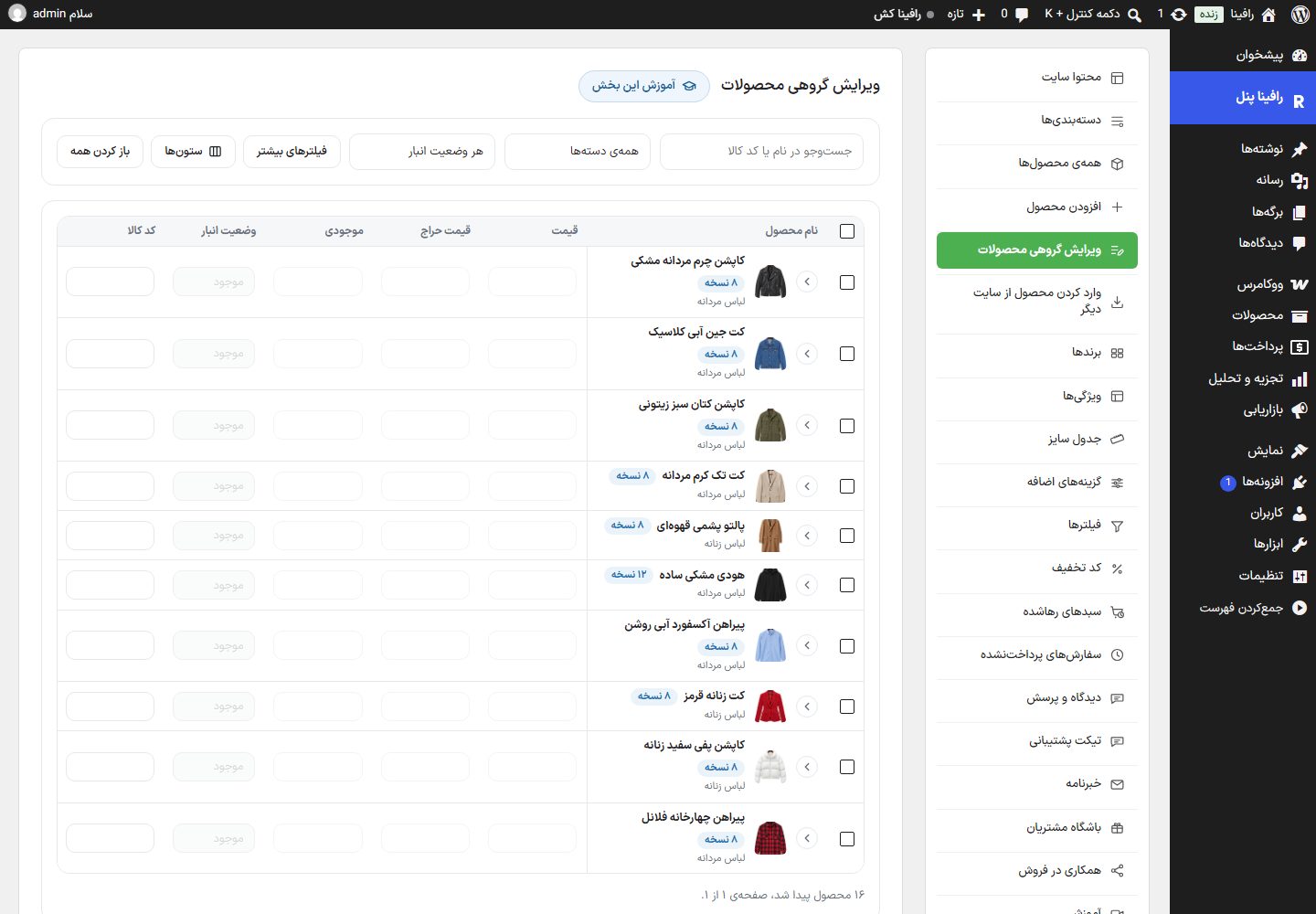
Bar above the table
| Option | What it does |
|---|---|
| Search by name or product code | Narrows the table to products whose name or product code matches. |
| All categories | One category only. |
| Any stock status | In stock, out of stock or backorder. |
| More filters | Opens a box with: title or product code, category, brand, attribute and attribute value (choose the attribute first), price from / price to, publish status (published, draft, private), items per page, "Only discounted", and "Only gold products (by weight)". Hold Ctrl for multiple selection. "Clear" removes them all. Each active filter gets a tag with × above the table. |
| Columns | You choose the table columns (below). The image and name are always visible. "Reset to default" restores the first six columns. Your choice is remembered in this browser. |
| Open all / Close all | Opens or collapses the variations of all variable products together. |
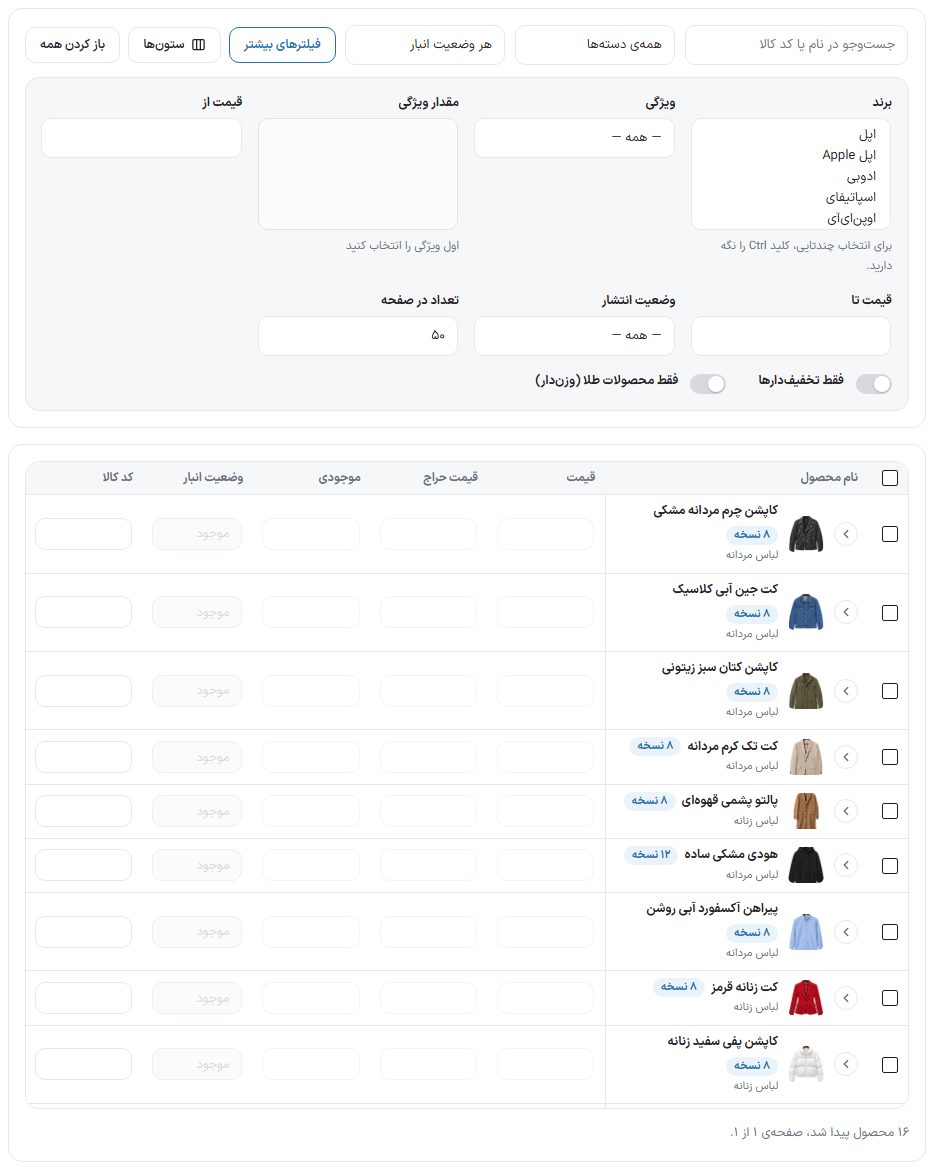
Row order is the same as the "All products" list: products with an "Order" number come first in that number's order, the rest from newest.
The table and in-place editing
Each row is a product. A variable product has an "N variations" badge and an arrow next to its name; clicking it opens its variations below, and each variation shows its attributes instead of the parent name (like "Color: Blue · Subscription period: Three months"). A cell that belongs to the main product is locked on variation rows and tells you to change it on the product's own row.
Change each cell directly; the "Save N table changes" button in the selection bar saves all table changes together. The price of a product with "Price lock" is shown locked, and the price of a product built from the daily rate cannot be changed manually (fill its "Discount (%)" column for a discount). The link next to each row opens that product's edit page.
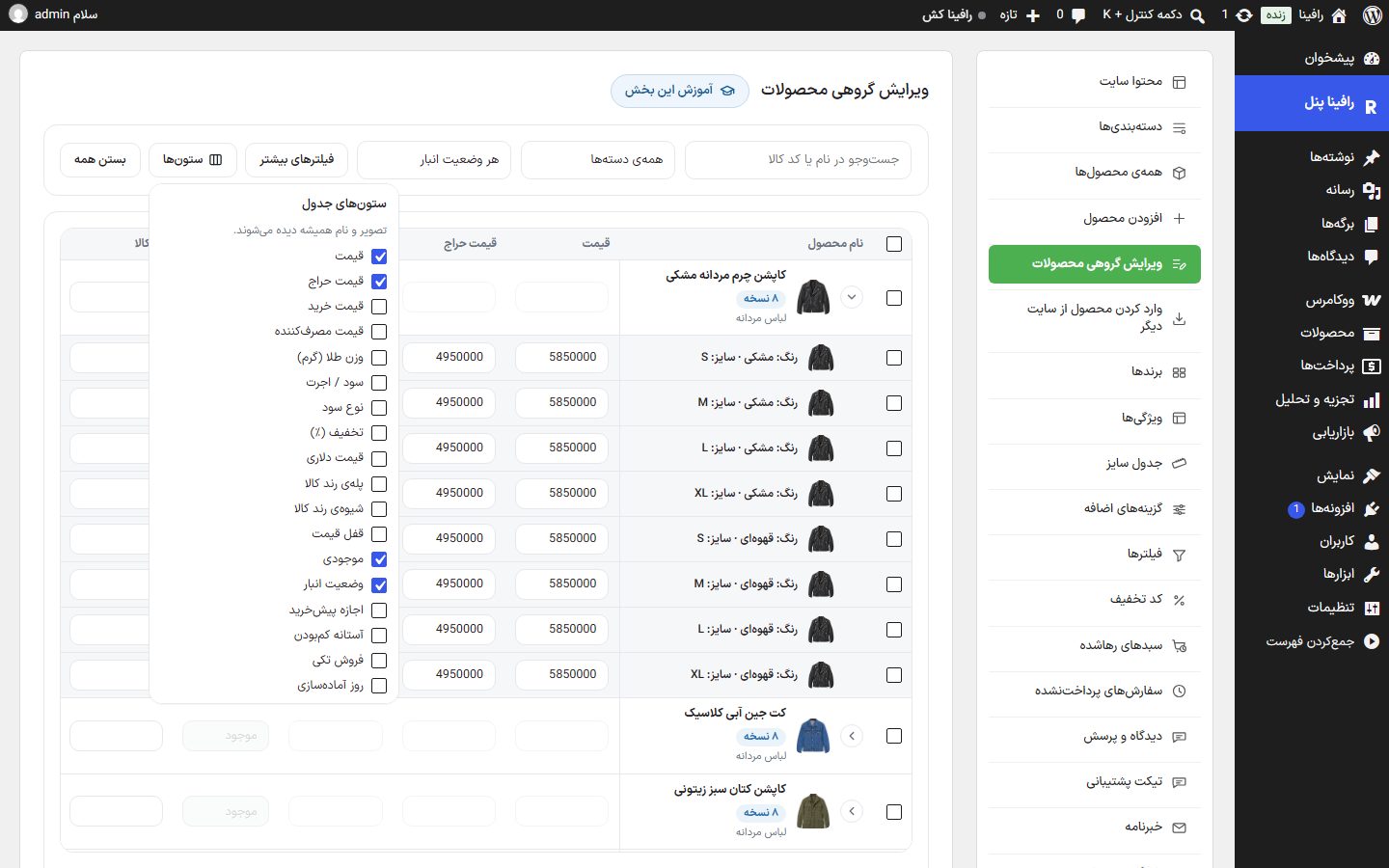
| Group | Selectable columns |
|---|---|
| Price | Price, Sale price, Purchase price, Consumer price, Gold weight (grams), Profit / Making charge, Profit type, Discount (%), Dollar price, Product rounding step, Product rounding method, Price lock |
| Stock and shipping | Stock, Stock status, Allow backorders, Low stock threshold, Sold individually, Preparation days, Checkout shipping line, Product code, Weight (kg), Length, Width, Height |
| Product page | Highlighted badge, Plain badge, Specs summary heading, Image badge, Warranty text, Seller name, Seller subtitle, Pre-cart popup |
| WooCommerce | Featured product, Visibility, Reviews, Tax status, Tax class, Purchase note, Order, Publish status, Slug (only on the product's own row) |
| Rate-based and gold pricing | Pricing basis, Basis amount (quantity or grams), Goldsmith profile, Has making charge (this product), Gold purity (this product), Percentage making charge (this product), Fixed making charge, Toman (this product), Percentage profit (this product), Fixed profit, Toman (this product), VAT (this product), Accessories, Stones and clasp, Toman, Gold status, Hallmark number, Assay lab, Assay lab phone, Assay date, Price calculation breakdown. The same cells as the product edit page; the profile and gold details columns are only on the product's own row. |
Selection and bulk change
Check the boxes next to the rows; a bar appears with "N items selected", "Select all on this page", "Cancel selection", "Bulk change", and "CSV export (N)". "CSV export" gives the selected rows in one file.
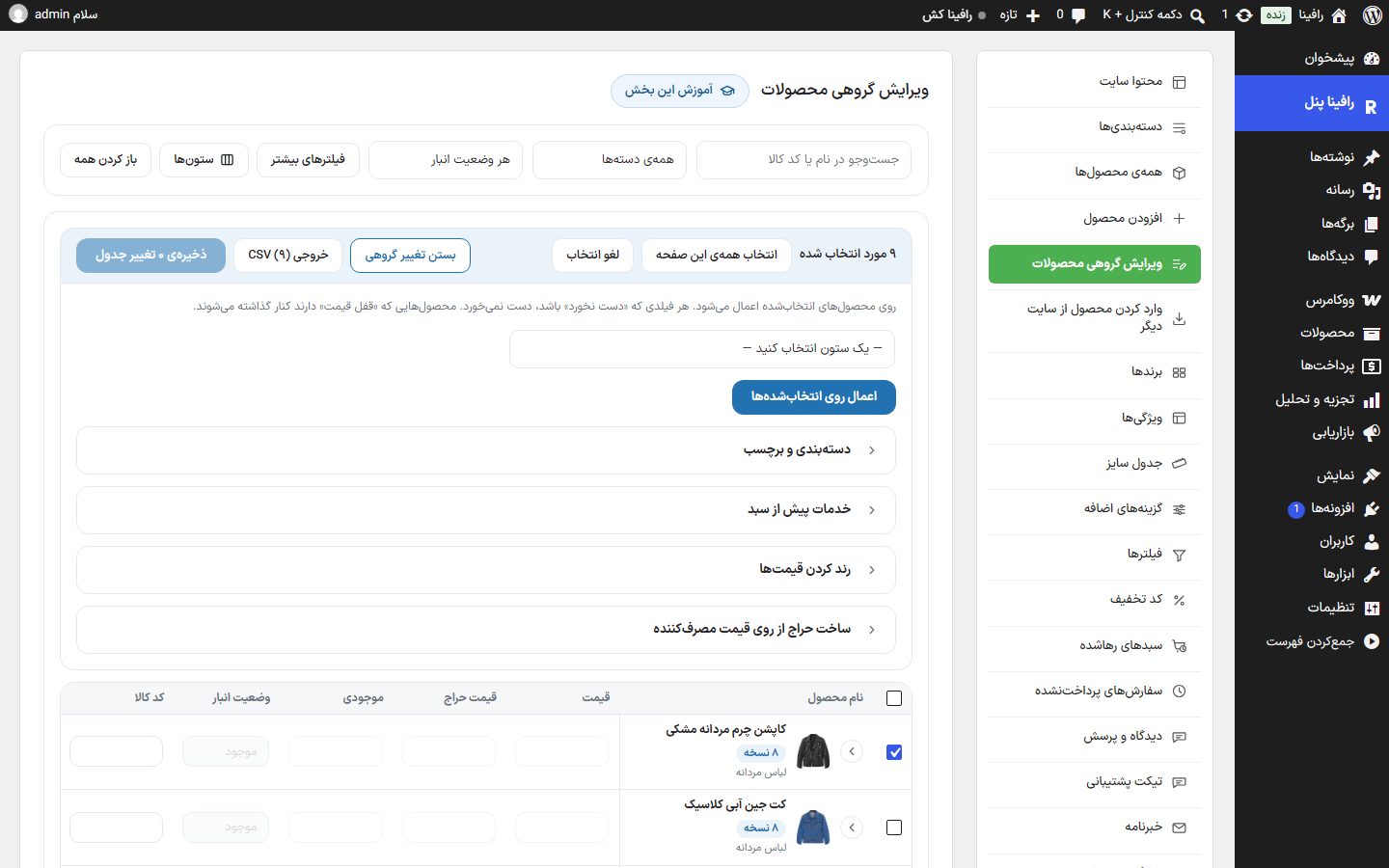
| Option | What it does |
|---|---|
| Column to change | Choose a column, then an action and a value. Actions: Leave unchanged, Set to new value, Increase by percent (%), Decrease by percent (%), Increase by amount, Decrease by amount, Clear. Percent and amount apply only to numeric columns, and "Clear" is not available on dropdown columns. Each column that has an action gets an "Ready to apply" tag with × under this row. |
| Apply to selected | Applies all ready changes to the selected products. Any field set to "Leave unchanged" is untouched, and "Price lock" products are skipped. After the job a report appears: how many products changed, how many unchanged, locked, or skipped for auto price. |
| Category and tag | Add to category, Remove from category, Add tag, Remove tag. |
| Pre-cart services | Writes the pre-cart popup's list of services (insurance, installation, packaging) onto the selected products: "Replace list", "Add to end of list", or "Clear all services". Each service has a title, short description, and price. For the popup to appear, also set the "Pre-cart popup" column to "On". |
| Round prices | Rounding step (100, 1,000, 5,000, 10,000, 20,000, 30,000, 40,000, or 50,000 Toman) and rounding direction (to nearest, up, down). The checkbox "Leave price-locked products untouched". The "Round prices only" button rounds regular and sale prices. |
| Create a sale from the consumer price | Despite this name, the sale is built from the "Price" column (the regular WooCommerce price), not the "Consumer price". Discount type (percentage or fixed amount), amount, "Start from" and "End at" (optional; Jalali dates can be written too, like 1404/06/01). WooCommerce itself turns the discount on and off on time. Button: "Create sale for selected". |
Raising a category's prices by ten percent
- Choose the category from "All categories".
- Check the box above the table or click "Select all on this page". If the products span several pages, increase items per page in "More filters".
- Open "Bulk change", choose the "Regular price" column, the action "Increase by percent (%)", and the value 10.
- "Apply to selected" and confirm. If needed, then click "Round prices" too.
Frequently Asked Questions
The report says "auto price skipped".
That product's price is built from the daily rate and is rebuilt on every rate update; change the "Profit / Making charge" or "Discount (%)" columns for those.
I can't see the variations' prices.
Click the arrow next to the variable product's name or "Open all".
I can't type a price or stock on a variable product's row.
Correct: the price, sale price, stock, and stock status of a variable product belong to its variations, not the product itself. These four cells are locked on the main row, and the hint tells you to open the variations with the arrow next to the name and change them there.