

Add and edit product
The product create and edit page is WooCommerce’s own page, but the theme adds a toolbar above it, several new boxes and several fields inside the “Product data” tabs. This page introduces them one by one, for both simple and variable products.
Where is it? Dashboard → Products → Add product or Edit On each product
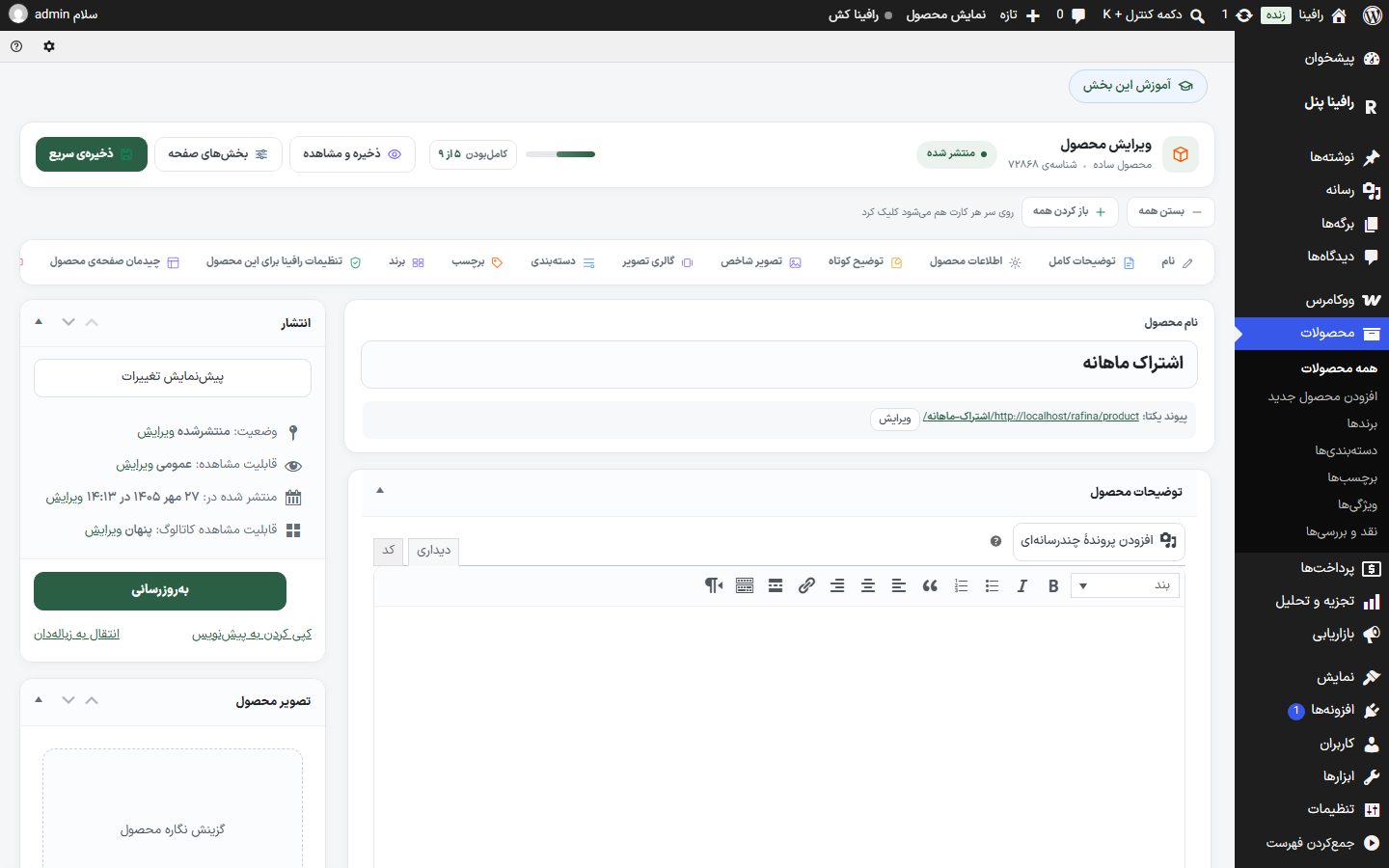
Toolbar at the top of the page
The card at the top shows the page name (“Edit product” or “Add product”), product type, ID and publish status. Beside it are these buttons:
| Option | What it does |
|---|---|
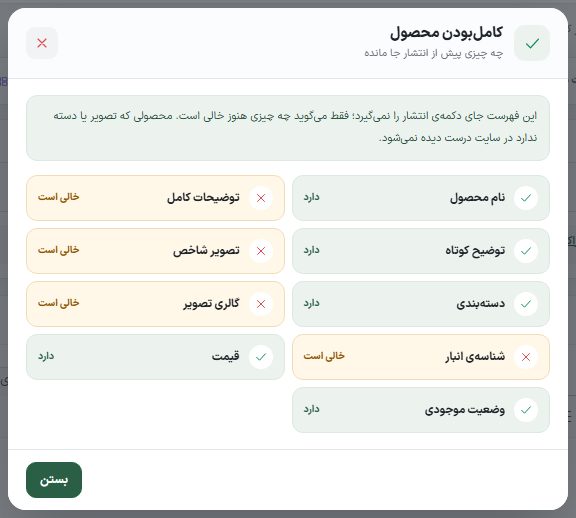
| Completeness | A bar and a counter such as “9 of 9”. Clicking it opens a list showing which of these are still empty: product name, full description, short description, featured image, category, image gallery, stock ID, price, stock status. It is only a reminder and does not block publishing. |
| Save and view | Saves the product and opens its page on the site. |
| Page sections | A dialog to turn this page’s boxes and tabs on or off (explained below). |
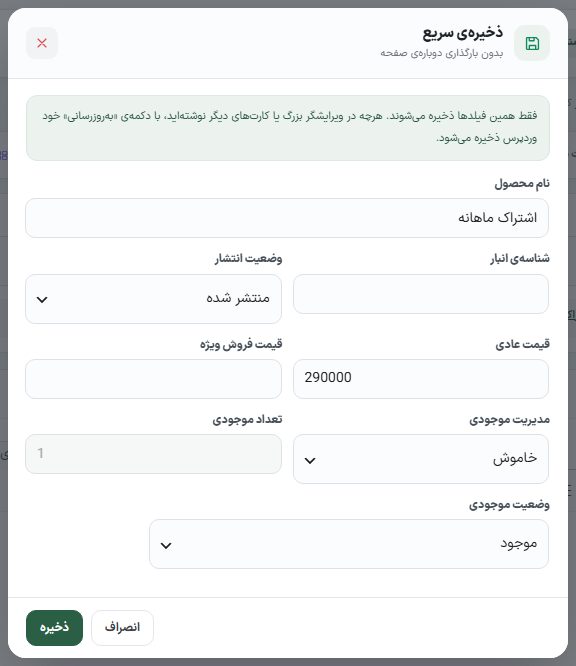
| Quick save | Saves several frequently used fields without reloading the page: product name, stock ID, publish status (draft, pending review, private, published), regular price, special sale price, stock management (off or on), stock quantity, stock status (in stock, out of stock, pre-order). |
| Open all / Close all | Opens or collapses all the page’s boxes at once. You can also click each box’s header. |
| Shortcut row | Clicking any name (name, full description, product data, short description, featured image, image gallery, category, tag, brand, Rafina automatic pricing, Rafina settings for this product and so on) scrolls the page down to that box. |
| Guide to this section | Opens this guide page. |
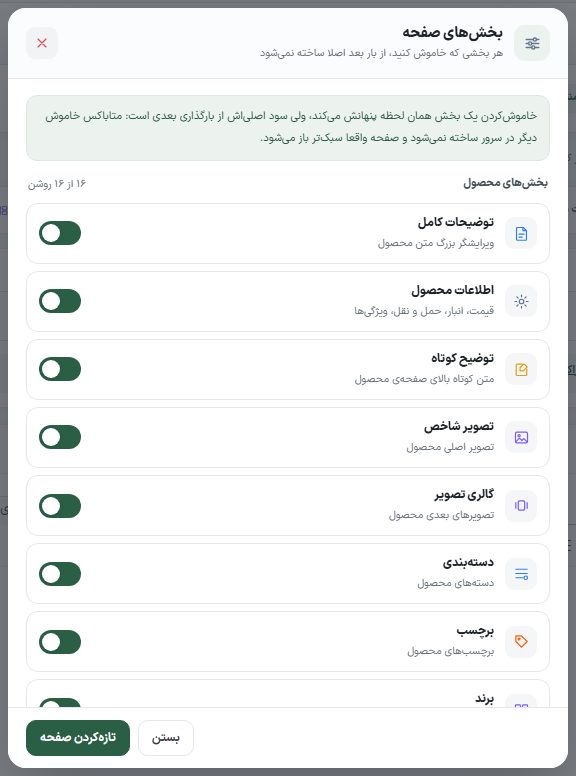
The “Page sections” dialog
If you never use part of this page, turn it off to make the page lighter and cleaner. Turning it off hides it immediately, and from the next load it is not built at all. This setting is separate for each dashboard user.
| Group | Departments |
|---|---|
| Product sections | Full description, product data, short description, featured image, image gallery, category, tag, brand, Rafina automatic pricing, Rafina settings for this product, product page layout, comments, slug, custom fields, revisions, and the search engine plugin box (Yoast, Rank Math, All in One and SEOPress). |
| Product data tabs | General, Inventory (the “Stock list” box itself), Shipping, Linked products, Attributes, Variations, Advanced. Turning off a tab truly removes it from the “Product data” box. |
| Lightening | “Slower dashboard heartbeat”: WordPress makes a request every 15 seconds to hold the post lock; this option moves it to every 60 seconds. For the full effect, click “Refresh page” once. |
Description, image and category
- Product description: The large editor box collapses with its header arrow like the other boxes and stays that way.
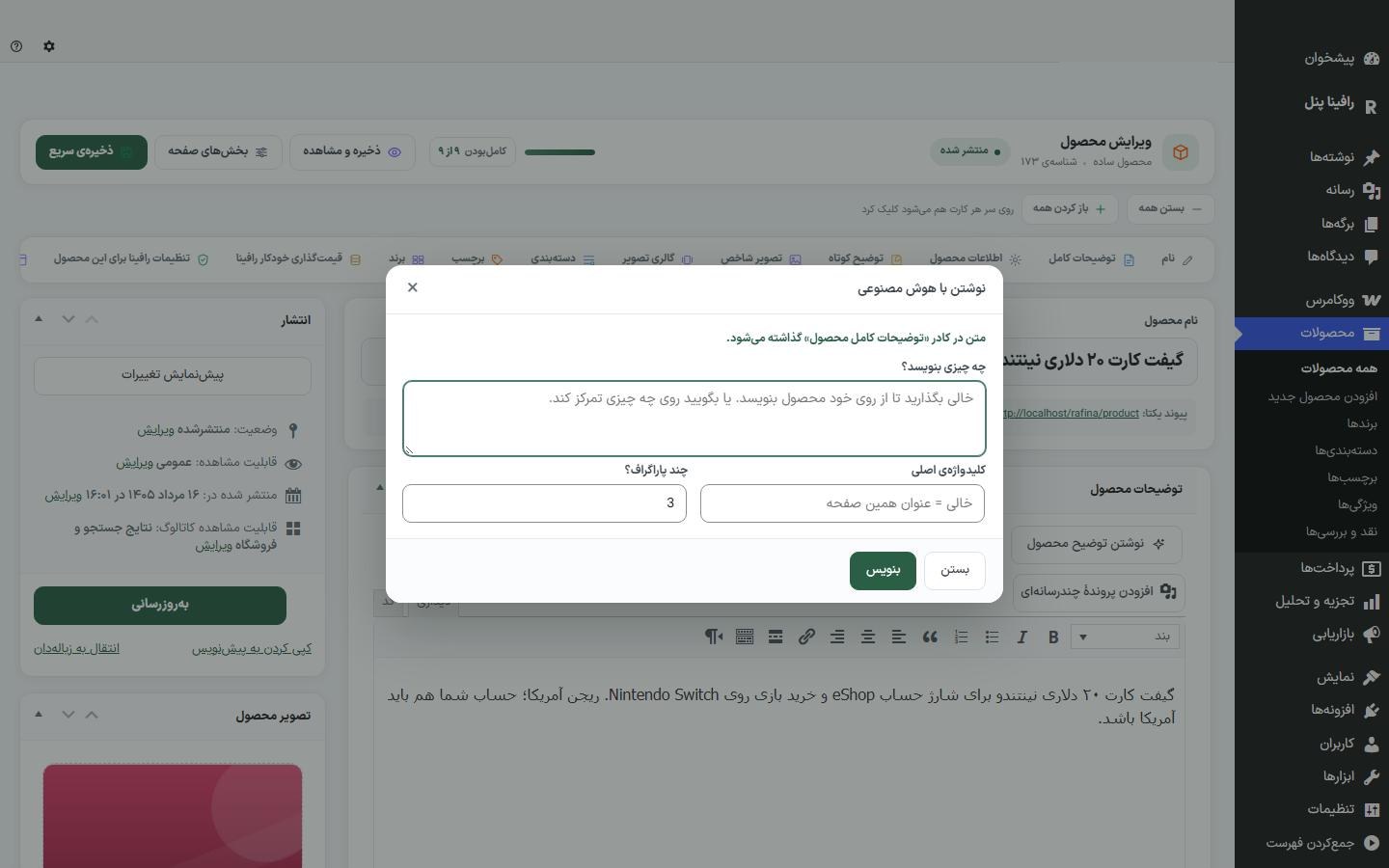
- Write product description / Write short description: Opens a dialog that writes the text with the service set up in Artificial Intelligence and places it in that box. You can leave “What should it write?” empty, an empty “Main keyword” means this product’s title, and “How many paragraphs?” sets the text length.
- Generate image with AI / Generate image for gallery: Under the featured image and gallery boxes; it generates the image and puts it in the media library.
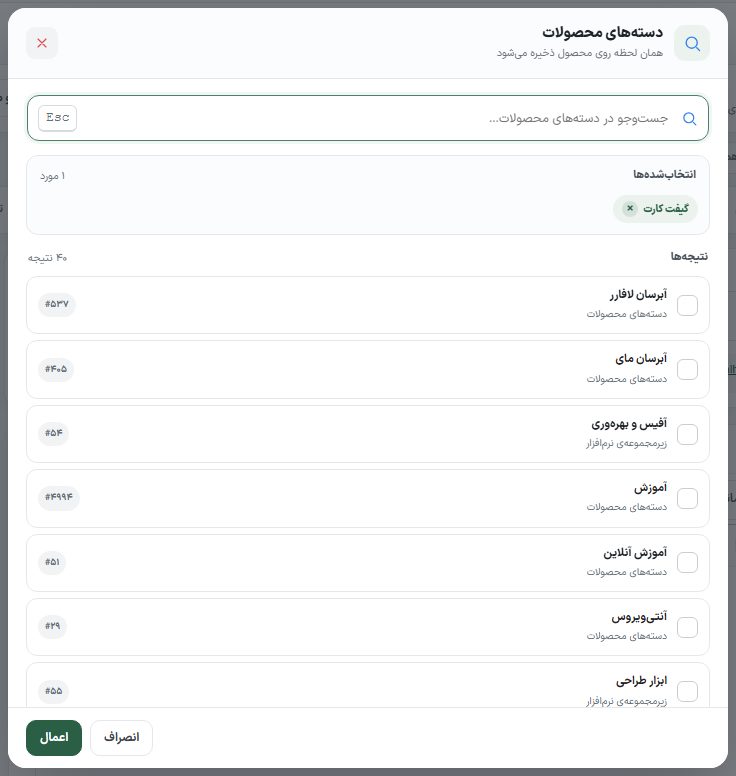
- Search and select: In the categories, tags and brands boxes, it opens a dialog with search. Selections are saved to the product immediately on “Apply”.
The “Rafina automatic pricing” box
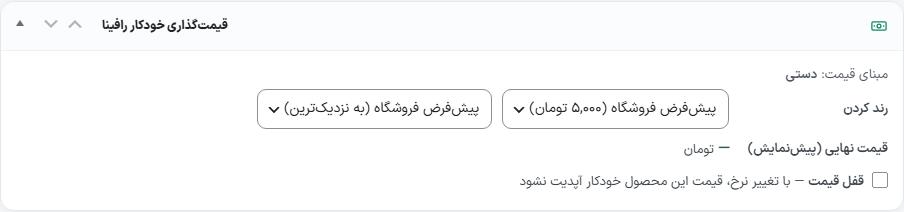
This box builds the product’s final price from the daily rate (dollar, gold, coin and so on) and the pricing settings. It is visible only when “Automatic rate updates” is on in Currency Settings .
| Option | What it does | Default |
|---|---|---|
| Price basis | A line at the top of the box that states the current basis, such as “Half coin × 1”. It changes immediately when you change “Price basis” in the General tab. | Manual |
| Rounding (step) | Rounds the built price to a step: a step of 100, 1,000, 5,000 or 10,000 Toman. | Store default |
| Rounding (direction) | To nearest, round up or round down. | Store default |
| Final price (preview) | The price that would be built with the current settings; before saving. | — |
| Price lock | When the rate changes, this product’s price is not updated automatically and bulk edit doesn’t touch it. | Off |
| Price history (last 5) | If the price has been changed by the rate before, the last five changes appear under the box. | — |
The “General” tab in Product data
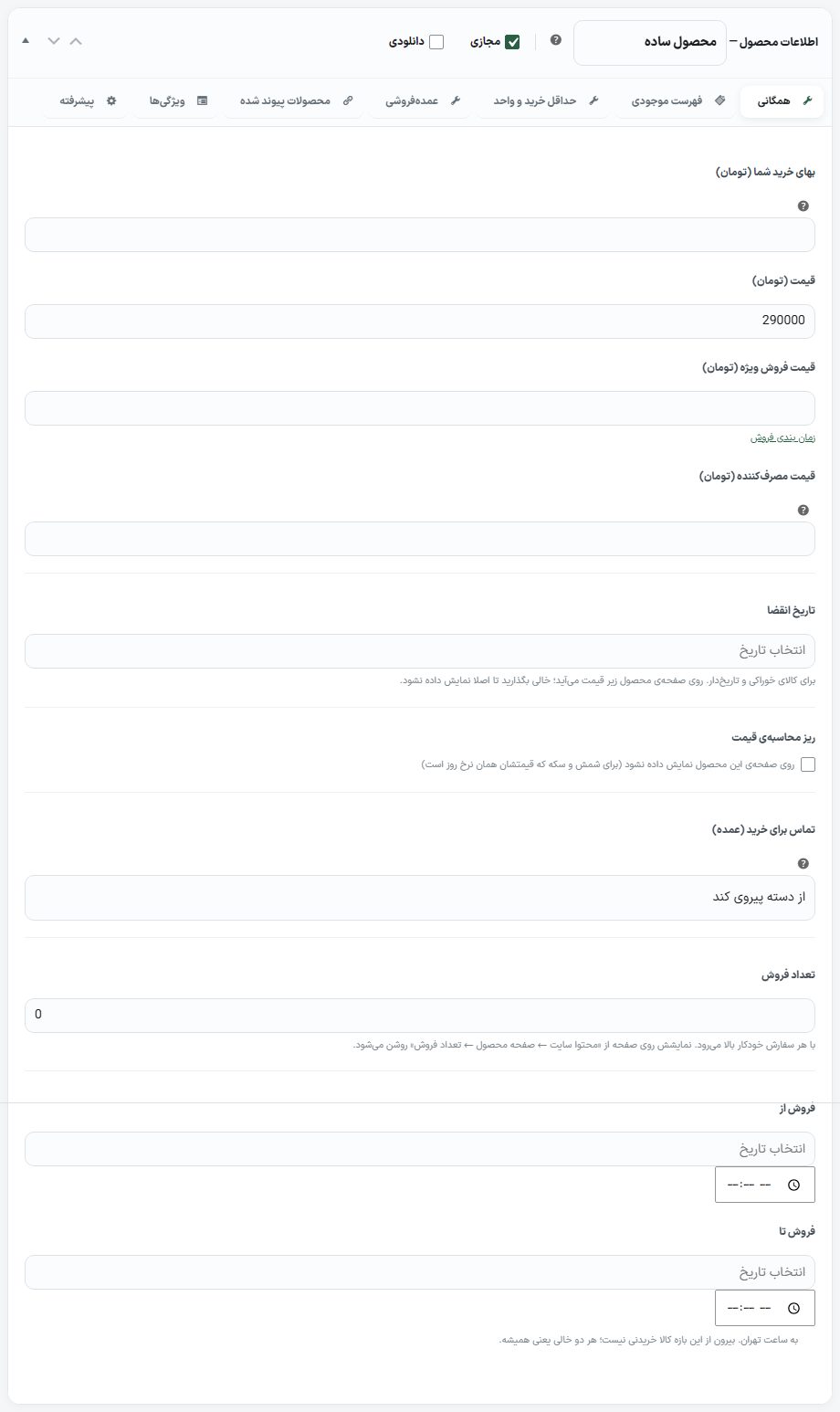
Regular price, special sale price and the sale schedule belong to WooCommerce itself. The theme renames “Regular price” to “Price”: the amount the buyer pays. These fields are also added to this tab:
| Option | What it does | Default |
|---|---|---|
| Consumer price (Toman) | The price the wholesale buyer charges their own customer. On the Wholesale card it appears beside the price and “Your profit” is computed from the difference between the two; under the prices there is also a “Wholesale buyer’s profit” line with its percentage. It is also available on each variation of a variable product. | Empty |
| Your purchase cost (Toman) | The amount you paid for the item. It is not shown to the customer and is used for the profit calculation in Stats and Reports and the “Profit per unit” line. | Empty |
| Profit per unit | Display only, under the prices: “Profit per unit: … (% of purchase cost)”. It is calculated as you type the price; if you have a special sale price, it is calculated from that and a loss is shown in red. It is not saved and doesn’t reach the site. It is also on variable product variations. | Fill from purchase cost |
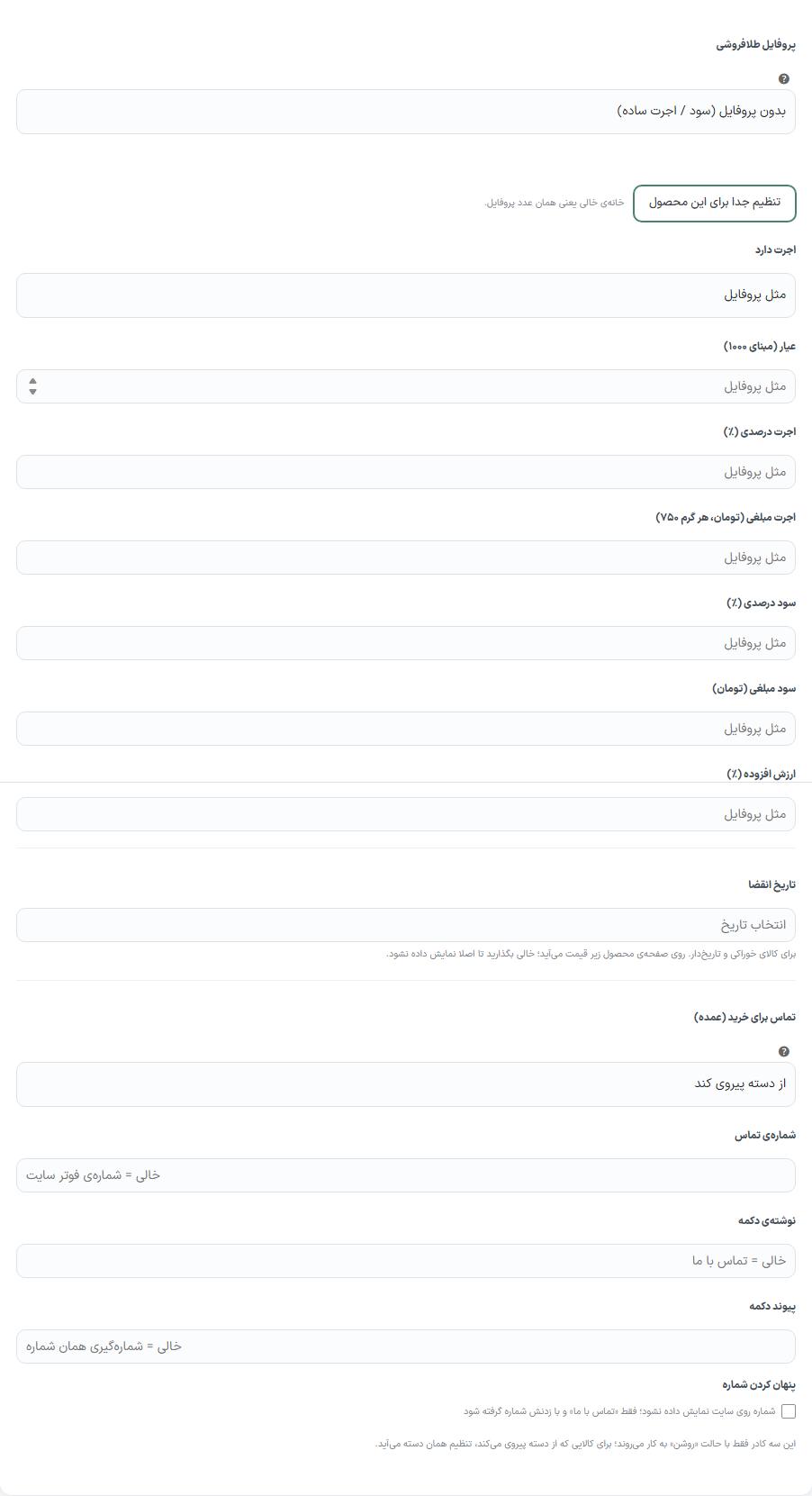
| Profit / Fee | Only when “Automatic rate updates” is on. “Percentage (%)” or “Fixed amount (Toman)”, applied to the price built from the “Price basis”. In a variable product it is the default for all variations. | Empty |
| Discount percent | Numbers only; always a percent (“10” means 10%). It applies to the price built from the basis and is recalculated at every rate update. Empty means no discount. | Empty |
| Price basis | Only when “Automatic rate updates” is on in currency settings. The coin, gold, metal or currency to which the product’s price is tied at the daily rate; in four groups: coin, gold, metals and currency. Price = amount × daily rate, then profit/fee and rounding. “Manual (no basis)” means you write the price yourself. | Manual (no basis) |
| Amount (count or grams) | For coins the count (for example 1 or 0.5), for gold and silver grams, for currency the amount in that currency. Empty means no price is built. Visible only when a “Price basis” is chosen. | Empty |
| Gold shop profile | Only with a gold basis (always in a variable product). It puts the full gold-shop formula on the product: gold value + fee + profit + VAT. Each profile’s numbers are in Currency Settings . Selecting a profile hides the simple “Profit / Fee” row. The “Only this product’s settings” option takes no profile: purity 750 and the rest zero, and all numbers come from “Separate settings for this product”; for a gold shop where every item has its own fee and purity. | No profile (simple profit / fee) |
| Separate settings for this product | A button under the profile that opens these fields: has fee (as profile / yes / no for second-hand), purity (basis 1000), percentage fee (%), fixed fee (per gram 750), percentage profit (%), fixed profit, VAT (%), and “Accessories, stone and chain cost” — a net amount added to the total price, not taxed, and shown in the price breakdown as “Accessories”. An empty field means the profile’s number. | All empty |
| Price calculation breakdown | The “Don’t show on this product’s page” checkbox removes the price breakdown box (gold value, fee, profit, VAT) for this product only; for bars and coins whose price is simply the daily rate. It is visible only when the price breakdown is on for the site. Variations of a variable product follow this checkbox. | Off |
| Expiry date | For perishable and dated goods, with a Jalali picker. It appears on the product page under the price or stock line; a past date shows in red. Empty means it isn’t shown at all. | Empty |
| Sales count | WooCommerce’s own sales count, which rises with every order; here it is editable. Showing it on the product page is turned on from “Site content ← Product page ← Sales count”. | Order count |
| Call for purchase (wholesale) | “Follow category”, “On: phone number instead of price” or “Normal sale”. On means the card and product page show a “Contact us” button with a number in place of the price and the item can’t be added to the cart. “Normal sale” overrides the category setting. The four boxes under it appear only with “On”. | Follow category |
| Contact number | The number shown on the button. | Empty = the site footer number |
| Button text | The contact button text. | Empty = Contact us |
| Button link | A custom address (for example WhatsApp). Only http, https, tel and sms are accepted. | Empty = dials that number |
| Hide number | The number is not shown on the site; only "Contact us" appears, and tapping it dials the number. | Off |
| Sale from / Sale until | Date (with a Jalali picker) and time, in Tehran time. Outside this window the item can’t be bought; before the start “Sale starts on …” and after the end “This product’s sale period has ended” appears on the product page (the text of both can be changed in Store tools ). Both empty means always. | Empty |
| Affiliate program: do not calculate commission for this product | Only when Affiliate program is on. This item earns no commission, even for a marketer with a special rate. | Off |
| Commission percentage for this product (%) | It overrides the category percent and the general percent; a marketer’s special percent overrides this too. It works only with the “percent of purchase amount” type. | Empty = category percent or general percent |
The “Gold specifications” box
Only when “Gold shop mode” in Currency Settings is on; it appears in the General tab (on a variable product too).
| Field | What it does | Default |
|---|---|---|
| Status | “New”, “Like new” or “Used”. “— No condition —” means this attribute isn’t written for the item. | No condition |
| Hallmark number (series and serial) | The number engraved on the item itself. | Empty |
| Assay laboratory name | The laboratory that measured the purity. | Empty |
| Laboratory phone | For a buyer who wants to ask about the purity. | Empty |
| Assay date | Whatever form you write is displayed as is. | Empty |
| Where to show | A table with two columns, “Product card” and “Product page”, for condition, weight, purity, 750 weight, fee, profit, accessories cost, tax, hallmark number, laboratory, phone and assay date. Ticking “Product page” creates a row in the specifications, and ticking “Product card” adds it to the line under the card’s price, in the form “Name: value”. A specification with no value isn’t shown anywhere. | Card: condition, weight, purity and profit; page: everything except profit and tax |
The “Minimum order and unit” tab
For goods sold by the kilo, carton or pack. The buyer can buy only the minimum and the packaging step.
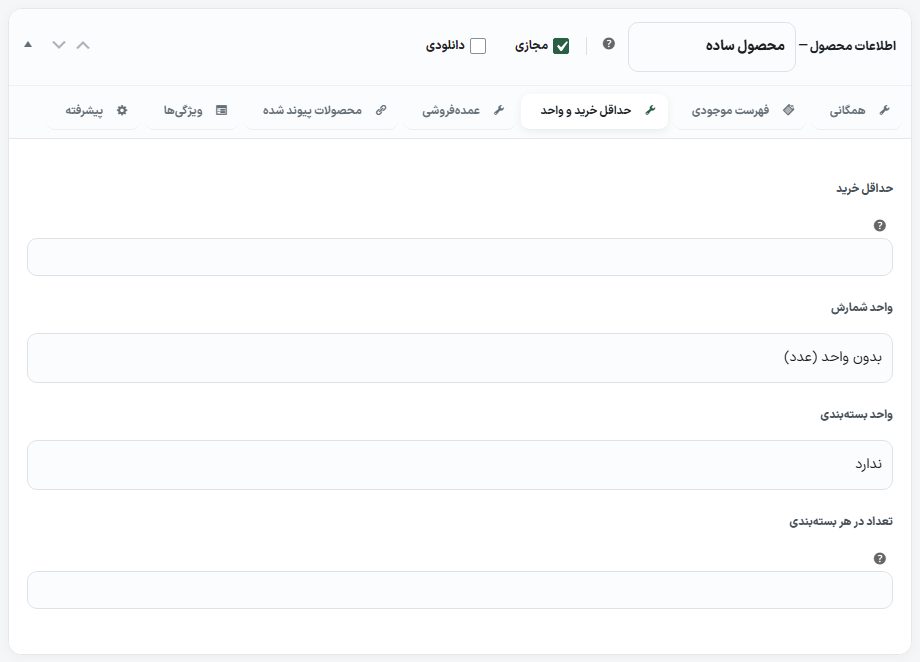
| Option | What it does | Default |
|---|---|---|
| Minimum purchase | The smallest quantity that goes into the cart, in the counting unit. Persian digits are accepted too. | Empty = no minimum |
| Counting unit | Piece, pack, can, bottle, bag, kilo, gram, meter or centimeter; written beside the quantity on the product page, cart and order. | No unit (piece) |
| Packaging unit | Pack, box, carton, bundle, case, shell, sack or roll. | None |
| Quantity per package | This is also the purchase step: a “12-kg carton” goes into the cart only 12 at a time. It applies only with a “Packaging unit”. | Empty |
On the site: the product page in all models and the app shows the line “Minimum order: 12 kg / Packaging: 12-kg carton”, the cart’s + and − buttons move one step forward and back, and less than the minimum means removal from the cart. The server also corrects any quantity that arrives to the right minimum and step, so it can’t be bypassed.
The “Wholesale” tab
The price per unit depending on the quantity the buyer has in that cart row. It has no effect until the “Wholesale price” switch is on.
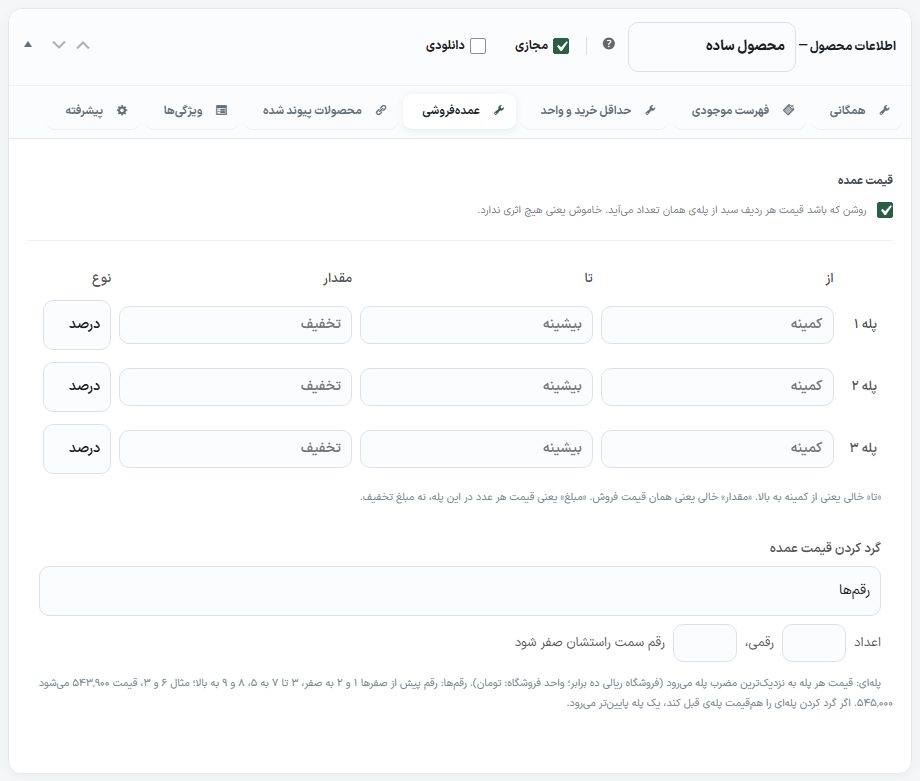
| Option | What it does | Default |
|---|---|---|
| Wholesale price | When on, each cart row’s price comes from the tier for that quantity. | Off |
| Tiers 1 to 3 — From / To | The quantity range of each tier. An empty “To” means from the minimum upward. | Empty |
| Value and type | “Percent” discount on the sale price, or “Amount”, which is the per-unit price at that tier (not the discount amount). An empty “Value” means the sale price. | Percentage |
| Wholesale price rounding | Three modes: “No rounding”; “Step (1,000, 5,000, 10,000)”, which rounds each tier’s price to the nearest multiple of the chosen step (1,000, 5,000 or 10,000 Toman; ten times that for a Rial store); and “Digits”: “N-digit numbers, with the rightmost M digits set to zero”. The digit before the zeros: 1 and 2 go to zero, 3 to 7 go to 5, 8 and 9 round up. Example: 6 and 3, the price 543,900 becomes 545,000. If step rounding makes a tier’s price equal to the previous tier’s, it goes one step lower. | Digits |
On the site: cards show three colored tiers in place of the price, and the product page shows a tier table; the cart calculates the tier price itself. For example 50,000 per kilo, 49,000 from 6 kg and 48,000 from 12 kg.
The “Shipping” tab
This tab is visible only for non-virtual (physical) items. Under WooCommerce’s weight, dimensions and shipping class there are two theme fields:
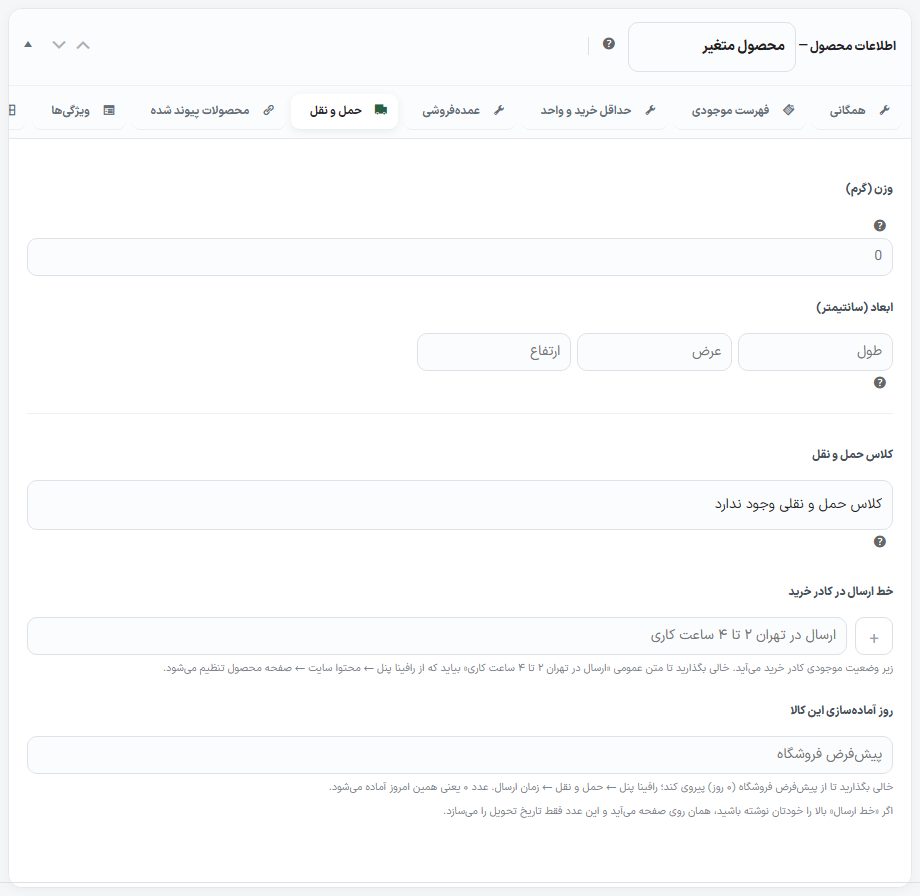
| Option | What it does | Default |
|---|---|---|
| Shipping line in the buy box | Appears under the stock status in the buy box, such as “Delivery in Tehran in 2 to 4 working hours”. The + button beside it chooses this line’s icon. | Empty = general text Product Page |
| This item’s preparation days | How many days it takes for the item to be ready to ship; the delivery date is built from it. 0 means it is prepared today. If you wrote the “Shipping line” yourself, that is what appears on the page and this number only builds the delivery date. | Empty = store default in Shipping ← Shipping time |
The “Attributes” tab
At the bottom of this tab is an “Attribute group”. Choose a group from the drawer and click “Add group” to add all of that group’s attributes to the product at once; then enter each one’s value separately. An attribute already in the list isn’t added again. You create groups in Attributes ← Create group.
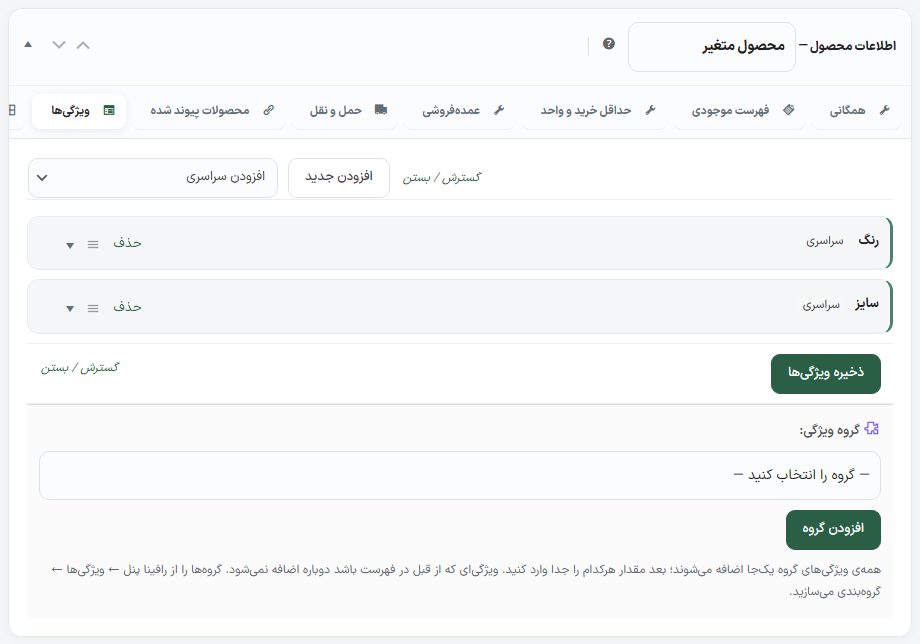
Variable product variations
In the “Variations” tab, each variation has these in addition to WooCommerce’s fields:
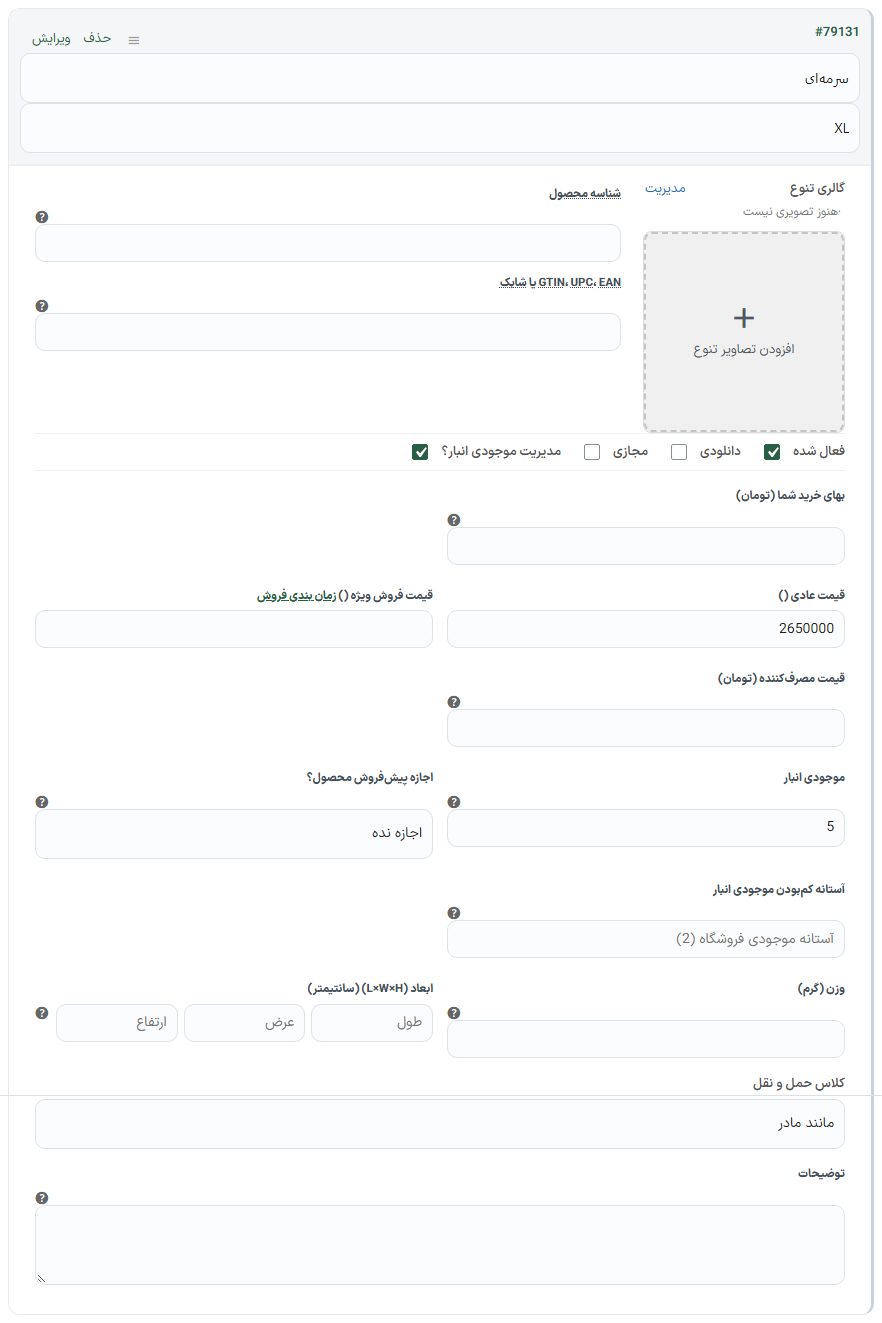
| Option | What it does | Default |
|---|---|---|
| Consumer price (Toman) | This variation’s consumer price for the wholesale card. | Empty = the product’s own consumer price |
| Your purchase cost (Toman) | This variation’s purchase cost for the profit calculation. | Empty = the product’s own purchase cost |
| Price basis | The four rows from here down appear only when “Automatic rate updates” is on. Each variation can have its own basis; for example a full, half and quarter coin in one product. | No basis (manual) |
| Basis amount (count or grams) | For coins the count, for gold and silver grams, for currency the amount. If left empty and the variation has an attribute such as “weight” or “gram”, that attribute’s number is read. | Empty = the product’s own amount |
| This variation’s profit / fee | Percentage or fixed amount. | Empty = the product’s profit/fee |
| This variation’s discount percent | Numbers only. Empty means the product’s own percent, and 0 means this variation has no discount even if the product has one. | Empty |
In a variable product, the “Price basis” drawer of the General tab isn’t shown (WooCommerce hides that group), but the “Gold shop profile” is always there.
The “Rafina settings for this product” box
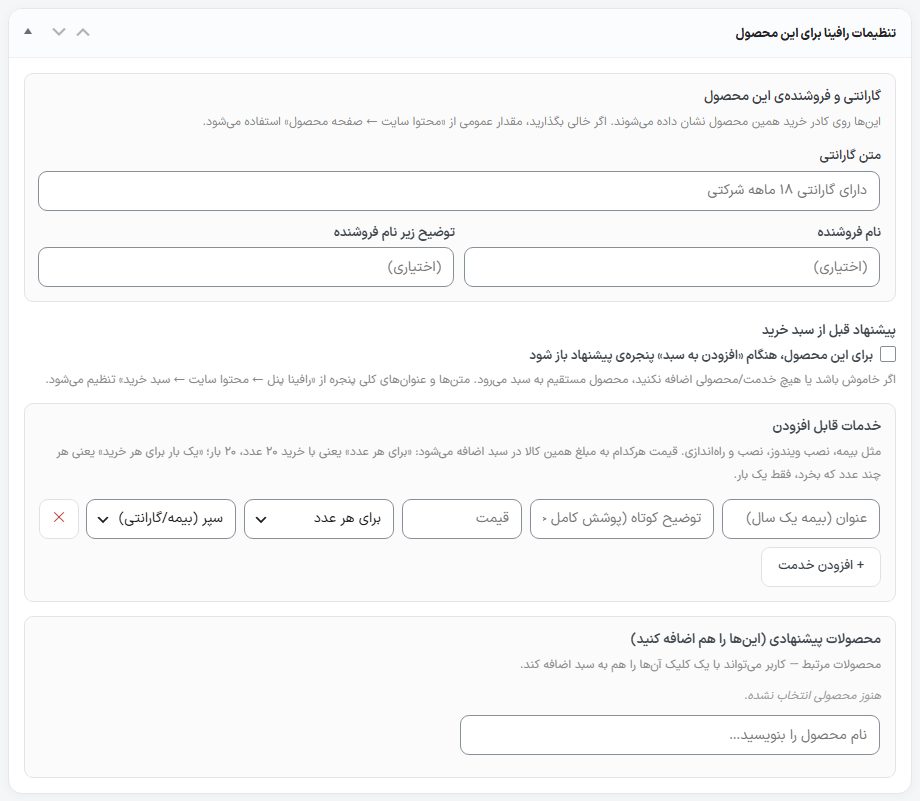
Warranty and seller for this product
These appear in this product’s buy box. Empty means the general value from Product Page.
| Option | What it does |
|---|---|
| Warranty text | such as “Covered by an 18-month company warranty”. In the modern model it appears under the buy button, and in the classic model inside the seller box. |
| Seller name | Optional. |
| Description under seller name | Optional. |
Offer before cart
| Option | What it does |
|---|---|
| For this product, open the offer dialog on “Add to cart” | If off, or if you add no service or product, the item goes straight to the cart. The dialog’s general texts and headings are in Cart . |
| Available services | such as insurance, Windows installation or setup. Each row: title, short description, price, calculation method (“Per unit” means buying 20 units charges it 20 times, “Once per purchase” means only once) and icon (shield, window, wrench, truck, gift, star). The service price is added to this item’s amount in the cart. |
| Suggested products (add these too) | Type the product name and select it; the buyer adds them to the cart with one click in the dialog. |
The “Product page top view” box
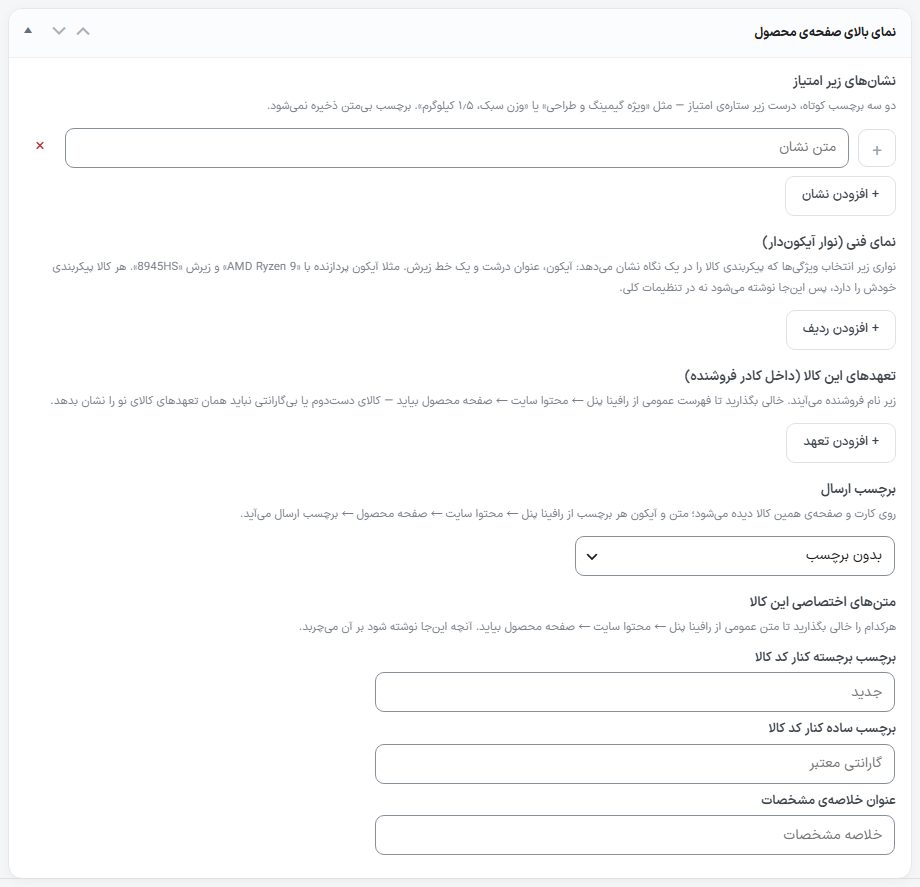
| Option | What it does |
|---|---|
| Badges under the rating | Two or three short labels right under the rating stars, such as “Special for gaming and design”. Each row has an icon (the + button) and text; a badge with no text isn’t saved. The × deletes a row. |
| Technical view (icon strip) | A strip under the attribute picker: an icon, a bold title (for example AMD Ryzen 9) and a line under it (for example 8945HS). Visible in the Modern and Modern 2 models. |
| This item’s commitments (inside the seller box) | They appear under the seller name. Empty means the product page’s general list; for a second-hand or no-warranty item, write a separate list. |
| Shipping badge | No badge, delivery under 3 hours, same-day delivery, regular delivery. Shown on this item’s card and page; the text, icon and on/off of the badges are set in Product page ← Shipping badge. |
| Highlight badge beside product code | For example “New”. Empty = general text. |
| Plain badge beside product code | For example “Valid warranty”. Empty = general text. |
| Specifications summary title | Empty = “Specifications summary” or the general text. |
Each list has a row limit, and if you reach it, the message “More than … rows won’t fit on the page” appears.
The “Product page — [Model]” box
This box’s title is the name of the model chosen in Product Page and its fields change accordingly:
| Option | What it does | Which model |
|---|---|---|
| Product description banner image | It sits beside the description text, at 1280 × 760 pixels. “Choose image”, “Generate with AI” and “Remove”. If left empty, the gallery’s second image takes its place, and if the item has only one photo, the banner isn’t stretched. | Modern 2 |
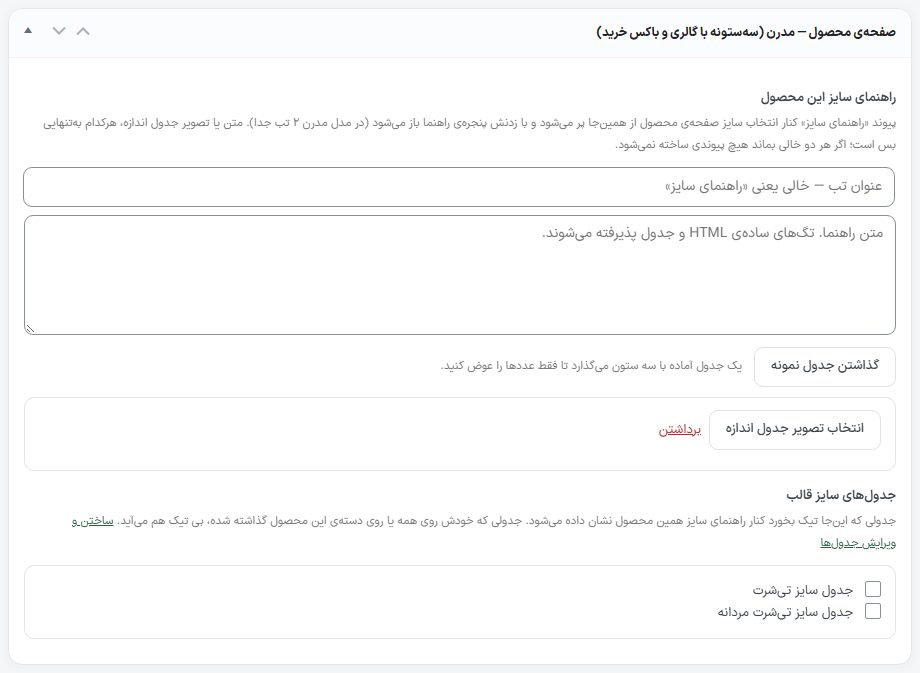
| This product’s size guide | Tab title (empty means “Size guide”), guide text (simple HTML and tables are accepted), the “Insert sample table” button (inserts a three-column table so you only change the numbers) and “Choose size table image”. Either the text or the image alone is enough; both empty means no link is created. On the product page, a “Size guide” link appears beside the size picker and opens a dialog (in Modern 2, a separate tab). | All models |
| Theme size tables | The list of tables you created in Size chart , with checkboxes. A table ticked here appears beside this product’s size guide. A table set for “All products” or for this product’s category appears even unticked, and says so beside it. A single size table alone is enough to create the “Size guide” link, even without text and image. | All models |
| Label on image | In the corner of the product image, such as “USA ($1)”. Empty means nothing appears. | Gift card |
| Country and amount | Not a field; it is read from the product’s own attributes. Create an attribute named “Country” or “Region” and one for the amount; each country’s flag is added automatically. | Gift card |
| This product’s FAQ | Question and answer rows with “Add question” and “Delete”; at the bottom of the product page. An empty question isn’t saved. | Gift card |
The “Size-based price calculator” box
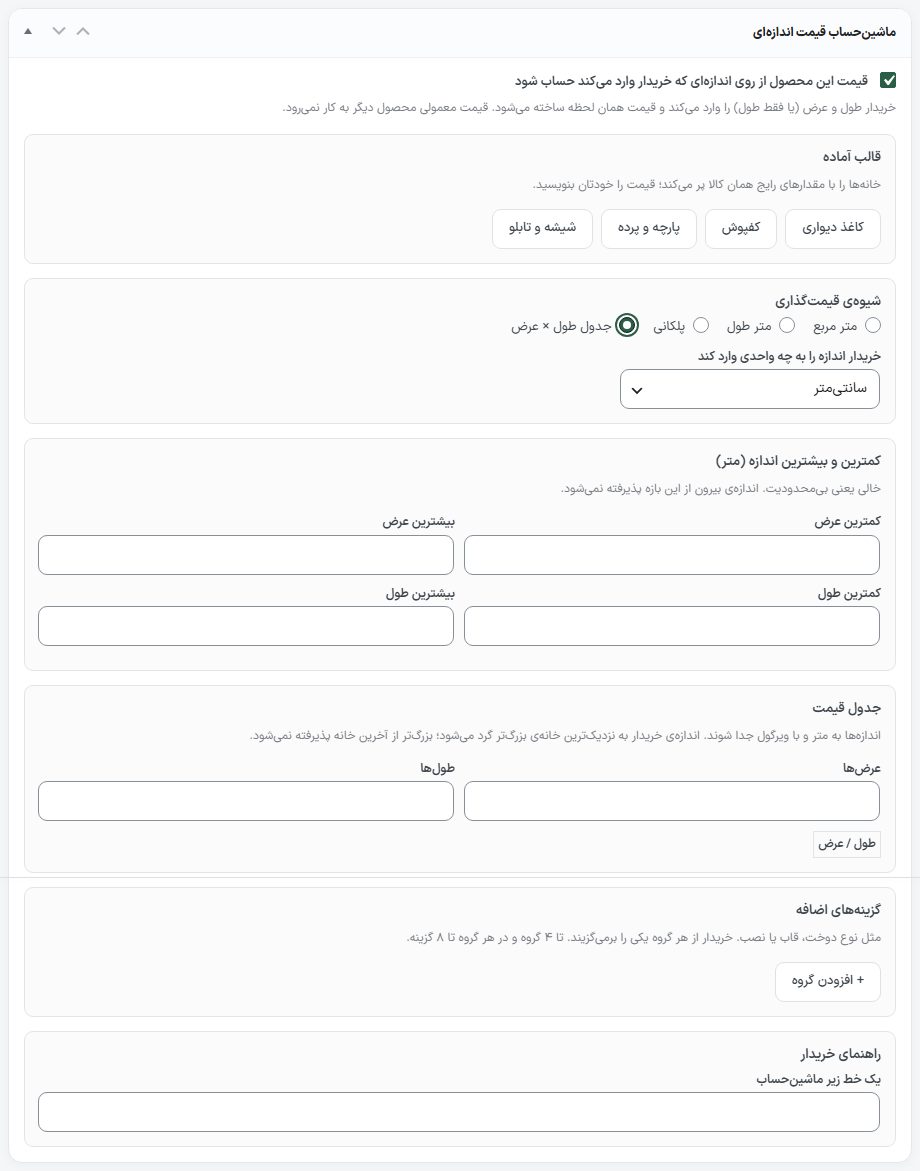
For goods sold by size (wallpaper, flooring, fabric, glass). Ticking “Calculate this product’s price from the size the buyer enters” opens the rest of the box; the buyer enters the length and width (or just the length) and the price is built instantly. The product’s regular price is no longer used.
| Option | What it does |
|---|---|
| Ready template | Wallpaper, flooring, fabric and curtain, glass and picture. It fills the fields with that item’s common values; you write the price yourself. |
| Pricing method | Square meter, linear meter, tiered, length × width table. |
| Unit the buyer enters the size in | Centimeters or meters. |
| Minimum and maximum size (meters) | Minimum and maximum width and length. Empty means unlimited; a size outside the range isn’t accepted. |
| Price | “Price per square meter” or “Price per meter” in the store’s currency. In tiered mode, for a quantity below the first tier. |
| Price tiers | Tiered mode only: each tier has “From quantity” and “Price per square meter”, with “+ Add tier”. Each tier applies from its own quantity upward; the order is fixed on save. |
| Pricing table | Table mode only: “Widths” and “Lengths” in meters, comma-separated, then the price of each cell. The buyer’s size is rounded up to the nearest larger cell; a size beyond the last cell isn’t accepted. |
| Waste percent | From 0 to 50; added to the quantity. |
| Minimum sellable quantity | A smaller size is rounded up to this quantity. |
| Roll or pack | Type (none, roll, pack), size of each roll or pack (square meters; in linear meter mode, meters), display name, and the checkbox “Sell by the whole roll or pack”, which rounds the quantity up to the next whole pack. |
| Extra options | Such as sewing type, frame or installation. Up to 4 groups, each with a “Group name” and up to 8 options; each option: name, amount or percent, calculation method (fixed amount, per meter or square meter, percent of the size price). The buyer picks one from each group. |
| Buyer guidance | A line under the calculator. |
In a variable product, each variation’s price brings that material’s rate to this setting; so a separate table for each material isn’t needed.
The “Image on rack” box
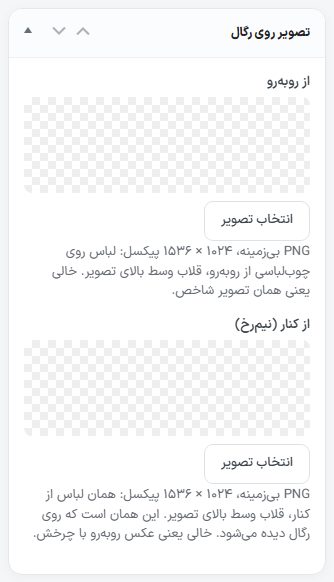
In the side column, under brands. The garment-on-hanger image for the clothing rack element Page builder.
| Option | What it does | Default |
|---|---|---|
| Front view | Transparent PNG, 1024 × 1536 pixels: the garment on its hanger from the front, hook at the top center of the image. | Empty = the featured image |
| Side view (profile) | Transparent PNG, 1024 × 1536 pixels: the same garment from the side, hook at the top center of the image. This is what is seen on the rack. | Empty = the front image with rotation |
The “Price source from another site” box
For an item you buy from another store whose price and stock must stay in sync with it. Enter this same product’s address on the other site; after connecting, only the price and stock are refreshed from there, and the title, text and image are left alone.
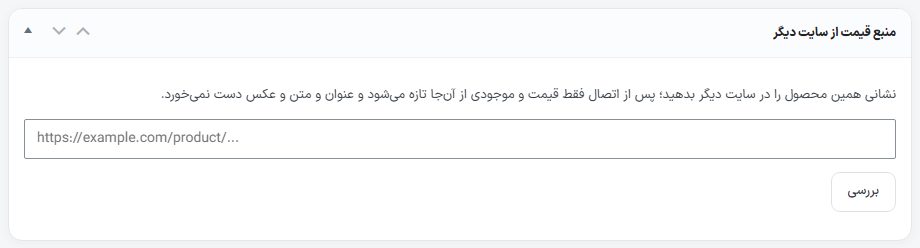
- Enter the full address of the product page on the source site (with http:// or https://) and click “Check”. The item’s name at the source, the “price after profit and rounding”, sale, stock and variations are shown.
- Click “Connect”; connecting happens only after a successful check of this address.
- After connecting, the box shows “Connected to:”, “Last updated:” and the “Update now” and “Disconnect” buttons, plus “Profit percent on source price”, “Rounding (step, Toman)” and “Period (for all sites)” with “Save setting”.
The “Training — Lessons” box
Only when the Guides section is on. With it, this product becomes a course and lessons are created right here (in “Film and series” mode the words become episode and director).
| Section | Fields |
|---|---|
| Course settings | Instructor, level, year, download permission (settings default / on / off), subscription only (single purchase is closed), preview, and the “Specifications” rows (name and value, such as country or language) with “New row”. |
| Each lesson | Title, chapter (lessons with the same name sit together), free preview (even a guest without registration can watch), download permission, duration (seconds), 640 × 360 pixel thumbnail, video files (with audio and quality), subtitles, attachments. Drag and drop a file or choose it; uploads are chunked. |
Box order
Boxes that other plugins (such as Yoast or Rank Math) add automatically move to the bottom of the page so “Product data” and the price boxes stay at the top. If you moved a box yourself, it stays where you put it.
Four optional boxes, “Rafina settings for this product”, “Size-based price calculator”, “Product page — [Model]” and “Product page top view”, are closed the first time to keep the form short; clicking a box’s header opens it and it stays open from then on.
Creating a simple product
- From “Add product”, write the product name and fill in the full and short descriptions.
- In “Product data” ← General, write the regular price, or if the price is tied to the daily rate, fill in “Price basis” and “Amount”.
- In the “Stock list” tab enter the ID and stock, and for a physical item in the Shipping tab enter the weight and “Preparation days”.
- Set the category, brand, featured image and gallery; the “Completeness” bar should fill up.
- If needed, fill in the warranty, pre-cart services and “Product page top view”.
- Click “Publish”, or “Save and view” to see the page.
FAQ and troubleshooting
I don’t see the “Rafina automatic pricing” box or “Price basis”.
“Automatic rate updates” in Currency Settings is off. While it is off, no basis, amount, profit or profile field is created.
The product’s price doesn’t change with the daily rate.
Check the “Price lock” checkbox. Also, if “Amount” is empty, no price is built.
The “Special sale price” I wrote disappeared after a while.
The product takes its price from the daily rate and it is rebuilt at every update. Fill in “Discount percent”.
The “Shipping” tab is missing.
The “Virtual” checkbox at the top of the product data box is ticked, or the tab was turned off in the “Page sections” dialog.
The “Variations” tab says to create an attribute first.
Set the product type to “Variable product”, add the attribute with “Used for variations” ticked and click “Save attributes”.
The category I chose was applied to the product without clicking “Update”.
That’s right; the “Search and select” dialog for categories, tags and brands saves immediately.