

Guides
With this section you sell video training courses or movies and series: each course is a WooCommerce product, lessons are uploaded on the product page itself, and the buyer or subscriber watches them in the site’s player.
Where is it? Rafina Panel → Guides
Setup
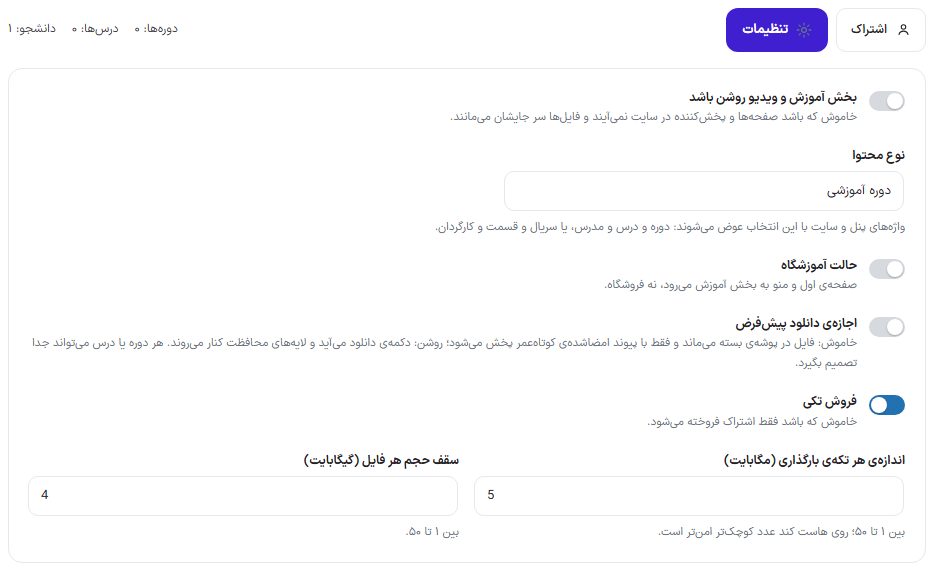
- In the “Settings” tab turn on “Training and video section on” and choose the “Content type”.
- Click “Save”. When this section is turned on, the product page model automatically becomes “Educational” (and when it is turned off it returns to the previous model, if you haven’t changed it yourself).
- From “Add product”, create a simple product and set its name, price, and image.
- In that page’s “Training — Lessons” box, fill in the course settings, add the lessons, and upload the videos.
- Publish the product. The course appears on the
/coursespage of the site and in the store. - If you want subscription sales, build a plan in the “Subscription” tab; the plans page is in
/plans.
Settings tab
The page has two tabs, “Subscription” and “Settings”, and opens with the Settings tab. Above the first box the counts of “Courses”, “Lessons”, and “Students” are written.
| Option | What it does | Default |
|---|---|---|
| Training and video section on | When off, the pages and player don’t appear on the site and the files stay where they are. | Off |
| Content type | “Training course” or “Movies and series”. The panel and site words change with this choice: course, lesson, and instructor, or series, episode, and director. | Training course |
| Academy mode | The site’s homepage itself becomes the course list, and “Courses” (and “Subscription” if there is an active plan) is added once to the header menu; after that the menu rows are yours and you can move or delete them. | Off |
| Default download permission | Off: the file stays in a closed folder and is streamed only with a short-lived signed link. On: a download button appears and the protection layers step aside. Each course or lesson can decide separately. | Off |
| Single sales | When off, only subscriptions are sold. | On |
| Size of each upload chunk (MB) | Video is uploaded in chunks; between 1 and 50. On a slow host a smaller number is safer. | 5 |
| Maximum size of each file (GB) | Between 1 and 50. | 4 |
“Protection layers” box
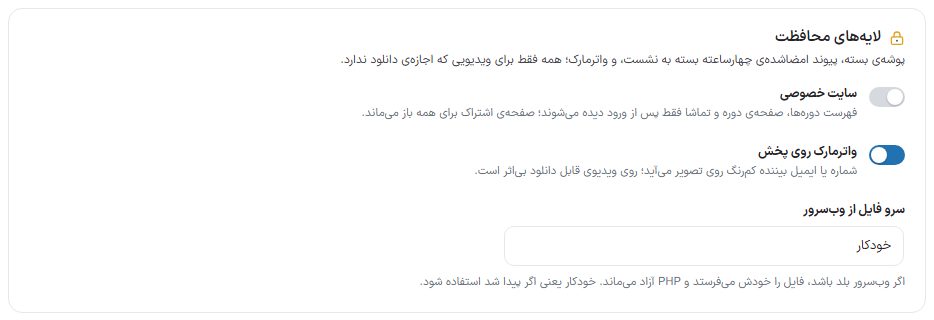
Under the first box is a separate “Protection layers” box: closed folder, a four-hour signed link tied to the viewer’s session, and watermark; all only for video that has no download permission. These layers make downloading harder but don’t lock any single-file video one hundred percent.
| Option | What it does | Default |
|---|---|---|
| Private site | The course list, course page, and watching are visible only after sign-in; the subscription page stays open to everyone. The homepage for a guest is the usual page. | Off |
| Watermark on playback | The viewer’s number or email appears faintly over the picture; it has no effect on downloadable video. | On |
| Serve files from the web server | “Automatic”, “Off”, “Apache (X-Sendfile)”, or “Nginx (X-Accel-Redirect)”. If the web server supports it, it sends the file itself and PHP stays free. Automatic means use it if found. | Automatic |
“Subscription” tab
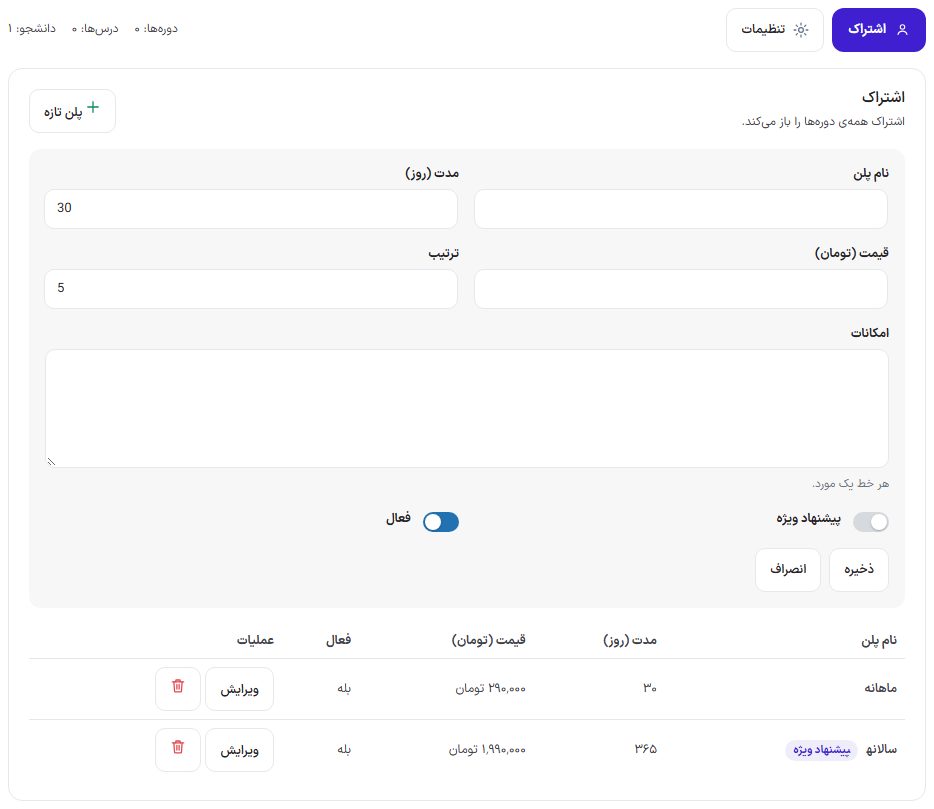
“New plan” opens the form and “Save” or “Cancel” closes it; built plans are in a table with the columns “Plan name”, “Duration (days)”, “Price (Toman)”, “Active”, and “Actions” (the “Edit” button and the delete button).
| Option | What it does |
|---|---|
| Plan name | For example “Monthly” or “Yearly”. Its purchase product becomes “Subscription” + this name. |
| Duration (days) | The days the subscription is valid. Buying again adds the days to the end of the current subscription. |
| Price (Toman) | The plan’s price. |
| Order | The order in which plans appear on the subscription page. |
| Features | One item per line; listed under the plan card. |
| Special offer | The plan card gets a “Popular” badge. |
| Active | An inactive plan isn’t sold and its product is set aside. |
Each active plan has a hidden virtual product in WooCommerce that is built automatically and synced with the plan’s price; you don’t need to build it by hand. Paying a subscription order activates the subscription immediately, and cancellation or refund removes its days.
Building a course on the product page
When the Training section is on, on the “Add product” and “Edit product” pages the “Training — Lessons” box (“Training — Episodes” in movies and series mode) appears under the editor. When the section is off, this box isn’t shown.
Course settings
| Option | What it does |
|---|---|
| Instructor (director) | One of the site’s users; their name appears on the card and the course page. |
| Level (rating) | The course level from a fixed list. |
| Year | Production year, mostly for movies and series. |
| Download permission | “Settings default”, on, or off for all lessons of this course. |
| Preview | A lesson that plays for everyone before purchase. |
| Subscription only | When on, single purchase is closed and only subscribers see it. |
| Specifications | A free “name / value” row such as country, language, or rating; shown under the cover. “New row” adds one. |
Each lesson
| Option | What it does |
|---|---|
| Title | The lesson name. |
| Chapter | Lessons with the same chapter name sit together. The lesson list in the box is collapsible chapter by chapter. |
| Free preview | A guest sees it with no sign-up. |
| Download permission | “Default” means the course setting. Changing it moves the file between the closed and open folder. |
| Duration (seconds) | The lesson duration; the sum of lesson durations is the course duration. |
| Thumbnail image | Size 640 × 360 pixels. |
| Video files | “Add video”; each file has its own “Quality” and “Audio” (such as dubbed or original language). Drop or choose the file; upload is chunked and the file type is checked from the content itself. |
| Subtitles | “Add subtitle” with a “Subtitle name” (srt or vtt). |
| Attachments | “Add attachment” with an “Attachment name”; a handout or exercise file the buyer downloads on the course page. |
| Up / Down | Reorders the lessons. |
FAQ and troubleshooting
The “Training — Lessons” box isn’t on the product page.
The Training section is off. On this same page turn on the “Training and video section on” switch and save.
After purchase, the course doesn’t open for the buyer.
Course enrollment happens when payment succeeds or the order becomes “Completed”. Cancellation and refund remove the enrollment. Check the order in WooCommerce.
A large video upload stops halfway.
Make the “Size of each upload chunk” smaller (for example 2 MB) and make sure the file isn’t larger than the “Maximum size of each file”.