

Hero slider element
The largest image at the top of the page: several slides that rotate automatically, each with a desktop image, a mobile image, and a link. The Hero slider no longer has a card in "Site content"; it is a page builder element, and the slides and its size are set inside the element itself, in its own window.
Where is it? Rafina Panel → Site content → Page builder and layout → Edit page → The "Hero slider" element (the "Media" group)
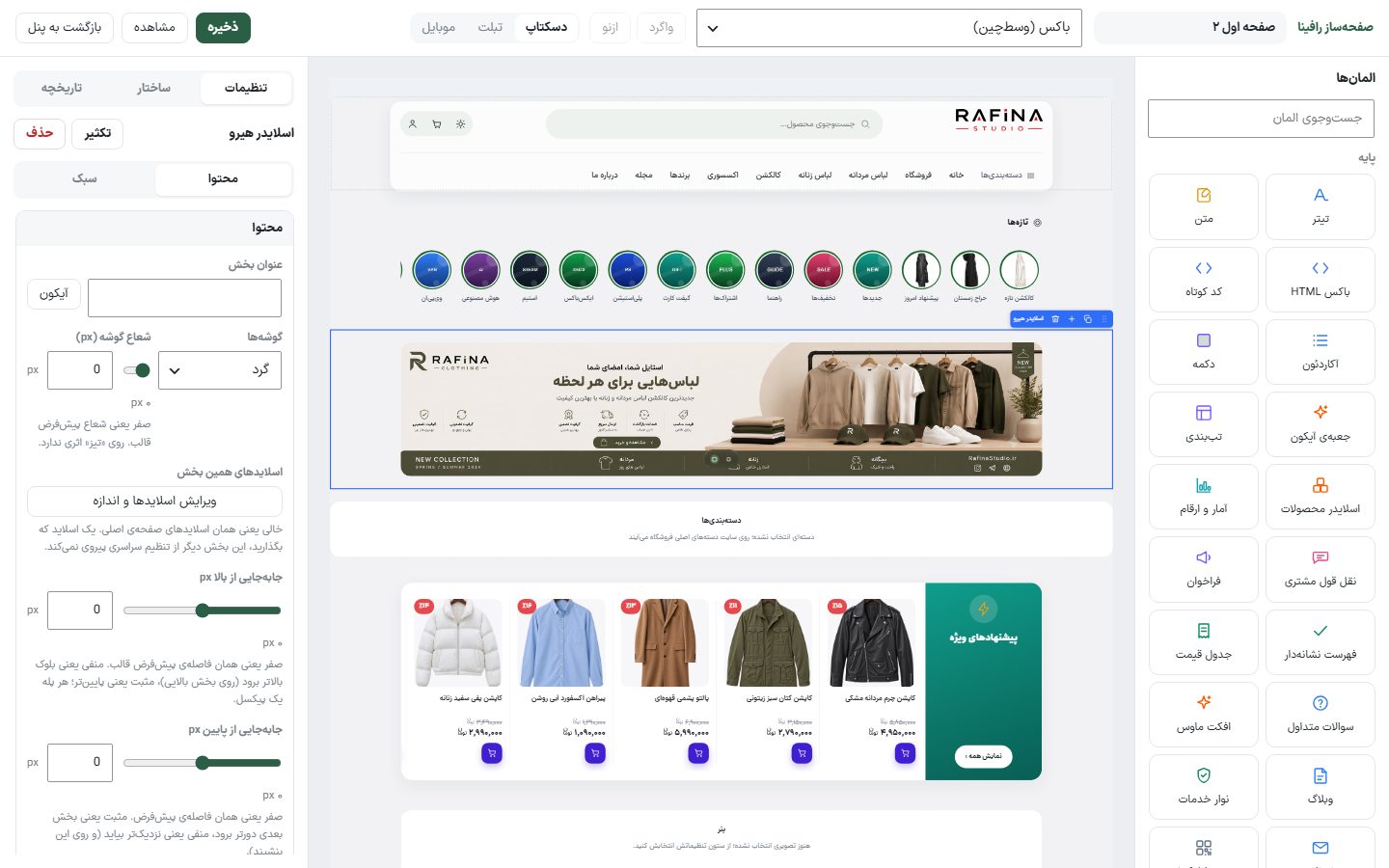
Setup
- In "Site content ← Page builder and layout", open the page you want with "Edit".
- From the "Elements" column, the "Media" group, drag the "Hero slider" element to the spot you want on the canvas, or click it to add it to the end of the page. If it is already on the page, click it (or select it from the "Structure" tab).
- In the settings column click "Edit slides and size" to open the "This section's slides" window.
- Choose one of the four sizes, create slides with "Add slide", and for each set a desktop image, a mobile image, and a link if needed.
- Click "Save and close". The editor also saves the page by itself three seconds after every change.
Element settings
| Option | What it does | Default |
|---|---|---|
| Section title | The title above the slider. The "Icon" button beside it places an icon inside the title. Empty means no title. | — |
| Corners | "Rounded", "Sharp", or "Card (rounded with shadow)". | Rounded |
| Corner radius (px) | Zero means the theme's default radius. It has no effect on "Sharp". | 0 |
| This section's slides | The "Edit slides and size" button opens the slides window. Beneath it, it says how many slides this section has. | Empty |
| Width | In the "Style" tab: "Centered" means aligned with the rest of the page's sections, "Full-width" means to the edge of the display. | Centered |
The settings shared by all elements (offset from top and bottom, padding, minimum height, no header, colors, and motion) are also under this same column; they are explained in the page builder editor .
The "This section's slides" window
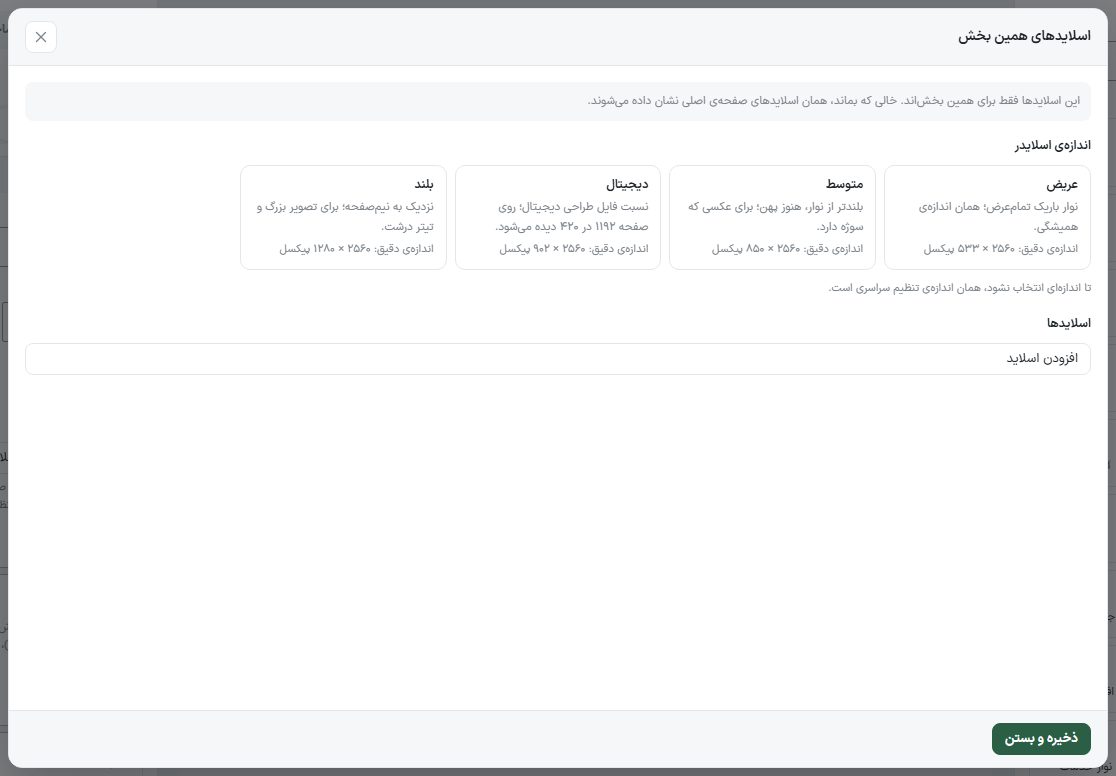
These slides are for this section only and have no effect on other pages.
| Slider size | What it does |
|---|---|
| Wide | A thin full-width strip; the usual size. Exact size: 2560 × 533 pixels. |
| Medium | Taller than the strip, still wide; for an image with a subject. Exact size: 2560 × 850 pixels. |
| Digital | The ratio of the digital design file; it appears on the page as 1192 by 420. Exact size: 2560 × 902 pixels. |
| Tall | Close to half a page; for a large image and a big headline. Exact size: 2560 × 1280 pixels. |
Until a size is chosen, it is the global setting's size. The mobile image is 1080 × 1080 pixels in all four sizes, except "Tall", which is 1080 × 1350 pixels.
| Each slide's options | What it does |
|---|---|
| Desktop image | The slide image on desktop, at the exact size chosen above. If an AI service is set up in the panel, a button to generate an image at that size is beside it too. |
| Mobile image (optional) | The same slide's image on a phone. |
| Link (optional) | The address that opens when the slide is clicked. If left empty, the image has no link. |
| Up / Down | Changes the slide's place in the list. |
| Add slide | Creates a new slide at the end of the list. |
| Save and close | Saves the page and closes the window. |
FAQ and troubleshooting
I can't find "Hero slider" in Site content
Correct; it was removed from the "Site content" cards. Open the page in the page builder and click the "Hero slider" element.
I changed the image but the home page did not change
Change the image in the page that is the site's home page (the default "Home page" in Page builder and layout). If the site is behind a cache, clear the cache too.
The page slider shows slides I didn't set
This section does not have its own slides yet and shows the global slides. Set at least one slide in the "This section's slides" window.