

Login Page
Customer login and sign-up take place on the theme's own page, with a mobile number or email and with a one-time code or a password. Here you set the login method, code settings, limits, and the shape and texts of the login page.
Where is it? Rafina Panel → Site content → Login Page
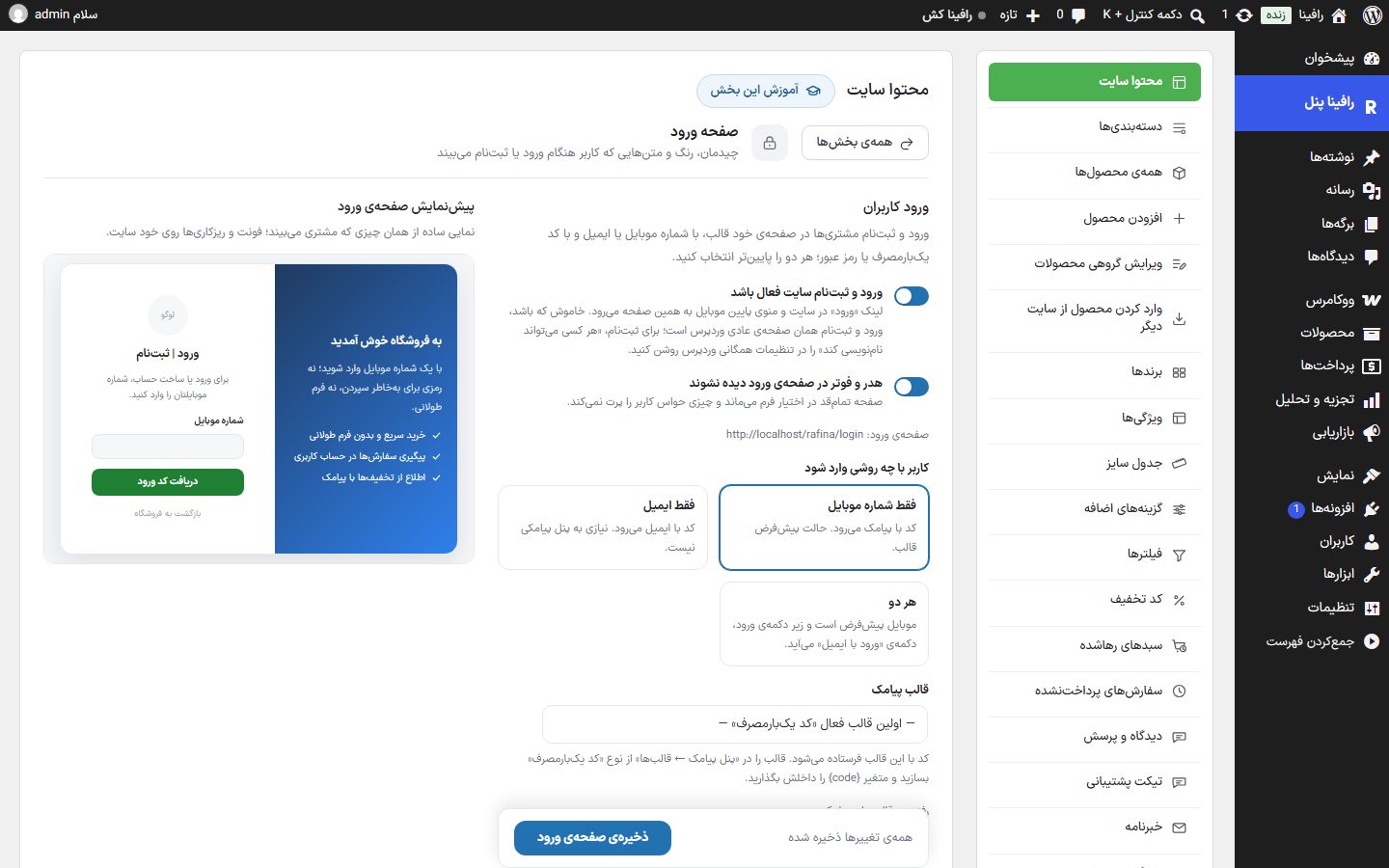
Setting up SMS login
- In SMS panel Set up the SMS service and create and turn on a "One-time code" type template with the variable
{code}. - On this tab, keep the "Site login and sign-up enabled" toggle on.
- Set "How the user logs in" to "Mobile number only" and choose the SMS template (or leave it on the automatic option).
- Click "Save login page" and, from a browser that is not logged in, try the page
/loginonce.
User login and login method
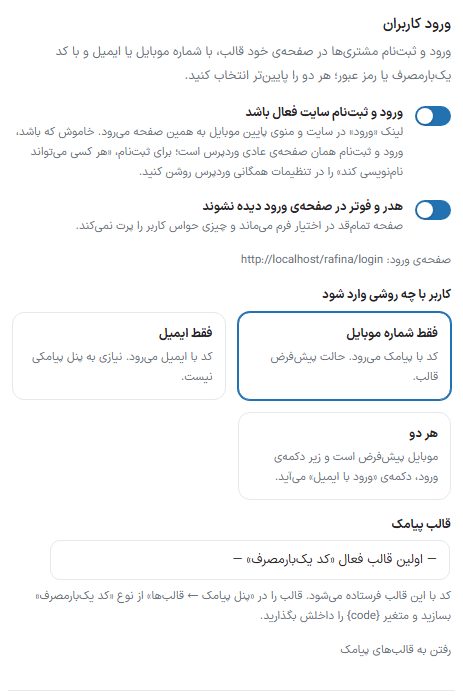
| Option | What it does | Default |
|---|---|---|
| Site login and sign-up enabled | The "Log in" link on the site and the mobile bottom menu goes to the theme's login page (/login). When off, login and sign-up is the ordinary WordPress page; for sign-up, turn on "Anyone can register" in WordPress general settings. | On |
| Hide header and footer on the login page | The full page is left to the form and nothing distracts the user. | Off |
| How the user logs in | Mobile number only: The code is sent by SMS. Email only: The code is sent by email and no SMS panel is needed. Both: Mobile is the default and a "Log in with email" button appears under the login button. If you choose email and Email panel is not set up, the warning is seen right here. | Mobile number only |
| SMS template | The code is sent with this template. The "First active one-time code template" option finds the template itself. If there is no active template of this type, a red message says SMS login does not work. The "Go to SMS templates" link goes to the SMS panel. | Automatic |
| The "Are you a seller? Seller sign-up" link | Seen only when the Dokan plugin has left seller registration open. Under the login form, it opens Dokan's own seller sign-up form. | On |
Code or password, and code settings
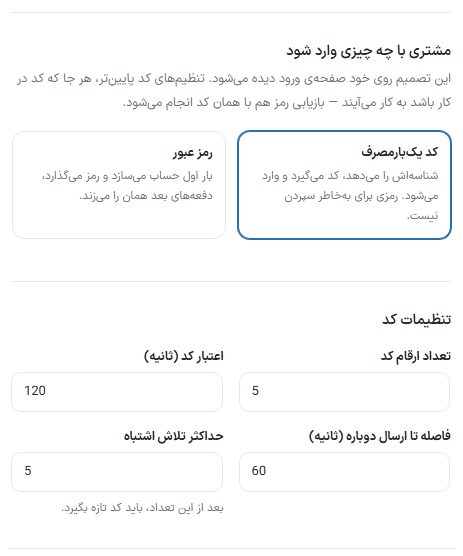
| Option | What it does | Default |
|---|---|---|
| What the customer logs in with | One-time code: They give their identifier, get a code, and log in; there is no password to remember. Password: The first time (by confirming a code) they create an account and set a password; later times they enter that password. Password recovery is also done with the same code. | One-time code |
| Minimum password length | Only with "Password". A password shorter than this is not accepted. | 8 |
| Number of code digits | — | 5 |
| Code validity (seconds) | After this time the code expires. | 120 |
| Interval before resend (seconds) | The resend button does not become active sooner than this. | 60 |
| Maximum wrong attempts | After this many, they must get a new code. | 5 |
Staying logged in and purchase
These three settings apply to all login methods: the theme's login page, WordPress login, and the WooCommerce account.
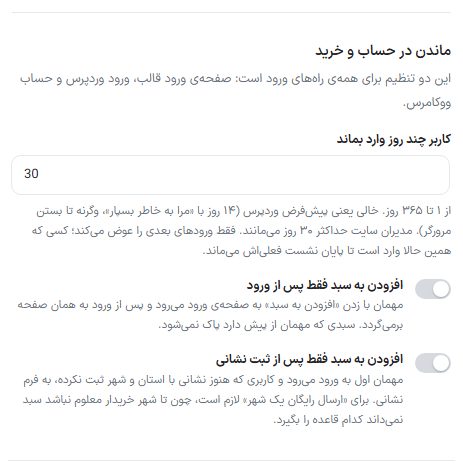
| Option | What it does | Default |
|---|---|---|
| How many days the user stays logged in | From 1 to 365 days. Empty means the WordPress default (14 days with "Remember me", otherwise until the browser closes). Site admins stay at most 30 days. It changes only later logins; someone who is logged in right now stays until the end of their current session. | 30 |
| Add to cart only after login | A guest who clicks "Add to cart" goes to the login page and returns to the same page after logging in. A cart the guest already has is not cleared. | Off |
| Add to cart only after an address is saved | A guest first goes to login, and a user who has not yet saved an address with province and city goes to the address form. It is required for "free shipping for one city", because until the buyer's city is known the cart does not know which rule to apply. | Off |
Code request limit and completing details
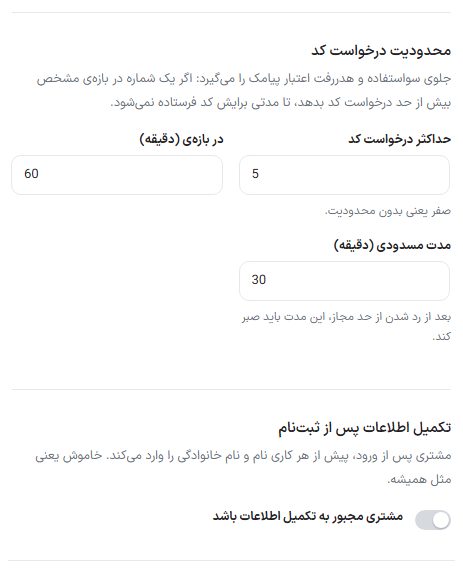
| Option | What it does | Default |
|---|---|---|
| Maximum code requests | Prevents abuse and wasted SMS credit. Zero means no limit. | 5 |
| Within a window (minutes) | The window in which the count above is measured. | 60 |
| Block duration (minutes) | After exceeding the allowed limit, they must wait this long. | 30 |
| Require customers to complete their details | After logging in, before doing anything (even placing an order), the customer enters their first and last name. Off means as usual. | Off |
| National ID also required | Only with the toggle above. The national ID is also asked for and validated. | On |
Page layout
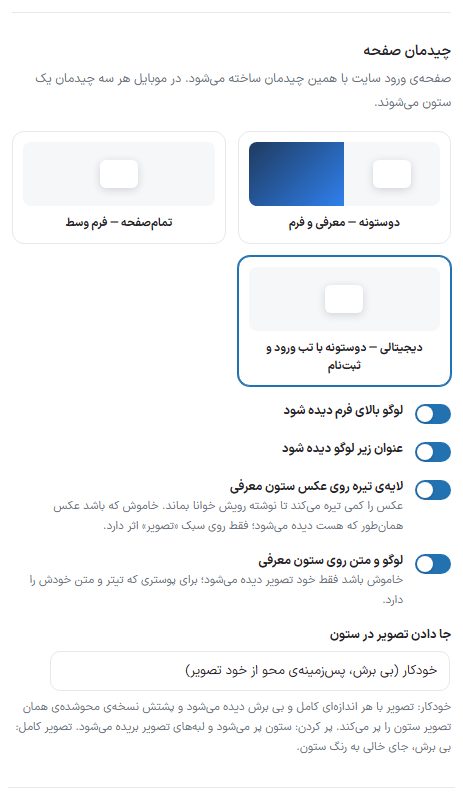
| Option | What it does | Default |
|---|---|---|
| Layout | Two-column — intro and form: An intro column with an image or color, and the form column. Full-page — centered form: The form card in the middle of the background. Digital — two columns with login and sign-up tabs. | Two-column |
| Show the logo above the form | — | On |
| Show the title under the logo | — | On |
| Dark overlay on the intro column image | Slightly darkens the image so the text stays readable on it. When off, the image is seen as it is; it affects only the "Image" style. | On |
| Logo and text on the intro column | When off, only the image itself is seen; for a poster that has its own headline and text. | On |
| Fitting the image in the column | Automatic: The image is seen whole and uncropped at any size and a blurred copy of the same image fills the column behind it; if the image ratio is close to the column's, it fills the column by itself. Fill the column: The image edges are cropped. Full image: Uncropped, with empty space in the column color. | Automatic |
Backgrounds
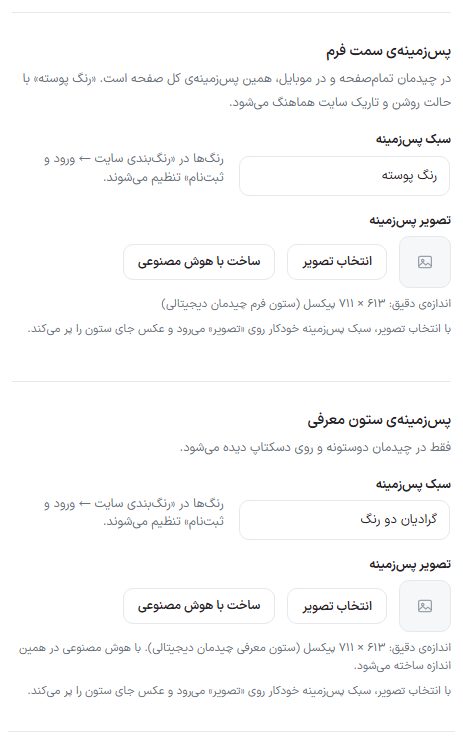
| Option | What it does | Default |
|---|---|---|
| Form-side background: background style | Theme color (follows the site's light and dark mode), two-color gradient, solid color, or image. In the full-page layout and on mobile, this is the background of the whole page. Colors are set in Site color scheme ← Login and sign-up. | Theme color |
| Background image (form side) | Choosing an image automatically moves the style to "Image". Exact size: Full-page 1920 × 1080, two-column form column 936 × 1080, digital form column 613 × 711 pixels. The "Create with AI" button builds the image at that same size. | — |
| Intro column background: background style | Two-color gradient, solid color, or image. Seen only in the two-column and digital layouts and on desktop. | Two-color gradient |
| Background image (intro column) | Exact size: Two-column 984 × 1080, digital 613 × 711 pixels. It is built with AI at this same size. With "Automatic fit", any size fits without cropping. | — |
Text
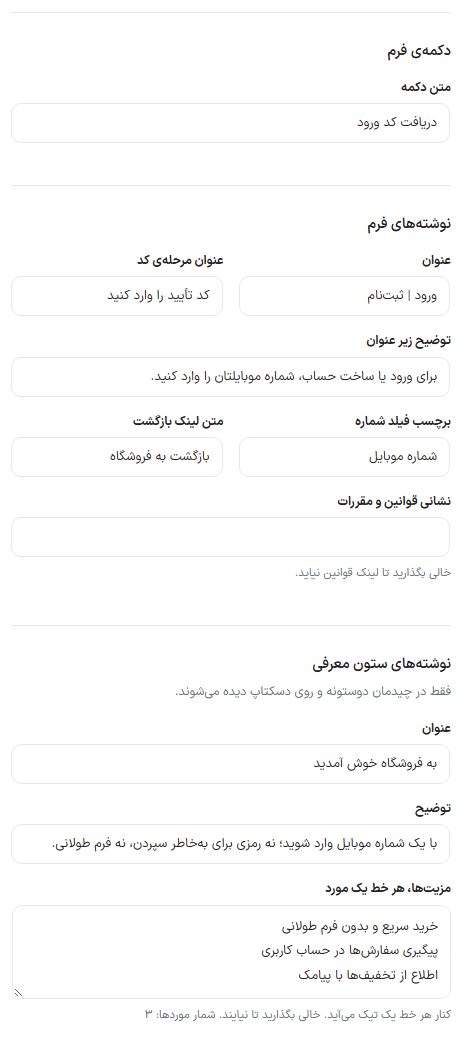
| Option | What it does | Default |
|---|---|---|
| Button text | The form's primary button. | Get login code |
| Title | The form title. | Log in | Sign up |
| Code step title | The title seen after the code is sent. | — |
| Description under the title | — | To log in or create an account, enter your mobile number. |
| Number field label | — | Mobile number |
| Back link text | The link back to the store under the form. | Back to store |
| Terms and conditions address | If filled, the "I accept the terms and conditions" checkbox appears under the form, linking to this address. Leave empty for no terms link. | Empty |
| Intro column texts: title, description | Only in the two-column layout and on desktop. | Welcome to the store / … |
| Benefits, one per line | A check mark appears beside each line. Leave empty for none. The number of items is written under the box. | Three sample items |
FAQ and troubleshooting
The login code does not reach the customer
If the red message "No active one-time code template found" is seen under "SMS template", create or turn on the template in the SMS panel. If there is one, click the test button in the SMS panel to see the SMS service's own error.
The code arrived as a raw "{code}"
Review the template text or the SMS service's pattern; the variable must be exactly {code} . If you use the SMS service's own pattern, the variable name must be the same in the service itself.
I want password login only, not a code
Do not turn off the "Site login and sign-up enabled" toggle; set "What the customer logs in with" to "Password". Turning off the main toggle sends login to the WordPress page.
After the admin logs in, the theme's login page is not shown
A logged-in user goes from /login to the user panel. To see the page, use a private browser window.