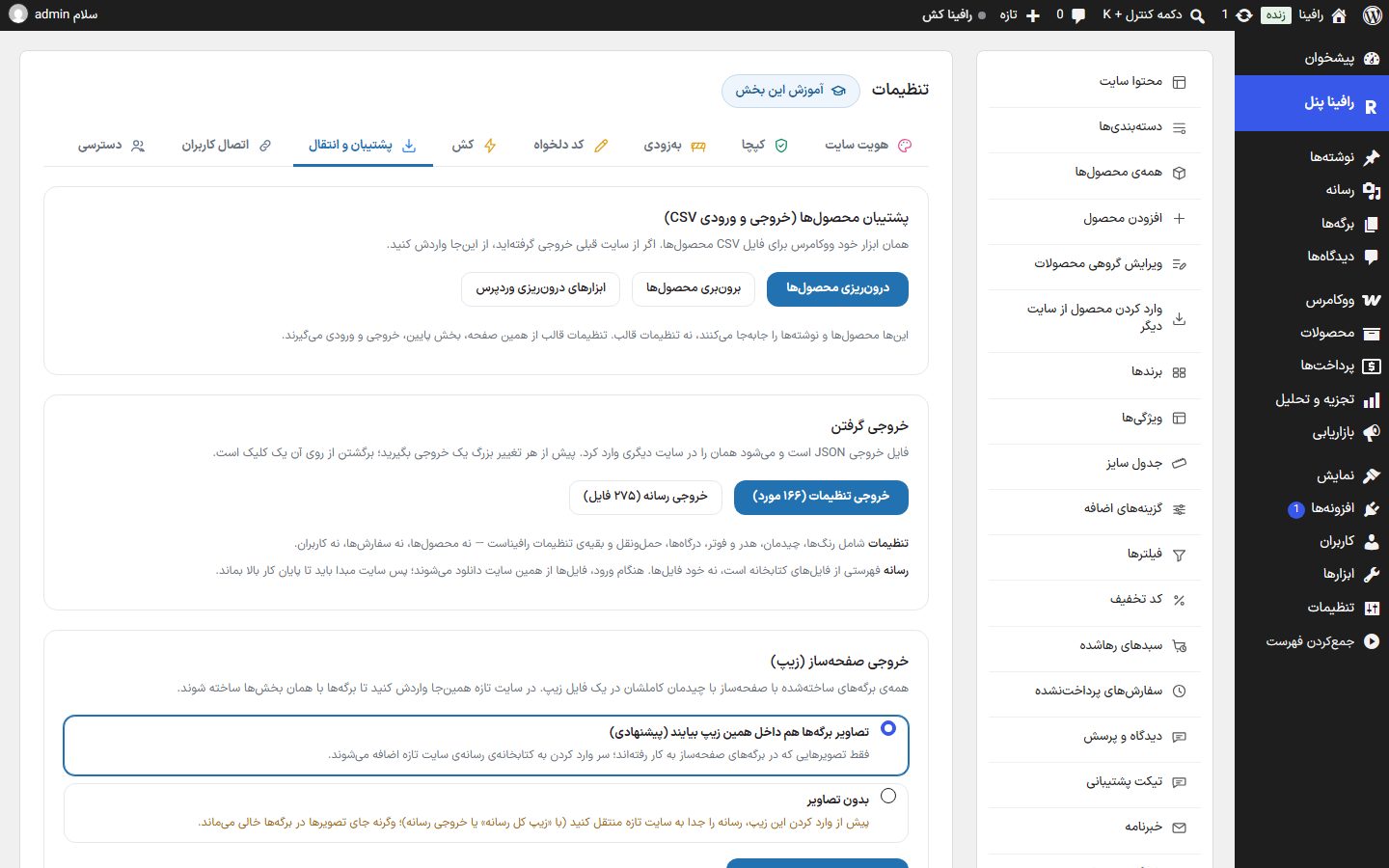
Backup and Transfer
Before any big change, take a backup of the theme settings, or move this site's settings to another site. Products are also moved from here with WooCommerce's own CSV tool.
Where is it? Rafina Panel → Settings → Backup and Transfer
Product backup (CSV export and import)
WooCommerce's own tool for the product CSV file; if you exported from the previous site, import it from here.
| Button | What it does |
|---|---|
| Import products | Opens WooCommerce's CSV import page. |
| Export products | WooCommerce's CSV export page; it creates a file with all products. |
| WordPress import tools | WordPress's “Tools ← Import” page. These move products and posts, not theme settings. |
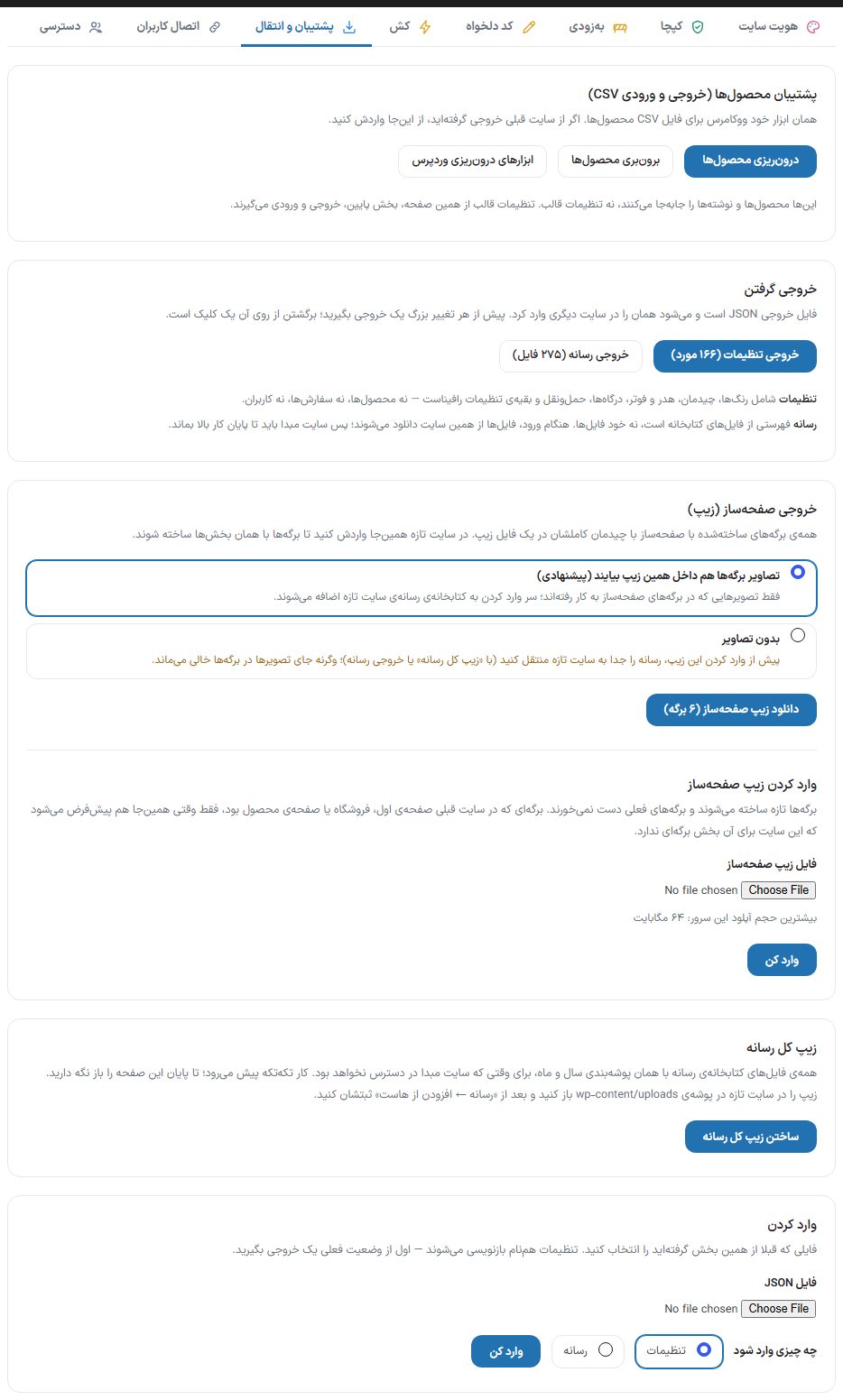
Exporting
The export file is JSON and the same file can be imported on another site. Restoring from it is one click.
| Button | What it does |
|---|---|
| Export settings (N items) | A file with colors, layout, header and footer, gateways, shipping and the rest of Rafina's settings — not products, orders or users. The number in parentheses is the count of settings. |
| Export media (N files) | A list of media library files, not the files themselves. On import, the files are downloaded from this site; so the source site must stay up until the work is done. |
Page builder export (zip)
The settings export doesn't carry page builder pages, because each page's layout is saved on the page itself. This card gives all pages built with the page builder, with their full layout, in one zip file.
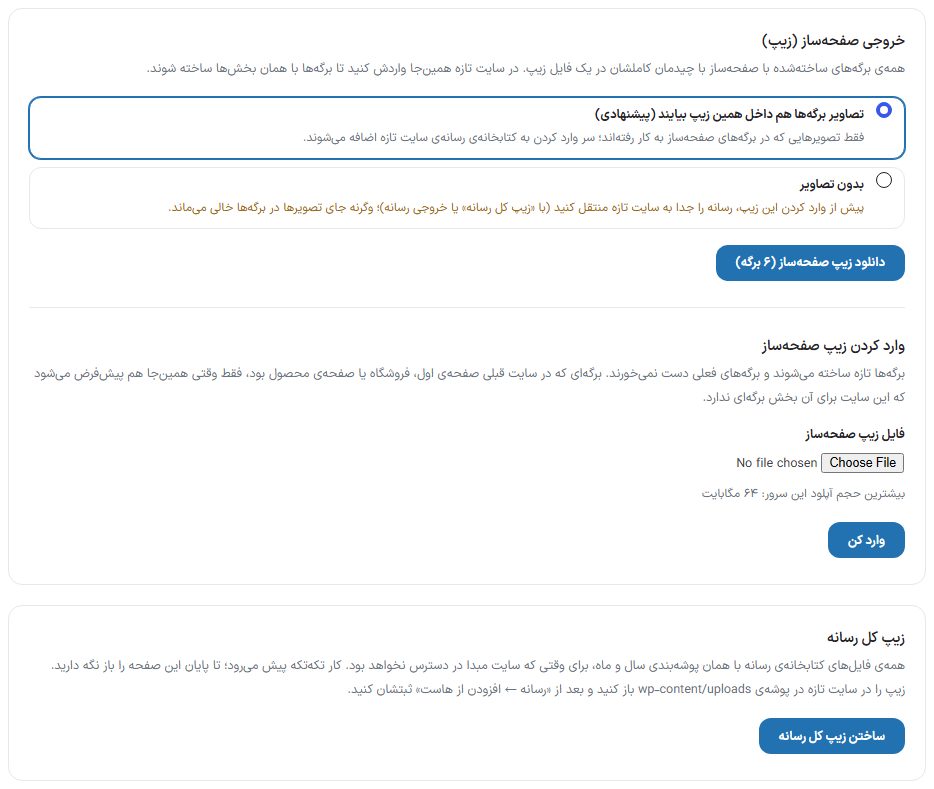
| Option | What it does |
|---|---|
| Include page images in this zip too (recommended) | Only images used in page builder pages go into the zip, and on import they are added to the new site's media library. |
| Without images | The zip has only the pages. Before importing it, move the media to the new site separately (with “Whole media zip” or “Media export”); otherwise the image places stay empty. |
| Download page builder zip (N pages) | Creates the zip file and downloads it. The number in parentheses is the page count. |
Importing into the new site: In the “Import page builder zip” box, choose the file and press “Import”.
- The pages are created new and the site's current pages are not touched.
- An image that already exists on the new site with the same path isn't added again; the rest are added from the zip, and their addresses and IDs are fixed in the pages automatically.
- A page that was the home page, shop or product page on the old site becomes the default here only if the new site has no page for that role. If it does, make it the default yourself from your page builder.
- At the end a message appears: “N pages created · N images imported · N images not found”.
- The maximum file size is the server's upload limit and is written below the box.
Zip of all media
All media library files with the same year and month folder structure, for when the source site won't be available and “Media export” isn't usable.
- Press “Build whole media zip”. The work proceeds in pieces and the progress bar shows file count and size; keep the page open until the end.
- If the page is closed or the connection drops, next time “Continue building zip” picks up from where it left off.
- When it finishes, press “Download media zip”.
- On the new site, extract the zip into the folder
wp-content/uploadsand then, from Media ← Add from host register the files in the library.
Importing
- Before anything else, take a “Settings export” of the current state.
- In “JSON file”, choose a file you previously exported from this same section.
- In “What to import”, choose either “Settings” or “Media”.
- Press “Import” and accept the confirmation message.
- Settings: All Rafina settings with the same names are overwritten with the file's contents. At the end the number of imported and skipped settings is reported. The “Access” tab settings and the “User Linking” result are never imported, because they are tied to this site's users.
- Media: Files are downloaded from the source site and added to the library, ten at a time so the request doesn't run out. If the work is left half-done, the message “Media import is incomplete” with a “Continue from item N” button appears. A file that already exists isn't added again.