

All products
The WooCommerce products list with the Rafina skin: a few frequently used buttons at the top, four count cards, live search and a filter card. The table itself and bulk actions are WooCommerce’s own table.
Where is it? Dashboard → Products → All products (or Rafina Panel → All products)
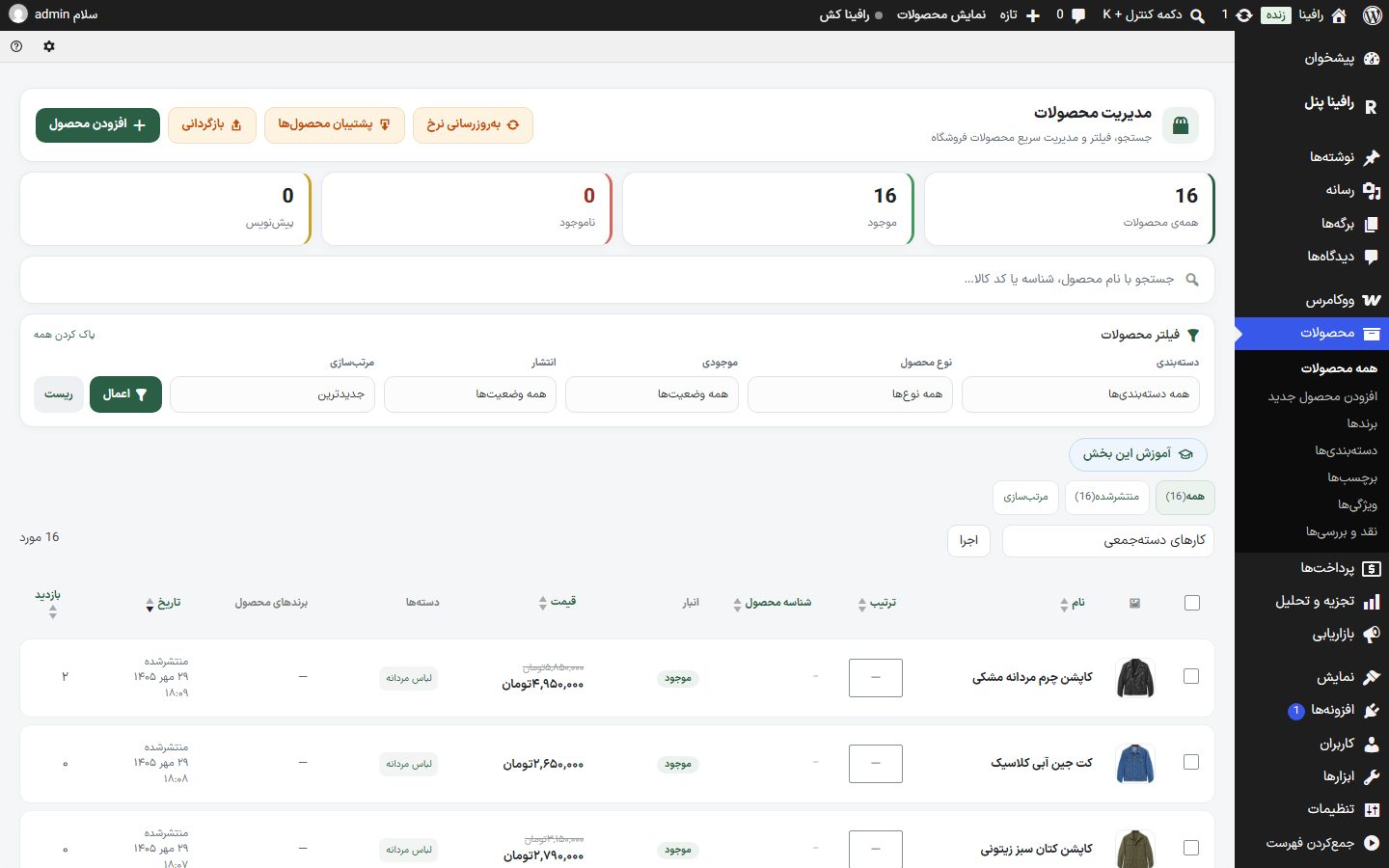
Buttons at the top of the page
| Option | What it does |
|---|---|
| Update rates | Rebuilds right now the prices of all products tied to the daily rate (dollar, gold, coin, currency) and reports how many products were checked and how many changed. You don’t have to wait for the automatic run. The rates and whether automatic updates are on are in Currency Settings . |
| Backup products | Opens WooCommerce’s own export tool (CSV); save all products in a single file. |
| Restore | WooCommerce’s CSV import tool; it restores that same backup file or imports new products from a file. These two tools are in Backup and Transfer section. |
| Add product | You build the Add product it opens. |
Count cards
Four cards, “All products”, “In stock”, “Out of stock” and “Draft”, show the number in each group. Clicking a card makes the table show only that group.
Search and filters
The “Search by product name, ID or SKU…” field is live: as you type, a short list opens under the field showing each product’s SKU, ID, stock and an “Out of stock” badge, and clicking opens its edit page. Pressing Enter makes the table itself show that search’s results. If nothing is found, “No product found.” appears.
| Option | What it does | Default |
|---|---|---|
| Category | Products of one category only. | All categories |
| Product type | Simple, grouped, affiliate/external or variable product. | All types |
| The balance | In stock, out of stock or on backorder. | All statuses |
| Publish | Published, draft, pending review or private. | All statuses |
| Sort | “Manual order (number beside product)”, newest, oldest, name A to Z or Z to A, price low to high or high to low. | If at least one product has an “Order” number, “Manual order”; otherwise newest |
| Apply / Reset / Clear all | “Apply” puts the filters on the table; “Reset” and “Clear all” remove them all. | — |
Products table
Columns: image, name, “Order”, product ID (SKU), stock, price, categories, product brands, date and “Views” (the number of views of that product’s page on the site; click the column header to bring the most viewed to the top). An “Out of stock” badge appears beside the name of an out-of-stock item. “Bulk actions” (bulk edit, move to trash) and the status links (All, Published, Draft) are WooCommerce’s own features. To change the price and stock of dozens of products at once, Bulk Product Editing is easier.
The “Order” column: the product’s manual position in the store
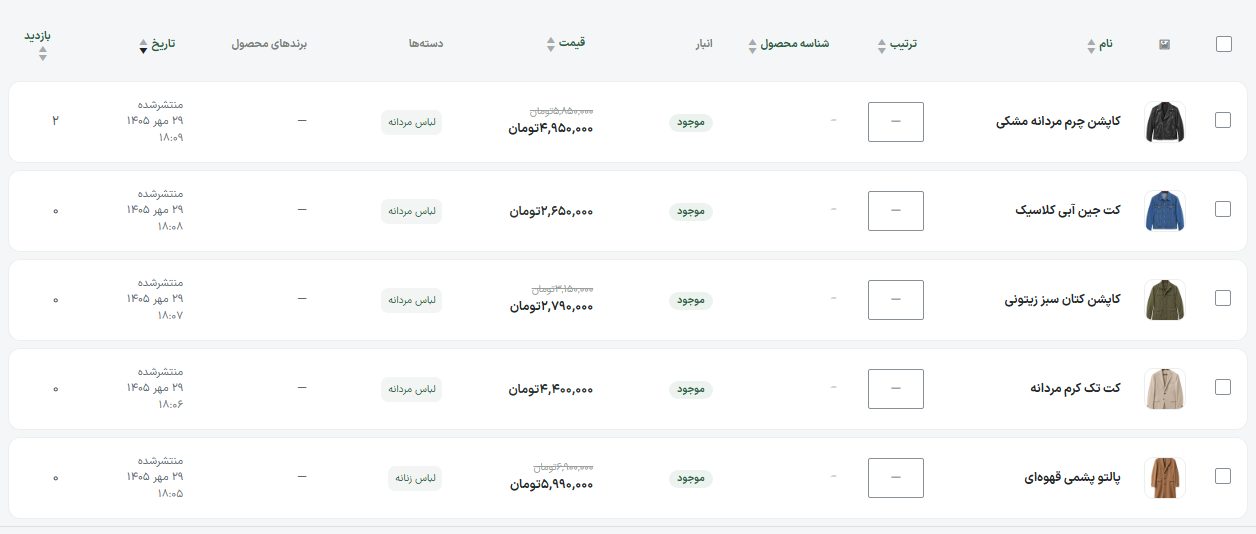
Each row has a number box. Type a number and leave the box; it saves without a refresh. A product with a smaller number comes first in the store (1 means first), and a product with no number keeps its usual place. The column is sortable, so click the header to see the current order.
- Only the default sorting of the store and categories (“Newest”) follows this number; if a buyer chooses “Cheapest” or another sort, that wins.
- The page builder’s “Newest” block deliberately does not follow it.
- If the “Order” number is only for the dashboard (for example the order of accounting software), in Site Content ← Shop turn off the switch “Apply the product ‘Order’ number on the site too”; then only this dashboard list follows it.
- Out-of-stock items still stay at the bottom of the list.
- Numbers from 0 to 99999 are accepted, and Persian digits work too.
Frequently Asked Questions
“Update rates” didn’t change a product’s price.
Either it has a “Price lock”, its price basis is “Manual”, or its “Amount” is empty. The page Edit product .
The “Restore” file created duplicate products.
In WooCommerce’s import tool, tick the option to update existing products so that products with the same ID or SKU are updated, not created again.