

Currency Settings
The currency in which you enter prices, how amounts and site digits are displayed, and automatic product pricing with live dollar, gold, coin, and metal rates are set from this page.
Where is it? Rafina Panel → Currency Settings
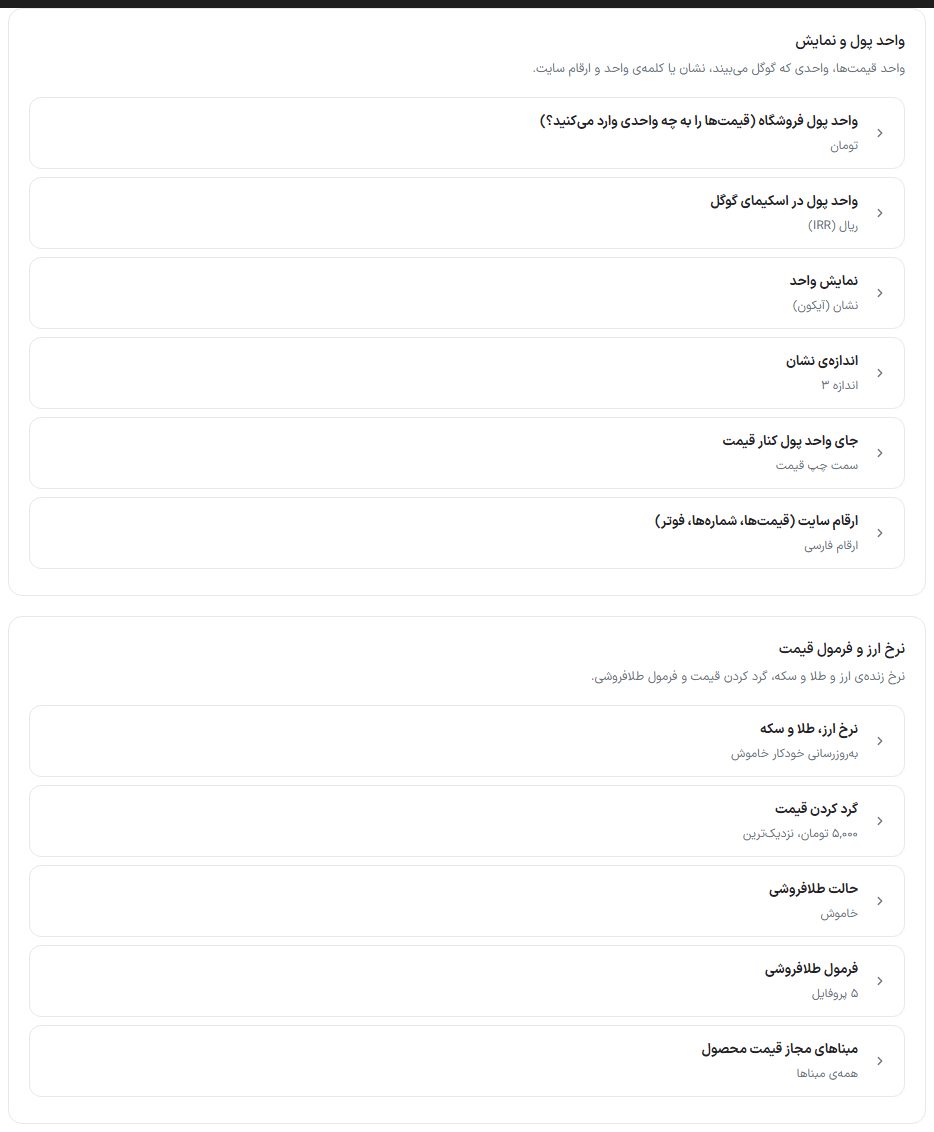
All changes on this page are saved with the “Save currency settings” button in the bottom bar, except sections that have their own button (rate settings, each row’s manual rate, and the display columns in the header and top bar).
“Currency and display” group
Store currency
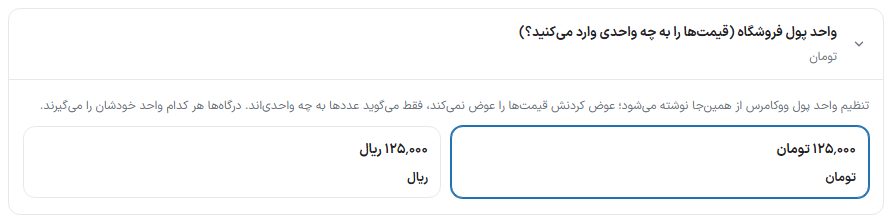
Toman or Rial. It only tells the system what unit the numbers you type in product prices are in, and that same unit is shown on the site. The WooCommerce currency setting is also written from here and the WooCommerce drawer is locked. Changing it does not change the price numbers. Payment gateways each take their own unit, and conversion is automatic.
Currency unit in Google schema
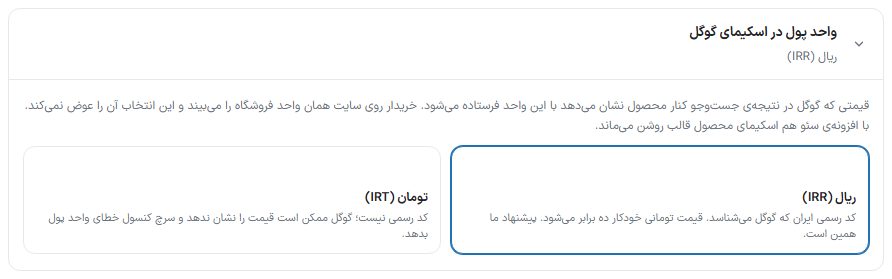
The price Google shows next to the product in search results is sent in this unit. “Rial (IRR)” is Iran’s official code and Google recognizes it; Toman prices are automatically multiplied by ten. This is our recommendation. “Toman (IRT)” is not an official code, so Google may not show the price and Search Console may report a currency error. Buyers on the site see the store’s unit. Default: Rial (IRR). With an SEO plugin (Yoast or Rank Math), the theme’s product schema stays on.
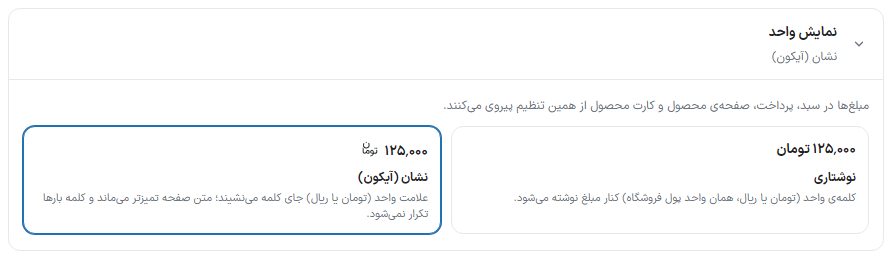
Unit display and badge size
| Option | What it does |
|---|---|
| Unit display: badge (icon) | The Toman or Rial symbol replaces the word beside the amount; the page text stays cleaner. |
| Unit display: text | The word “Toman” or “Rial” is written beside the amount. |
| Symbol size | Size 1 (default) to size 5. The size is measured relative to the text beside it, so wherever the amount is larger, the badge is larger too. |
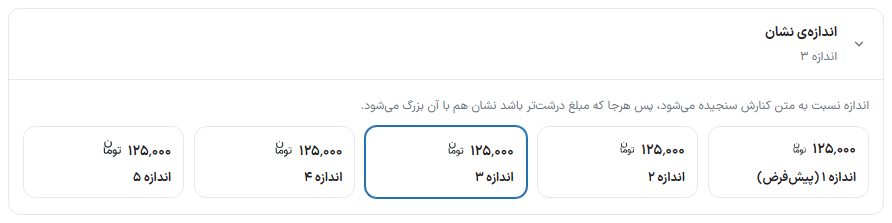
Amounts in the cart, checkout, product page, and product card follow this setting. In invoices, shipping labels, and SMS messages the word always stays because they are plain text.
Currency position beside the price
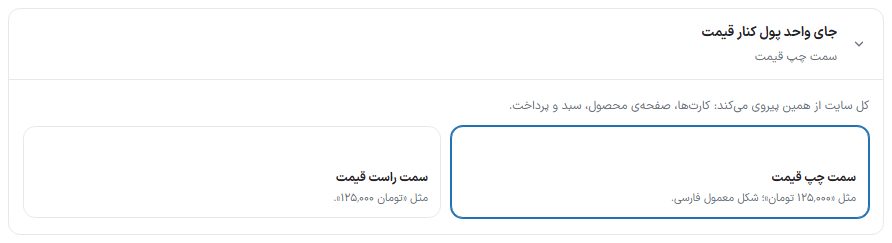
| Option | What it does |
|---|---|
| Left of the price | Like “125,000 Toman”; the usual Persian form. This is the default. |
| Right of the price | Like “Toman 125,000”. |
The whole site and app follow this: cards, product page, cart, checkout, wallet, and price filter. This setting also replaces WooCommerce’s “Currency position” setting; a store where that option was left on “Left” and saw Toman to the right of the number is fixed with this box.
Site digits
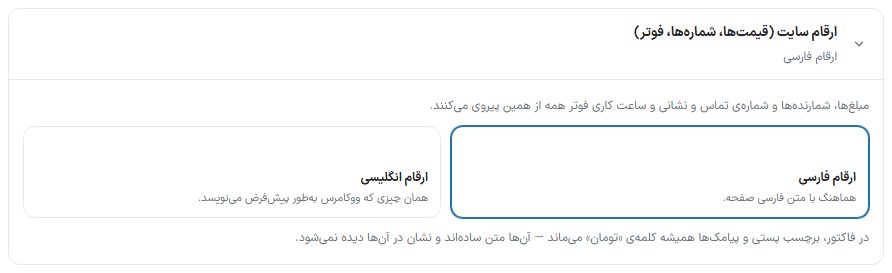
“Persian digits” to match the page text, or “English digits”, which is what WooCommerce writes by default. Amounts, counters, and the footer’s phone number, address, and working hours all follow this.
“Exchange rates and price formula” group
Currency, gold, and coin rates
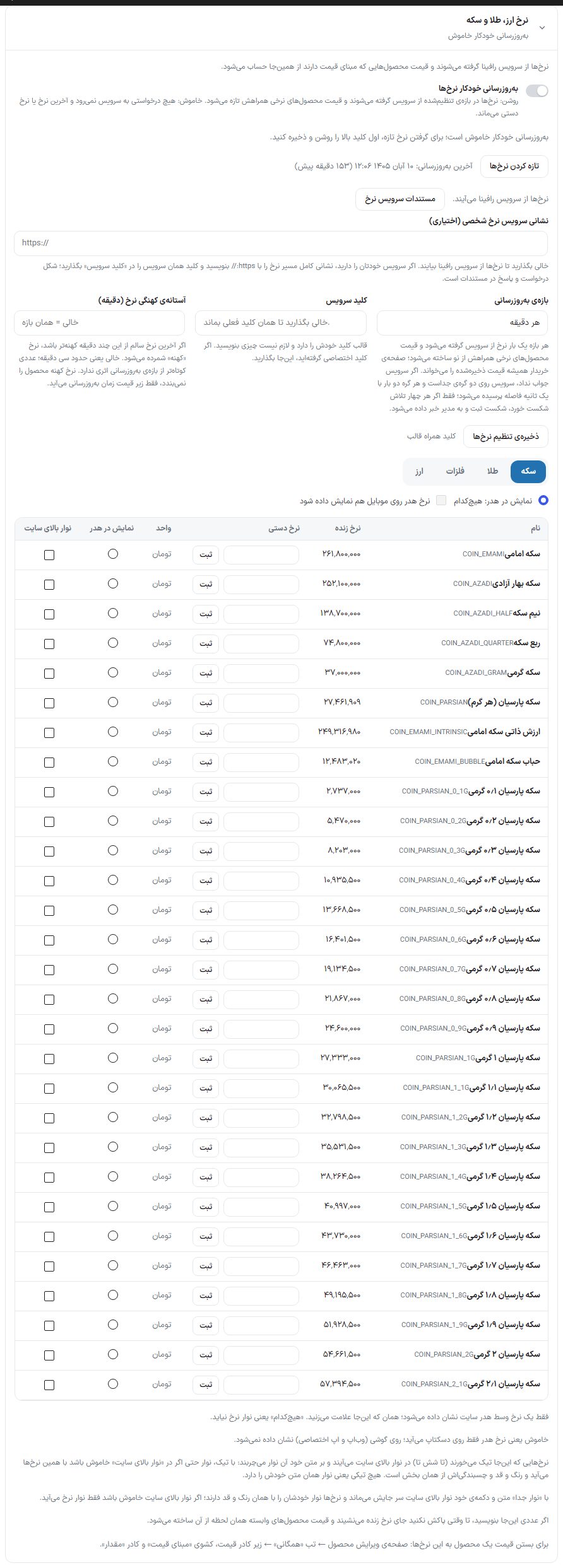
Rates are fetched from the Rafina service, and the price of products that have a “pricing basis” is built from these rates. The buyer’s page always reads the saved price, so site speed doesn’t depend on the rate service.
| Option | What it does | Default |
|---|---|---|
| Automatic rate updates | On: rates are fetched at the set interval and the prices of rate-based products are refreshed with them. Off: no request goes to the service and the last rate or manual rate stays. | Off |
| Refresh rates | Fetches rates right now. The time of the last update is written beside it. With the switch off, this button is off too. | — |
| Rate service documentation | A guide to the request and response format, for anyone who has their own rate service. | — |
| Custom rate service address (optional) | Empty means the Rafina service. If you have your own service, write the full address with https:// and put that service’s key in “Service key”. The key bundled with the theme is never sent to a custom service. Only the site’s main administrator can write it. | Empty |
| Update interval | From “Every minute” to “Every 24 hours”. If the service doesn’t answer, it is asked again twice, one second apart, from each of the service’s two separate nodes, and only if all four attempts fail is a failure recorded and the admin notified. | Every 15 minutes |
| Service key | The theme has its own key and you don’t need to write anything. If you have been issued a dedicated key, put it here; empty means the current key stays. Next to the save button it says where the key comes from (“Key bundled with the theme”). | Key bundled with the theme |
| Rate staleness threshold (minutes) | If the last healthy rate is older than this many minutes, it counts as “stale” and “Price updated at …” appears under the product price. A stale rate does not make the product unavailable. Empty means about thirty minutes. | Empty |
| Save rate settings | Saves just these few fields above separately. | — |
Rates table
Rates are in four tabs: “Coin”, “Gold”, “Metals”, and “Currency”. The table columns:
| Column | What it does |
|---|---|
| Name | The rate name and its English symbol. |
| Live rate | The latest rate that came from the service. |
| Manual rate and “Set” | If you type a number and click “Set”, it replaces the live rate until you clear it, and the prices of dependent products are built from it immediately. To return to the live rate, clear the field and click Set again. |
| Unit | Rate unit (Toman, or dollars for global rates). |
| Show in header | Only one rate is shown in the middle of the site header; the one you tick here. “None” means no rate bar in the header. |
| Top Bar | Tick up to six rates to show them in the Top Bar. These rates take priority over the Top Bar’s own text, and the bar appears with these rates even if it is off in the “Top Bar” section; its color, height, and stickiness still come from that section. |
Once at least one rate is ticked for the top bar, a “Rates placement” drawer appears beside the rate names: “In place of the Top Bar text” (the usual behavior) or “Separate bar, beside the Top Bar”. With a separate bar, the Top Bar’s own text and button stay in place and the rates get their own bar with the same color and height; the “Where should the rates bar be” drawer says whether it sits above the Top Bar or below it. If the Top Bar is off, only the rates bar appears.
At the top of the table is the switch “Show header rate on mobile too”: off means the header rate appears only on desktop, not on phones (web app and custom app).
Price rounding
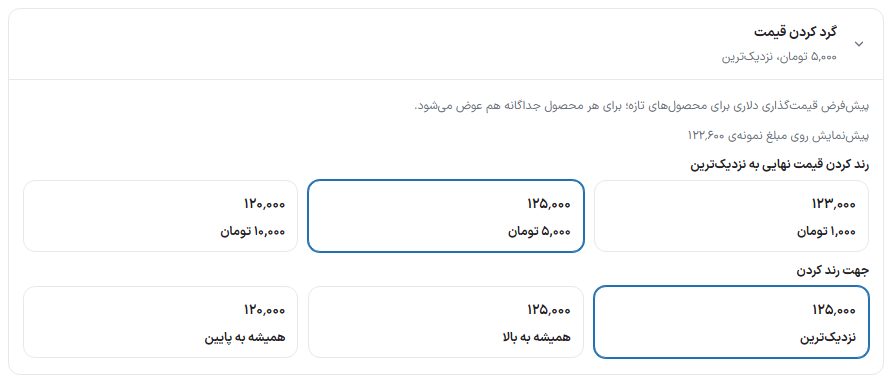
| Option | What it does |
|---|---|
| Round the final price to the nearest | 1,000, 5,000, or 10,000 Toman. A price built from a rate is rounded to this step. |
| Rounding direction | “Nearest”, “Always up”, or “Always down”. |
This is the default for new products, and it can be changed per product on its edit page.
Jeweler's formula
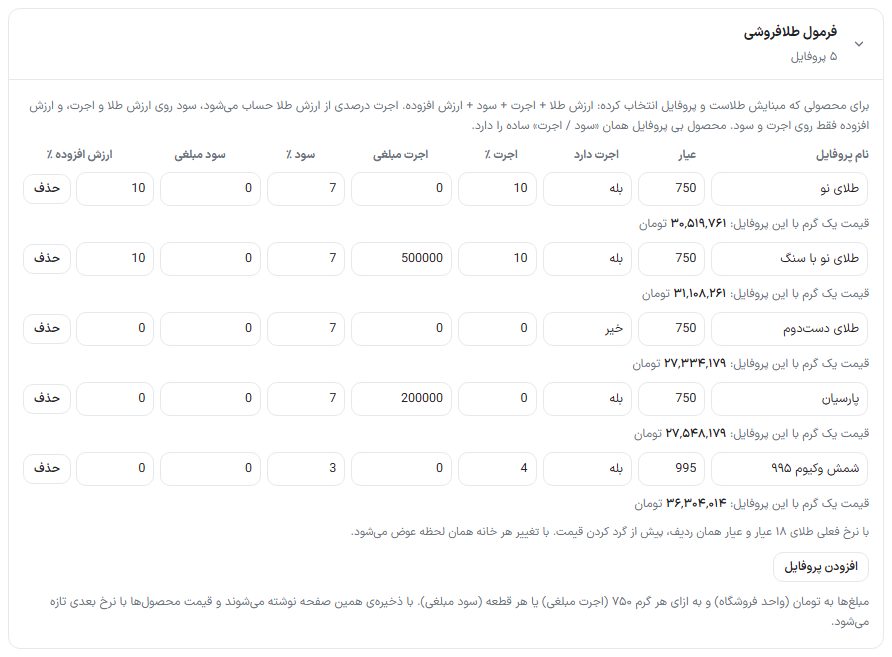
For a product whose basis is gold and which has a profile selected, the price is built like this: gold value + labor fee + profit + VAT. The labor fee is calculated as a percentage of the gold value, and a fixed labor fee is an amount per 750-gram; profit is calculated on gold value plus labor fee, and VAT only on labor fee and profit. A product with no profile has the simple “profit / labor fee”. The theme comes with five ready profiles.
| Column | What it does |
|---|---|
| Profile name | The name seen in the product page’s “Gold shop profile” drawer. |
| Purity | This profile’s gold karat. |
| Has labor fee | “No” turns off the two labor fee fields (for example for second-hand gold or bullion). |
| Labor fee % / fixed labor fee | A percentage labor fee, and a fixed labor fee per 750-gram. |
| Profit % / fixed profit | A percentage profit, and a fixed profit per piece. |
| VAT % | Only on labor fee and profit. |
| Remove / add profile | Removes a profile or creates a new one. |
Amounts are in the store’s unit. They are written when you save this page and product prices refresh with the next rate. On a product, under “Pricing basis” there is the “Gold shop profile” drawer and the “Separate setting for this product” button, which takes the labor fee, profit, and karat of that one product separately. On the product page the buyer sees the price breakdown: “Gold value (750 weight: …)”, labor fee, extras, profit, VAT, and if the price was rounded, a “Price rounding” row; the sum of the rows is the price.
Gold shop mode
For a store where each item has its own labor fee and karat and a shared profile is no use. The “Gold shop mode” box has two fields:
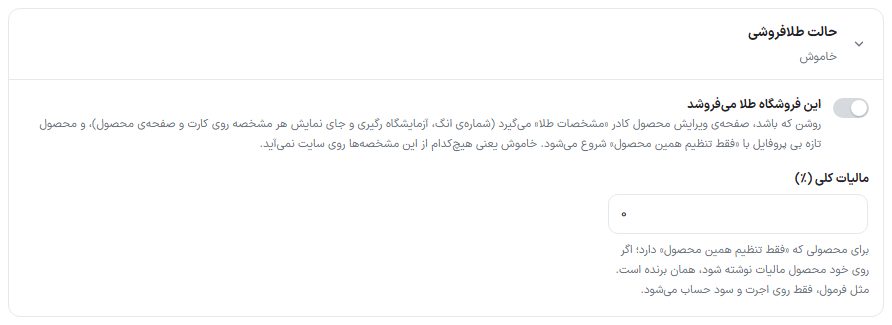
| Option | What it does | Default |
|---|---|---|
| This store sells gold | Turns on gold shop mode. | Off |
| General tax (%) | VAT for products that have “Only this product’s setting”; like the formula, only on labor fee and profit. If tax is written on the product itself, that wins. | 0 |
With the mode on:
- A new product starts with the “Only this product’s setting” profile; existing products are not touched.
- A “Gold specs” box appears in the “General” tab of the product edit page (described in Edit product).
- The product page specs and the line under the card price are built from that box’s ticks. Weight, karat, labor fee, profit, and tax are not asked again and come from the same pricing fields.
- The item’s “Condition” attribute (new, like new, used) is chosen in the same box.
- The line under the card price writes each attribute as “name: value”, for example “Condition: Like new · Weight: 9.500 g · Karat: 750 · Profit: 3 percent”.
- Karat is always written in thousandths (for example 750 or 749, not “18”), and weight and 750-weight with three decimal places.
Off means no gold attributes are visible on the site: not the weight and karat rows in the product page specs, nor the line under the card price. A store that doesn’t sell gold never sees these. Gold-formula pricing is untouched and keeps working.
Allowed product pricing bases
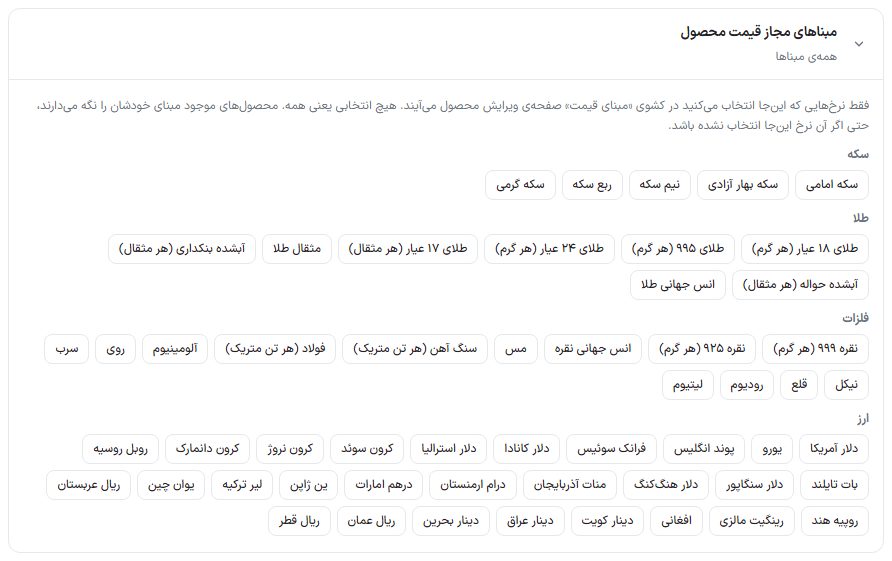
Only the rates ticked here appear in the “Pricing basis” drawer on the product edit page; no ticks means all. For example, a gold store can keep only mithqal and 18-karat gold. Existing products keep their own basis.
FAQ and troubleshooting
Google doesn’t show the product price.
Set “Currency unit in Google schema” to “Rial (IRR)” and wait for Google to crawl again.
Rate-based product prices don’t refresh.
Turn on “Automatic rate updates” and click “Refresh rates” once. If the last update time doesn’t advance, your site has no route to the rate service; an error message appears at the top of this page and in the dashboard. Until it is fixed, set a manual rate.
Gold mithqal differs from other sites’ numbers.
The “Per mithqal” and “Gold mithqal” rates are separate; “Gold mithqal” is built from the 18-karat gram times 4.3318. Set as the basis the same rate your store prices with.