

cache
The theme keeps several heavy things so they are not rebuilt on every visit; this tab sets how long they are kept and has speed tools alongside: clearing the cache, server health, full-page cache and its pre-warming, persistent object cache, request radar, slowing the WordPress heartbeat, browser cache for images and database cleanup.
Where is it? Rafina Panel → Settings → cache
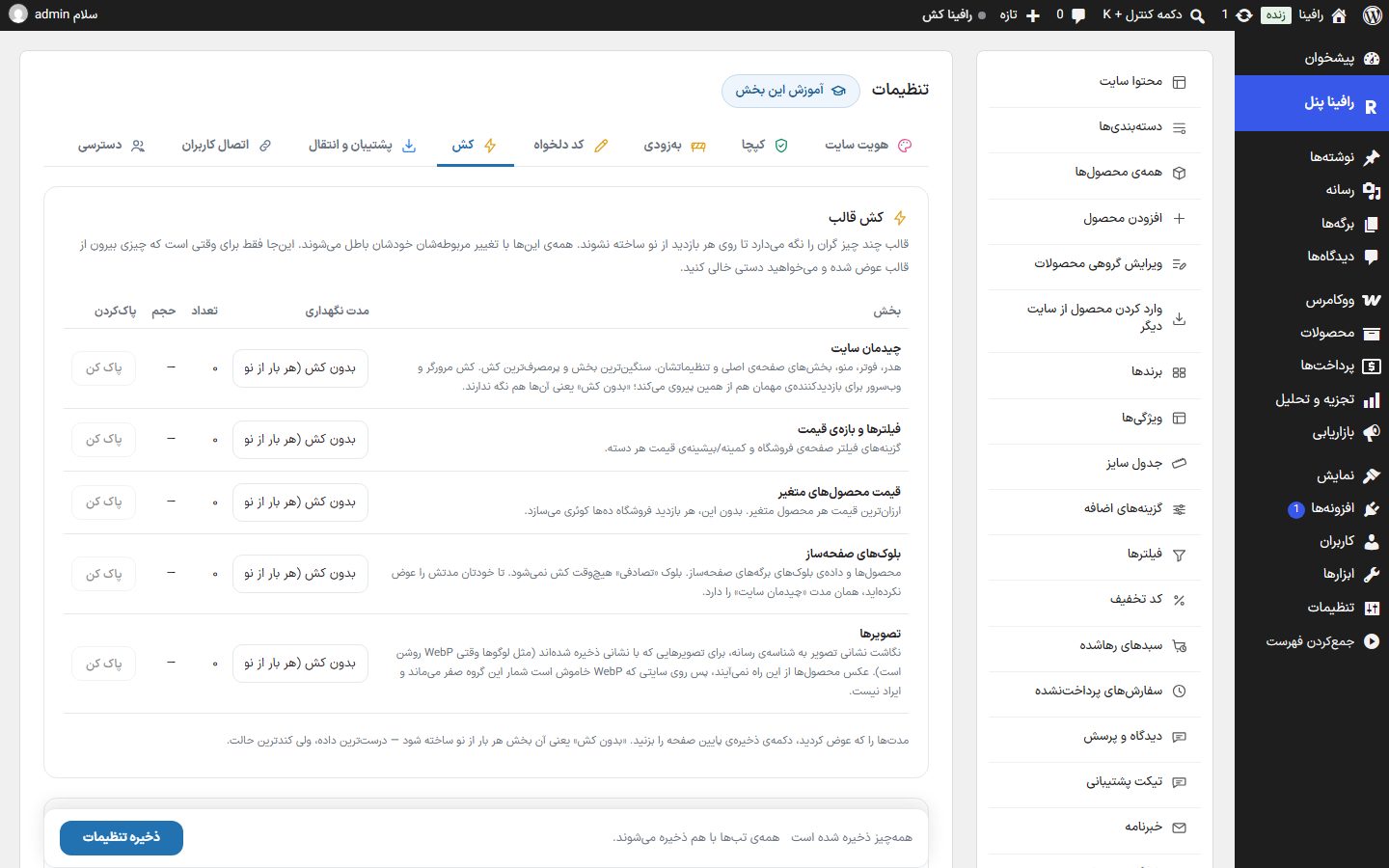
Theme cache

All these caches invalidate themselves when the related thing changes (for example saving a product clears that product's cache). This is for when something outside the theme has changed and you want to empty them manually, or to change the retention time.
| Section | What it keeps | Default |
|---|---|---|
| Site layout | Header, footer, menu, home page sections and their settings; the heaviest and most used cache. The browser and web server cache for guest visitors follows this one too: “No cache” means they do not keep it either. | 6 hours |
| Filters and price range | Shop page filter options and the minimum and maximum price of each category. | 6 hours |
| Variable product prices | The cheapest price of each variable product; without it, every shop visit makes dozens of queries. | 6 hours |
| Page builder blocks | Products and block data of page builder pages. The “Random” block is never cached. Until you change its time yourself, it has the same time as “Site layout”. | Same as site layout |
| Images | Mapping of image address to media, for images saved by address (such as logos when WebP is on). On a site where WebP is off, the count stays zero and that is not a problem. | 1 week |
Durations: “No cache (rebuild each time)”, 15 minutes, 1, 3, 6, 12 and 24 hours, 3 days, 1 week and 30 days. “No cache” has the most accurate data but is the slowest. After changing durations, press the “Save settings” button at the bottom of the page.
Clearing

| Button | What it does |
|---|---|
| Clear the entire theme cache | If you made a change and it isn't visible on the site, press this first. No data is lost; only the calculations are redone and the next first visit is a little slower. If a cache plugin (LiteSpeed, Rocket, W3 Total Cache and the like) is installed, its cache is cleared too. |
| Clear visitors' browser cache | Tells the site's service worker to discard everything it stored on the next visit; for when a change has been applied on the server but users' browsers still show the old version. |
Server health
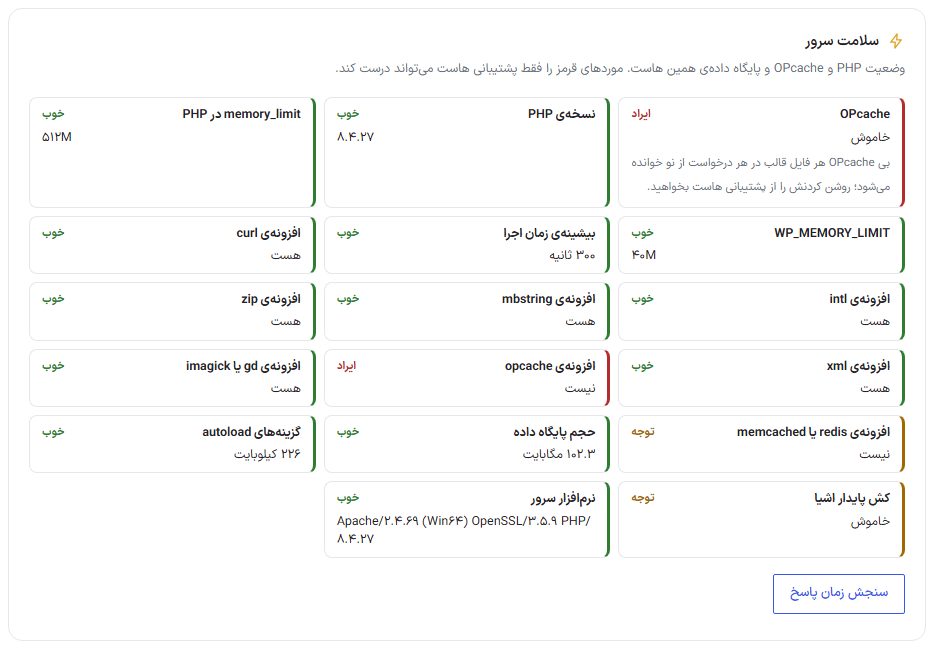
Shows the status of PHP, OPcache and the database on this host and is read-only. Each row has one of three labels: “Good”, “Attention” or “Problem”. Red items can only be fixed by host support.
| Row | What it says |
|---|---|
| OPcache and the opcache extension | Without OPcache every theme file is re-read on each request; it is the most important item for speed. Ask host support to turn it on. If it is on, OPcache memory fullness and its string buffer are also measured separately. |
| PHP version, PHP memory_limit, WP_MEMORY_LIMIT, maximum execution time | PHP version, memory and execution deadline on this host. |
| curl, intl, mbstring, zip, xml, gd or imagick extensions | PHP extensions the theme and WooCommerce need. |
| redis or memcached extension and persistent object cache | Their absence is not a problem and gets “Attention”; with them the “Persistent object cache” card below becomes usable. |
| Database size and autoload options | Total database size and the size of settings loaded on every request. |
| Server software | The web server and its version, as the host reports it. |
The “Measure response time” button requests the site's home page once from the server itself and writes the response time in milliseconds; up to 600 ms is good, up to 1500 “Attention” and above that “Problem”.
Full-page cache for guests

Serves a ready page to a visitor who isn't logged in without running the theme and plugins; it has the most effect on a slow host. Logged-in users, cart, checkout, account and any URL with a query are never cached.
| Option | What it does | Default |
|---|---|---|
| Full-page cache is on | Turning it on writes the file wp-content/advanced-cache.php and a line in wp-config.php and turning it off removes both. | Off |
| Retention time of each page | 10 minutes, 1 hour or 6 hours. | 10 minutes |
| Save page cache and clear page cache | This card has its own save button and applies immediately, not with “Save settings”. Beside the button, the status (“Active.” or “Off.”) is written. | — |
Saving a product, changing stock, pages and posts, and theme settings clear the page cache automatically. Turning it on and off is for the site Administrator only.
advanced-cache.php or the web server is LiteSpeed and the LiteSpeed Cache plugin is on, one of the two caches is enough; the card writes the reason right there. If wp-config.php isn't writable, the line you must add manually is written too.Pre-warm page cache

Pages are built into the cache before the first visitor so no guest gets a slow page: home page, shop, products, posts, pages and product categories, batch by batch in the background. “Start pre-warming” starts at once and “Stop” halts it. With “Automatic pre-warming” on, after every full cache clear the job redoes itself. While the full-page cache is off, this card only says “Turn on full-page cache first.”
Persistent object cache (Redis or Memcached)
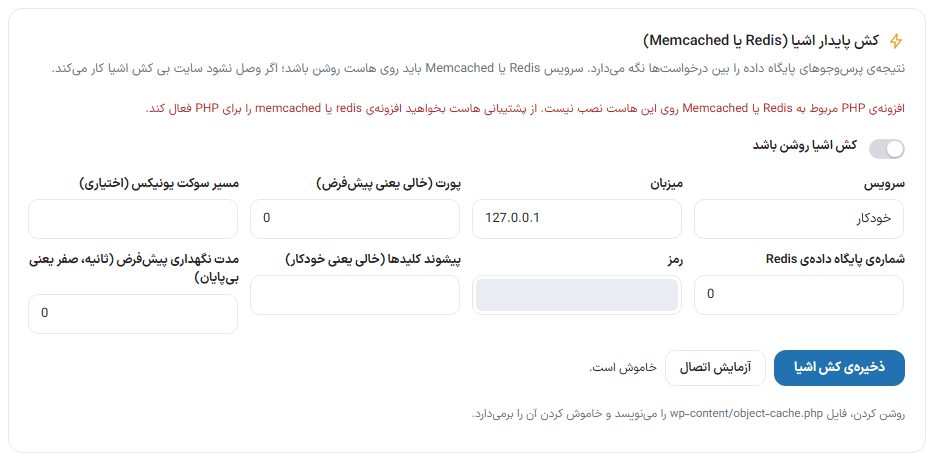
Keeps database query results between requests. A Redis or Memcached service must be running on the host; if it doesn't connect, the site works without object cache. If its PHP extension isn't on the host, the top of the card says so in red.
| Option | What it does |
|---|---|
| Object cache is on | Turning it on writes the file wp-content/object-cache.php writes it, and turning it off removes it. |
| Service | “Automatic”, “Redis” or “Memcached”. |
| Host, port (empty means default), Unix socket path (optional) | The service address on the host; get it from host support. |
| Redis database number, password | The password isn't shown after saving; leaving it empty means keeping the saved password. |
| Key prefix (empty means automatic) | For when several sites use the same Redis. |
| Default retention time (seconds, zero means unlimited) | Default lifetime of each piece of data in the cache. |
| Save object cache, test connection | The card's own buttons; they run immediately. “Test connection” checks before turning on whether the service responds. |
This card is only for the site Administrator.
Request radar

Measures every request for one hour to show which page, plugin or AJAX request slows the site, and turns itself off after an hour. With “Radar on”, open a few site and dashboard pages and press “Refresh” to get four tables: “Slowest requests”, “Slowest AJAX requests”, “Slowest REST routes” and “Average plugin load time” (with time, query count and memory). “Clear logs” empties the list. If the mu-plugins folder isn't writable, only total request time is recorded, not each plugin's time. This section is only for the site Administrator.
WordPress Heartbeat

WordPress sends a request to the server every 15 to 60 seconds to keep post locks, autosave and notifications fresh. Each open dashboard tab means these requests back to back. On a slow host, slowing or turning off the heartbeat reduces server load.
| Option | Options | Default |
|---|---|---|
| On the site | WordPress default, slower (every 60 seconds), off. | WordPress default |
| Dashboard | WordPress default, slower (every 60 seconds), much slower (every 120 seconds), off. Turning it off also removes the “Your session has expired” window. | WordPress default |
| Post and product editor | WordPress default, slower, much slower. It can't be turned off, because without the heartbeat two people overwrite the same product at once and autosave breaks. | WordPress default |
Browser cache for images

Keeps media library images and videos in the visitor's browser so they aren't downloaded again on the next visit (the theme's own files are cached already).
| Option | What it does | Default |
|---|---|---|
| Cache images and videos in the browser | Writes a rule in the file .htaccess of the uploads folder. | Off |
| Retention time | Appears when the switch is on: 7 days, 30 days or 365 days. | — |
.htaccess isn't read and this must be done from the host panel. Upload a replacement image under a new name, otherwise old browsers show the previous version until this time ends.Database cleanup
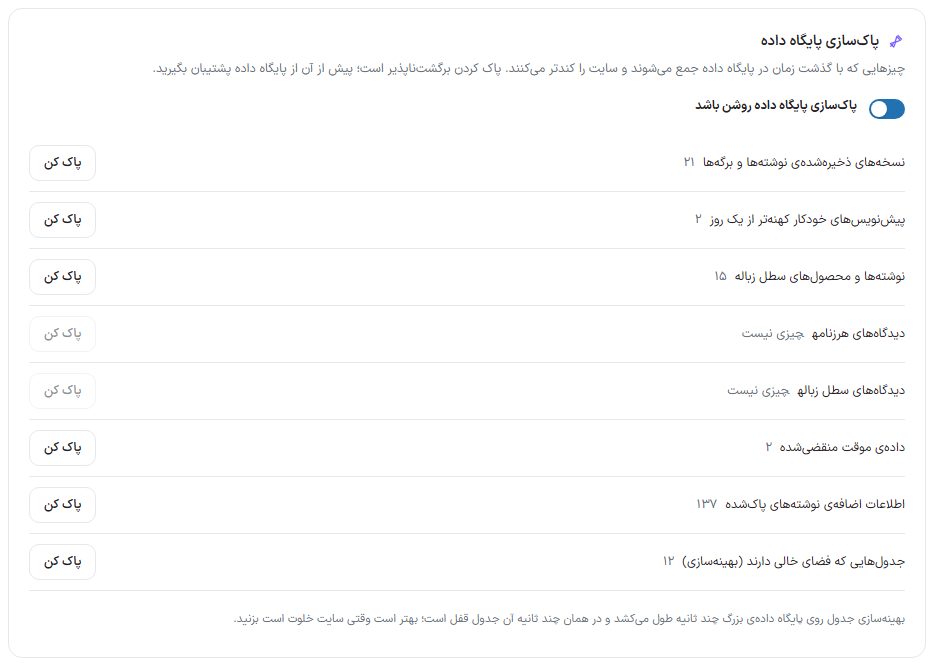
Things that accumulate in the database over time and slow the site. Each row has its own “Clear” button and runs immediately:
- Saved revisions of posts and pages
- Auto-drafts older than one day
- Trashed posts and products
- Spam comments
- Trashed comments
- Expired transient data
- Extra metadata of deleted posts
- Tables with free space (optimize)
| Option | What it does | Default |
|---|---|---|
| Database cleanup is on | When off, the list isn't loaded and database counts aren't taken; counting itself is slow on a large database. | On |
Cache outside the theme
If you have Varnish or the host's own cache on the server, that is a separate layer and the theme has no access to it. After major changes, empty its cache from the host panel.
FAQ and troubleshooting
I saved a change but can't see it on the site.
- Press “Clear the entire theme cache”.
- Open the page in a private (incognito) browser window.
- If it's still stale, clear the host cache (Varnish, server LiteSpeed) from the host panel.