

Discount Codes
In this section you create discount codes that the customer enters in the cart or on the checkout page. Each code can have its own usage limit, expiry date, product scope, and payment gateway.
Where is it? Rafina Panel → Discount Codes
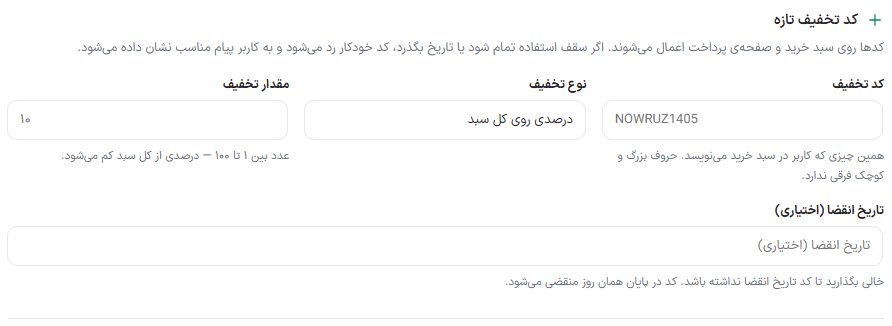
Creating a discount code
- In the “Discount code” field, write the exact text the customer must enter, for example
NOWRUZ1405. Case doesn’t matter. - Choose the “Discount type” and “Discount amount”.
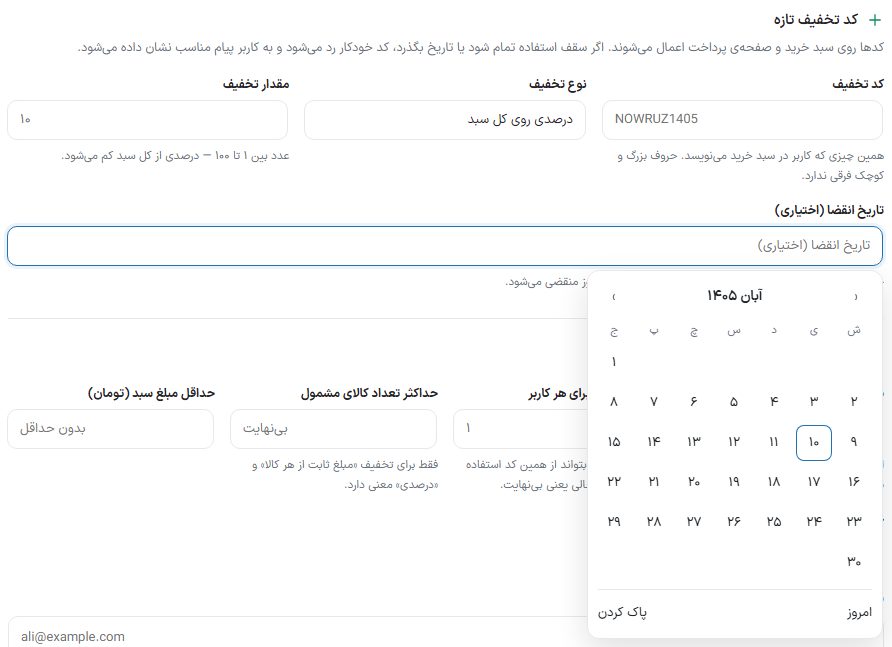
- If the code should have an end date, click the “Expiry date (optional)” field and choose the last day from the Jalali calendar.
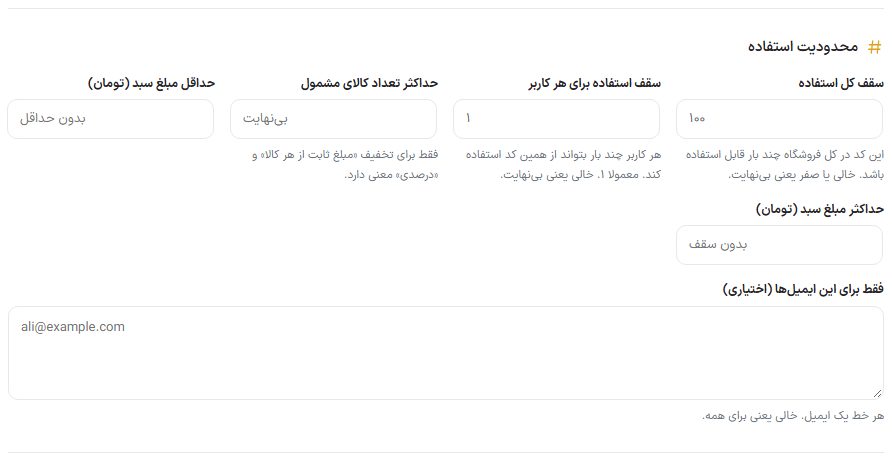
- Under “Usage limits”, set the total limit and the per-user limit.
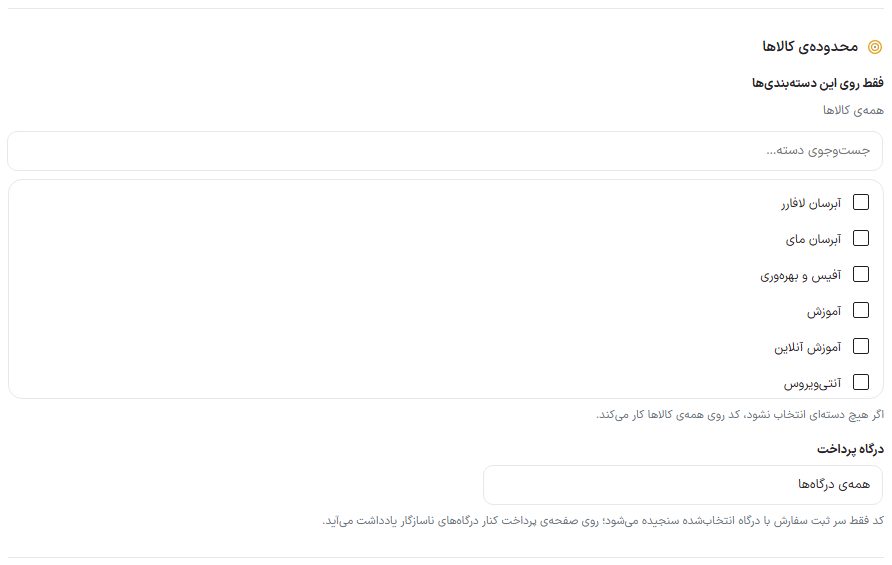
- If needed, limit the code to certain categories or a specific payment gateway.
- Click the “Create discount code” button. The code immediately appears in the “Registered codes” list at the bottom of the page.
Part one: code, type, and amount
| Option | What it does |
|---|---|
| Discount Codes | The text the customer types in the cart. Upper and lower case are treated the same. |
| Discount type | It has three modes: “Percentage of the whole cart”, “Fixed amount off the whole cart”, and “Fixed amount off each item”. |
| Discount amount | In percentage mode the number is between 1 and 100. In the two amount modes, the amount is written in Toman (or the store’s currency unit). The help text under the field changes by itself when the type changes. |
| Expiry date (optional) | Clicking the field opens the Jalali calendar and you choose the end day; the “Today” button sets that day and “Clear” removes the date. Empty means the code has no end date. The code expires at the end of that day. |
Part two: usage limits
| Option | What it does |
|---|---|
| Total usage limit | How many times this code can be used across the whole store. Empty or zero means unlimited. |
| Usage limit per user | How many times each user can use this code. Usually set to 1. Empty means unlimited. |
| Maximum number of eligible items | Meaningful only for “Fixed amount off each item” and “Percentage”; it sets how many units of the item the discount applies to. Empty means unlimited. |
| Minimum cart amount (Toman) | The code is accepted only when the cart total is at least this amount. In the codes list it appears with the “Cart minimum” label. |
| Maximum cart amount (Toman) | The code is not accepted for carts above this amount. Empty means no limit. |
| Only for these emails (optional) | One email per line. If filled, only a customer with one of these emails can use the code. Empty means everyone. |
Part three: product scope
| Option | What it does |
|---|---|
| Only for these categories | A list of all store categories with a “Search categories…” field. If no category is chosen, the code works on all items and “All items” is written above the list; when categories are chosen, it is replaced by the count of chosen categories and a “Clear all” button. |
| Payment gateway | “All gateways”, “Only selected gateways”, or “All except selected gateways”. With the last two, the list of the store’s active gateways opens for ticking. If no gateway is active, it says to first turn one on in the “Payment gateway” section. |
Marketplace options (only with the Dokan plugin)
If the Dokan plugin is active on the site, two more options appear in the form:
| Option | What it does |
|---|---|
| Code for all vendors | When on, the code also applies to all vendors’ items; when off, only to the store’s own items. |
| Except these vendors | This code is not accepted on the items of a ticked vendor. |
Part four: switches and internal note
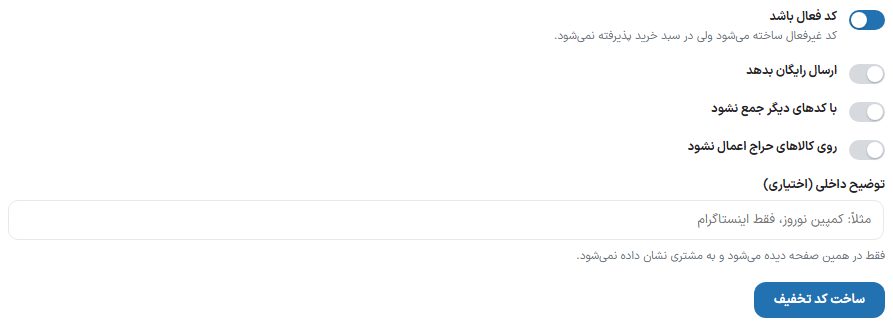
| Option | What it does | Default |
|---|---|---|
| Code is active | An inactive code is created and kept but not accepted in the cart. Useful for preparing a code before a campaign starts. | On |
| Gives free shipping | This code also gives the buyer free shipping. | Off |
| Do not combine with other codes | When on, the customer can’t use this code alongside another discount code. | Off |
| Don’t apply to sale items | Items that already have a discount don’t get this discount code. | Off |
| Internal note (optional) | A note for yourself, like “Nowruz campaign, Instagram only”. It is seen only on this page and is not shown to the customer. | Empty |
Registered codes list
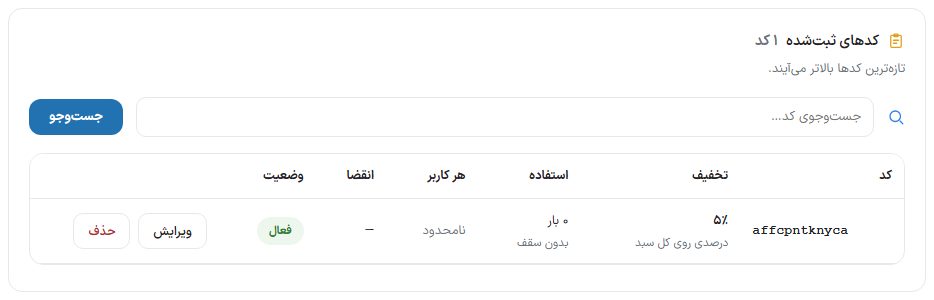
This box shows all the store’s codes with the columns “Code”, “Discount”, “Usage” (times used out of limit), “Per user”, “Expiry”, and “Status”. The status is one of “Active”, “Inactive”, “Expired”, or “Limit reached”, and the cart minimum is written under each code. Find a code with the “Search code…” field, and the list pages with “Previous” and “Next”.
- Edit: The form at the top of the page is filled with that code’s values and its title becomes “Edit discount code”. After changing, click “Save changes” or “Cancel”.
- Delete: After you confirm “Delete this discount code?”, the code is removed.
FAQ and troubleshooting
A customer says the code doesn’t work; what should I check?
Check the status in the codes list: “Expired” means the date has passed, “Limit reached” means the total usage limit is used up. If the code is “Active”, check the cart minimum, category scope, email list, and gateway limit. An inactive code is also not accepted in the cart.
Does a discount code created by “Abandoned carts” or “Customer club” appear here?
Yes. Those codes are WooCommerce coupons too and each is limited to that customer’s email; you don’t need to do anything to create them manually.
Should I give a code to an affiliate marketer?
First create the code here, then in “Affiliate program ← Marketers” use the “Rate and discount code” button to enter the code name for that marketer. Affiliate program guide