

Customer club
A customer earns points by purchasing and being active on the site, and in their account exchanges points for rewards, such as a discount code or wallet credit.
Where is it? Rafina Panel → Customer club
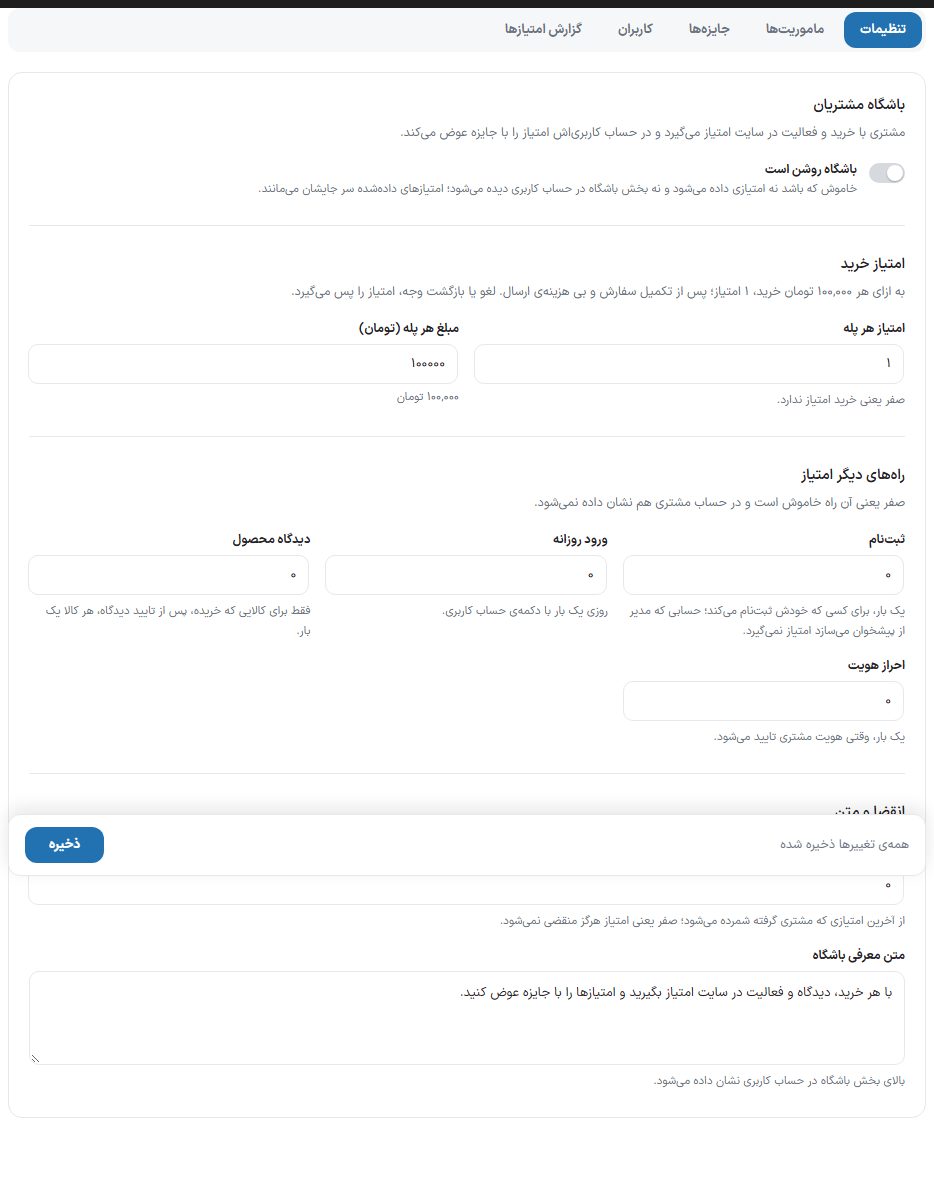
The page has five tabs: Settings, Missions, Rewards, Users and Points report. Changes in each tab are saved with the "Save" button in the bottom bar; the bar says "You have unsaved changes" or "All changes saved".
Setup
- In the "Settings" tab, turn on the "Club is on" switch.
- Set the purchase points: for example 1 point for every 100,000 Toman.
- If you want, set points for registration, daily login, review, and identity verification.
- In the "Rewards" tab, create at least one reward so points are worth something to the customer.
- Click "Save". From now on the club section appears in customers' accounts.
Settings tab
| Option | What it does | Default |
|---|---|---|
| Club is on | When off, no points are given and the club section is not shown in the account; points already given stay in place. | Off |
| Points per step | The points given for each purchase step. Zero means purchases earn no points. A decimal number (up to two digits, like 0.5) is accepted too. | 1 |
| Amount per step (Toman) | How many Toman of purchase make one step. Points are calculated after the order is completed and without shipping cost; cancellation or refund takes the points back. | 100,000 |
| Sign up | Once, for a person who registers on their own; an account the admin creates from the dashboard earns no points. | 0 |
| Daily login | Once a day with a button in the account. | 0 |
| Product comment | Only for a product they bought, after the review is approved, once per product. | 0 |
| Authentication | Once, when the customer's identity is verified. | 0 |
| Points expiry (days) | Counted from the last points the customer received; zero means points never expire. | 0 |
| Club intro text | Shown at the top of the club section in the account. | Default text |
Missions tab
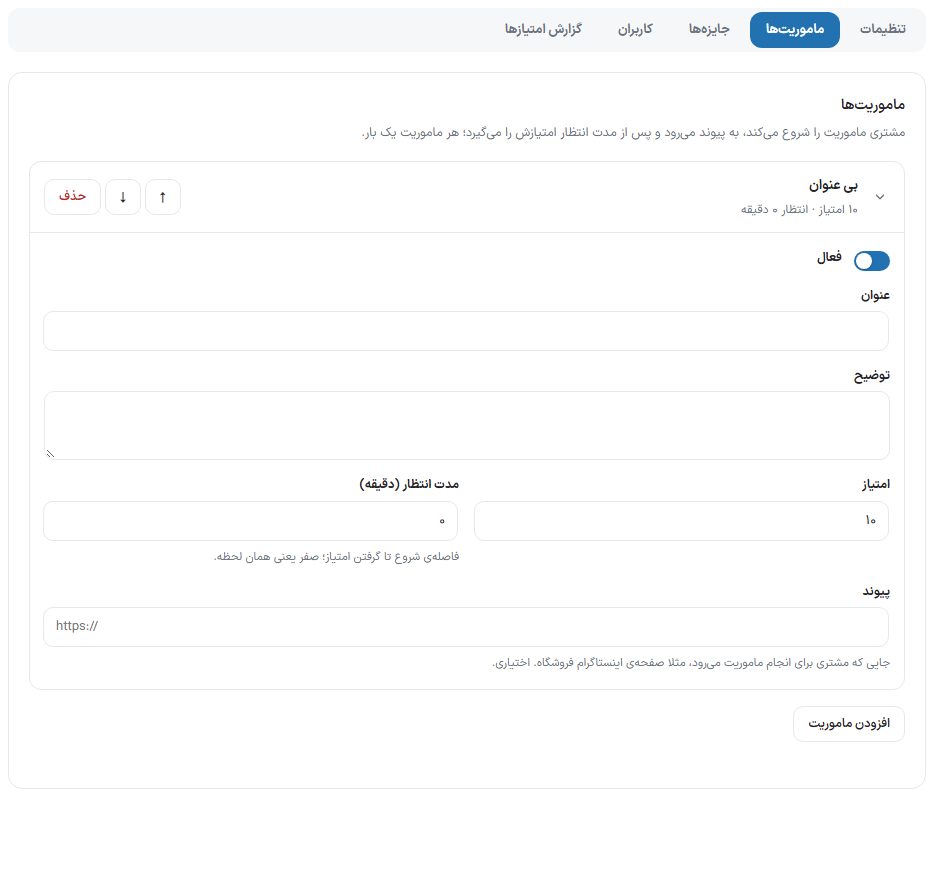
The customer starts the mission, goes to the link, and gets the points after the wait time; for example "Follow our Instagram page". Create a new row with "Add mission".
| Option | What it does |
|---|---|
| Active | A disabled mission is not shown in the customer's account. |
| Title and description | The text the customer sees. |
| Rating | Points for completing this mission. A new mission is created with 10 points. |
| Wait time (minutes) | The gap between starting and receiving the points; zero means immediately. |
| Link | Where the customer goes to do the mission. Optional. |
| The ↑ and ↓ and Delete buttons | Change the order of missions or remove the row (it does not come back after saving). |
Rewards tab
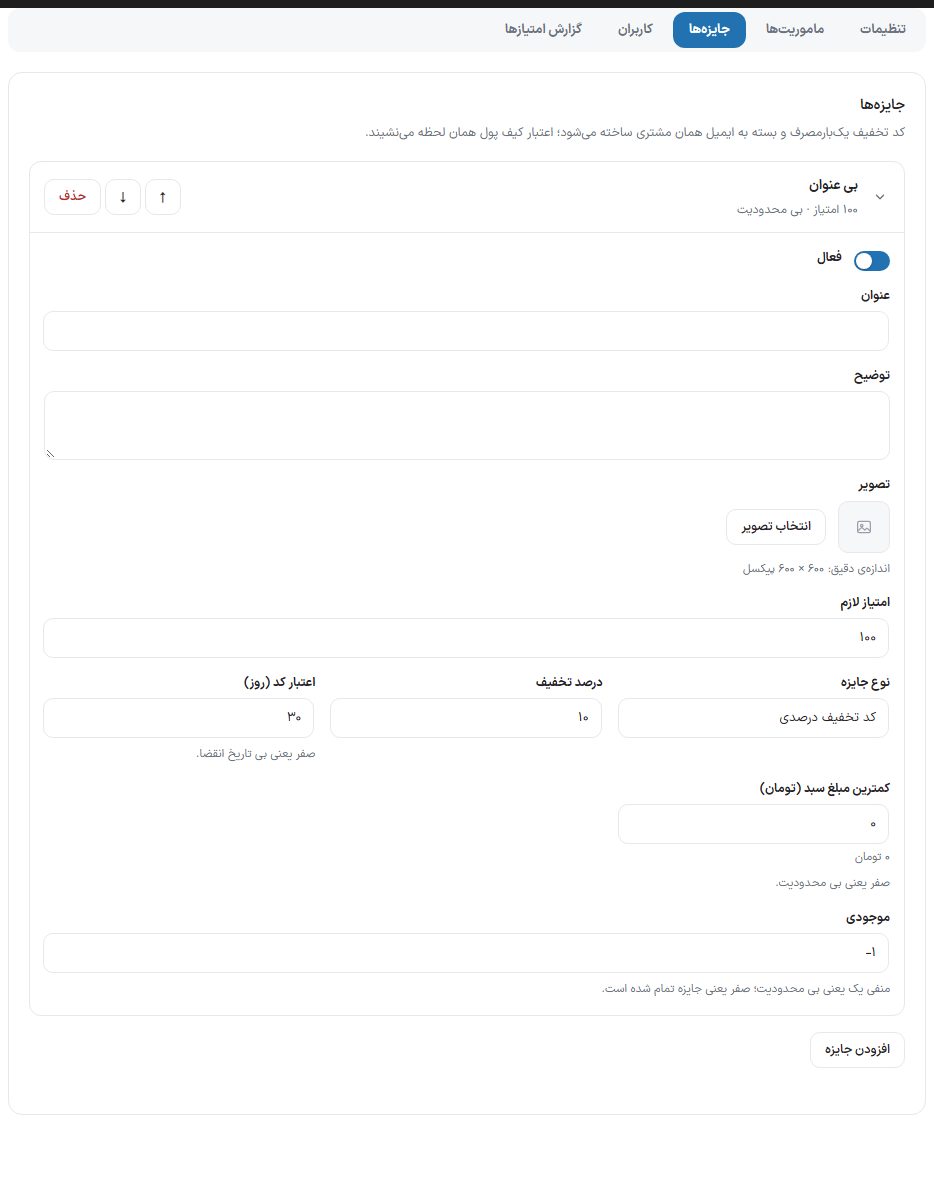
A discount code is created as single-use and tied to that customer's email; wallet credit is applied immediately.
| Option | What it does |
|---|---|
| Active, title, description | Showing the reward in the customer's account. |
| Image | The reward card image. Exact size: 600 × 600 pixels. |
| Points required | The points deducted to get the reward. |
| Reward type | "Percentage discount code", "Fixed amount discount code", "Wallet credit", or "Ready gift code". |
| Discount percent | Only for a percentage code. |
| Amount (Toman) | For a fixed amount code and wallet credit. |
| Gift code | Only for "Ready gift code": this text is shown to the customer on redemption, for example another store's gift card code. |
| Code validity (days) | Only for the two discount code types; zero means no expiry date. |
| Minimum cart amount (Toman) | Only for the two discount code types; zero means no limit. |
| The balance | How many times this reward can be given. Minus one means unlimited; zero means the reward is used up. |
Users tab
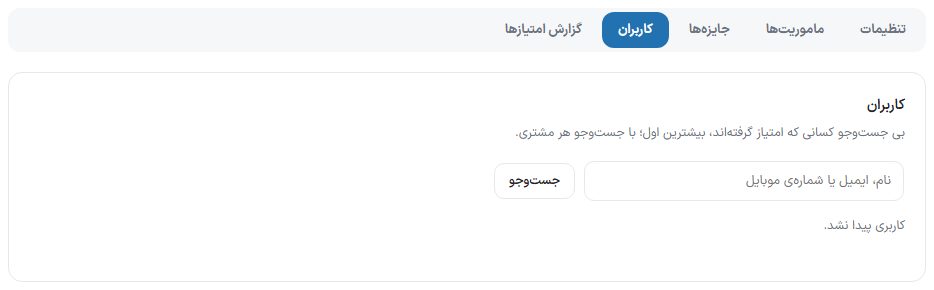
Type the name, email, or mobile number in the box and click "Search"; if nobody is found, "No user found." appears. The table has the columns "User", "Mobile", "Balance", "Total points earned", and "Last points". Beside each row:
- Adjust points: A dialog opens with "Add" or "Subtract", "Number of points", and "Note (shown in the report)". The balance never goes below zero; if you subtract more than the balance, it becomes zero.
- Report: Opens the Report tab for that user only.
Points report tab
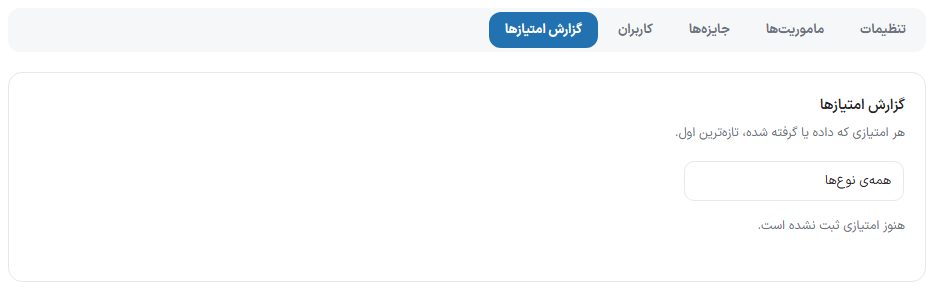
The columns are "Date", "User", "Type", "Points", and "Description", and the "Type" filter has these options: Purchase, Purchase refund, Registration, Daily login, Review, Identity verification, Mission, Reward redemption, Manual change, and Points expiry.
Frequently Asked Questions
When are purchase points added to the customer's account?
After the order becomes "Completed", not at the moment of payment. If you do not complete orders manually or announce delivery through a shipping plugin, purchase points do not arrive.
Is the customer notified?
For purchase points, review, identity verification, admin gift, reward redemption, and points expiry, there are events in the "Club and affiliate program" group in the SMS panel and email panel; they are off by default. SMS panel