

Installment sales
You sell on installments yourself, with no SnappPay, DigiPay, or any middleman company. The buyer pays a down payment, pays the rest in several installments with set due dates, and the item is shipped after the last installment.
Where is it? Rafina Panel → Installment sales
This section differs from “Pay in several installments”: that one is for paying a single order with several methods within minutes; this one is for paying over several months. All changes are saved with the “Save” button in the bottom bar.
Turning it on
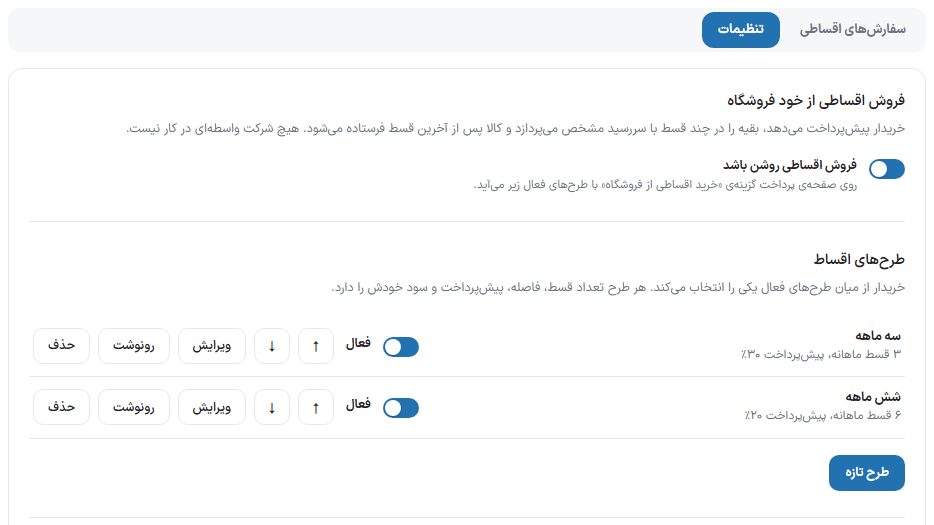
| Option | What it does | Default |
|---|---|---|
| Installment sales on | On the checkout page, the “Installment purchase from the store” option appears with the active plans. It can’t be turned on without at least one active plan, and the message “At least one active plan is needed to turn on installment sales.” appears. | Off |
Installment plans
The buyer chooses one of the active plans. Each plan row has a name and summary (for example “3 monthly installments, 30% down payment”), an “Active” switch, ↑ and ↓ buttons to reorder, “Edit” (which opens the plan form and becomes “Close”), “Duplicate”, and “Delete”. “New plan” creates a new row; no more than 12 plans can be created. Deleting a plan doesn’t touch orders that were placed with it.
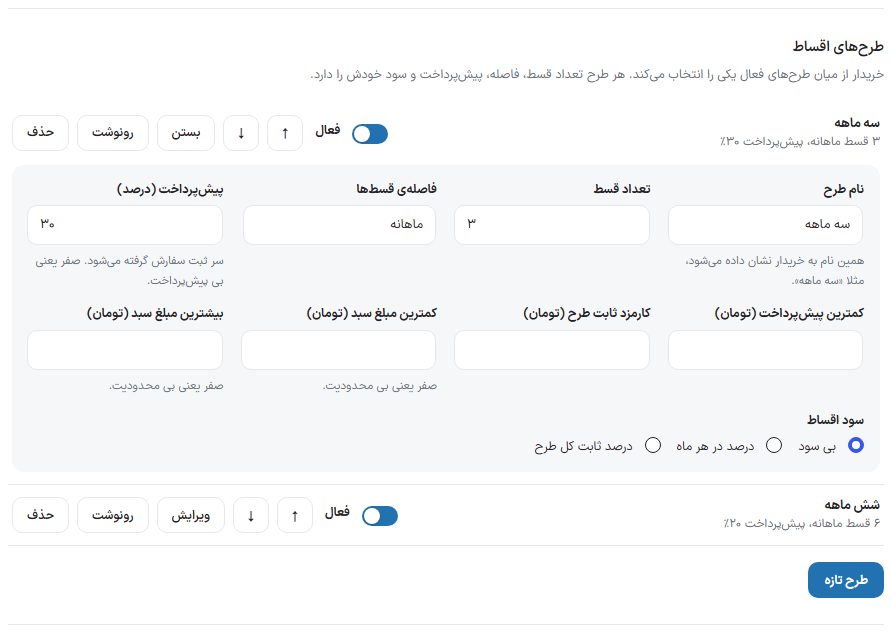
| Option | What it does |
|---|---|
| Plan name | This name is shown to the buyer, for example “Three months”. |
| Number of installments | From 1 to 60. |
| Installment interval | Weekly, every two weeks, monthly, or “Custom” with a number of days. |
| Down payment (percent) | Taken when the order is placed; zero means no down payment. |
| Minimum down payment (Toman) | An amount the down payment will not go below. |
| Installment profit | “No profit”, “Percent per month”, or “Fixed percent for the whole plan”. With the last two, a “Profit percent” field appears; profit is calculated on the balance after the down payment (simple interest). |
| Plan fixed fee (Toman) | An amount added to the total once. |
| Minimum cart amount (Toman) and maximum cart amount (Toman) | The plan is offered only for a cart in this range. Zero means no limit. |
Example: a ten-million-Toman cart, a six-month plan with a 20% down payment and 2% profit per month: down payment 2,000,000, profit 960,000 (2% × 8 million × 6 months), and six installments of 1,493,000 where the last is 1,495,000; grand total 10,960,000. The “Calculation preview” box shows this for any amount and plan, even before saving.
Calculation preview
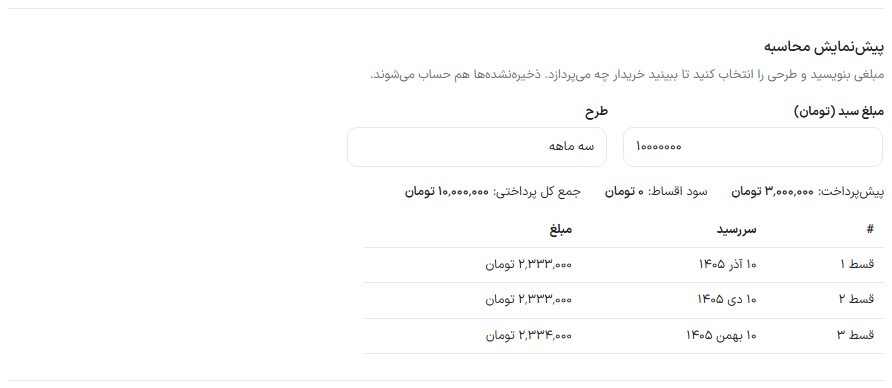
Write an amount in “Cart amount (Toman)” and choose one of the “Plan” options; the down payment, installment profit, total payable, and the installment table with each due date and amount are shown. Unsaved changes count too, and this box saves nothing.
Names for the buyer
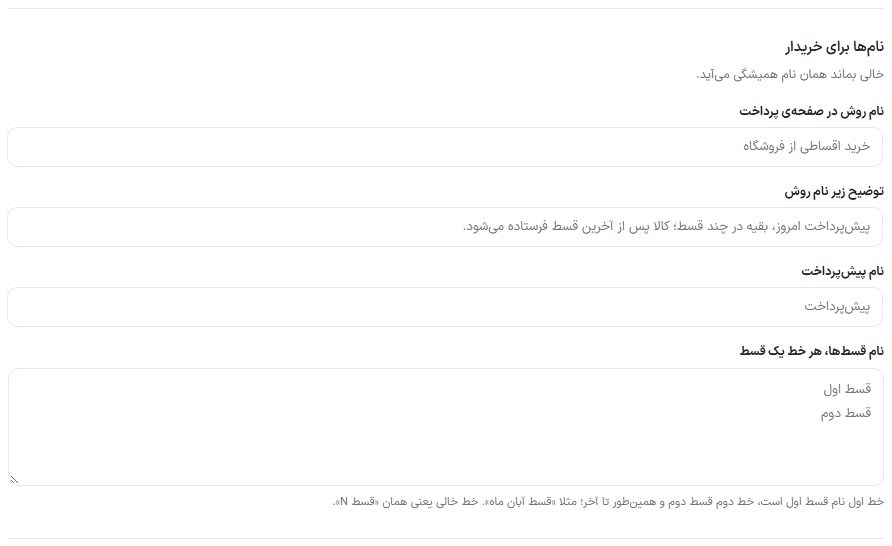
| Option | What it does |
|---|---|
| Method name on the checkout page | Replaces “Installment purchase from the store”. |
| Description under the method name | A sentence that appears under the method name on the checkout page. |
| Down payment name | Replaces “Down payment” in the buyer’s installment table. |
| Installment names, one installment per line | The first line is the name of installment one, the second line installment two, and so on; for example “Aban installment”. An empty line means the usual “Installment N”. |
Which products and who
| Option | What it does | Default |
|---|---|---|
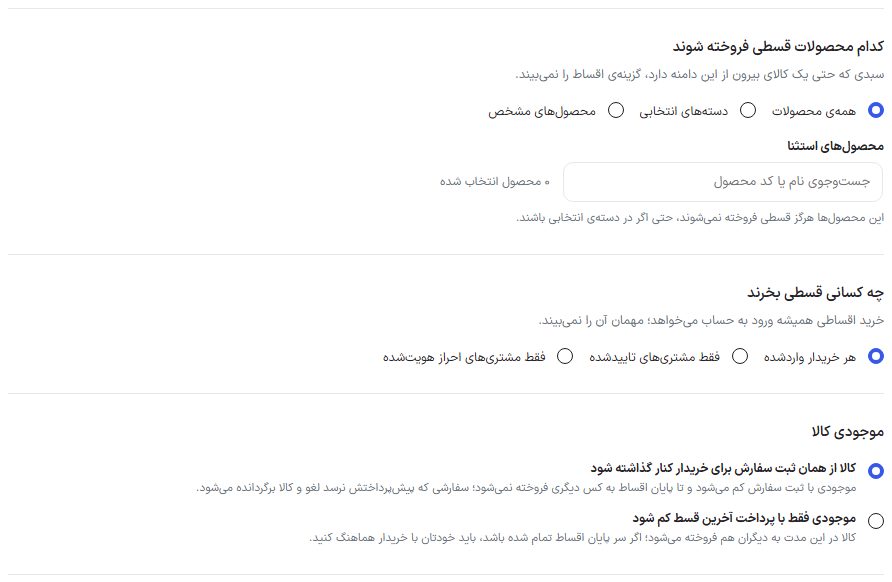
| Scope | “All products”, “Selected categories” (subcategories too, with “Search categories”), or “Specific products” (with “Search product name or code”). A cart that has even one item outside the scope doesn’t see the installment option. | All |
| Excluded products | Never sold on installments, even in a selected category. | — |
| Who can buy on installments | “Any signed-in buyer”, “Only approved customers” (with manual customer approval in the “Pre-payment page”; if that approval is off, everyone counts as approved and this is written under the option), or “Only identity-verified customers”. Never a guest. | Any signed-in buyer |
Item stock
- Reserve the item from the moment of order: Stock is reduced when the order is placed and the item isn’t sold to anyone else until the installments finish. Canceling the order returns the stock.
- Reduce stock only when the last installment is paid: During this time the item is also sold to others; if it has run out by the end of the installments, coordinate with the buyer.
Payment method for the down payment and installments
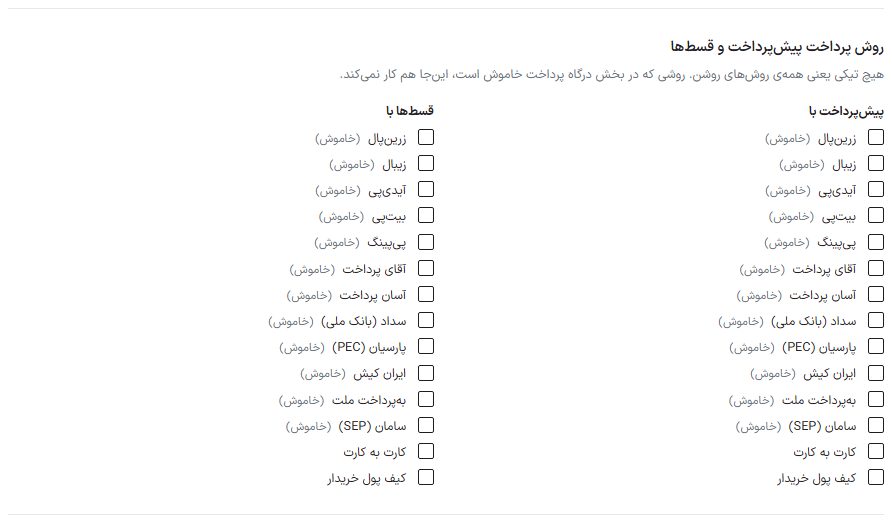
Two checklists: “Down payment with” and “Installments with”, including the theme’s gateways, “Card to card”, and “Buyer wallet”. No ticks means all enabled methods. A method that is off in the “Payment gateway” section doesn’t work here either and “(off)” is written beside it.
Late fees, reminders, and display
| Option | What it does |
|---|---|
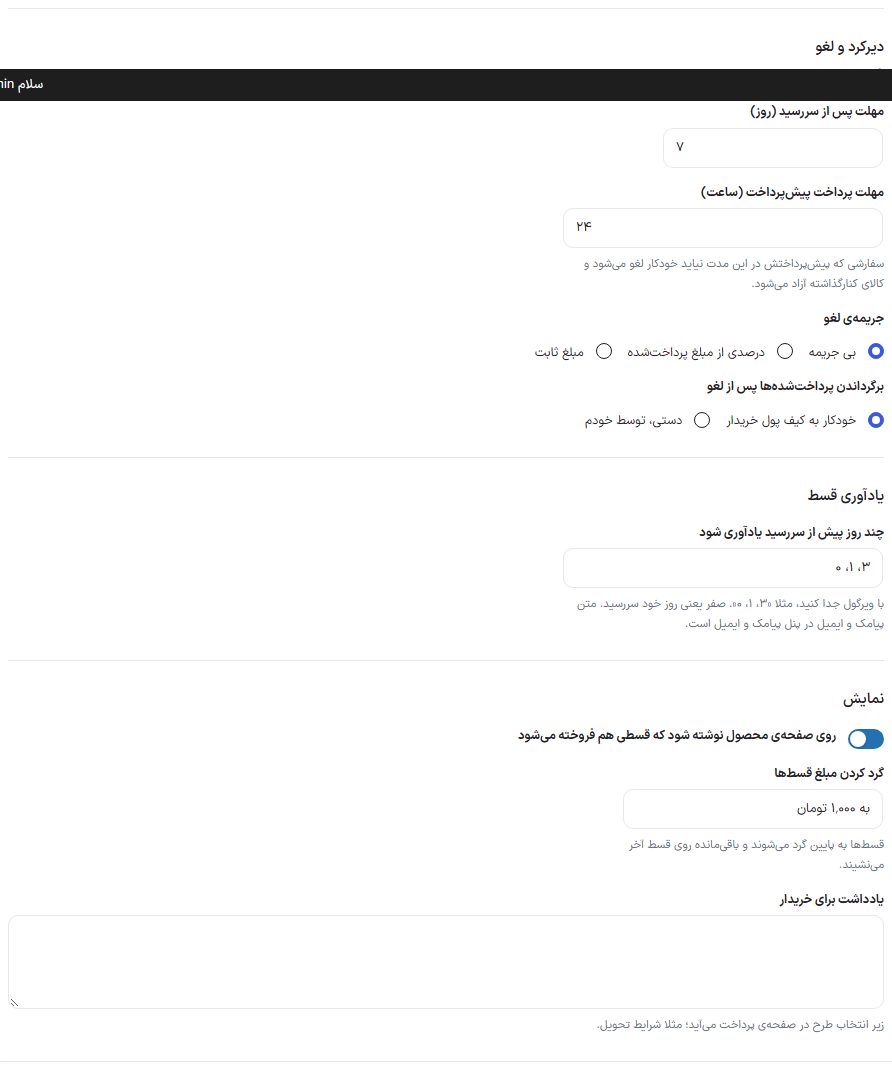
| Grace period after due date (days) | If an installment isn’t paid within this many days after its due date, the order is canceled. |
| Down payment deadline (hours) | An order whose down payment doesn’t arrive in this time is canceled automatically and the reserved item is released. |
| Cancellation penalty | “No penalty”, “Percentage of the amount paid”, or “Fixed amount”; with the last two a “Penalty amount” field appears. |
| Refund of paid amounts after cancellation | “Automatically to the buyer’s wallet” or “Manually, by me”. If the wallet is off, a note under the option says automatic refund won’t happen until it is turned on. |
| How many days before the due date to send a reminder | Separate with commas, for example “3, 1, 0”. Zero means the due date itself. The SMS and email text is in the SMS and Email panels. |
| Mention on the product page that it is also sold on installments | A line with the lowest installment appears on the product page. |
| Round installment amounts | “No rounding” or to 1,000, 10,000, or 100,000 Toman. Installments are rounded down and the remainder goes on the last installment. |
| Note to buyer | Appears under the plan selection on the checkout page; for example delivery terms. |
When finished, click “Save” in the bottom bar; until saved the bar says “Unsaved changes” and after that “Everything saved”.
What the buyer sees
On the product page (if “Mention on the product page…” is on) a line with the lowest installment appears. On the checkout page, when “Installment purchase from the store” is chosen, the plans appear with their down payment, installment amount, and profit, and the due-date table below them. “Installment profit and fee” is a row separate from the order total. The wallet is closed beside installment purchase.
The order is placed with the status “Paying installments” and isn’t counted as paid until the last installment, so it doesn’t appear in sales reports either.
The “My installments” page and paying installments
After placing the order, the buyer goes to “My account ← My installments”. For each installment order they see payment progress, the balance, and a table of rows with each due date: paid, next installment, overdue, and awaiting due date.
- Only the next row is payable; first the down payment, then the installments in order.
- The methods are the ones you chose in “Down payment methods” and “Installment methods”: the site’s enabled gateways, card to card, and wallet. A wallet with insufficient balance is shown dimmed.
- With card to card, the buyer submits the receipt and, as usual, you approve or reject it from the orders “Receipt” column. Approval marks only that installment as paid; canceling or a receipt timeout also closes only that installment, not the order.
- Every payment leaves a note on the order. With the last installment paid, the order becomes paid and “Processing” and moves on through the usual shipping path.
Reminders, late fees, and automatic cancellation
Once an hour, “Paying installments” orders are checked. Days are counted in the site’s own time.
- Reminder: On the days you wrote in “How many days before the due date to send a reminder” (zero means the due date), the buyer gets the “Installment due reminder” message; once a day.
- Late fee: One day after the due date, the “Installment overdue” message goes out once with the last deadline before cancellation.
- Cancellation for an installment: If it isn’t paid by the end of the last day of the “Grace period after due date”, the order is canceled.
- Cancellation for the down payment: If the down payment doesn’t arrive within the “Down payment deadline (hours)” from the order, the order is canceled. With “Reserve the item from the moment of order”, the stock returns at that moment.
- While a card-to-card receipt is waiting for your review, the order is not canceled automatically.
Refund after cancellation
Whether the order is canceled automatically or you set its status to “Canceled” yourself, whatever the buyer paid minus the “Cancellation penalty” is calculated (the penalty is never more than what was paid). With “Automatically to the buyer’s wallet”, that amount goes to their wallet once; with “Manually”, the amount is only written in the order note and paying it is up to you. The buyer gets the “Installment order canceled” message with that amount.
SMS and email
Four events were added to the “Payment” group of SMS and email: “Installment due reminder”, “Installment overdue”, “Installment paid”, and “Installment order canceled”. Like other events they install off, and you need to set their text and turn them on in the SMS and Email panels. SMS messages have no link; emails link to the “My installments” page.
Installment orders list
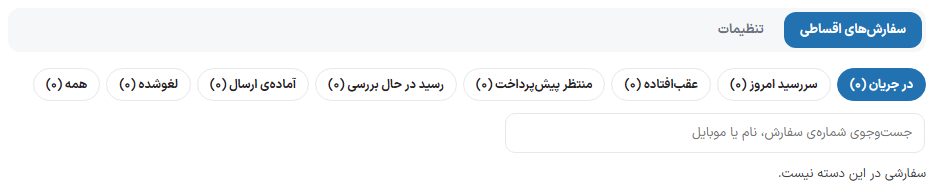
At the top of the “Installment sales” page are two tabs: “Installment orders” and “Settings”. If you have installment orders, the page opens with the list and the number on the tab is the count of orders that need action (overdue, due today, awaiting down payment, and receipt under review).
- Filters: In progress, due today, overdue, awaiting down payment, receipt under review, ready to ship (all installments paid), canceled, and all; the count of each is beside it. The “Search order number, name, or mobile” box finds any order.
- Order: The longest overdue first, then upcoming due dates.
- Each row: Plan, payment progress, paid out of total, next installment with amount and due date, balance, and if canceled, the refunded amount.
Three actions on an in-progress order
- Record manual payment: For cash payment or a transfer outside the site. Only the next row (down payment or next installment) is recorded as paid, with an optional tracking number or note. The order note and the “Installment paid” message go out as for a buyer’s own payment, and with the last installment the order becomes “Processing”. If a card-to-card receipt is awaiting review on that same installment, first approve or reject it from the orders “Receipt” column.
- Remind now: Sends the “Installment due reminder” message separately from the automatic reminder; only if its SMS or email template is on.
- Cancel order: The same as automatic cancellation: refund minus penalty per the settings and release of the reserved stock.
Recording a payment and canceling ask once before acting, because they cannot be undone.
FAQ and troubleshooting
The installment option isn’t on the checkout page.
The section must be on, the buyer must be signed in and meet the “Who can buy” condition, all cart items must be in scope, and at least one active plan must exist for this cart’s amount (minimum and maximum amount).
The order total differs from the cart total.
The plan’s profit and fee were added to the total; the “Installment profit and fee” row says this.