

Support ticket
A customer sends a ticket from the “Support tickets” section of their account and you reply from this page, change status and priority, and close the ticket. You can also open a ticket in a customer's name yourself.
Where is it? Rafina Panel → Support ticket
Counters at the top of the page

Each tile is the count of tickets in that status and clicking it limits the list to that status. “Unread” is tickets with a new customer message. Below the tiles the counts of this month's, last month's and total tickets are written.
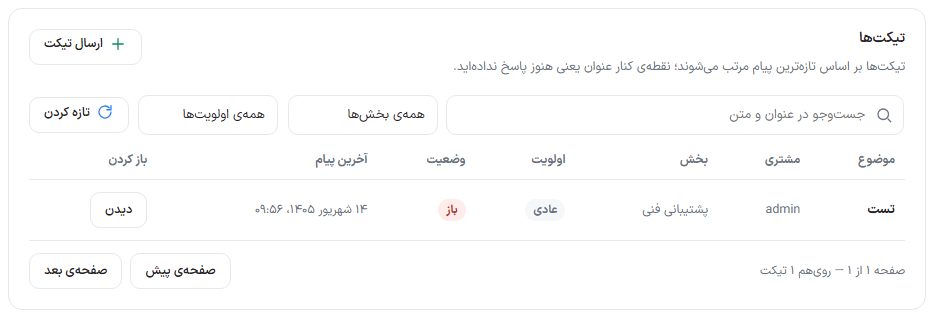
Ticket list
| Option | What it does |
|---|---|
| Search in title and text | Finds the ticket you want. |
| All sections | Department filter, such as “Technical support”, “Sales”, “Billing and payment” or “Shipping and parcels”. |
| All priorities | Priority filter: low, normal, high. |
| Refresh | Re-reads the list. |
| Columns | Subject (a dot beside the title means you haven't replied yet, plus the order number if the ticket is tied to an order), customer, department, priority, status, latest message, and in the “Open” column a “View” button. |
| Previous page / Next page | Moving between list pages. Beside them the page number and total ticket count are written (“Page 1 of 1 — 1 ticket in total”). |
Viewing and replying to a ticket
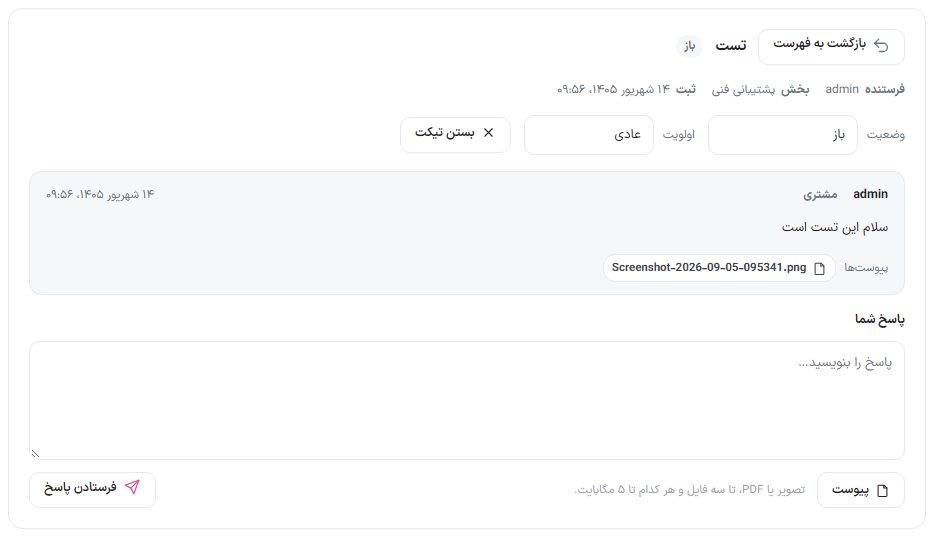
- In the list press “View”.
- At the top of the ticket the sender, department and submission time are shown. Change “Status” and “Priority” from the drawers.
- Messages appear one below another, each labeled “Customer” or “Support”, with attachments.
- Write the reply in “Your reply”. With “Attachment” you can send an image or PDF, up to three files of up to 5 MB each, with the reply.
- Press “Send reply”. The customer is notified by SMS or email (if this event's template is on in the SMS or email panel).
- To close the ticket press “Close ticket”, and to go back to the list press “Back to list”.
Sending a ticket to a customer
| Option | What it does |
|---|---|
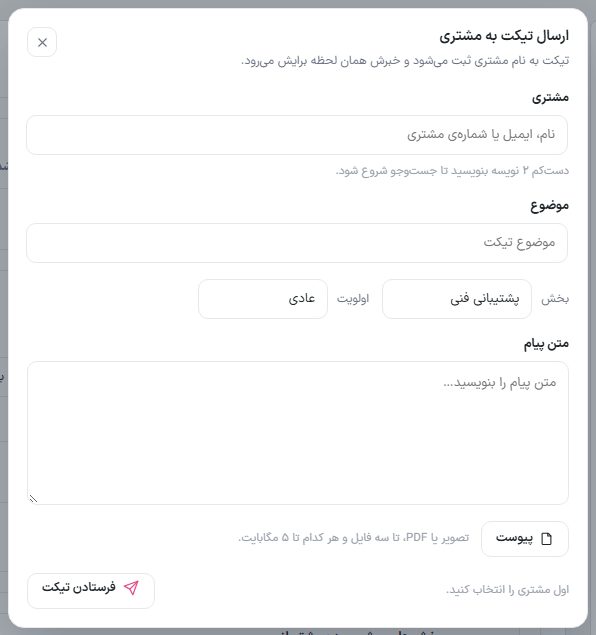
| Customer | Write the customer's name, email or number (at least 2 characters) and choose from the results. “Change customer” removes the selection. |
| Subject | The ticket title. |
| Department and priority | A department from the list of departments in settings and a priority of low, normal or high. |
| Message text | The ticket text. |
| Attachments | Image or PDF, up to three files of up to 5 MB each. |
| Send ticket | The ticket is created in the customer's name and they are notified at once. |
Settings: departments and support agents
| Option | What it does | Default |
|---|---|---|
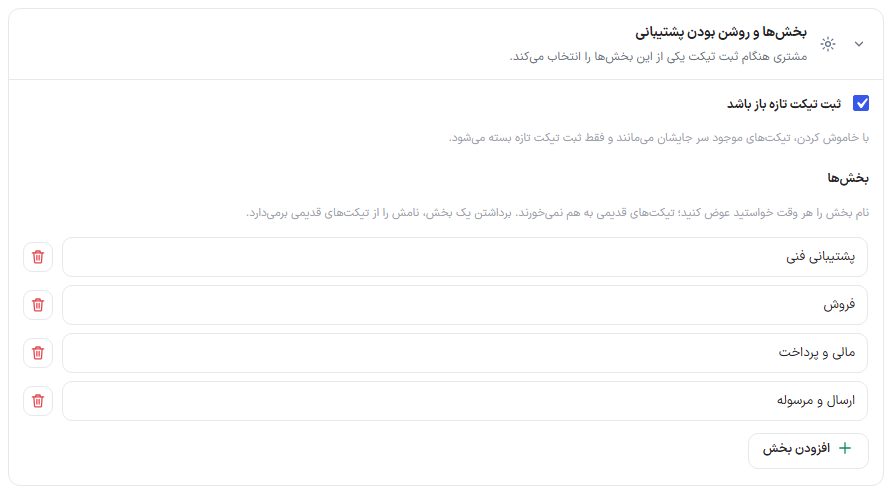
| New ticket submission is open | When turned off, existing tickets stay in place and only submitting a new ticket is closed to the customer. | On |
| Departments | The list of departments the customer chooses from when submitting a ticket. Rename a department any time; old tickets aren't disturbed. Removing a department clears its name from old tickets. Create a new department with “Add department”. | Technical support, Sales, Billing and payment, Shipping and parcels |
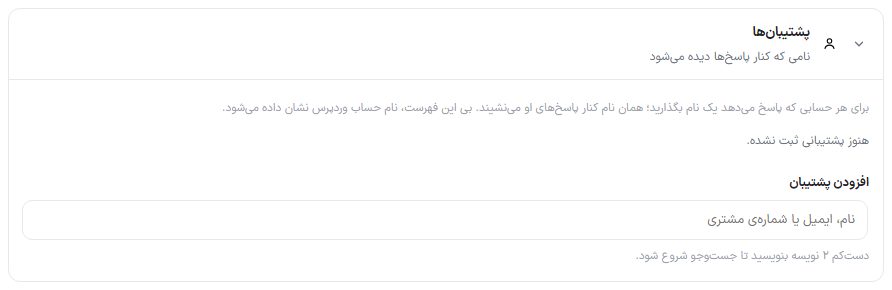
Give each account that replies a name; that name appears beside its replies for the customer. Without this list, the WordPress account name is shown. In “Add support agent” search for the account, write “Name the customer sees” and put it in the list beside it with “Remove”. At the end press “Save settings”.
Frequently Asked Questions
Where does the customer see the ticket?
In the site's user account, the “Support tickets” section. If you turn this section off under “Site content ← User panel”, it is removed from the menu and from the direct URL too.
Are customer attachments open to others?
No. A ticket attachment doesn't go into the media library and only the owner of that ticket and the site administrator can open it.
Where do I set the ticket notification messages?
Ticket events (new ticket, reply, closing) have their own templates in the SMS panel and email panel and are off by default. SMS panel · Email panel