

Attributes
Attributes (color, size, RAM, country, and so on) are the same global WooCommerce attributes and are used for building variable products and store filters. This page creates them with a color, image, or flag display and builds groups that can be added to a product with one click.
Where is it? Rafina Panel → Attributes
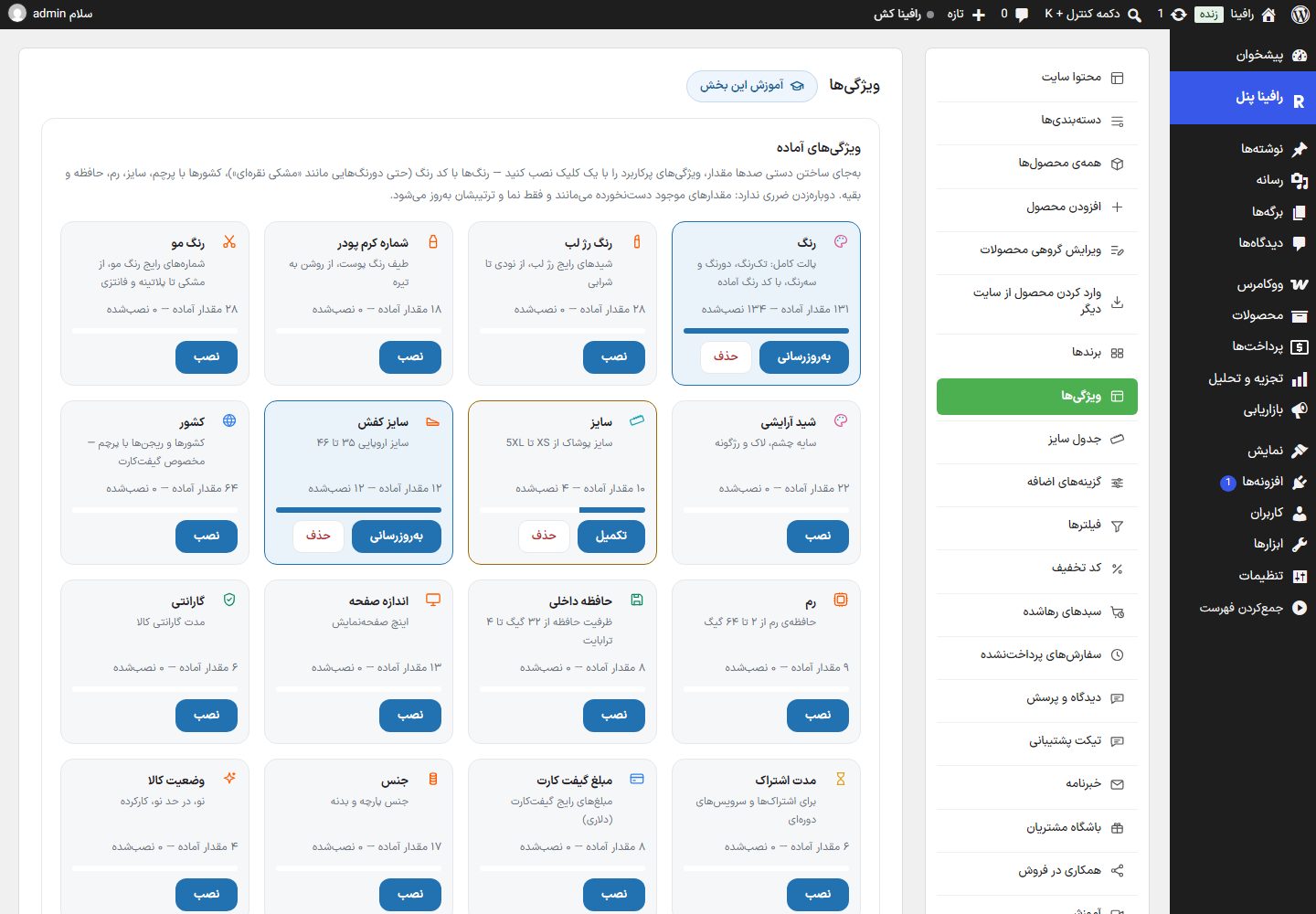
The page has five sections: ready-made attributes, add attribute, attribute list, values of an attribute, and groups.
Ready-made attributes
Install commonly used attributes with one click: color with color code (even two-tone ones like "black silver"), lipstick color, foundation number, hair color, makeup shade, clothing size, shoe size, country with flag (for gift cards), RAM, storage, and more. Each card shows the number of ready-made and installed values.
| Option | What it does |
|---|---|
| Install | Creates the attribute and all of its values. |
| Complete / Update | Adds any missing values. Clicking again is harmless: existing values are untouched, and only their display and order are updated. |
| Values | Opens the values section of that attribute. |
| Delete | Deletes the attribute and all of its values. Products are not deleted; only this attribute is removed from them. |
| Created by you | A badge on the cards you created yourself. |
Add attribute category
At the bottom of this section, clicking "Add attribute category" opens a small form to create your own card: category name (for example Body material), slug (Latin; empty means derived from the name), icon, value display type, and a short description (under the name on the card). Click "Create category", then add the values one by one with "Values" on that card.
Add attribute
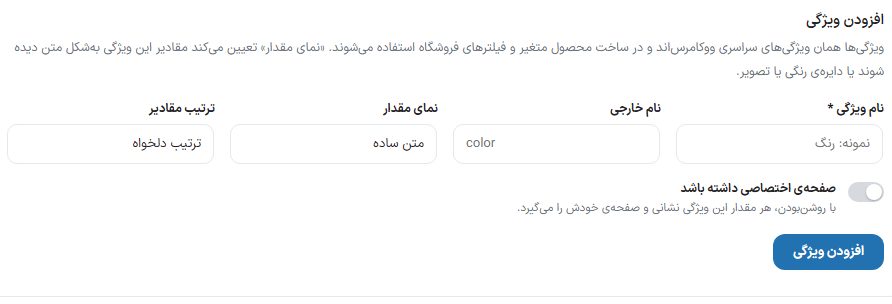
| Option | What it does | Default |
|---|---|---|
| Attribute name * | For example Color. | — |
| Latin name | The attribute's Latin name, for example color. | From the name |
| Value display | Plain text, color, image, or flag; values appear this way in the filter and on the product page. | Plain text |
| Value order | Custom order, name (alphabetical), name (numeric), ID. | Custom order |
| Has its own page | Each value of this attribute gets its own address and page. | Off |
Attribute list
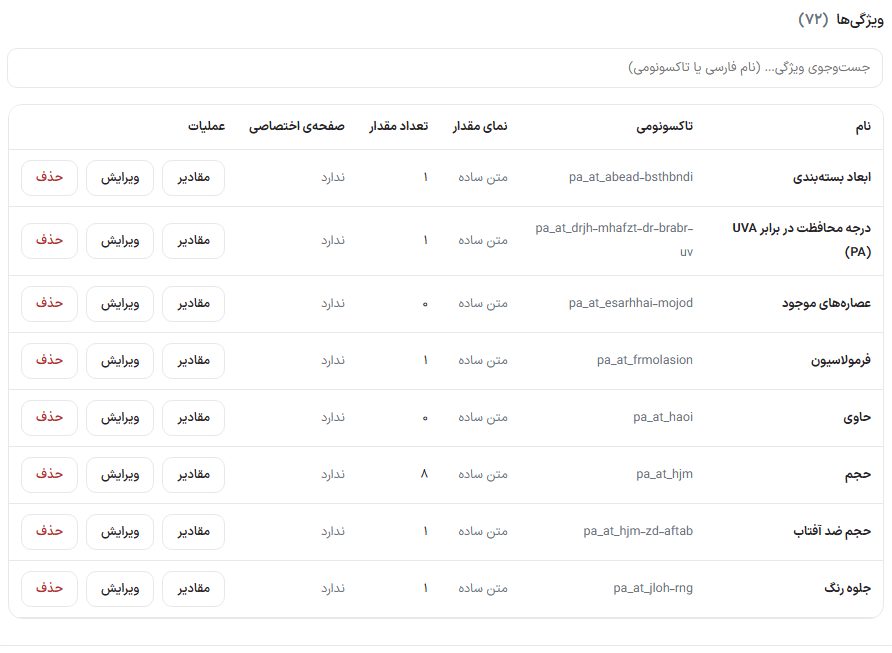
Columns: Name, Taxonomy, Value display, Number of values, Own page (Yes / No), and Actions. "Search attributes…" works with the Persian name or the taxonomy. Buttons: "Values", "Edit" (fills the form above), and "Delete" (the attribute and its values; products are not deleted).
Values of an attribute
"Values" opens the "Values of "attribute name"" section below the list. Each value can have a color, image, or short label; this is what appears in filters and on the product page.
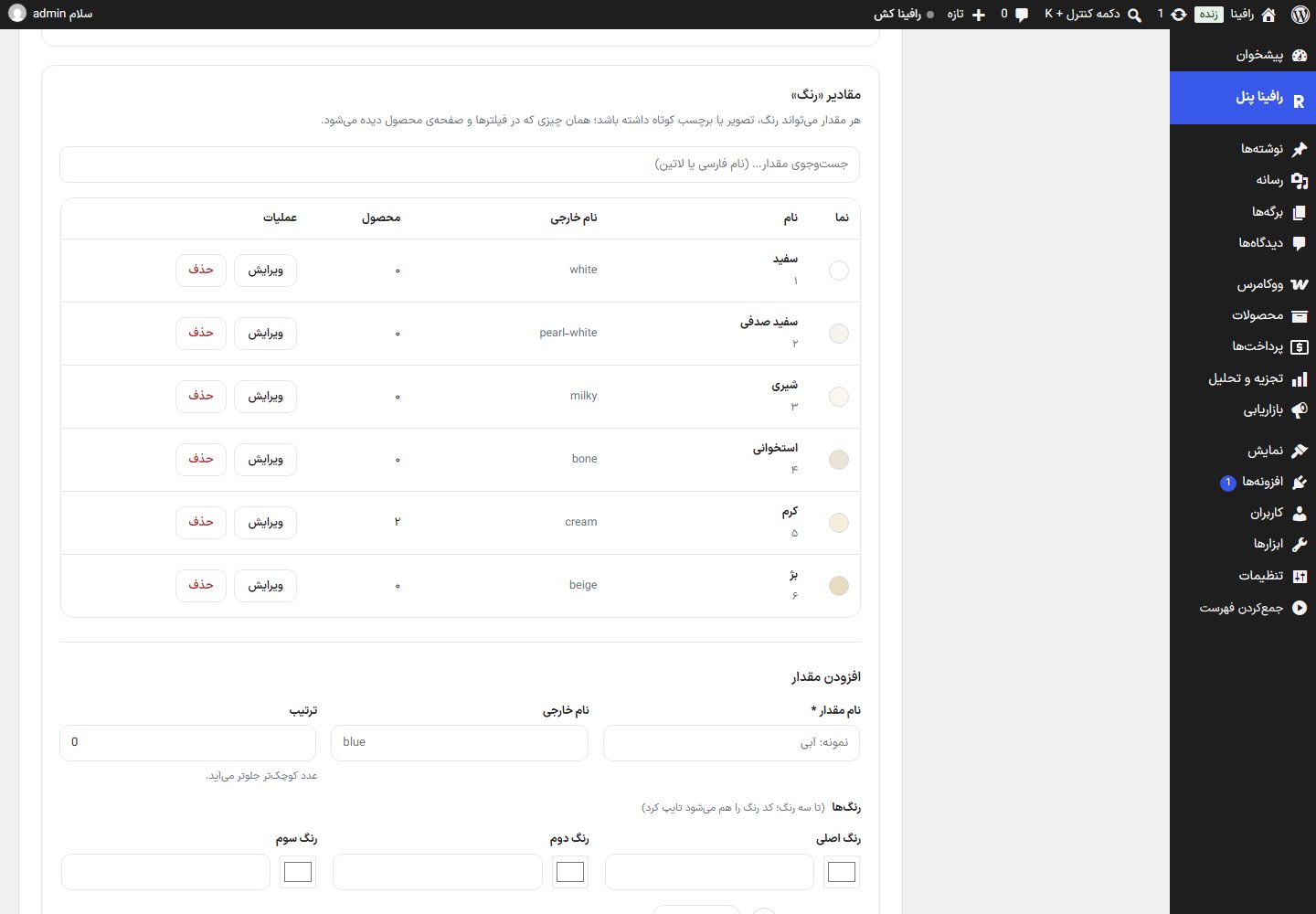
| Option | What it does |
|---|---|
| Value name * | For example Blue. |
| Latin name | For example blue. |
| Colors | For the "Color" display: primary color, second color, and third color (up to three colors for two-tone and three-tone; you can also type the color code). "Remove color" and "Preview display" are next to it. |
| Image | Exact size 150 by 150 pixels; if you set it, it replaces the color. |
| Flag | For the "Flag" display: country badge. |
| Short label | Optional, like XL. |
| Order | A smaller number comes first. |
Values table: Display, Name, Latin name, Product count, and "Edit" and "Delete" (products that have that value are not deleted). "Search values…" works with the Persian or Latin name. If you have a half-typed value and open another attribute, the panel asks whether to discard it. "Close values" collapses the section.
Groups
A group means "these few attributes always come together"; for example a "Phone" group with RAM, storage, color, and warranty. When adding a product, all of them are added together with one click in the Attributes tab (Edit product → Attributes tab).
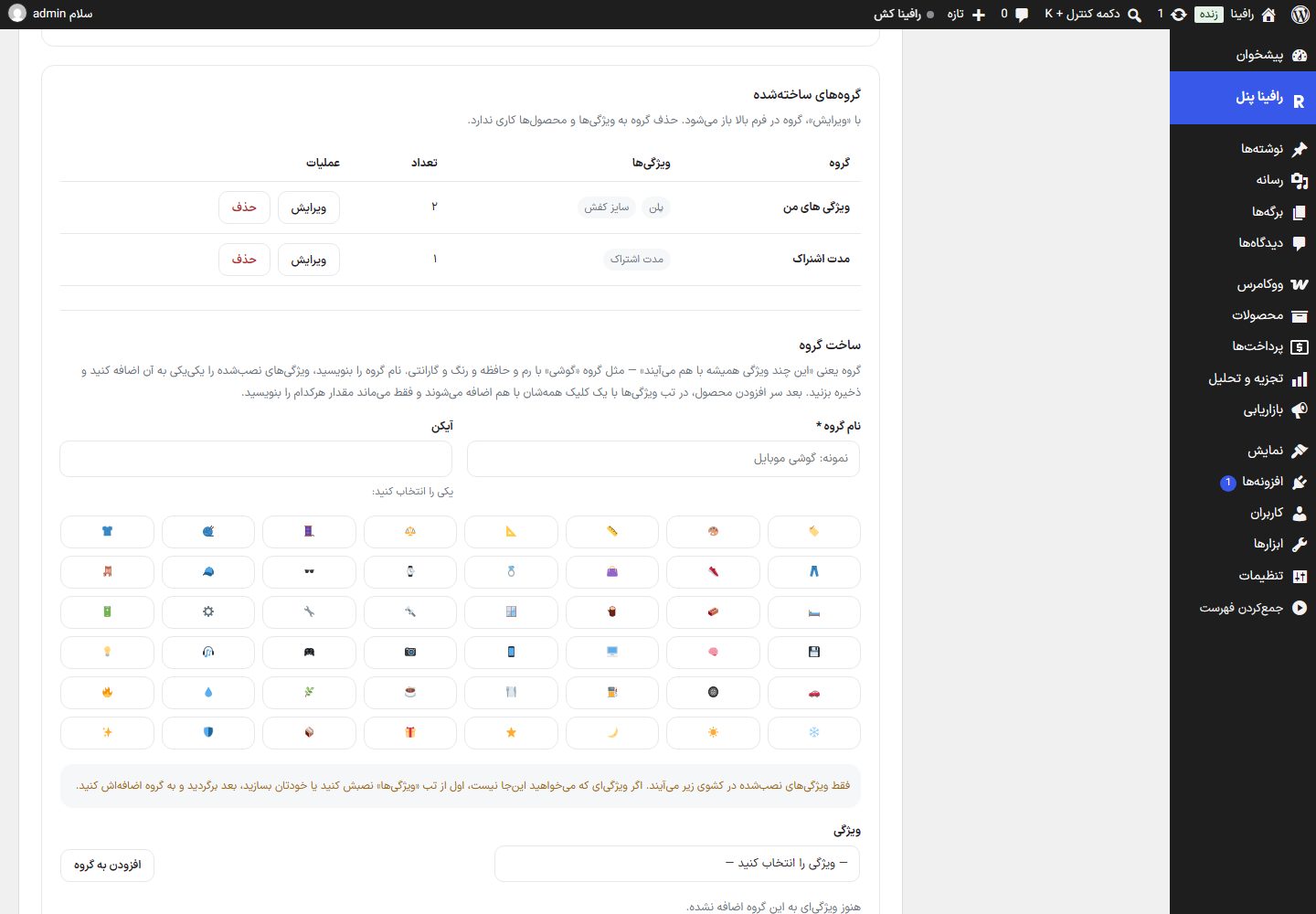
| Option | What it does |
|---|---|
| Group name * | For example Mobile phone. |
| Icon | One of the icons in the list. |
| Attribute / Add to group | Choose an attribute from the dropdown and add it; each attribute gets a tag with ×. Only installed attributes appear in the dropdown. |
| Save group / Cancel | At least one attribute is required. |
"Created groups" table: Group, Attributes, Count, and Actions. "Edit" opens the group in the form, and "Delete" does not touch the attributes or products.
Frequently Asked Questions
The attribute I created is not in the store filter.
For it, in Filters create a filter of the "Product attribute" type.
The value's color does not show on the product page; only its name does.
Set the attribute's "Value display" to "Color" and set a primary color for each value.