

Article page
This section decides what the reader sees at the top of each blog article, how comments are recorded and displayed, and what title the magazine list page has.
Where is it? Rafina Panel → Site content → Article page
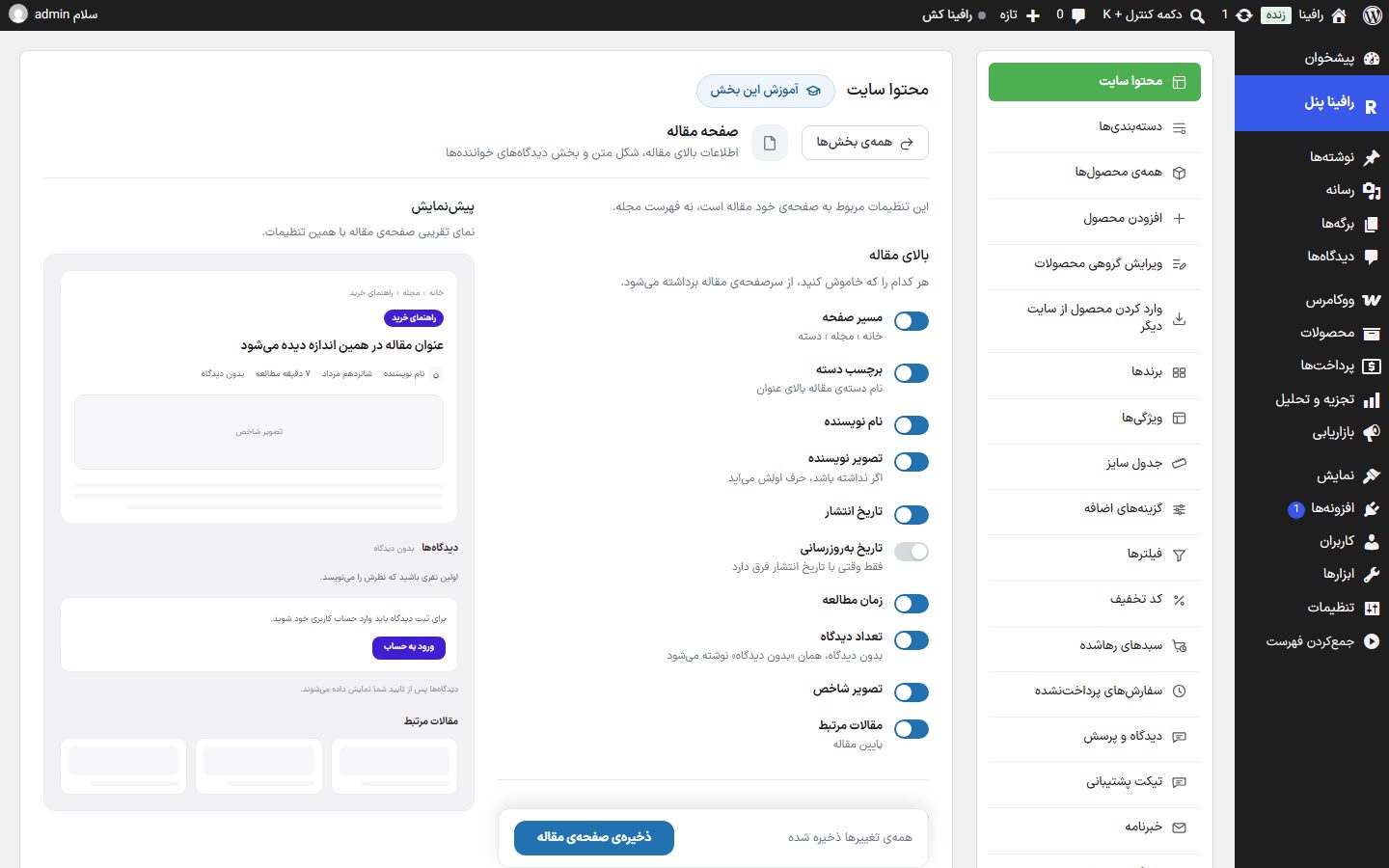
Top of the article
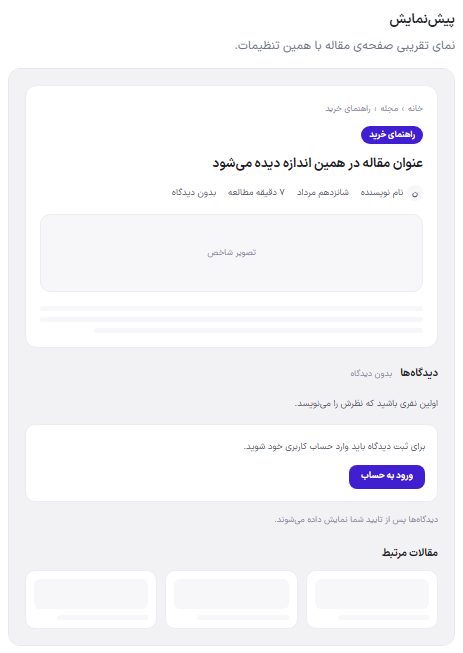
Turn off any toggle and that item is removed from the header of all articles.
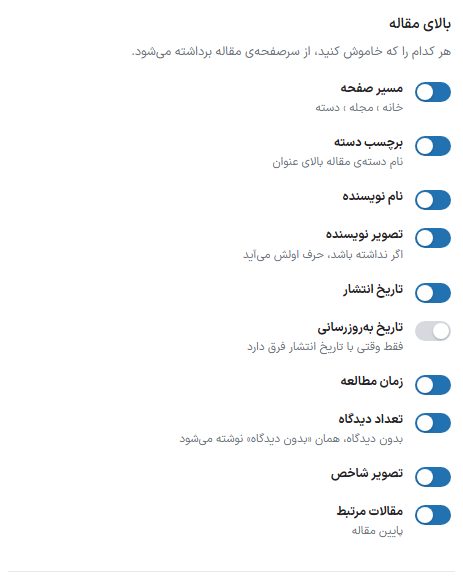
| Option | What it does | Default |
|---|---|---|
| Breadcrumb | The "Home › Magazine › Category" bar at the top of the article. | On |
| Category badge | The article's category name as a colored badge above the title. | On |
| Author name | The article author's name in the info row. If the author's display name is the same as the username or a number, the site name is used in its place so the admin's username is not exposed. | On |
| Author image | The author's photo beside their name; if they have no photo, the first letter of their name is shown in a circle. | On |
| Publish date | The article's Jalali publish date. | On |
| Update date | The date of the last edit; seen only when it differs from the publish date. | Off |
| Reading time | An estimate of how many minutes it takes to read the article. | On |
| Comment count | The number of approved comments. If there are none, the "When there are no comments" text (below) is written. | On |
| Featured image | The article's featured image under the title. | On |
| Related articles | A row of articles in the same category at the bottom of the article. | On |
Comments section
The behavior of the comments section at the bottom of the article and the texts the reader sees in it.
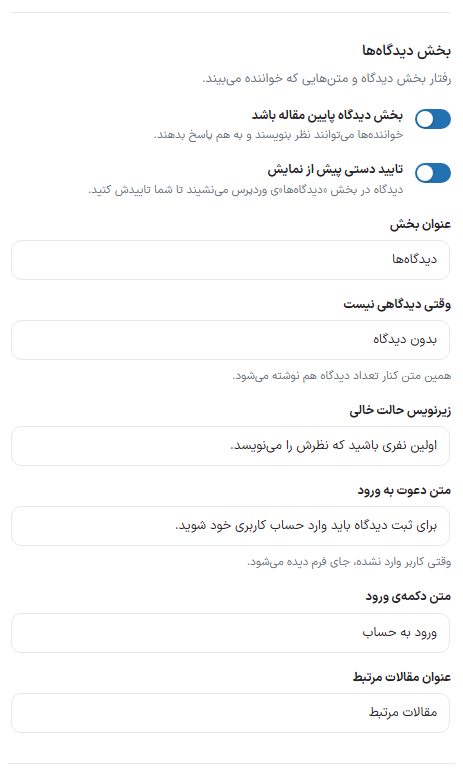
| Option | What it does | Default |
|---|---|---|
| Comments section at the bottom of the article | If off, no comments section is built under the article. When on, readers can write comments and reply to each other. | On |
| Manual approval before display | Each new comment first lands in the WordPress dashboard's "Comments" section and does not appear on the site until you approve it. | On |
| Section title | The comments section title. | Comments |
| When there are no comments | The text written in place of the comment count; this same text also appears beside "Comment count" at the top of the article. | No comments |
| Empty-state subtitle | The invitation sentence under it, when no comment has been recorded yet. | Be the first to write your opinion. |
| Login invitation text | When the reader is not logged in and only logged-in users may comment, this text is seen in place of the form. | You must log in to your account to submit a comment. |
| Login button text | The text of the button that takes the reader to the login page. | Log in to account |
| Related articles title | The heading of the related articles row at the bottom of the page. | Related articles |
Magazine page header
The title and sentence at the top of the article list page (blog) and its category bar. This group has nothing to do with the article itself.
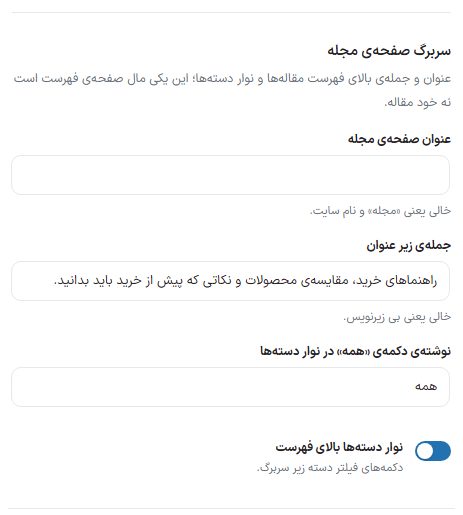
| Option | What it does | Default |
|---|---|---|
| Magazine page title | The large headline above the article list. If left empty, "Magazine" and the site name are written. | Empty |
| Sentence under the title | A short description under the headline. Empty means no subtitle. | Buying guides, product comparisons, and … |
| Text of the "All" button in the category bar | The text of the first button in the category bar, which shows all articles. | All |
| Category bar above the list | Turns the category filter buttons under the header on or off. | On |
Comment form
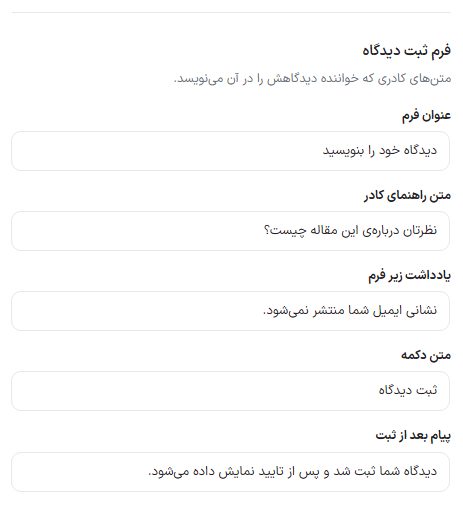
The texts of the box in which the reader writes their comment.
| Option | What it does | Default |
|---|---|---|
| Form title | The heading above the comment writing box. | Write your comment |
| Box placeholder text | The faint text inside the empty box. | What do you think about this article? |
| Note under the form | A small sentence under the box. | Your email address will not be published. |
| Button text | The text of the submit button. | Submit comment |
| Message after submission | The message seen after a successful submission. | Your comment has been recorded and will be shown after approval. |
Preview
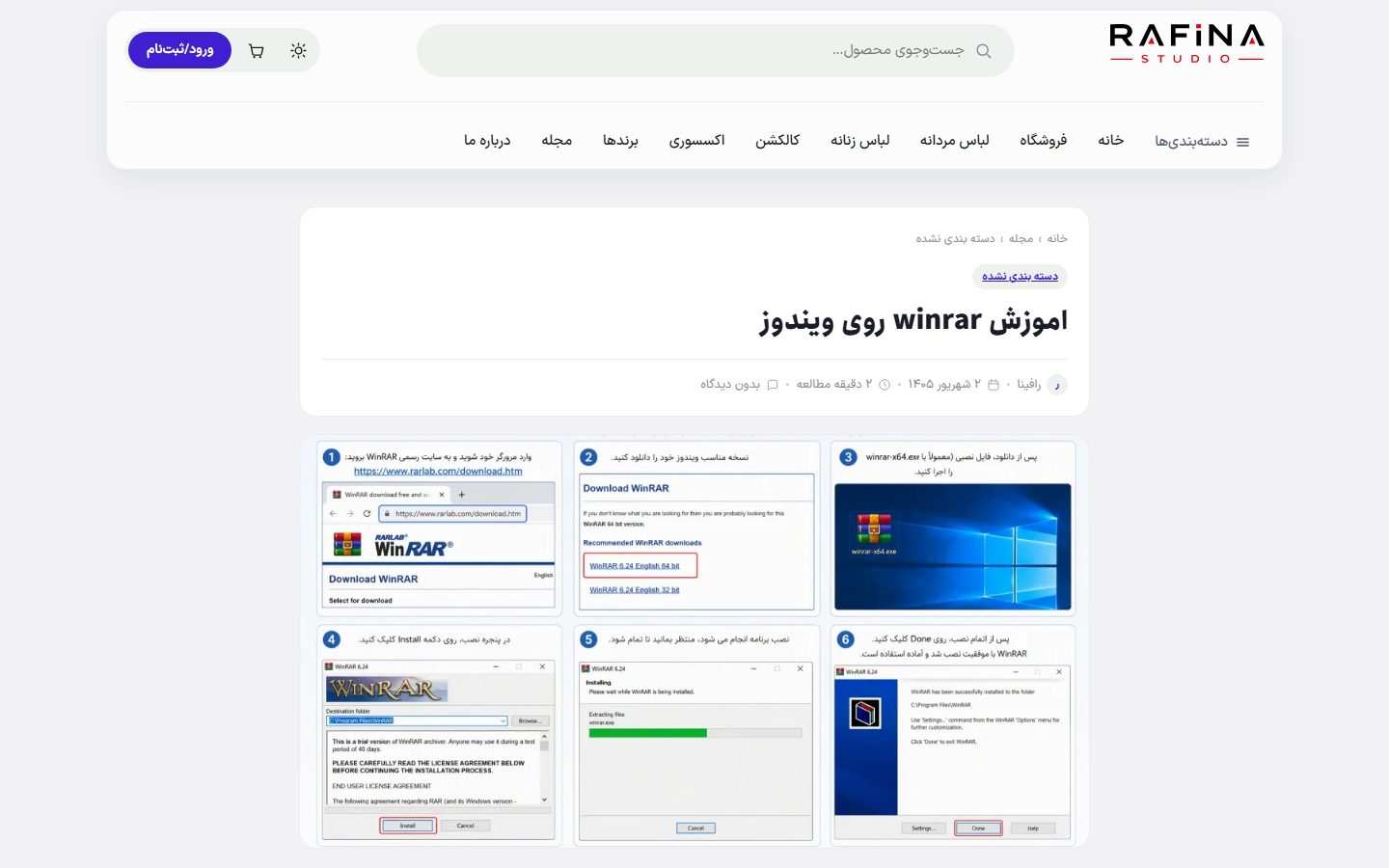
The column beside the form is an approximate view of the article page with these same settings and changes without saving. The page itself on the site looks like this:
Save
- Change the toggles and texts; the bar at the bottom of the page says "You have unsaved changes".
- Click the "Save article page" button to make it say "All changes saved".
- Open an article on the site and see the result. If you have a cache plugin and the change doesn't show, from Settings ← Cache Clear the cache.
FAQ and troubleshooting
A comment was submitted but doesn't appear on the article.
"Manual approval before display" is on. Approve the comment from the WordPress "Comments" menu.
The site name is shown in place of the author name.
The author account's display name is the username or mobile number, and the theme does not show it for security. In "Users ← Edit", enter a first and last name for the author.