

Dashboard, Media, and Login
The theme has improved a few places in WordPress itself: the sales report on the dashboard page, folders and WebP in media, registering files uploaded by FTP, and the new look of the WordPress login page.
Where is it? WordPress dashboard and Media
Sales report in the dashboard
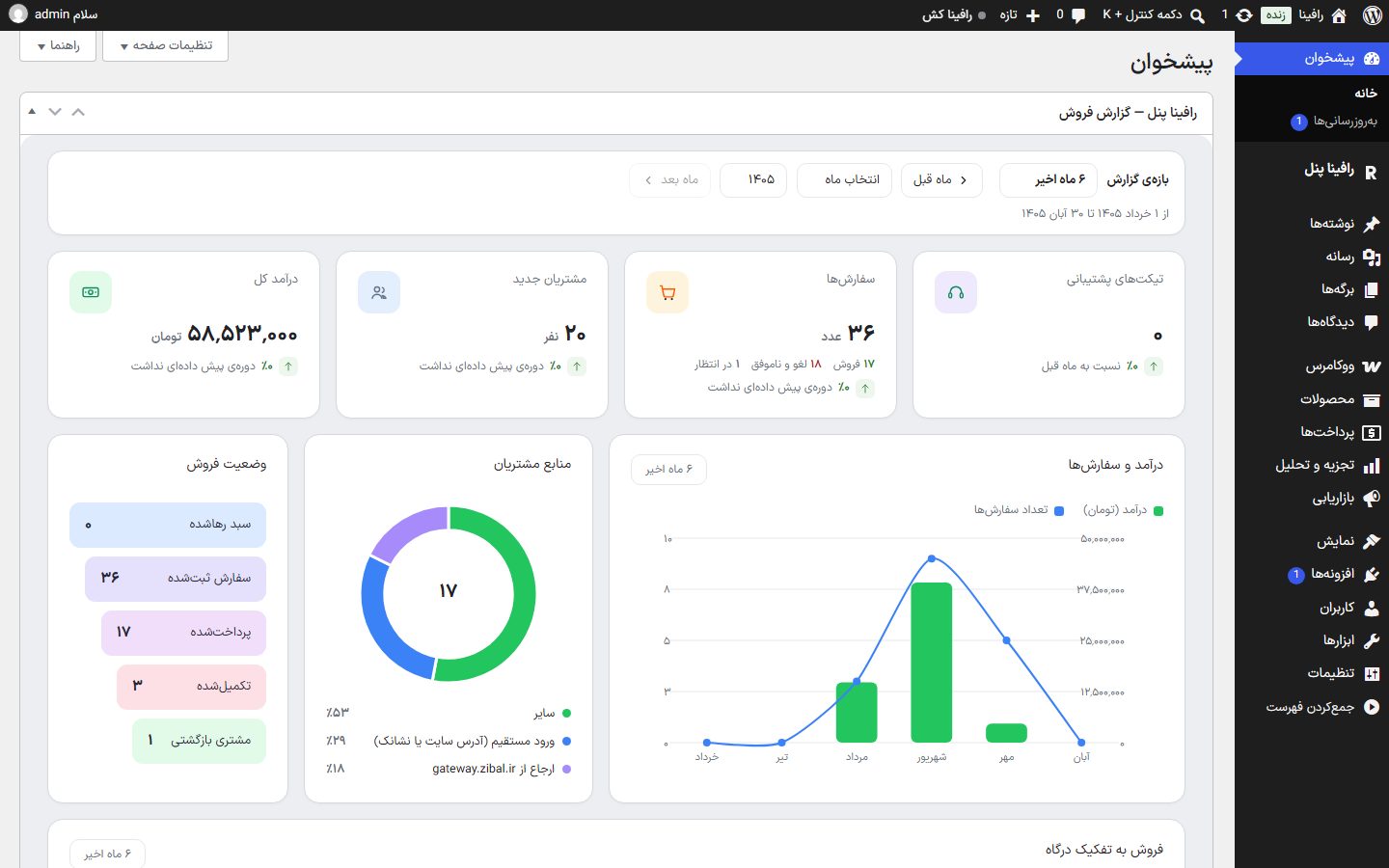
On entering the dashboard you see the full-width “Rafina Panel — Sales report” card: the same report range, summary cards and charts as the Stats and Reportspage. The other dashboard cards (WordPress news, Quick Draft and so on) are hidden by default, not removed.
- To bring a card back, open “Screen Options” at the top of the page.
- Tick the card you want. Your decision stays and the theme doesn't hide it again.
Media folders
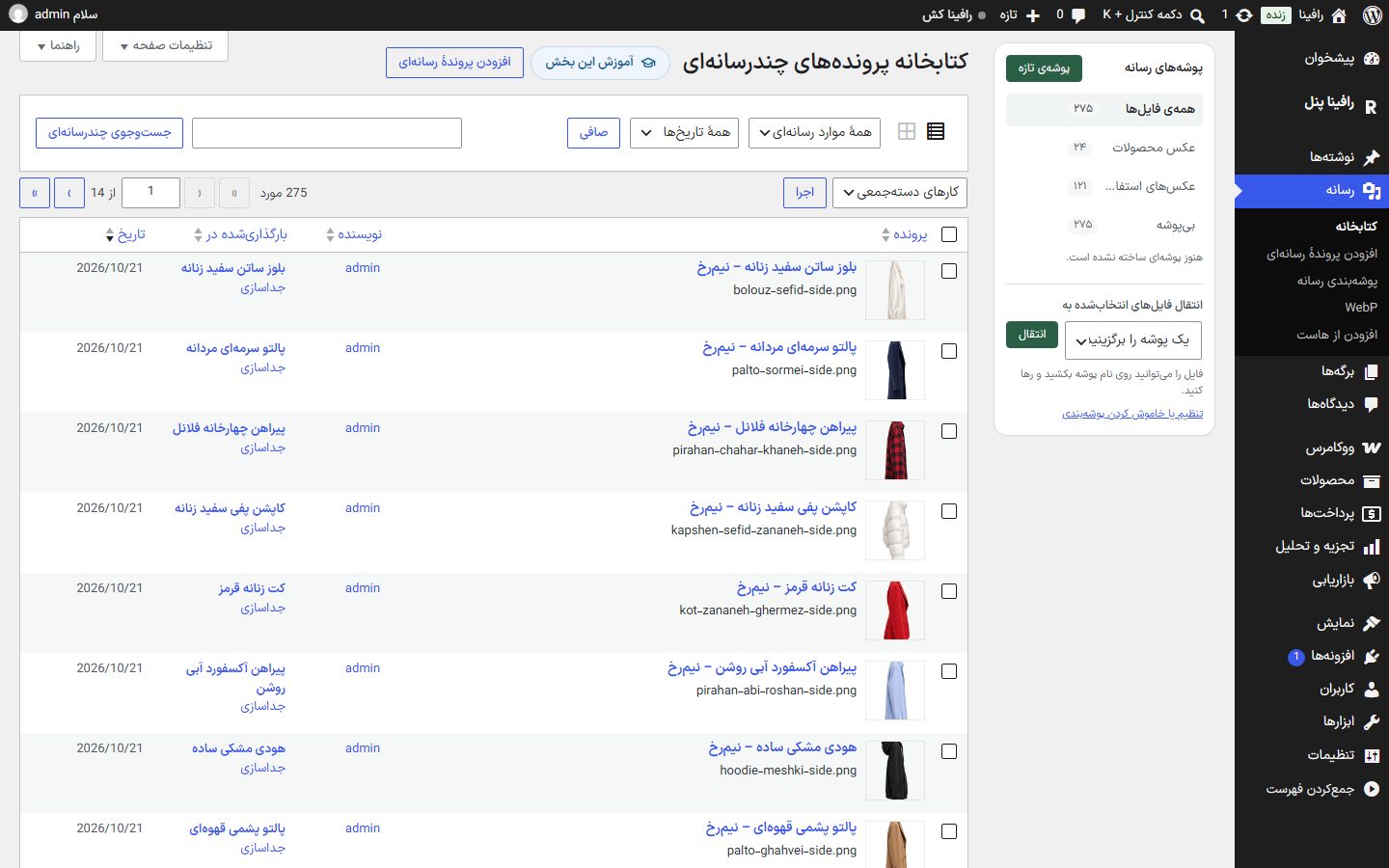
Beside the media library a column appears for arranging files into folders:
| Option | What it does |
|---|---|
| New folder | Write the folder name and create it. A folder with the same name isn't created in the same place. |
| All files, Product images, Unused images, No folder | Smart folders that fill automatically, with the file count. “Unused images” is a guess and no file is deleted with it. |
| Rename / delete folder | Choose the folder and rename it or delete it. Deleting a folder doesn't delete the files; they return to “No folder”. |
| Move selected files to | Tick several files, choose the folder and press “Move”. You can also drag a file onto a folder name and drop it. |

In “Media ← Media folders” the “Theme folders are on” switch is on. If you have another folder plugin (such as FileBird), the theme folders stay off automatically so two columns don't appear side by side; your explicit decision always wins. Turning it off deletes nothing and turning it back on restores the same folders.
WebP
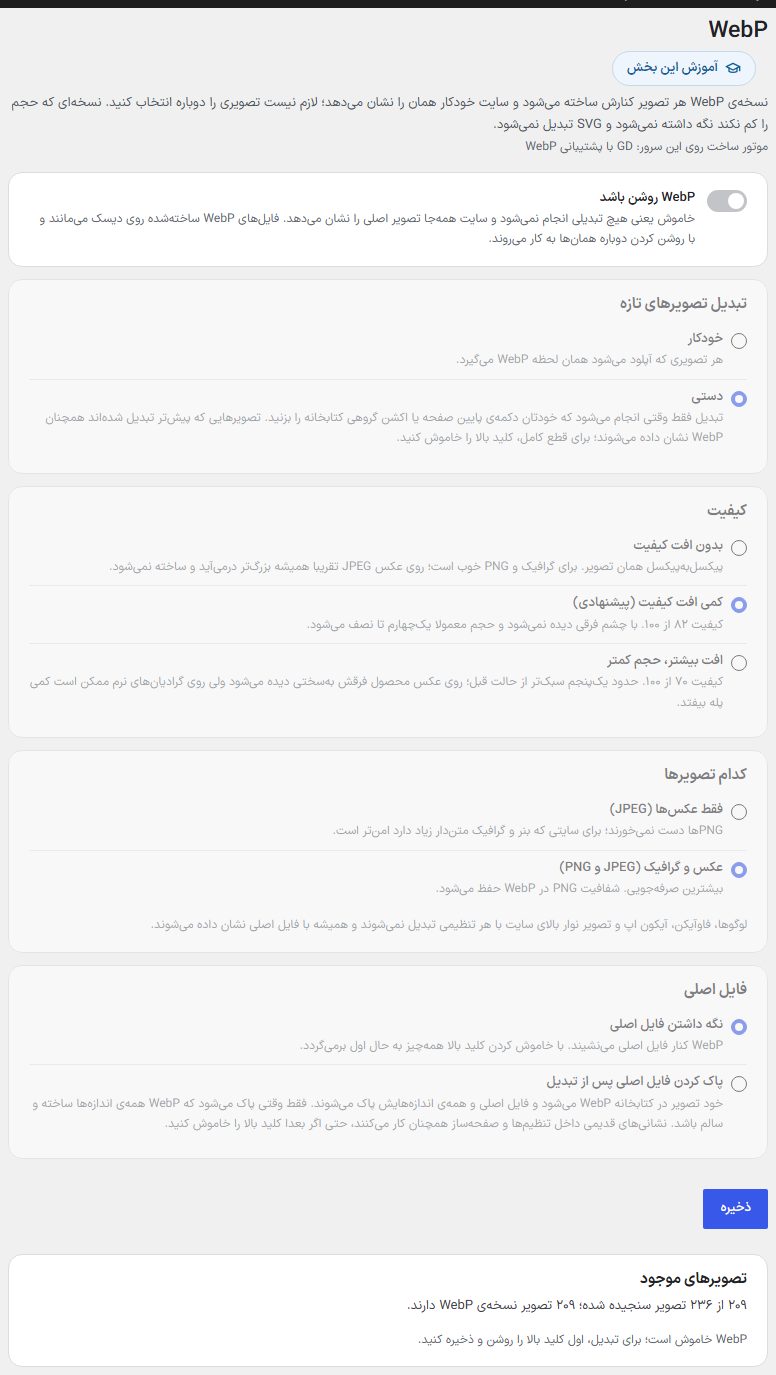
A WebP version of each image is created beside it and the site automatically shows it; you don't need to pick any image again. A version that doesn't reduce size isn't kept and SVG isn't converted. At the top of the page the build engine on your server is written.
| Option | What it does | Default |
|---|---|---|
| WebP enabled | Off means no conversion is done and the site shows the original image everywhere. WebP files already built stay on disk. | Off |
| Converting new images | “Automatic”: every uploaded image gets WebP at once. “Manual”: only with the button at the bottom of the page or the bulk action “Build WebP version” in the library. | — |
| Quality | “Lossless” (for graphics and PNG; it almost always comes out larger on JPEG), “Slight quality loss (recommended)” (quality 82) or “More loss, smaller size” (quality 70). | Slight loss |
| Which images | “Photos only (JPEG)” or “Photos and graphics (JPEG and PNG)”. PNG transparency is preserved in WebP. | — |
| Original file | “Keep the original file” or “Delete the original file after conversion” (with the “I know it's irreversible” tick and a confirmation). Deletion happens only when WebP of all sizes was built intact; old addresses still work. | Keep |
| Existing images | The count of images checked and those with WebP. “Convert remaining images” converts the rest step by step and “Rebuild with current quality” rebuilds all with the new quality. An unfinished job continues from the same place when pressed again. | — |
Add from host
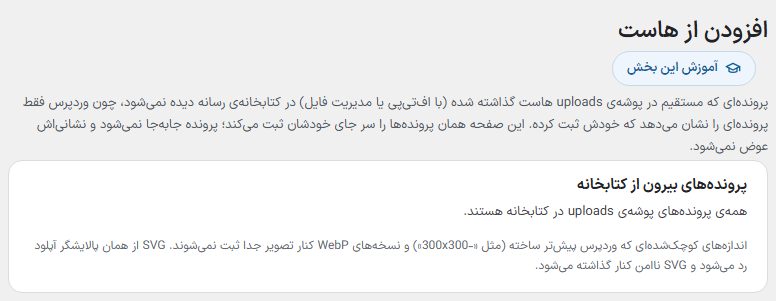
A file placed directly in the host's uploads folder (via FTP or file manager) isn't seen in the media library, because WordPress shows only files it registered itself. This page registers those files where they are; the file isn't moved and its address stays the same.
- The page tells the number of files outside the library. If it says “All files in the uploads folder are in the library”, nothing is needed.
- If you want the theme's sizes to be built too, tick “Build theme sizes too” (slower, but images load lighter on the site).
- Press “Add all to library” and wait for the “Finished” message.
The resized sizes WordPress has already made (such as -300x300) and WebP versions beside the image aren't registered separately. SVG passes through the same upload filter and unsafe SVG is set aside.
WordPress login page
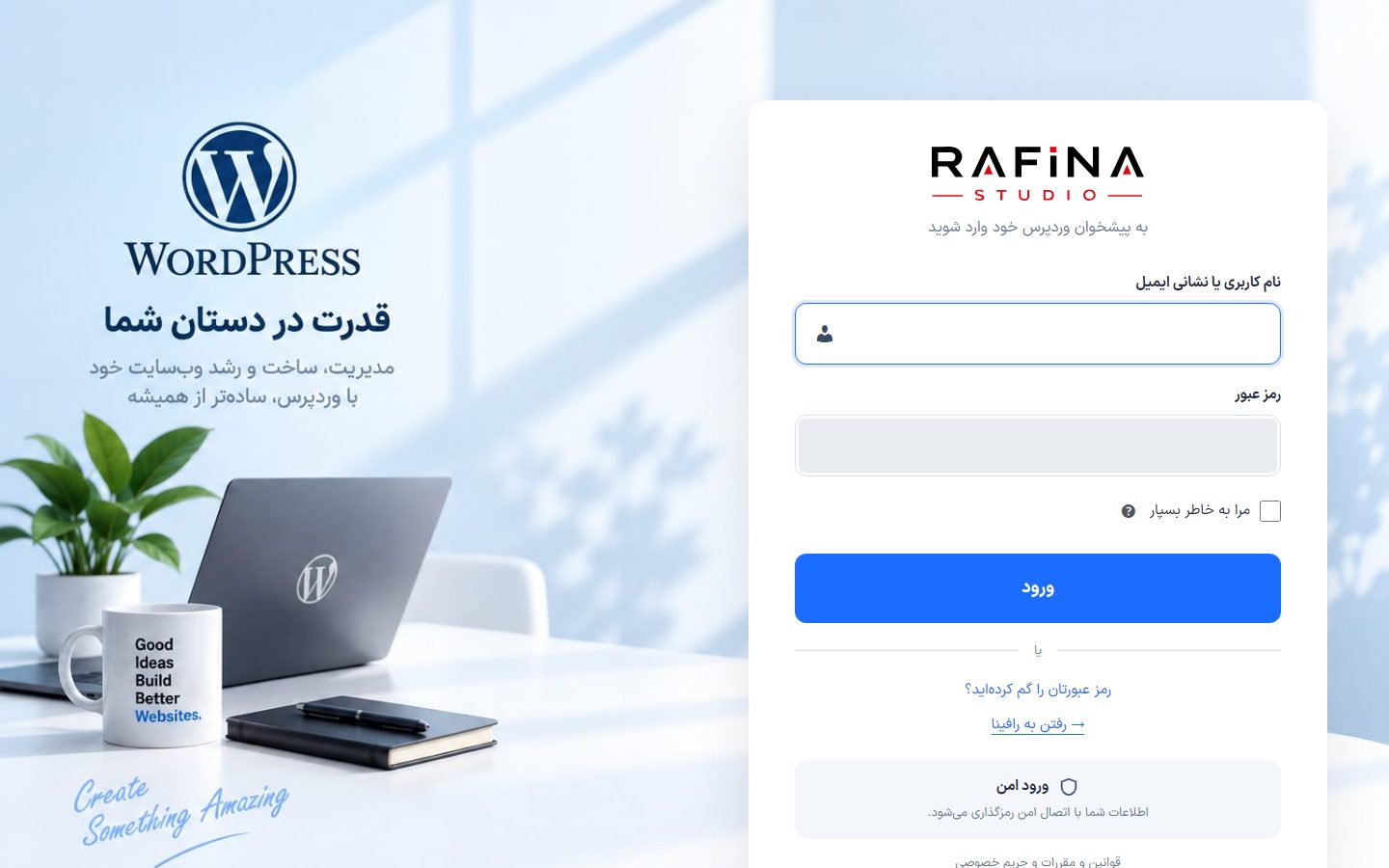
The dashboard login page (and forgot and reset password) gets the new look automatically with no setting: a login card with the site logo, the subtitle “Sign in to your WordPress dashboard”, a show-password button, a “Secure login” box, a side image and the Iran Sans font. The WordPress language chooser has been removed. The logo is the “Site Identity” logo.