

Invoice
The sales invoice and the pro forma invoice of each order are built from this setting: seller details, logo, stamp and signature, and the texts at the bottom of the document. The buyer prints or saves both as PDF from the user panel, and you do it from the WooCommerce order page.
Where is it? Rafina Panel → Site content → Checkout path → Invoice
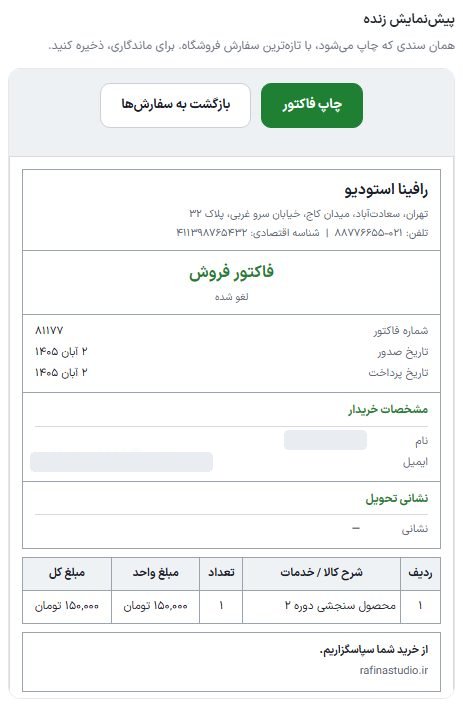
Setup
- Write the store name, address, phone, and economic ID in "Seller details".
- Choose the header logo and the stamp and signature image.
- With the "Invoice" and "Pro forma invoice" toggles at the top of the form, see both documents in the preview.
- Click "Save invoice settings". Changes are only in the preview until saved.
Order invoice and seller details
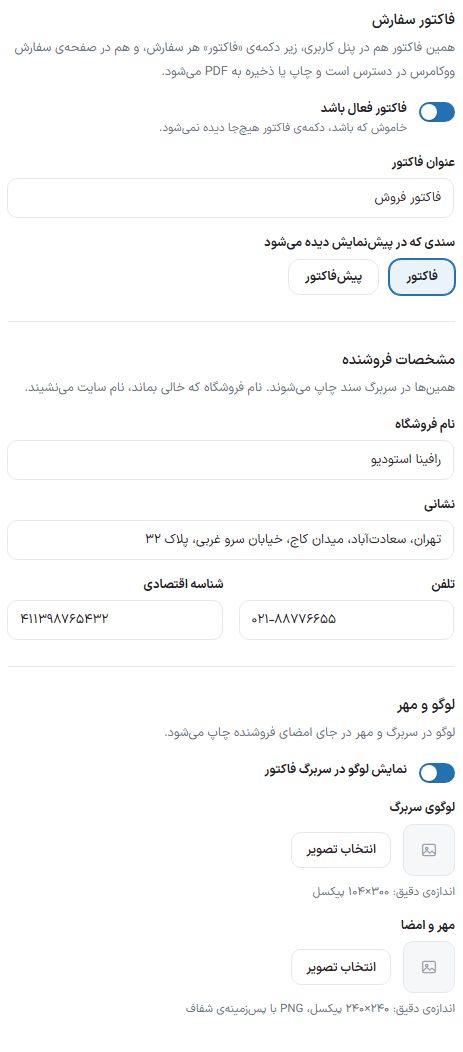
| Option | What it does | Default |
|---|---|---|
| Invoice enabled | When off, the invoice button is seen nowhere. | On |
| Invoice title | The title at the top of the document. | Sales Invoice |
| Document shown in the preview | For the preview only: "Invoice" or "Pro forma invoice". Not saved. | Invoice |
| Store name | Printed in the document's header. If left empty, the site name is used. | Site name |
| Address, phone, economic ID | Under the store name in the header. | Empty |
| Show the logo in the invoice header | — | On |
| Header logo | Exact size: 300 × 104 pixels. | — |
| Stamp and signature | Printed in the seller's signature spot. Exact size: 240 × 240 pixels, PNG with a transparent background. | — |
Pro forma invoice and the texts at the bottom of the document
The pro forma invoice is the same document before payment: the buyer can get it, approve it, or send it to their organization. Its address is /proforma/order-number/ and its button appears both in the user panel and in the dashboard's order list. After the order is paid, the pro forma invoice is no longer built and its address goes to that order's invoice.
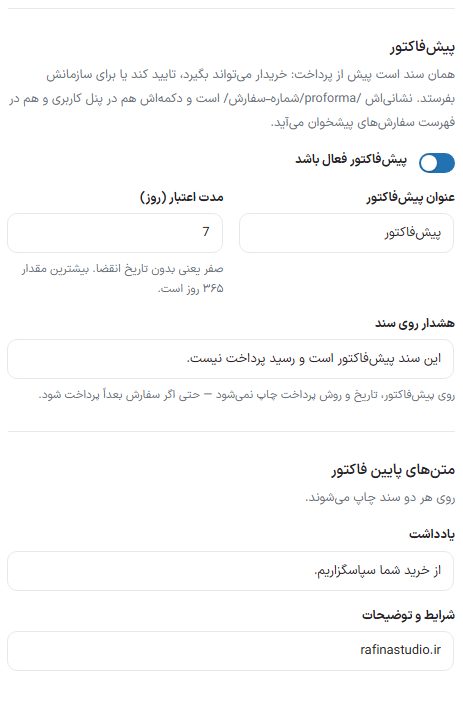
| Option | What it does | Default |
|---|---|---|
| Proforma invoice enabled | — | On |
| Proforma invoice title | — | Proforma invoice |
| Validity period (days) | Zero means no expiry date. The maximum is 365 days. | 7 |
| Warning on the document | The sentence printed on the pro forma invoice. The date and payment method are not printed on the pro forma invoice. | This document is a proforma invoice and is not a payment receipt. |
| Note | Printed on both documents. | Thank you for your purchase. |
| Terms and notes | A custom text at the bottom of both documents, such as return conditions. | Empty |
On each row of the invoice and the pro forma invoice, the item's thumbnail is printed beside its name and the "Item code" (the WooCommerce SKU) under its name so the item can be found faster in the warehouse. A variation of a variable item that has no separate code or image takes the main item's code and image. An item with no code gets no "Item code" line. No setting is needed.
Frequently Asked Questions
How do I save the invoice as PDF?
On the invoice page click the "Print invoice" button and, in the browser's print window, set the destination to "Save as PDF".
"trash" was written under the invoice title
It means that order is in the WooCommerce trash. Newer theme versions write it as "Deleted".