

Access
By default only the “Administrator” has access to Rafina Panel. From here you can allow staff who have the WooCommerce “Shop Manager” role, and decide exactly which sections they can reach.
Where is it? Rafina Panel → Settings → Access
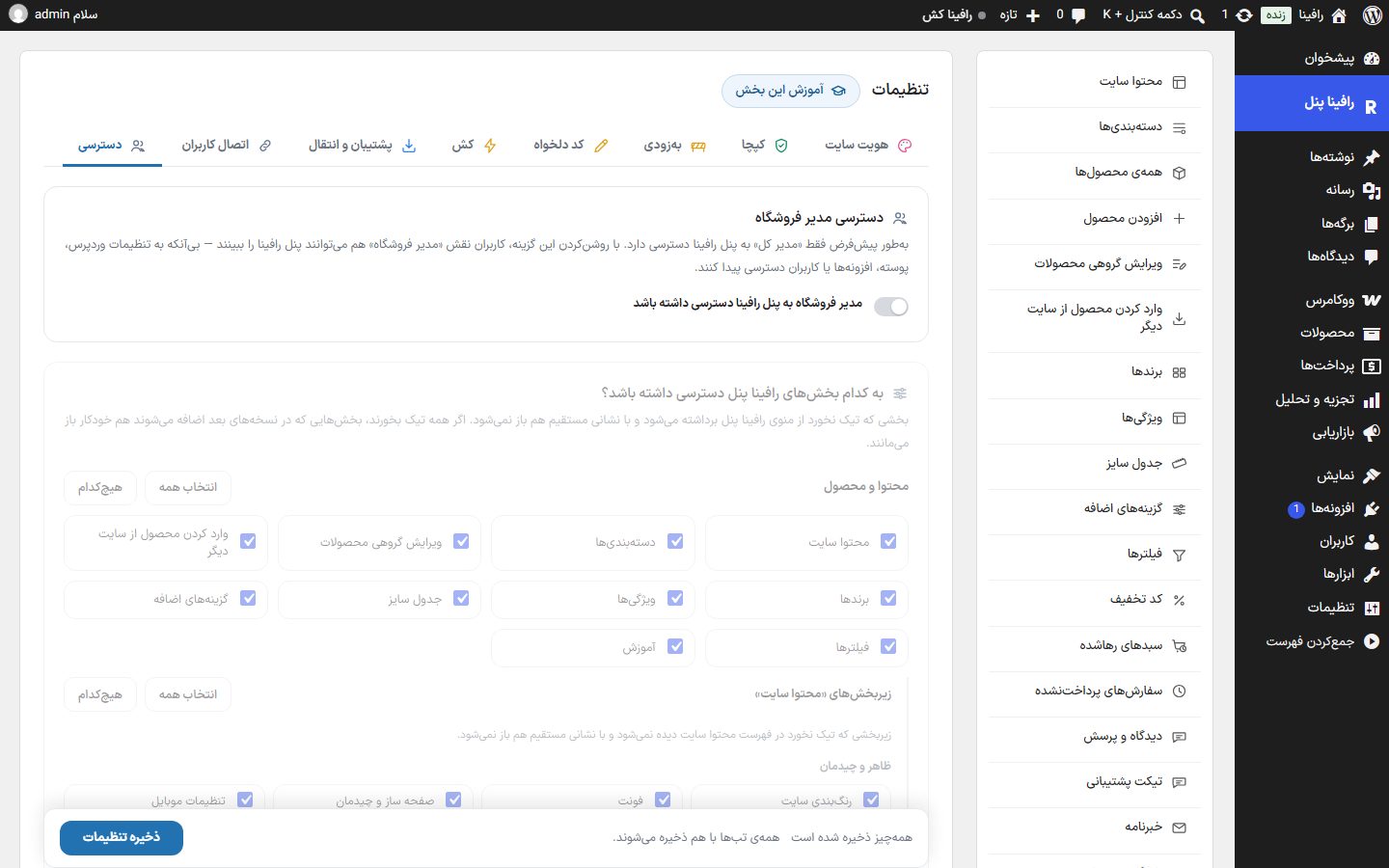
Setup
- In WordPress “Users ← Add”, create an account for the staff member with the “Shop Manager” role.
- Here, turn on the switch “Shop Manager can access Rafina Panel”.
- In the two boxes below, tick the sections they need and untick the rest.
- Click “Save settings”, then sign in once with that staff account and check the menu.
Shop manager access
| Option | What it does | Default |
|---|---|---|
| Shop Manager can access Rafina Panel | When on, the “Shop Manager” role also sees Rafina Panel, without reaching WordPress settings, the theme, plugins or users. The two boxes below become active when this switch is on. | Off |
Which Rafina Panel sections should they have access to?
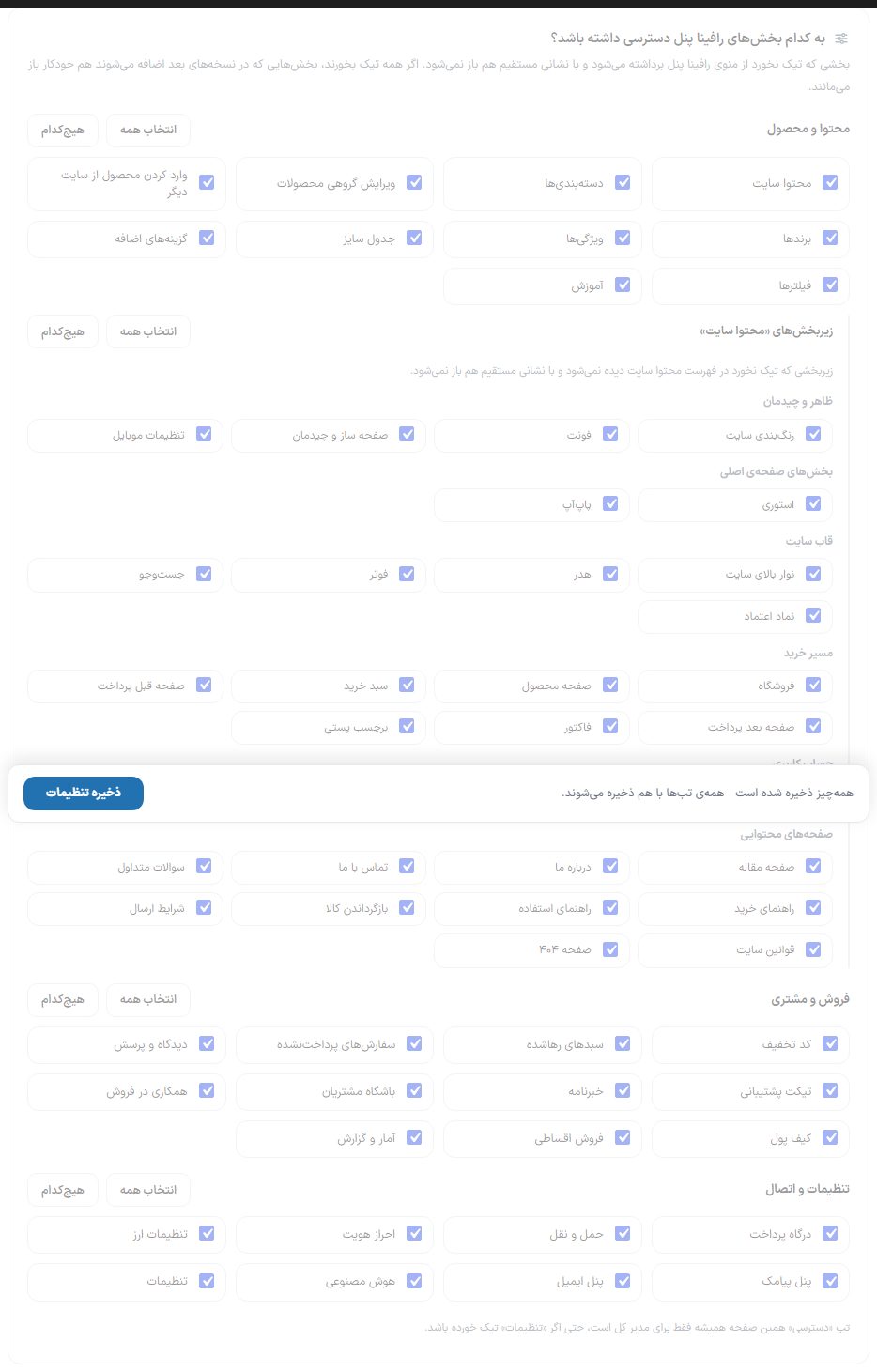
A section left unticked is removed from the Rafina Panel menu and cannot be opened by direct URL either. If all are ticked, sections added in later theme versions stay open automatically. Each group has “Select all” and “None” buttons.
| Group | Departments |
|---|---|
| Content and products | Site content, categories, bulk product editing, importing products from another site, brands, attributes, size chart, extra options, filters, tutorials. |
| Subsections of “Site content” | Only when “Site content” is ticked. Appearance and layout (site colors, font, page builder and layout, mobile settings), home page sections (stories, popup), site frame (top bar, header, footer, search, eNamad), purchase flow (shop through to shipping label), user account (login page, user panel, smart support) and content pages (article page through the 404 page). A subsection left unticked does not appear in the Site content list and cannot be opened by direct URL either. |
| Sales and Customers | Discount codes, abandoned carts, unpaid orders, comments and questions, support tickets, newsletter, customer club, affiliate program, wallet, installment sales, statistics and reports. |
| Settings and connections | Payment gateway, shipping, authentication, currency settings, SMS panel, email panel, AI, settings. |
Which dashboard sections should they have access to?
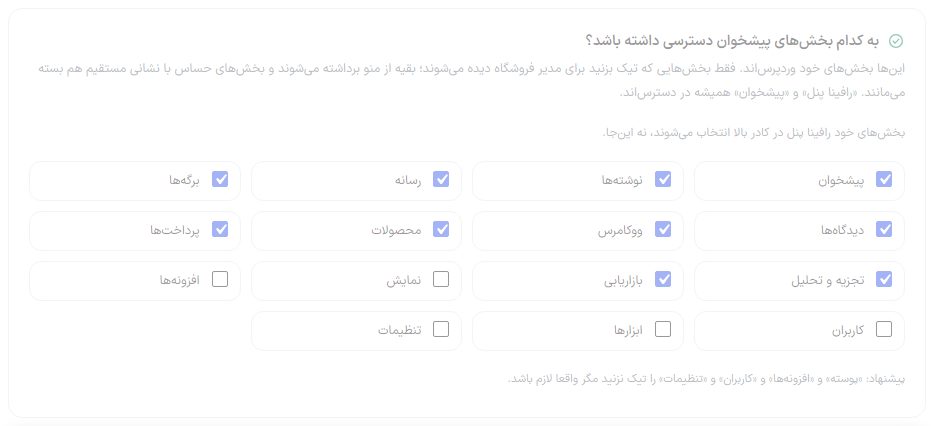
These are WordPress's own sections: Dashboard, Posts, Media, Pages, Comments, WooCommerce, Products, Payments, Analytics, Marketing, Appearance, Plugins, Users, Tools and Settings. Only the sections you tick are visible to the Shop manager; the rest are removed from the menu, and sensitive sections stay closed even by direct URL. “Rafina Panel” and “Dashboard” are always available. Rafina Panel's own sections are chosen in the box above, not here.