

Usage guide
You build the /usage Keeps a step-by-step tutorial for each item, such as “Activate the gift card” or “Install the software”. The buyer picks a category, then an item, then sees the steps.
Where is it? Rafina Panel → Site content → Usage guide
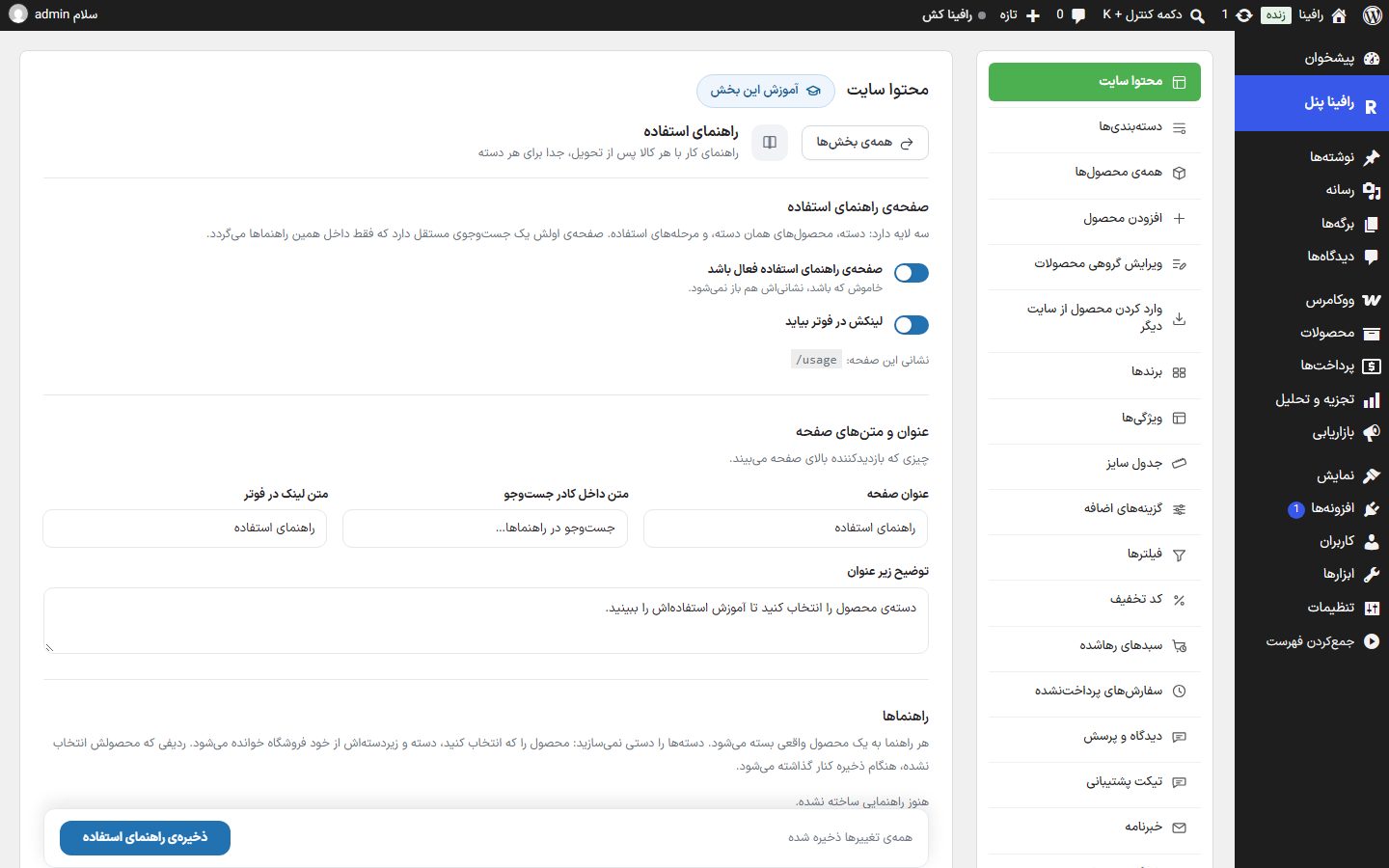
The page has three layers: category, products in that category, and usage steps. Its first page has its own independent search that looks only within these guides, not the whole store.
Usage guide page
| Option | What it does | Default |
|---|---|---|
| Usage guide page enabled | When turned off, the address /usage does not open either. | On |
| Link appears in the footer | The page link in the footer’s “Quick access” column. | On |
Page title and texts
What the visitor sees at the top of the page.
| Option | What it does | Default |
|---|---|---|
| Page title | Page headline. | Usage guide |
| Text inside the search box | The faint text inside the guides search box. | Search guides… |
| Footer link text | Footer link text. | Usage guide |
| Description under the title | The sentence under the title. | Choose a product category to see its usage tutorial. |
Guides
Each guide is tied to a real store product. You don’t create categories by hand: when you pick the product, its category and subcategory are read from the store itself. A fresh install has no sample guides.
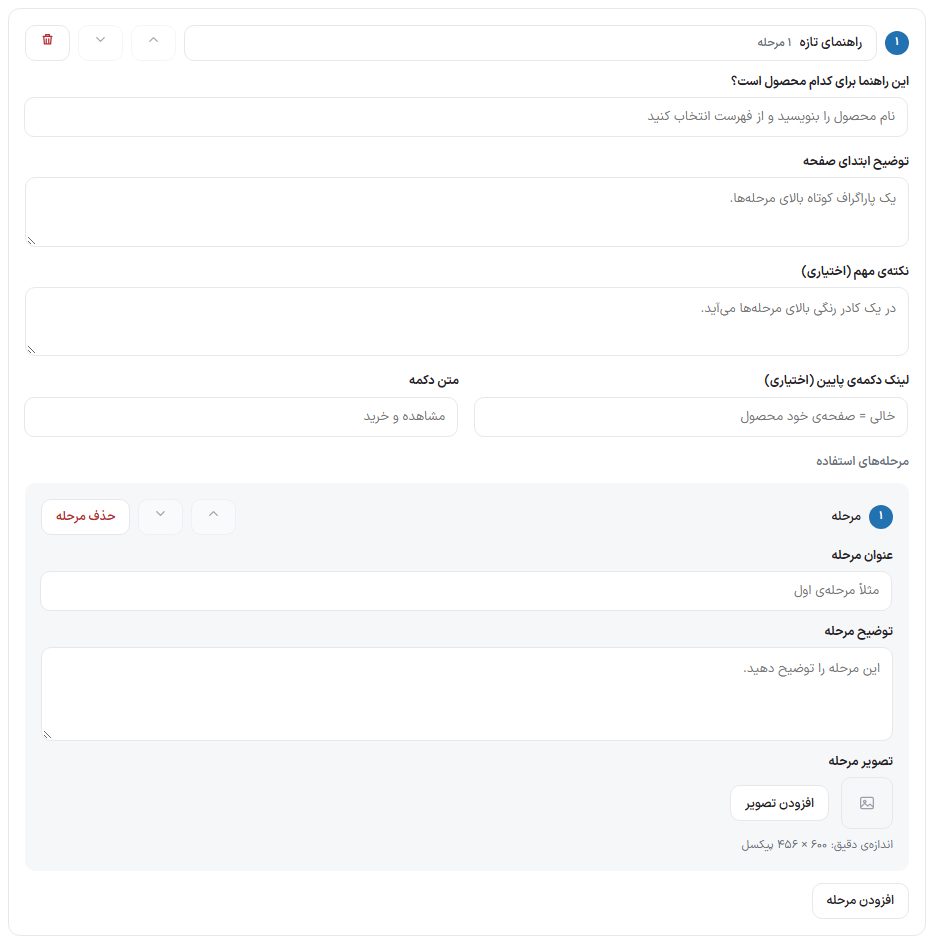
| Option | What it does |
|---|---|
| Which product is this guide for? | Type the product name and pick it from the “Site products” list. A guide with no product is dropped on save. |
| Intro description | A short paragraph above the steps. |
| Important note (optional) | Appears in a colored box above the steps. |
| Bottom button link (optional) | The address of the guide’s bottom button; empty means the product’s own page. |
| Button text | That button’s text. |
| Usage steps | Each step has a “Step title”, “Step description”, and “Step image”. Exact step image size: 600 × 456 pixels. |
| Guide header | The product name (or “New guide”) and the step count; clicking it collapses or expands the guide so a long list stays tidy. |
| Move up one / Move down one | Two arrow buttons next to the guide header and next to each step; they move the guide or step. |
| Delete guide / Delete step | The trash button next to the guide header, and the “Delete step” button next to each step. |
- Click “Add guide”.
- Type the product name and pick it from the list.
- Write the description and, if needed, the important note.
- Build the steps with “Add step” and add an image for each.
- Click “Save usage guide”.
FAQ and troubleshooting
“This guide’s product wasn’t found or isn’t published”.
The product was deleted or set to draft; pick a published product again.
“This product is not in any category”.
The guide appears under the product’s category. Until the product is assigned a category in WooCommerce, its guide doesn’t appear on the page.
The page says “No guides have been added yet”.
You haven’t saved any guide with a product yet.