

Cart
The look and texts of the cart page, the summary box beside it, the checkout step bar, the "Buy later" tab, the pre-cart offer dialog, the free shipping bar, and how long an item is held for a buyer who has gone to the gateway.
Where is it? Rafina Panel → Site content → Checkout path → Cart
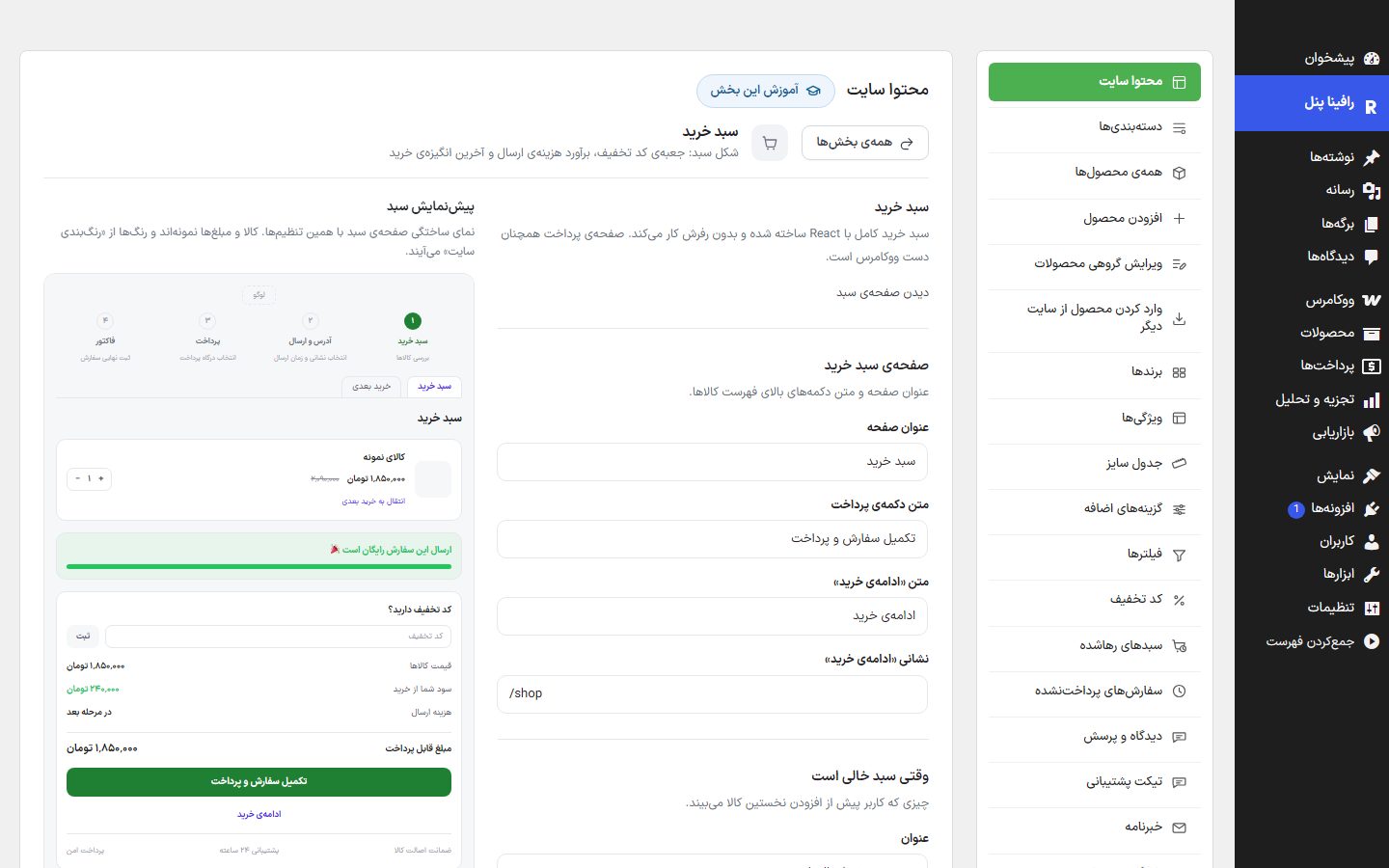
The "Cart" box at the top of the form says the cart works without reloading the page, and the "View cart page" link under it opens the site's real cart page. The cart works without a page reload: adding, increasing and decreasing, and removing happen instantly.
Cart page and empty cart
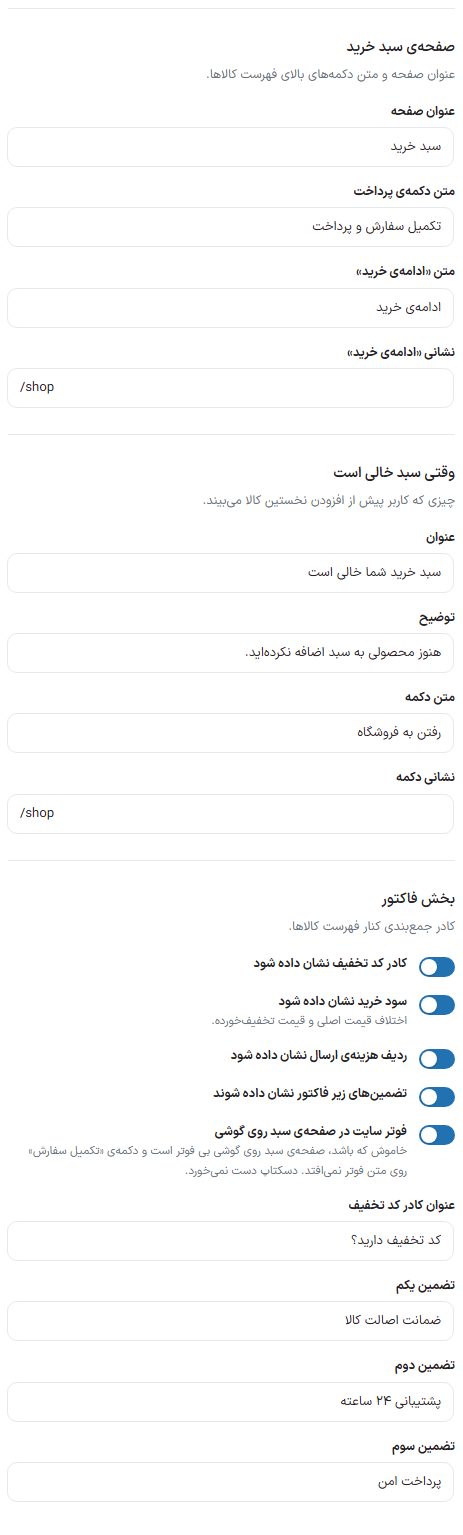
| Option | What it does | Default |
|---|---|---|
| Page title | The heading above the product list. | Cart |
| Payment button text | The main button that takes the buyer to the next step. | Complete order and pay |
| "Continue shopping" text | The link back to the store. | Continue shopping |
| "Continue shopping" address | The destination of that link; a relative address like /shop is accepted too. | /shop |
| When the cart is empty: title | What the buyer sees before adding the first product. | Your cart is empty |
| Description | — | You haven't added any products to your cart yet. |
| Button text | — | Go to the store |
| Button address | — | /shop |
Invoice section
The summary box beside the product list.
| Option | What it does | Default |
|---|---|---|
| Show the discount code box | The place to enter a discount code. | On |
| Show purchase savings | The difference between the original and discounted price, shown as "Your savings from this purchase". | On |
| Show shipping cost row | The shipping row in the cart. The shipping amount itself is calculated in the shipping step and the cart says "In the next step". | On |
| Show guarantees under the invoice | Three short texts under the box. | On |
| Site footer on the cart page on phones | When off, the cart page on phones has no footer and the "Complete order" button does not overlap footer text. Desktop is untouched. | On |
| Discount code box title | — | Have a discount code? |
| Guarantee one, two, three | If any is left empty, that guarantee does not appear. | Genuine product guarantee, 24-hour support, secure payment |
Checkout step bar and Buy later
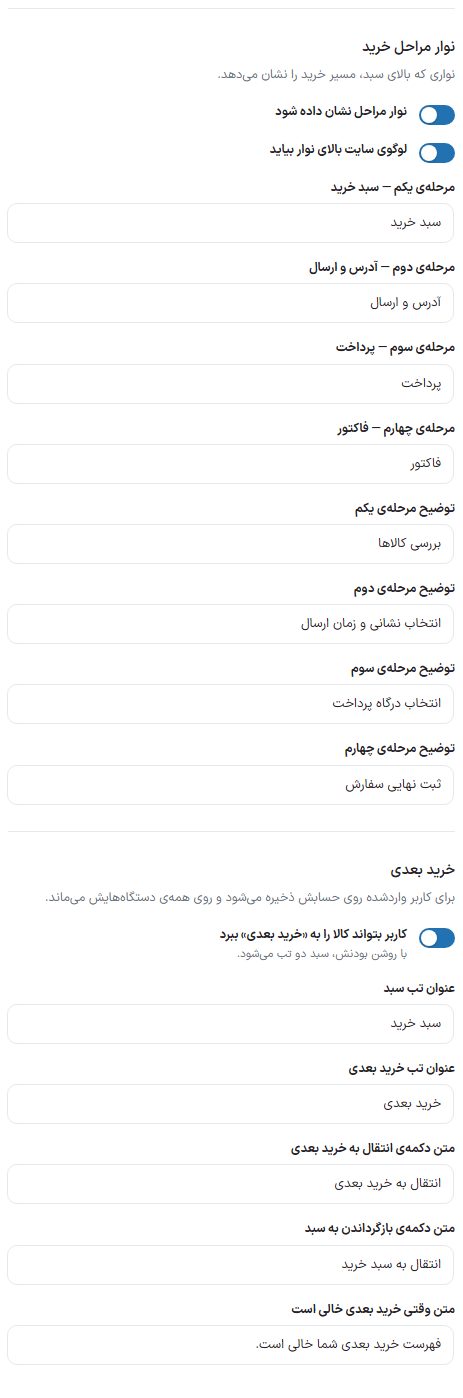
| Option | What it does | Default |
|---|---|---|
| Show step bar | The bar at the top of the cart and payment page that shows the checkout path. | On |
| Show site logo at the top of the bar | — | On |
| Step one to four | The name of each step. | Cart, Address and shipping, Payment, Invoice |
| Description of step one to four | The small line under each step name. | Review items, choose address and delivery time, choose payment gateway, final order placement |
| Let the user move a product to "Buy later" | When on, the cart becomes two tabs and the buyer can set a product aside for later. For a logged-in user it is saved on their account and stays on all their devices. | On |
| Cart tab title / Buy later tab title | — | Cart / Buy later |
| Text of the move to Buy later button | — | Move to Buy later |
| Text of the move back to cart button | — | Move to cart |
| Text when Buy later is empty | — | Your Buy later list is empty. |
Pre-cart offer and the "Added" message
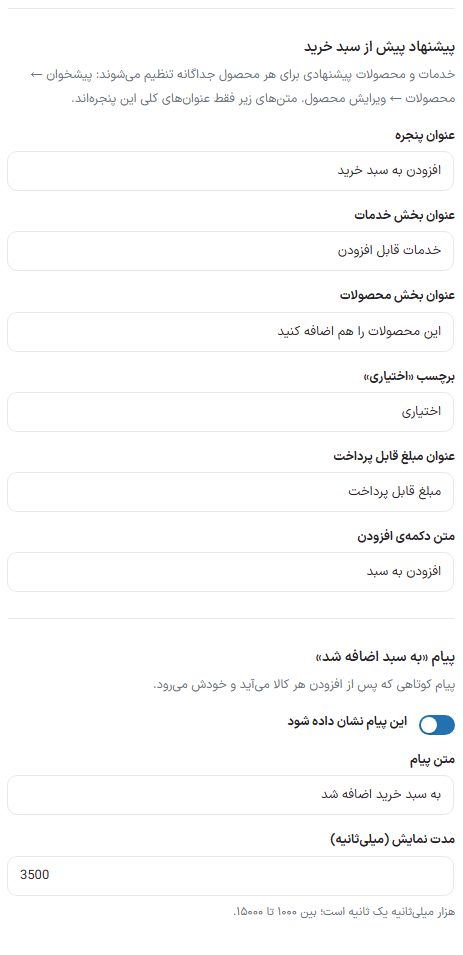
If you have defined a service (for example gift wrapping or installation) or a suggested product for a product, clicking "Add to cart" opens a dialog before the item goes to the cart. The services and products themselves are set separately for each product on that product's edit page (Add and edit product); here are only the dialog's general titles.
| Option | What it does | Default |
|---|---|---|
| Window title | — | Add to cart |
| Services section title | — | Available services |
| Products section title | — | Add these products too |
| "Optional" label | — | Optional |
| Payable amount title | — | Payable amount |
| Add button text | — | Add to cart |
| Show this message | A short message that appears after each item is added and then goes away. | On |
| Message text | — | Added to cart |
| Display time (milliseconds) | A thousand milliseconds is one second; between 1000 and 15000. | 3500 |
Free shipping bar and temporary stock reservation
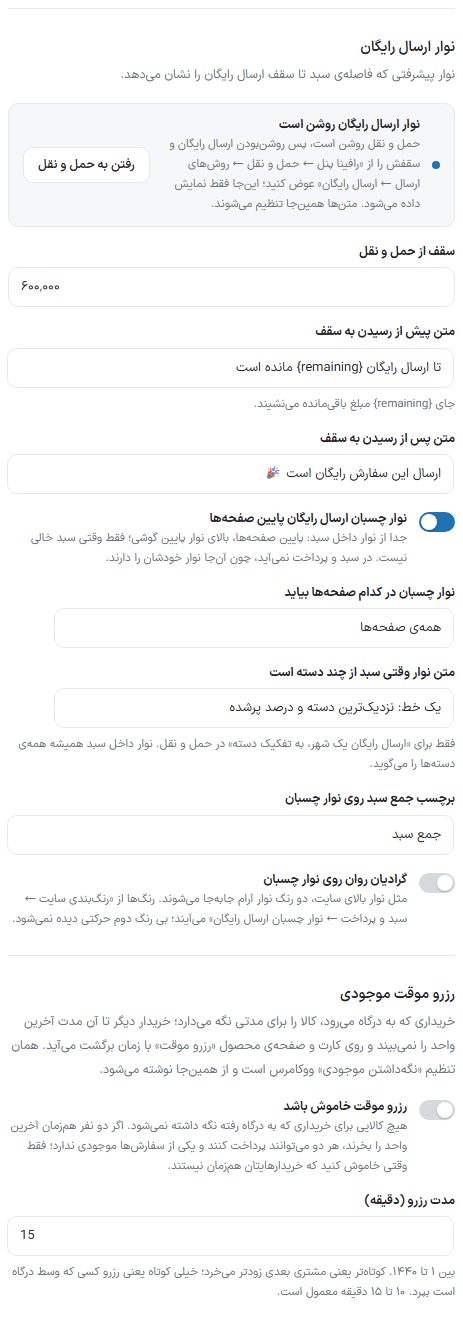
| Option | What it does | Default |
|---|---|---|
| Free Shipping Bar | A progress bar that shows the cart's distance from the free shipping threshold. If the theme's Shipping shipping is on, whether the bar is on and its threshold are set there and only read here ("Threshold from shipping", with the link "Go to shipping"). If the theme's shipping is off, the "Show free shipping bar" switch and the "Threshold (Toman)" box can be changed here. | Off |
| Text before reaching the threshold | In place of {remaining} the remaining amount goes. | {remaining} left until free shipping |
| Text after reaching the threshold | — | Shipping for this order is free |
| Sticky free shipping bar at the bottom of pages | Separate from the bar inside the cart: at the bottom of pages and above the phone bottom bar; only when the cart is not empty. It does not appear in the cart and checkout, because they have their own bar. The four options below are visible only when this switch is on. | Off |
| Which pages the sticky bar appears on | "All pages", "Home page, store, categories, and product", "Only store, categories, and product", or "Only home page". | All pages |
| Bar text when the cart has several categories | Only for "City free shipping, per category" in shipping: "One line: nearest category and percent filled" or "All categories, at most two lines". The bar inside the cart always shows all categories. | One line |
| Cart total label on the sticky bar | The text beside the cart amount on the bar. | Cart total |
| Smooth gradient on the sticky bar | As in the site's top bar, the bar's two colors shift gently. Visible only when the sticky bar is on. The colors come from Site color scheme → Cart and checkout ; with no second color no motion is seen. | Off |
| Reservation time (minutes) | For a buyer who goes to the gateway, the item is held for this time; another buyer does not see the last unit for that time, and the card and product page show "Temporarily reserved" with the time it returns. It is the same as WooCommerce's "Hold stock" setting and is written from here. Between 1 and 1440; 10 to 15 minutes is typical. | Same value as WooCommerce |
| Temporary reservation off | No item is held for a buyer who has gone to the gateway. If two people buy the last unit at the same time, both can pay and one of the orders has no stock; turn it off only when your buyers are not simultaneous. Turning it on again restores the previous number. | Off |
Frequently Asked Questions
Why doesn't the cart show the shipping cost as a number?
Shipping depends on the address and shipping method, which are chosen in the next step. That's why the cart says "In the next step" and the cart total is without shipping.
Where do I change the cart colors?
From Site color scheme, the "Cart and checkout" group. This tab's preview takes its colors from there too.