

Guides / Site content / Popup
Popup
A window that opens a few seconds after a visitor arrives on the pages you choose; for announcing a discount, newsletter sign-up, or any short message.
Where is it? Rafina Panel → Site content → Home page → Home page sections → Popup
Setup
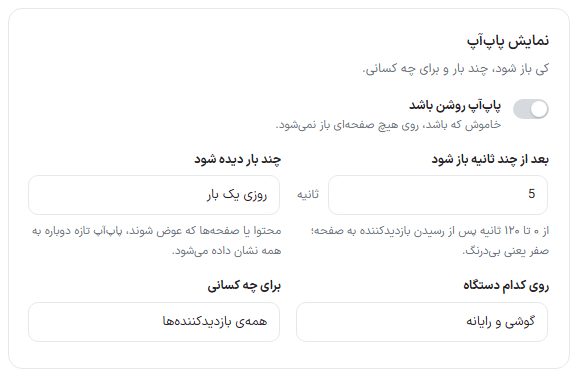
- Turn on the "Popup enabled" toggle.
- Choose when it opens, how many times it shows, the device, and the audience.
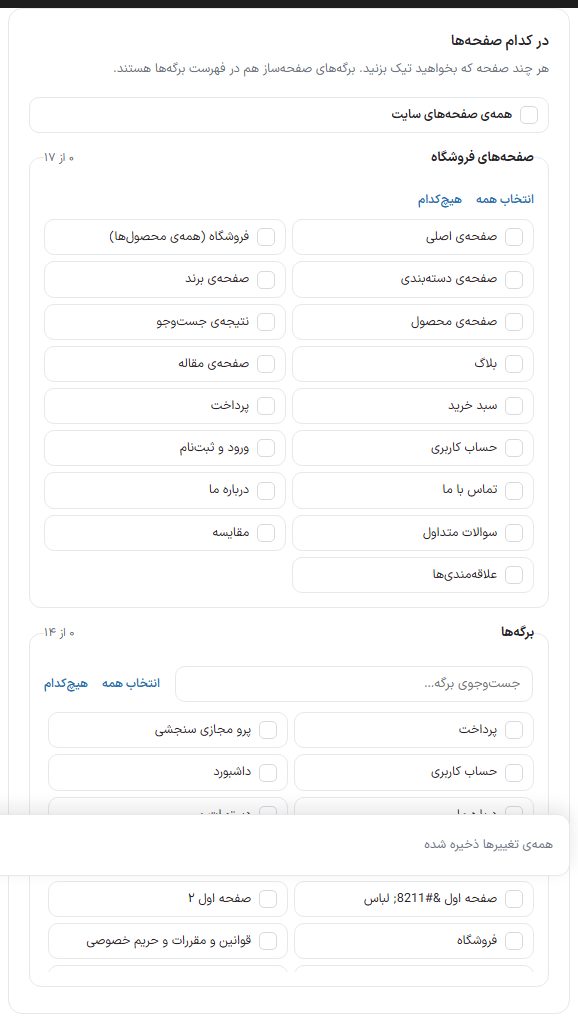
- In "On which pages", check at least one page or click "All site pages".
- In the "Content" section, fill in an image or a title and text. The live preview at the bottom of the page updates instantly.
- Click "Save popup".
NoteA popup with no content (image, title, text, or HTML) or no page does not open on the site, even with the toggle on.
Popup display
| Option | What it does | Default |
|---|---|---|
| Popup is on | When off, it opens on no page. | Off |
| Open after a number of seconds | From 0 to 120 seconds after the visitor arrives on the page; zero means immediately. | — |
| How many times it is seen | Every time the page opens, once per visit, once a day, once a week, or only once. If you change the content or pages, the new popup is shown to everyone again. | — |
| On which device | Phone and computer, computer only, or phone only. | — |
| For whom | All visitors, only those who are not logged in, or only logged-in users. | — |
| Which pages | Check as many pages as you like. "All site pages" covers everything. The "Store pages" group has 17 pages (home page, shop, category, brand, product, search, blog, article, cart, checkout, user account, login and sign-up, contact, about us, FAQ, compare, favorites) and the "Pages" group has all published pages, including page builder pages. Beside each group's name the count of checked items is written (for example "0 of 17"), and each group has "Select all" and "None" and a "Search pages…" box to find a page. | — |
NoteThe popup never opens on the payment result page (return from the gateway).
Content
| Option | What it does |
|---|---|
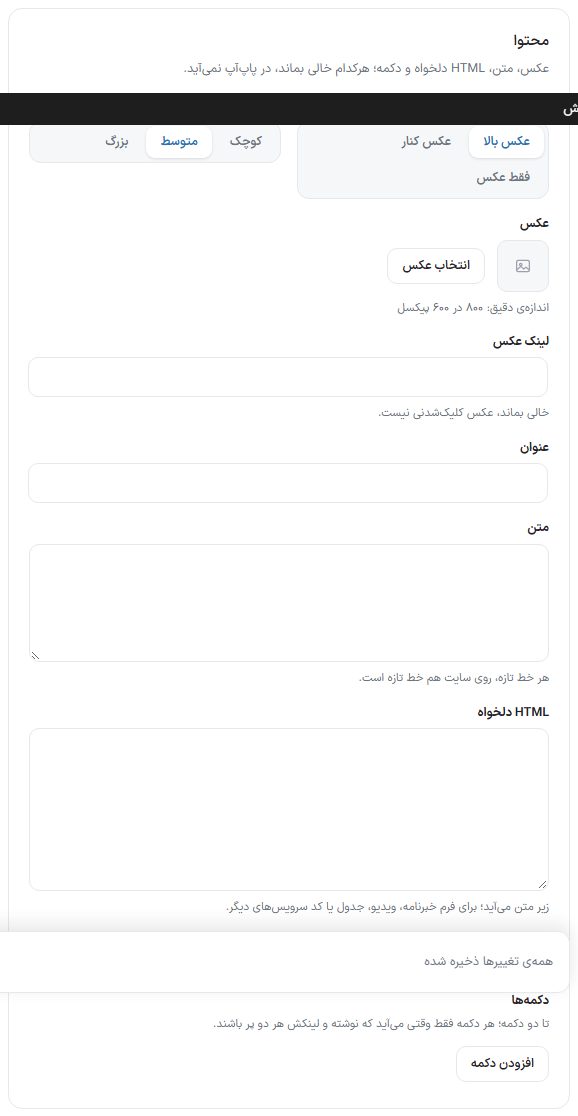
| Layout | "Image on top", "Image beside", or "Image only". In "Image only" the title, text, and buttons are not shown; your writing is not deleted and is right where it was when you switch back to another layout. |
| Window size | Small, medium, or large. |
| Image | The popup image. Exact size 800 by 600 pixels. |
| Image link | The address that opens when the image is clicked. If left empty, the image is not clickable. |
| Title | The popup title. |
| Text | The main text. Each new line is a new line on the site too. |
| Custom HTML | Placed below the text; for a newsletter form, video, table, or other services' code. |
| Buttons | Up to two buttons with "Add button". Each button: "Button text", "Link", "Style" (bold or light), and "Open in a new tab". Each button appears only when its text and link are both filled. |
WarningScripts inside the custom HTML are also saved and run on the site; put only code whose source you know. A script is saved only for an admin who has WordPress's full HTML permission.
Window behavior
| Option | What it does |
|---|---|
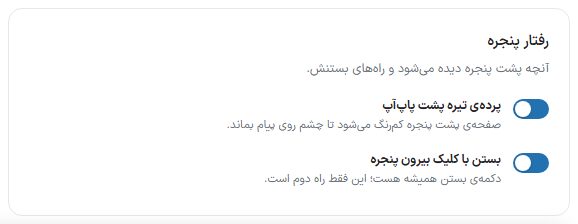
| Dark overlay behind the popup | The page behind the window is dimmed so the eye stays on the message. |
| Close by clicking outside the window | The close button is always there; this is only a second way. The Escape key also closes the window. |
Live preview
At the bottom of the page, the popup is shown as the visitor sees it, with two buttons, "Computer" and "Phone". If the popup is off or has no content yet, its message appears instead. Save to make changes permanent.
FAQ and troubleshooting
The popup doesn't open for me anymore
You set "How many times shown" to something other than "Every time", and your browser has seen it once. To test, temporarily choose "Every time the page opens" or view it in a private browser window.