

Page builder and layout
You lay out the store's main pages (home page, store, and product page) and any other custom page with the page builder. This page is the list of pages: create, edit, set as default, rename, and delete. Arranging the sections itself happens in the page builder editor .
Where is it? Rafina Panel → Site content → Page builder and layout
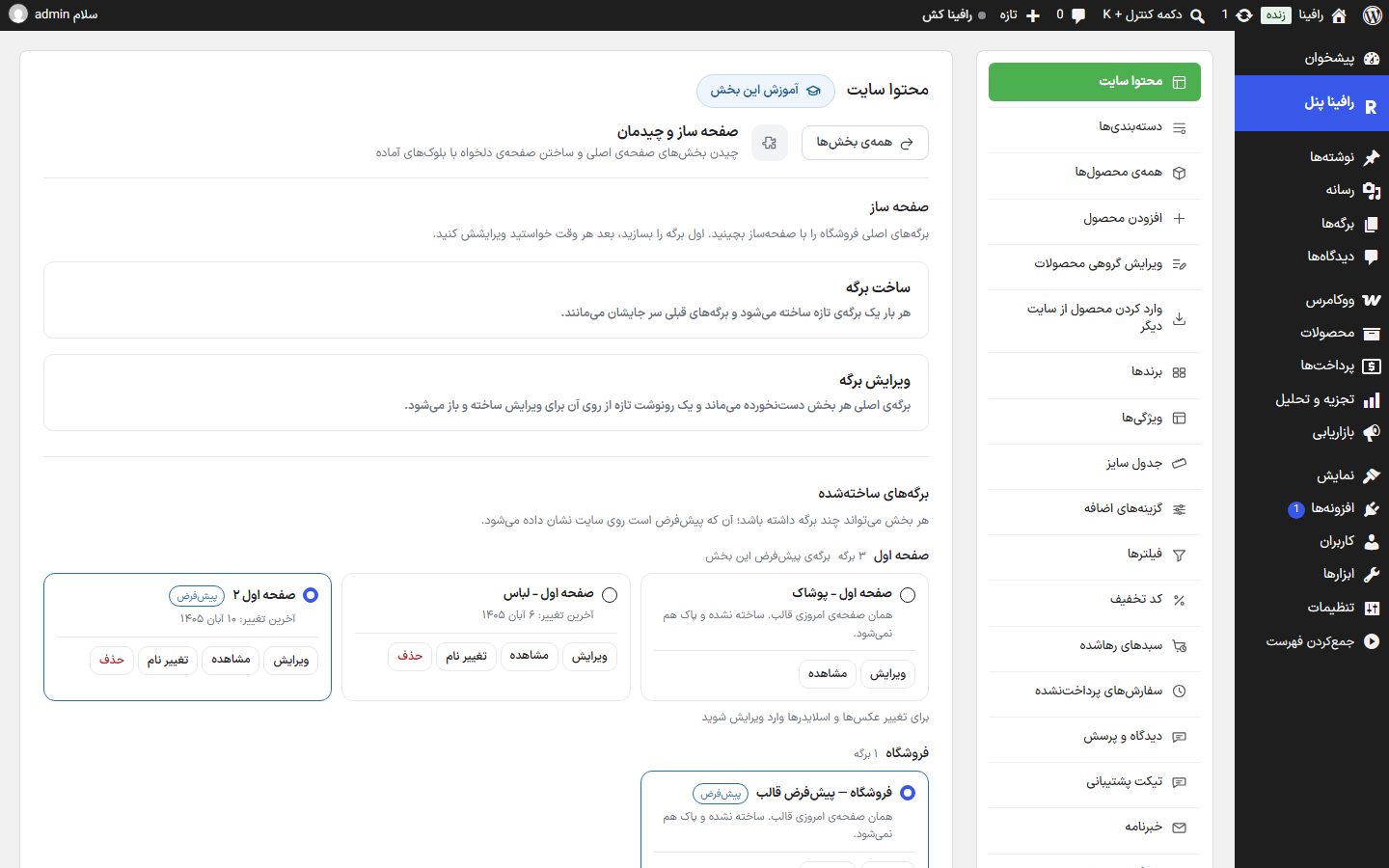
Sections (targets)
Each page-builder page belongs to one of these sections. Each section can have several pages but only the "default" page is shown on the site; the rest are drafts that you make the default whenever you want.
| Section | Where on the site |
|---|---|
| Home page | The site's main page (the domain's own address). |
| Store | The store page and the category and tag archives. For the product list itself on this page, use the "Store products list" element. |
| Product Page | The all-products page. The "Product page view" element holds the place of the product page itself and the other sections are arranged around it. |
| Miscellaneous page | A single standalone page with its own address, like "About us" or a festival page. It has no default and is tied to no section. |
| Pages from the previous version | Only seen if your site has a page created with the old version of the page builder. "These were created with the previous version of the page builder; edit, rename, and delete work on them." |
Create page
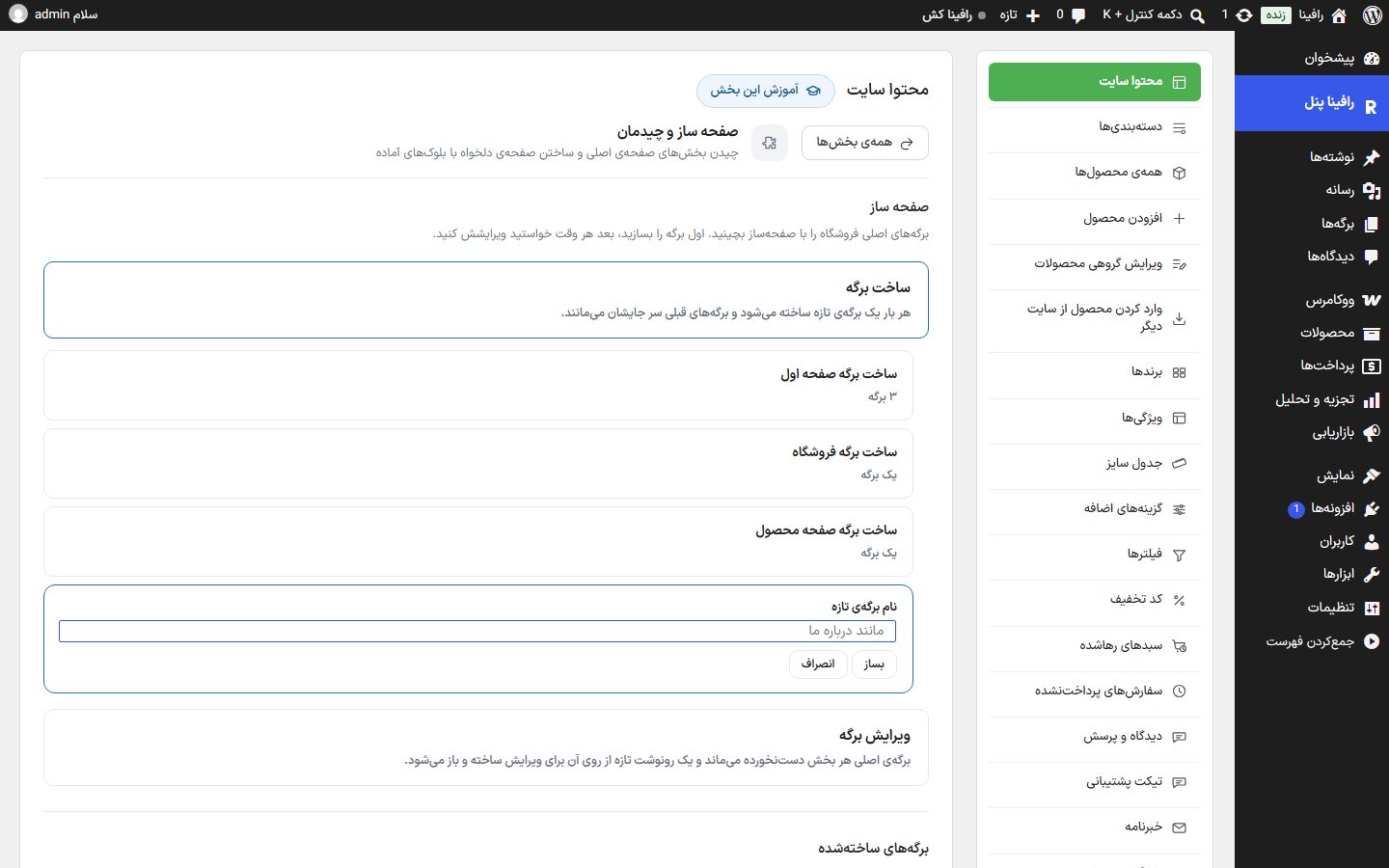
Open the "Create page" box. Each time a new page is created and the previous pages stay in place. Under each button the number of pages in that section is written (like "3 pages" or "One page").
| Option | What it does |
|---|---|
| Create Home page / Create Shop page / Create Product page | Creates a new page for that section and opens the editor. The new page does not become the default and the message "Page created but not yet default…" appears; to show it on the site, make it the default from the list below. |
| Create a miscellaneous page | The "New page name" box (for example "About us") opens; write the name and click "Create" or "Cancel". With no name, the message "Write a name for the miscellaneous page." appears. |
Edit page
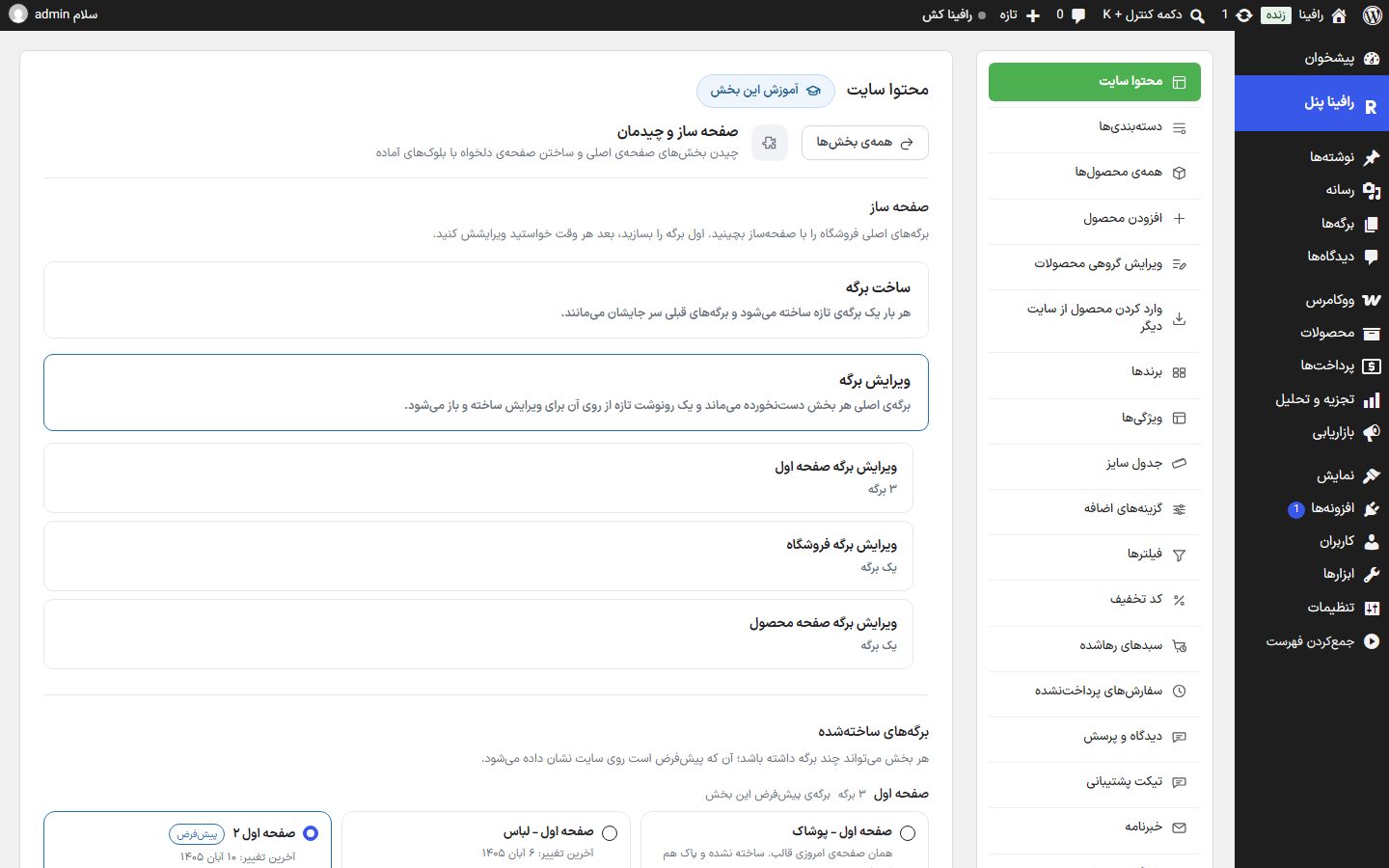
The "Edit page" box has a button for each section ("Edit Home page", "Edit Shop page", "Edit Product page"). The section's main page stays untouched, and a new copy of it is made for editing and opened in another tab; the copy does not appear on the site until you make it the default. If a section has no page yet, the message "This section has no page yet. Create one first from "Create page"." appears.
Created pages
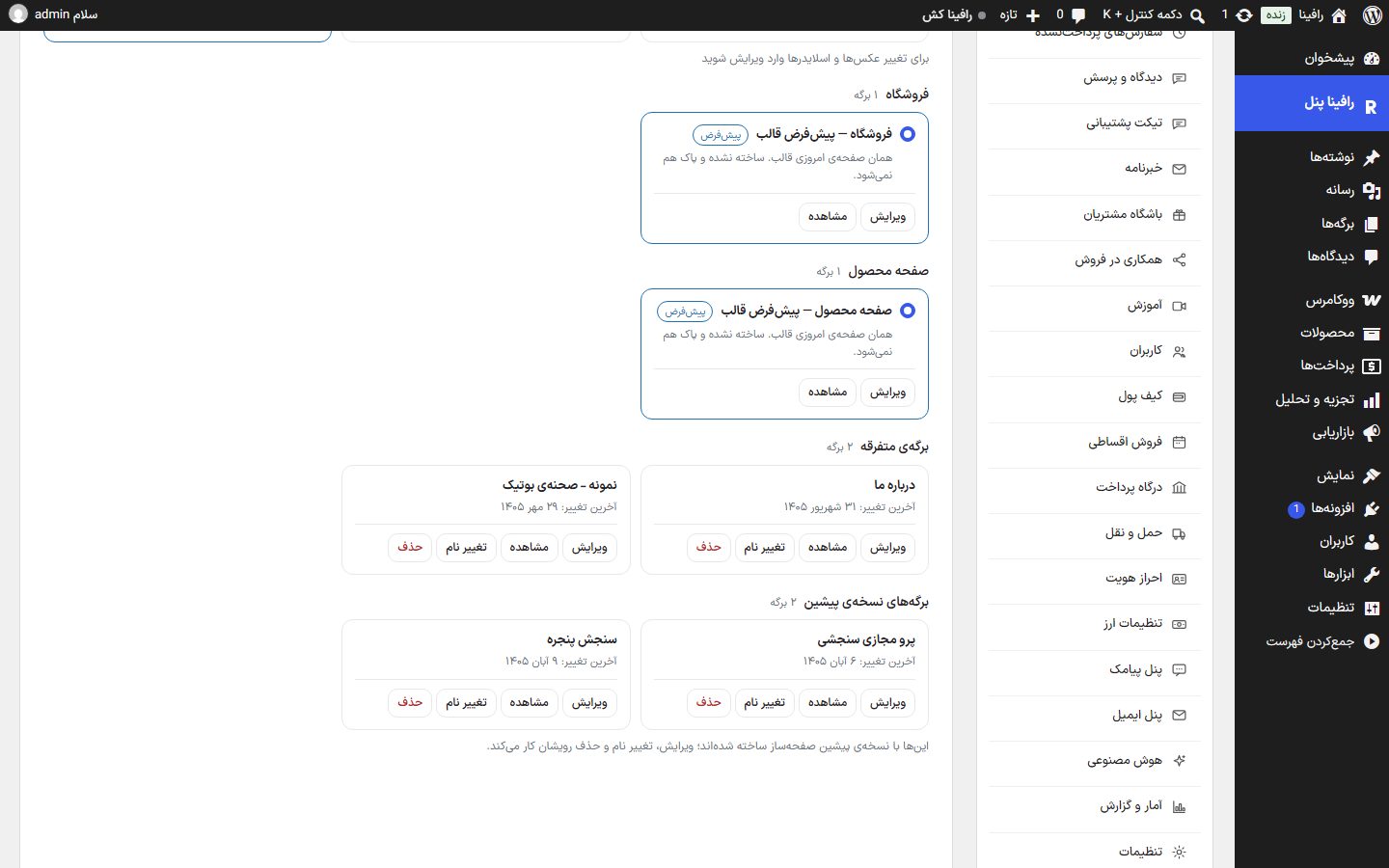
The top of the list says: "Each section can have several pages; the default one is shown on the site." Next to each section's name is its page count (like "3 pages") and below it the page cards with name, "Last modified" date, and buttons. The default page has a "Default" badge and a blue frame.
| Option | What it does |
|---|---|
| The circle next to the name (make default) | Makes this page the default of its section; it is shown on the site from that moment. A miscellaneous page does not have this circle. |
| Edit | Opens the page in the page builder editor. On the theme default row (and locked pages), instead of editing it, a copy is made and opened. |
| View | Opens the page on the site. |
| Rename | Opens the "New page name:" dialog. |
| Delete | After asking "Move this page to trash?", moves the page to the WordPress trash (restorable from "Pages → Trash"). If the deleted page was the default, the section returns to the theme default. |
The "Theme default" row
The first card of each section is the theme's own current page, named "… — Theme default" (like "Shop — Theme default"); if the theme has registered a ready-made design name for this row, that name is shown (for example "Home page - Apparel"). Under its name it says: "The theme's current page. Not created and cannot be deleted." This row has no rename or delete. "Edit" on it makes a copy of the theme's current page and opens it in another tab; the theme default itself is untouched and the copy does not appear on the site until you make it the default. To return to the theme's usual page, click this row's circle. Under the home page list a reminder says: "Open the editor to change images and sliders".
Setting up the home page with the page builder
- In the "Edit page" box, click "Edit Home page" to make a copy of the current page and open it in a new tab. (Or start from a new page with "Create Home page".)
- In the editor, arrange and configure the sections; changes are saved automatically.
- See the result on the site with "View".
- Come back to this page and click the circle next to the new page to make it the default and show it on the site.
FAQ and troubleshooting
I created the page but the site's home page didn't change.
A new page deliberately does not become the default. Click the circle next to it in this list. If it is the default and still looks old, clear the site or host cache.
I want the theme's usual page back.
Click the circle of that section's "Theme default" row. Created pages are not deleted and you can make them the default again whenever you want.
I see "Failed" or "Could not connect to the server".
Try once more. If it repeats, refresh the page; the login session may have ended.
Can I get to the page builder from the admin bar on the site?
Yes. When logged in, on the home page, store, and product page the WordPress top bar has an "Edit with page builder" option that opens that section's page directly in the editor.
My site is multilingual (WPML or Polylang). Where do I create the English version of a page?
Page-builder pages are hidden in WordPress's pages list, so the plugin's translate button is not seen there. With either plugin on, each page's card on this page has a "Create English version" button (or "Edit" and "View" for the created version). The translated version does not get a separate card and is not tied to a section; each language shows its own page. The header, footer, and top bar texts are in that plugin's "String translation".