

Import products from another site
Brings products from a WooCommerce store, from Digikala, or from any site that has a separate page for each product, into your site with price and images, and if needed periodically refreshes their price and stock from the source.
Where is it? Rafina Panel → Import products from another site
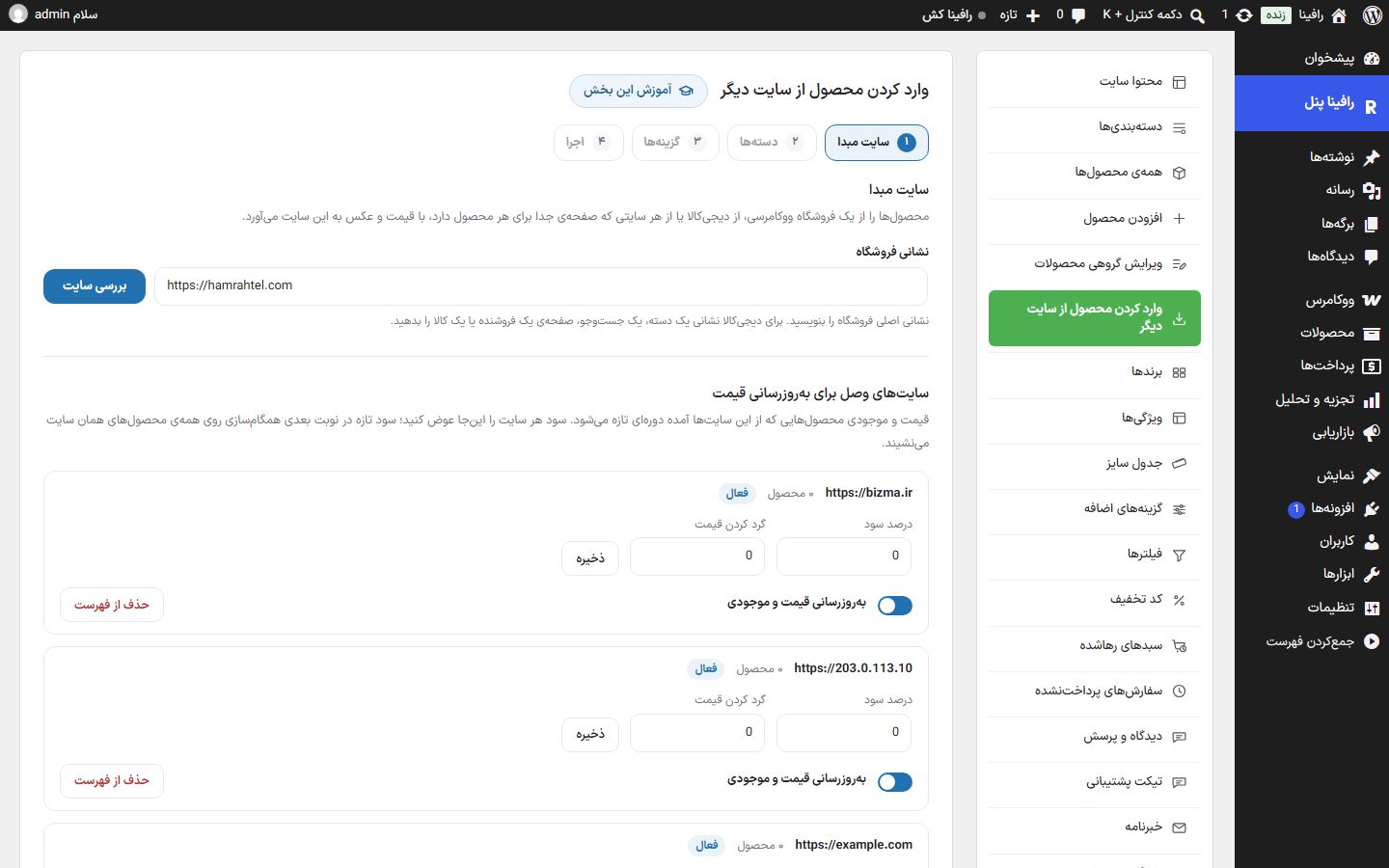
The work has four steps numbered at the top of the page: Source site, Categories, Options and Run. Move between them with “Next step” and “Back”. WooCommerce must be active.
Step 1: Source site
| Option | What it does |
|---|---|
| Store address | The store’s main address. For Digikala, give the address of a category, a search, a seller page, or a single item. |
| Check site | Recognizes the site and shows the store name, product count, and “Site type”: WooCommerce store, Digikala, or “General site” (name, image, and price from the pages’ own data). If a general site gives no price, products are imported with no price as drafts. “Another site” starts the check over. |
| Next step | Turns on only after a successful check of that same address. |
If the address is a single item, the “Import one product” box appears instead of the next steps: write the product’s address or ID and click “Import”; when done, an “Edit product” link appears.
Step 2: Categories
| Option | What it does |
|---|---|
| Source categories | The source site’s category tree with each one’s product count, category search, “Select all”, and “Clear all”. If no category is selected, all products are imported. The “Product estimate” appears at the bottom of the list. Digikala gives no categories and shows the total count. |
| Choose products | Beside each ticked category; opens a window with a paginated list of that category’s products so you can pick one by one (an unavailable product has an “Unavailable” badge). No ticks means all the category’s products. After “Confirm”, “N of M selected” appears on the category row. |
| Category mapping | Which of your site’s categories each source category should go into. “Create automatically” creates a category with the same name. “Manage site categories” goes to Categories . |
Step 3: Options
| Option | What it does | Default |
|---|---|---|
| Profit percentage | Added to the source price. Zero means the same price. | 0 |
| Price rounding | The rounding step for the final price. Zero means no rounding. | 0 |
| Import speed | Slow (weak host), Normal (adapts to the host’s speed), or Fast (strong server). | Normal |
| Product status | Draft or Published. Draft is safer: look first, then publish. | Draft |
| Stock status | Same as the source site, all in stock, or all out of stock (the product comes in but can’t be ordered, so you can see the price and text). | Same as the source site |
| Links inside the description | “Link to this site” or “Leave untouched”. A product description usually links to the source store’s categories and brands; with the first option, anything found on your site is linked to your own version and the rest stays plain text. | Link to this site |
| Bring images | Images are stored on your server and slow the import down. | On |
| Source site tag crop | If the source images carry that store’s badge or text: “From which edge” (top, bottom, right, left) and “Crop size (percent)”. Try with one product first. | Off; top, 6 percent |
| Image format | “Same format as the source site” or “Convert to webp”. With webp, “webp quality”: “Lossless” (larger size) or “Smaller size” (slight loss, about half the size). Conversion happens only when the file gets smaller. | Same format |
| Keep price and stock in sync | After import, the price and stock of these products are periodically refreshed from the source. | Off |
| Existing products’ prices only | No new product is created; only the price and stock of products previously imported from this same site are refreshed. | Off |
| Bring images / Bring descriptions (Digikala) | Digikala only. Digikala’s images and texts belong to Digikala and its sellers, and using them is the store owner’s responsibility; with both turned off, only the name and price come in. | — |
| Product vendor | Visible only when the Dokan plugin (marketplace) is active. New products are created under the chosen vendor and appear in their store. The vendor of an already imported product isn’t changed. | The store itself |
| Currency unit | Shows the “Currency of this store”; if the source currency differs, amounts are converted. | — |
| Sample of a few products | “See sample” shows a few products with source price, price after profit, and image, before anything is created. | — |
Periodic sync
A box in this same step for sites you have imported from. Only price and stock are refreshed; title, image, and description are untouched.
| Option | What it does | Default |
|---|---|---|
| Enabled | Turns sync on or off. | Off |
| Interval | Every minute, every 5 minutes, every 15 minutes, hourly, twice a day, once a day. | Once a day |
| Products per run | Between 5 and 100; a large number slows the server. | 20 |
| Synced sites | The list of sites you have imported from; each is edited in Step 1 (below). “Save” saves this box separately. | — |
Sites connected for price updates
In Step 1, under the site address box, every site you imported from has a row: the address, its product count in the store, and an “Active” or “Inactive” label. A site imported from before this version is also in the list, with profit and rounding at zero, for you to set; nothing is written to it until you click “Save”. To change the profit of an old site you don’t need to take a new import all the way through.
| Option | What it does |
|---|---|
| Profit percentage and price rounding | “Save” applies to that site, and that site’s products get priced first, with the new profit, in the next sync run. |
| Price and stock update | Turning it off is saved immediately; that site’s products are no longer updated, but the saved profit stays. Importing again with “Keep price and stock in sync” turns it back on. |
| Remove from list | After you confirm, the site is removed from the list and its updates are turned off. Its products remain in the store. |
Step 4: Run
“Start” begins the work. The work proceeds step by step and you see the “Current step size” and “Next automatic run”. If the server’s background execution works, it says you can close the page; otherwise keep the page open. “Stop”, “Resume”, and “Cancel” are yours; with Cancel, what has been imported so far stays. If an unfinished job exists from before, the “Unfinished job” box asks whether to resume or cancel.
| Section | What it shows |
|---|---|
| Progress | Created, updated, skipped, failed, total, and done; and the job status: running, finished, canceled, stopped with error, or “Linking links” (after import, description links are fixed and their count appears). |
| Report | A table of time, product, event (created, updated, skipped, failed, error), and note. “Refresh” updates the table. |
FAQ and troubleshooting
The message “This site does not allow products to be taken; the problem is not your store”.
The source site has blocked requests (firewall, request limit, or its own server error). Try again a little later or set the speed to “Slow”.
Some products were imported with no image.
Import the same category again; a product with neither a featured image nor a gallery gets images on re-import (up to three attempts).
Products came in with no price, as drafts.
The source site doesn’t show prices in its pages; set the price yourself and publish.
I clicked “Cancel” but a product was still being created for a few seconds.
The current step finishes and then the work stops; no new step starts after cancel.