

Shipping
All shipping methods, their prices, free shipping, separate prices for each province and city, preparation time and delivery day, and the extra fee for heavy or fragile goods are set from this page. You don't need to go to WooCommerce shipping settings.
Where is it? Rafina Panel → Shipping
This page has three tabs: Manual methods, Shipping time and Shipping class. Switching between tabs doesn't reload the page, and unsaved text in the other tab stays in place. Each tab has its own save bar at the bottom of the page.
The “Manual methods” tab
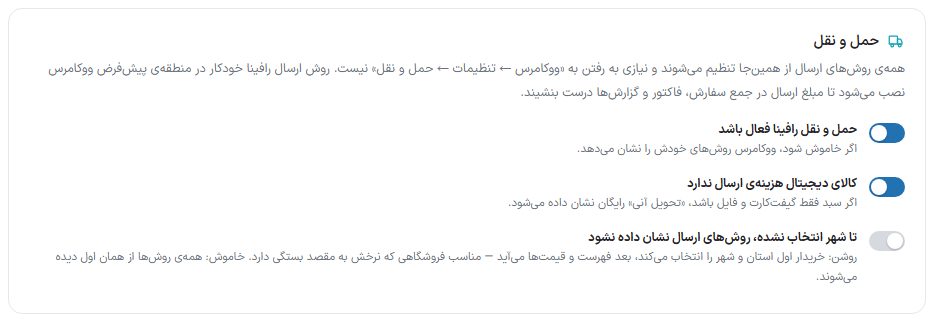
| Option | What it does |
|---|---|
| Rafina shipping is active | Shows this page's shipping methods in the cart and checkout. If turned off, WooCommerce shows its own methods. |
| Digital goods have no shipping cost | If the cart has only gift cards and files, “Instant delivery” is shown as free. |
| Don't show shipping methods until a city is selected | On: the buyer first chooses province and city and then the list and prices appear; suitable for a store whose rate depends on destination. Off: all methods are visible from the start. |
Free shipping
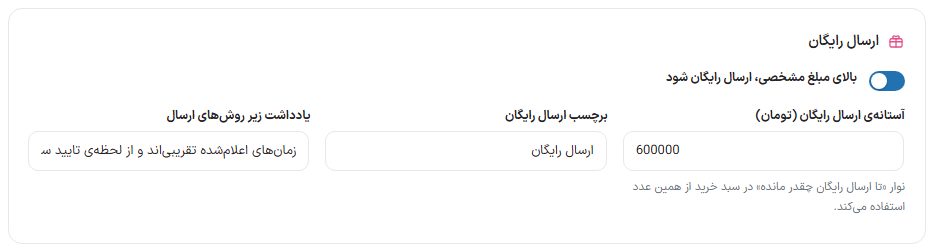
| Option | What it does |
|---|---|
| Shipping is free above a certain amount | The main switch for store-wide free shipping. |
| Free shipping threshold (Toman) | From this cart total upward, shipping is free. The “how much left to free shipping” bar in the cart uses this number. |
| Free shipping label | The text shown instead of the price of the free shipping method. |
| Note under shipping methods | One sentence that appears under the methods list on the checkout page. |
Free shipping for one city, by category
For a buyer whose address is in a specific city (usually the store's own city), instead of the store-wide threshold, a minimum purchase is set separately for each category. For other cities the threshold above stays.
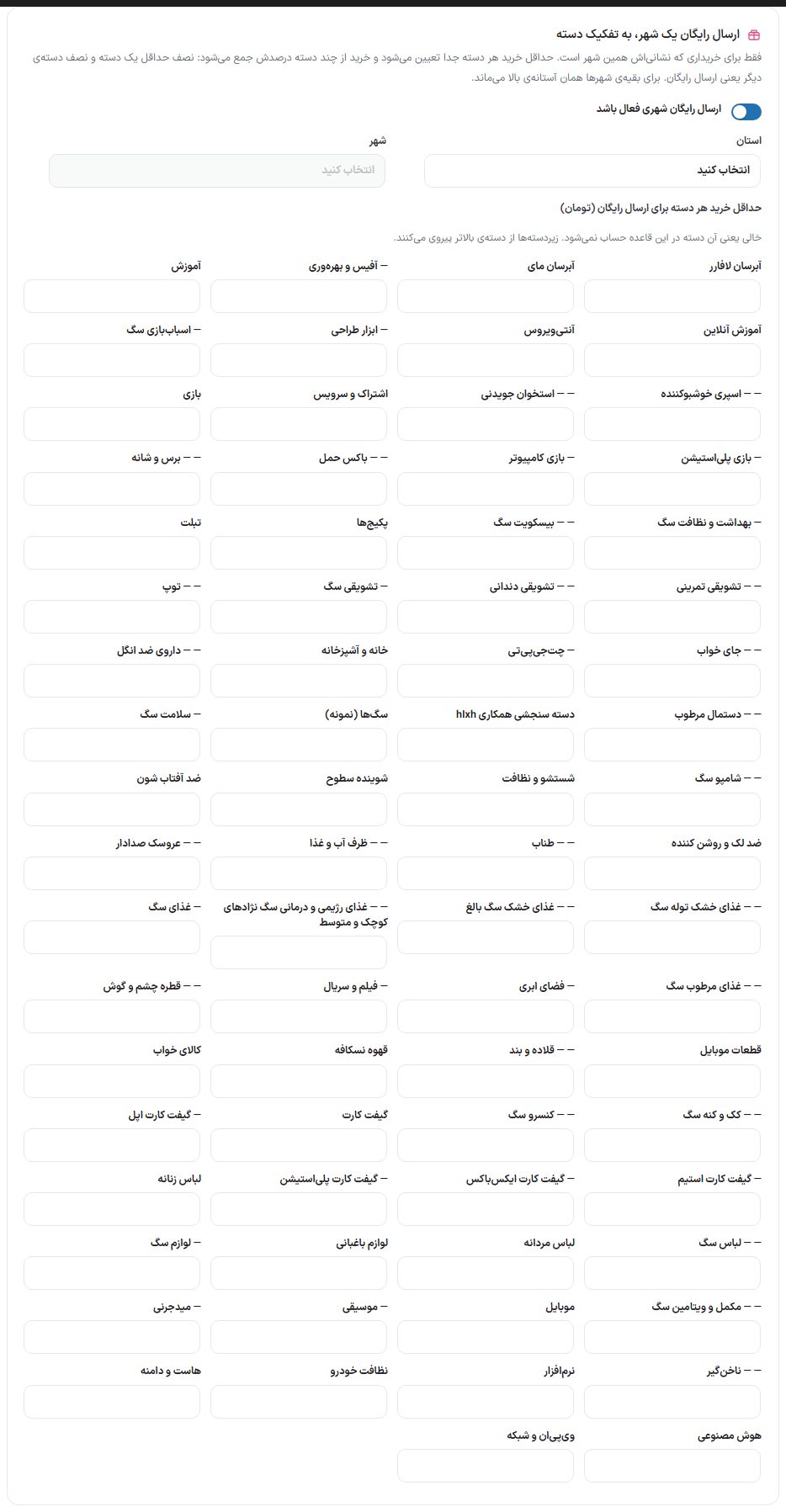
| Option | What it does | Default |
|---|---|---|
| City free shipping is active | The main switch of this box. | Off |
| Province / city | The city this rule is for. | — |
| Minimum purchase per category for free shipping (Toman) | One field per category. Empty means that category doesn't count in this rule; subcategories follow their parent category. A purchase from several categories adds up the percentages: half of one category's minimum plus half of another's means free shipping. | Empty |
The cart of a buyer in that city shows the bar “x Toman left for free shipping on ‘category name’” for each category.
This rule doesn't depend on store-wide free shipping: even if you haven't turned on the overall threshold it works for this city alone, and turning on the overall threshold doesn't make other cities free. The buyer's city is read from their shipping or billing address and names are compared normalized, so “Mashhad Moghaddas”, “Bandar Bushehr” or a name with Arabic yeh and kaf or an extra space counts as the panel's “Mashhad” and “Bushehr”.
Payment on delivery
The buyer pays the full amount at delivery. This is WooCommerce's own “Pay on delivery” gateway, which is turned on automatically when you turn on this box's switch.

| Option | What it does | Default |
|---|---|---|
| Payment on delivery is active | Brings the “Payment on delivery” method to the checkout page. | Off |
| Limit to specific provinces | Like the shipping methods: provinces and under them cities. No province selected means the whole country. | Whole country |
Order delivered
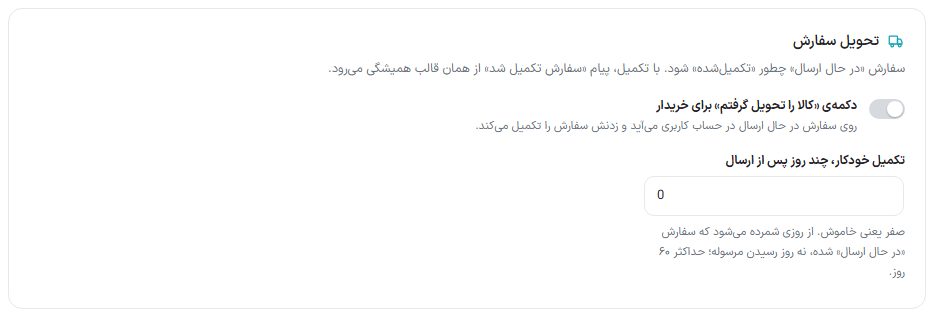
This box says how an “Shipped” order becomes “Completed”. On completion, the “Order completed” message goes out through the usual SMS and email template.
| Option | What it does | Default |
|---|---|---|
| “I received the goods” button for the buyer | Appears on a shipped order in the buyer's account (desktop, web app and dedicated app). After confirming, the buyer completes the order. | Off |
| Auto-complete, days after shipping | A shipped order is completed automatically after this many days. It is counted from the day the order became “Shipped”, not the day the parcel arrived. Zero means off; maximum 60 days. | 0 |
Shipping methods
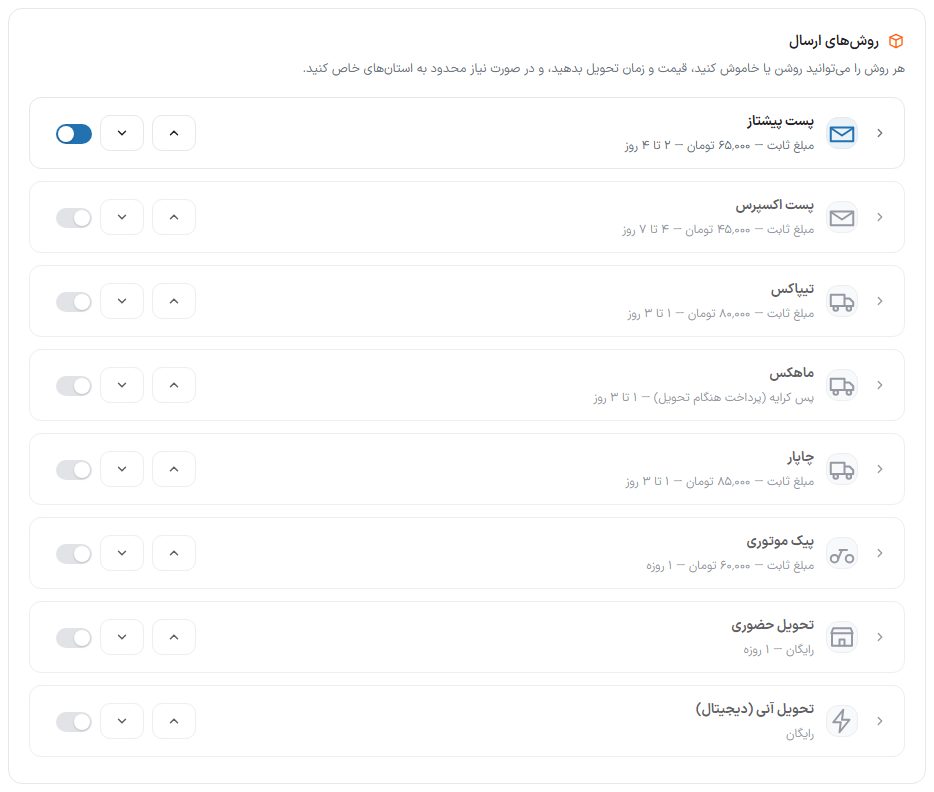
The theme has eight ready methods: Pishtaz Post, Express Post, Tipax, Mahex, Chapar, motorcycle courier, in-person pickup and instant delivery (digital). Each method has an on/off switch, and its place in the checkout list changes with the up and down buttons. To configure one, click the method's name.
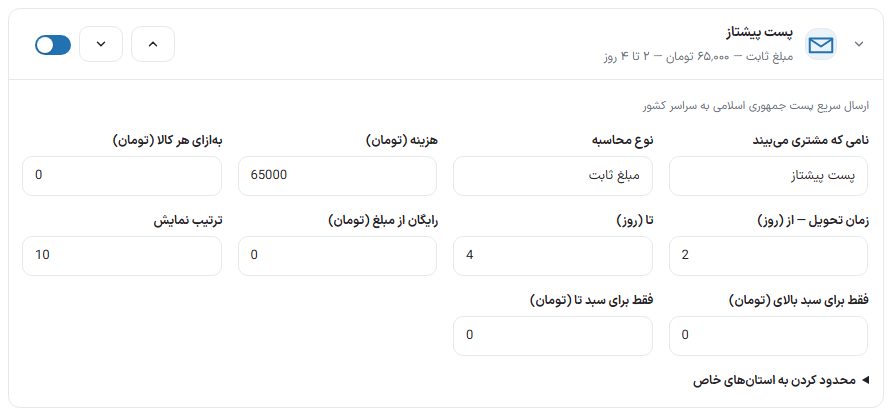
| Option | What it does |
|---|---|
| Name the customer sees | The method's name on the checkout page, invoice and order email. |
| Calculation type | “Fixed amount”, “Fixed + per item”, “Free”, “Freight collect (pay on delivery)” or “Online quote (coming soon)”. |
| Cost (Toman) | This method's shipping fee. |
| Per item (Toman) | With the “Fixed + per item” type, this is added to the cost for each unit of goods. |
| Delivery time — from (days) / to (days) | The range told to the buyer beside the method name, for example “2 to 4 days”. |
| Free from amount (Toman) | From this cart total upward this method becomes free. Empty means no threshold. |
| Display order | Order number; the up and down buttons adjust this number themselves. |
| Only for carts above (Toman) / only for carts up to (Toman) | The method is shown only for carts in this range. Empty means no limit. |
| Limit to specific provinces | Tick the provinces this method is available in. Under each ticked province its list of cities appears; tick no city to cover the whole province. If no province is selected, the method is available nationwide. For example, limit the motorcycle courier to your own city only. |
Instant delivery and digital store mode
“Instant delivery (digital)” is for a store whose goods are gift cards, codes, subscriptions or files. Turning it on opens the “Instant delivery, other methods will be turned off” window. With “Turn off and continue”:
- All other shipping methods are turned off and every order is placed with no shipping cost;
- The checkout page doesn't ask for address, city and postal code, only name and number;
- The free shipping bar, shipping time, the cart's shipping cost row and “Ship to another address” are also turned off.
A note “Digital mode is on” appears above the methods list. To go back, turn on one of the other methods; the “Instant delivery will be turned off” window asks, and on confirming, the address is asked again and the settings digital mode had turned off (if you hadn't touched them yourself) are restored.
Price zoning (optional)
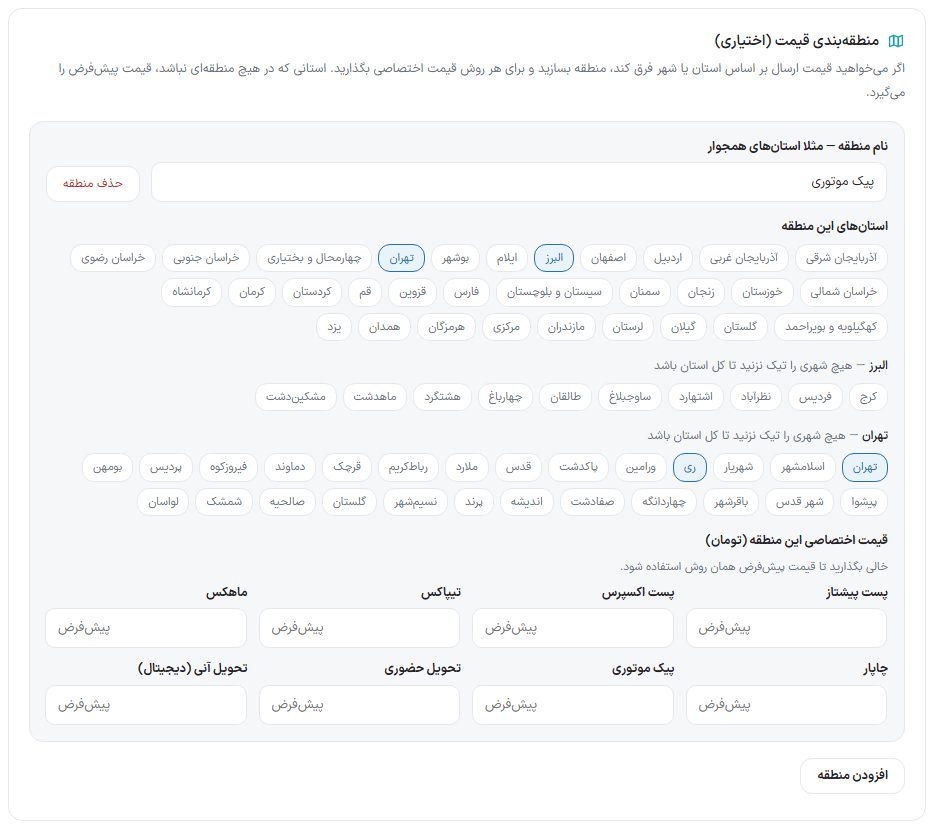
If the shipping price differs for specific provinces or cities, create a zone and set a specific price for each method. A province in no zone gets that method's default price.
| Option | What it does |
|---|---|
| Zone name | A name for yourself, for example “Neighboring provinces”. A zone without a name or provinces isn't saved. |
| This zone's provinces | Choose provinces by clicking. Under each province its cities appear; tick no city to cover the whole province. |
| This zone's specific price (Toman) | One field per method. Leave empty to use that method's default price. |
| Delete zone / Add zone | Removes the zone or creates a new zone. |
The “Shipping time” tab
Here you set how many business days until an order is ready, which weekdays you ship on, and what times the buyer can choose. While this section is off, nothing changes in the store.
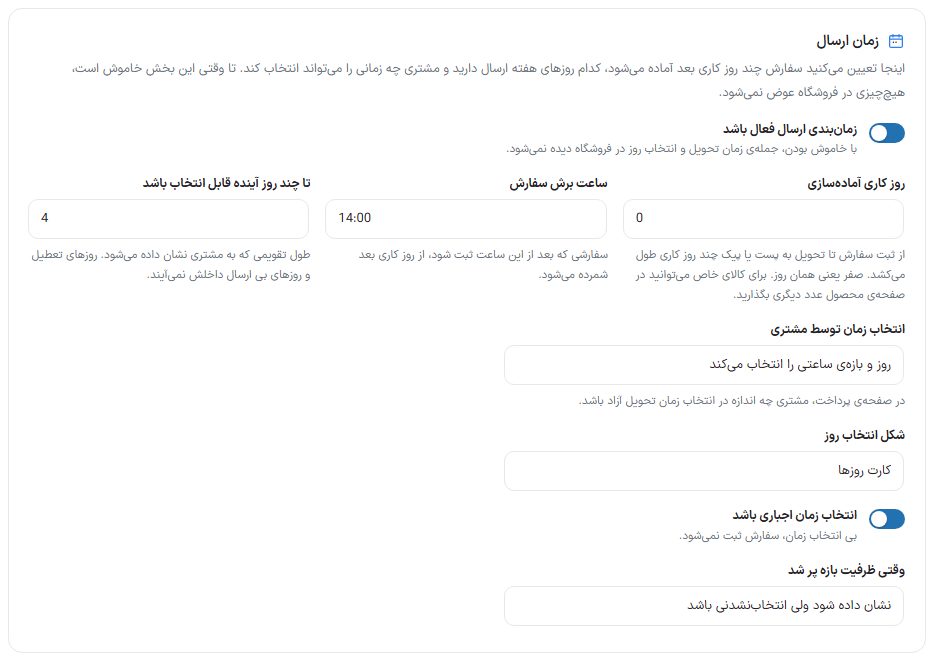
| Option | What it does | Default |
|---|---|---|
| Shipping scheduling is active | When off, the delivery time sentence and day selection are not shown in the store. | Off |
| Preparation business days | How many business days from order placement until handover to the post or courier. Zero means the same day. For a specific product you can enter a different number on the product edit page. | 0 |
| Order cut-off time | An order placed after this hour is counted from the next business day. | — |
| Selectable up to how many days ahead | The calendar length shown to the buyer. Holidays and non-shipping days are not included in it. | 4 |
| Time selection by customer | “Doesn't choose; only sees the estimated date”, “Chooses the delivery day” or “Chooses the day and time slot”. | — |
| Day selection style | “Day cards” (a row of cards, one per day) or “Monthly Jalali calendar (today pre-selected)”: a month grid starting from Saturday where only open days are selectable; the first open day (today if open) is pre-selected. The dedicated app always has day cards. | Day cards |
| Time selection is required | Without selecting a time, the order isn't placed. | — |
| When a slot's capacity is full | “Don't show the slot”, “Show it but not selectable” or “Show with a capacity-full label”. | — |
Business days and time slots
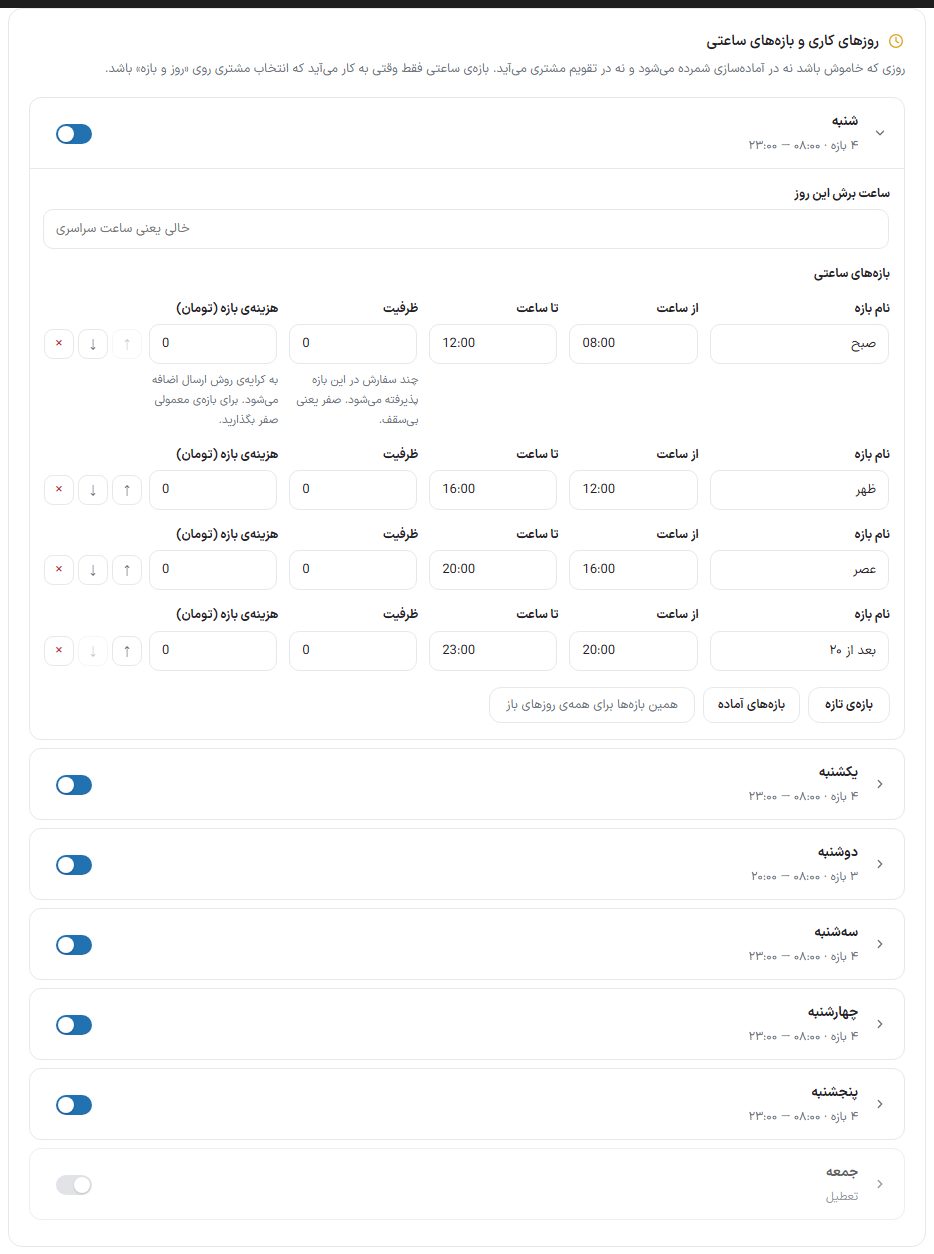
Each weekday has an on/off switch. A day that is off isn't counted in preparation and doesn't appear in the buyer's calendar. A time slot is useful only when “Time selection by customer” is set to “Day and slot”.
| Option | What it does |
|---|---|
| Cut-off time for this day | A separate cut-off time for this day. Empty means the global time. |
| Slot name | The name the buyer sees above the slot's time, for example “Morning”. |
| From time / to time | The delivery slot. |
| Capacity | How many orders are accepted in this slot. Zero means unlimited. |
| Slot cost (Toman) | Added to the shipping method's fee. Use zero for a normal slot. |
| Up, down and × | Changes the slot's order or removes it. |
| New slot | Adds an empty slot. |
| Ready-made slots | Puts four slots (morning, noon, afternoon and after 8 PM) on this day. |
| The same slots for all open days | Copies this day's slots to all days that are on. |
Holidays
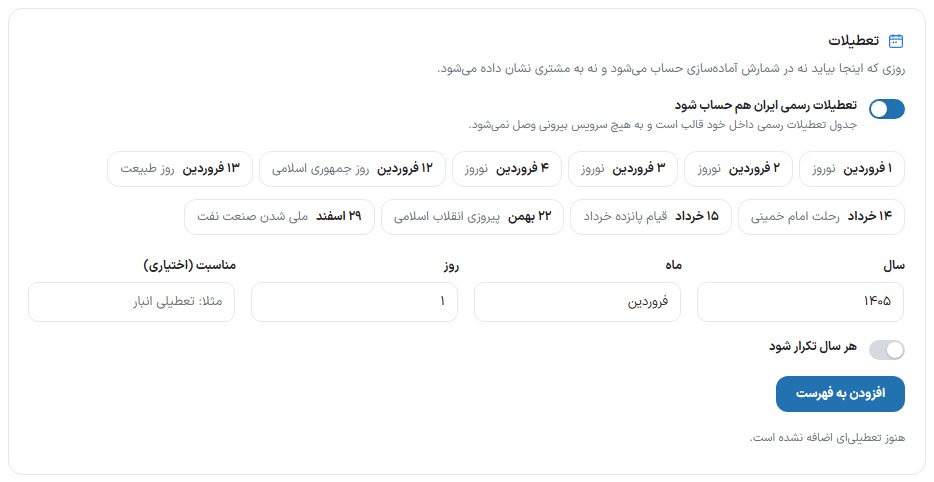
A day listed here isn't counted in the preparation count and isn't shown to the buyer.
| Option | What it does |
|---|---|
| Count Iran's official holidays too | Also treats official holidays (Nowruz, 12 and 13 Farvardin, 14 and 15 Khordad, 22 Bahman, 29 Esfand and so on) as closed. The table is inside the theme itself and connects to no external service. |
| Year / month / day | The Jalali date of a custom holiday. |
| Occasion (optional) | The reason for the closure, for example “Warehouse closed”. |
| Repeat every year | This day and month is a holiday every year. |
| Add to list | Adds the day to the holidays list. |
Texts the customer sees
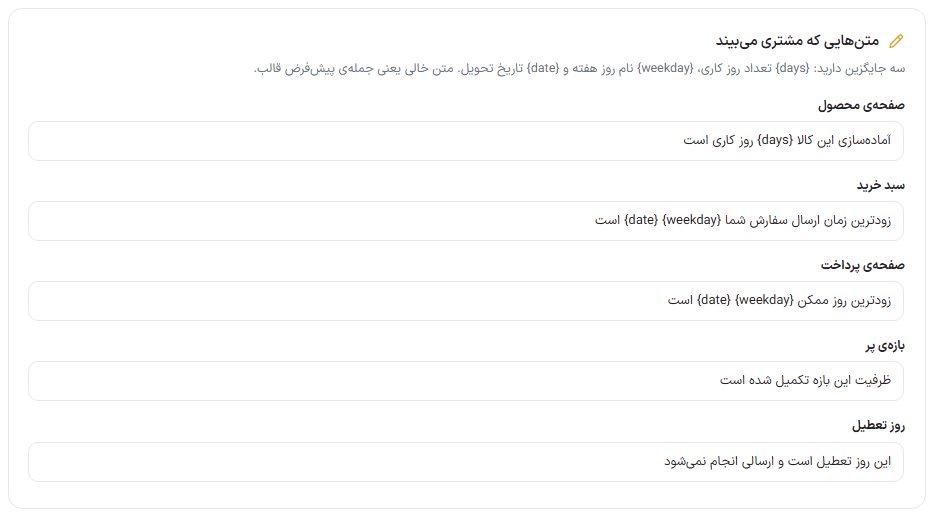
You have three placeholders: {days} number of business days, {weekday} weekday name and {date} delivery date. Fields: “Product page”, “Cart”, “Checkout page”, “Full slot” and “Holiday”.
The “Shipping class” tab
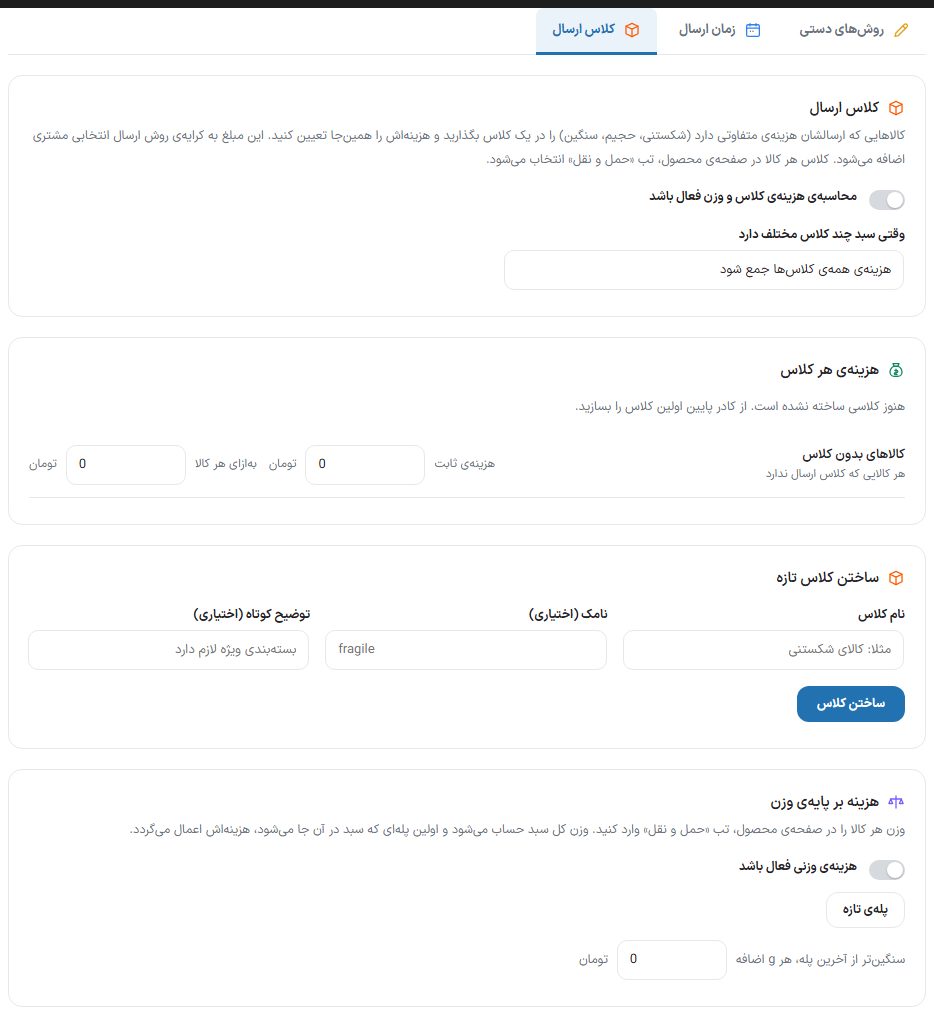
Put goods whose shipping costs differ (fragile, bulky, heavy) in one class and set its cost here. This amount is added to the fee of the shipping method the buyer picked. Each product's class is chosen on the product edit page, “Shipping” tab.
| Option | What it does |
|---|---|
| Class and weight cost calculation is active | The main switch of this tab. |
| When the cart has several different classes | “Add up the cost of all classes” or “Only count the most expensive class”. |
| Cost of each class | For each class, “Fixed cost” and “Per item” (Toman), with the number of products in that class and a “Delete” button (its goods stay classless). |
| Goods without a class | Fixed cost and per-item cost for any goods that have no class. |
| Create a new class | “Class name”, “Slug (optional)” and “Short description (optional)”, then “Create class”. |
| Weight-based cost | With “Weight cost is active”, build the steps with “Up to weight” and “Cost” (“New step” and “Delete step”). The cart's total weight is calculated and the first step the cart fits in is applied. The “Heavier than the last step, per … extra” field is the cost per extra unit of weight beyond the last step. Each product's weight is entered on the product edit page, “Shipping” tab. |
FAQ and troubleshooting
What do I do with the “WooCommerce shipping” plugin (Tapin, Pishtaz, courier)?
The theme is compatible with this plugin. When the plugin is active, the province and city list on the checkout page is the plugin's own, the plugin's methods appear next to the theme's methods on the checkout page, and the Tapin barcode is shown to the buyer as the tracking code and the “Shipped” SMS is sent. If you turn off Rafina shipping, only the plugin's methods remain.
The shipping cost isn't added to the order total.
Check the “Rafina shipping is active” switch. The theme keeps its method in the WooCommerce zone; if Rafina's “Status” page shows the “Connecting the shipping method to WooCommerce” step as failed, press the “Run again” button.
A time slot name or the order of methods isn't saved.
After each change press that tab's “Save” button; the bottom bar saying “Everything is saved” means nothing was missed.