

Wallet
A customer tops up their account and pays orders without going to a gateway. From this page you configure the wallet and cashback, increase and decrease each user's balance, and give a group a top-up gift.
Where is it? Rafina Panel → Wallet
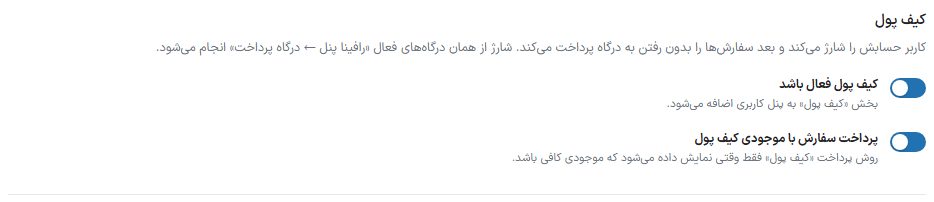
Wallet top-up goes through the active gateways of “Rafina Panel ← Payment gateway”. Changes in the settings sections are saved with the “Save wallet settings” button in the bottom bar; the two boxes for manual and bulk top-up have their own buttons and run immediately.
Wallet
| Option | What it does | Default |
|---|---|---|
| Wallet is active | The “Wallet” section is added to the user panel. | On |
| Pay for the order with wallet balance | The “Wallet” payment method on the checkout page; shown only when the balance is sufficient. | On |
Cashback
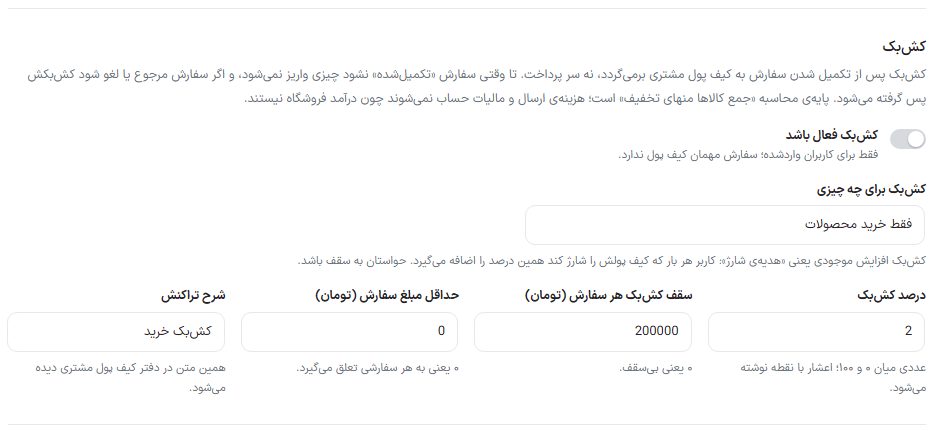
Cashback returns to the customer's wallet after the order is completed, not at payment. Nothing is credited until the order becomes “Completed”, and if the order is returned or canceled, its cashback is taken back. The calculation base is “total goods minus discount”; shipping cost and tax aren't counted.
| Option | What it does | Default |
|---|---|---|
| Cashback is active | Only for logged-in users; a guest order has no wallet. | Off |
| What cashback is for | “Product purchases only”, “Wallet top-ups only” or “Both”. Top-up cashback means a “top-up gift”: every time the user tops up their wallet they get this percentage extra; mind the cap. | Purchases only |
| Cashback percentage | A number between 0 and 100; decimals are written with a dot. | 2 |
| Cashback cap per order (Toman) | The maximum cashback for one order. 0 means no cap. | 200,000 |
| Minimum order amount (Toman) | Smaller orders get no cashback. 0 means every order qualifies. | 0 |
| Transaction description | This text is seen in the customer's wallet ledger. | Purchase cashback |
Top-up amount
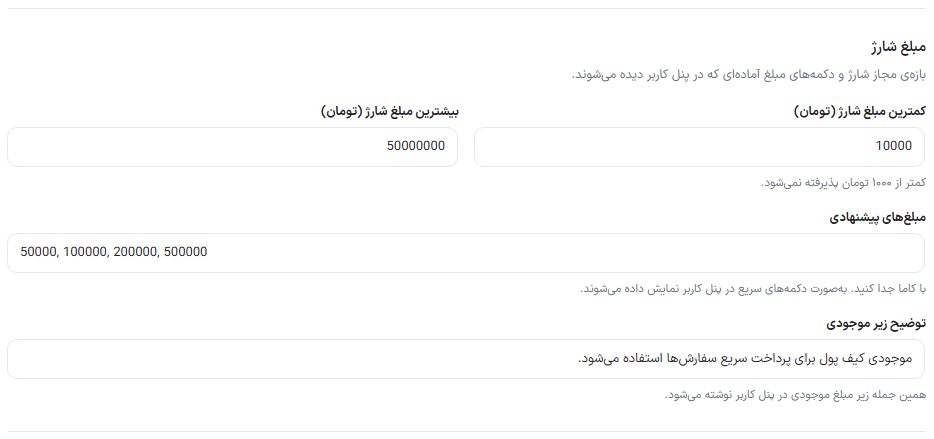
| Option | What it does | Default |
|---|---|---|
| Minimum top-up amount (Toman) | Less than 1,000 Toman isn't accepted. | 10,000 |
| Maximum top-up amount (Toman) | The cap for each top-up. | 50,000,000 |
| Suggested amounts | Separate with commas, for example 50000, 100000, 200000. They are shown as quick buttons in the user panel. | 50, 100, 200 and 500 thousand |
| Description under the balance | This sentence is written under the balance amount in the user panel. | Default text |
Top up one user's wallet
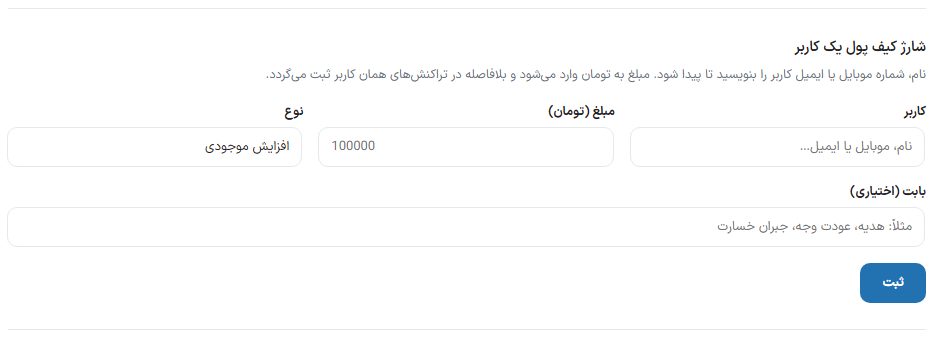
- In “User” write the name, mobile number or email and choose the user from the results.
- Write the “Amount (Toman)”.
- Set “Type” to “Increase balance” or “Deduct from balance”.
- In “Reason (optional)” write the reason, for example gift, refund or compensation; it is seen in the user's transactions.
- Press “Submit”. The transaction is recorded in that user's ledger at once.
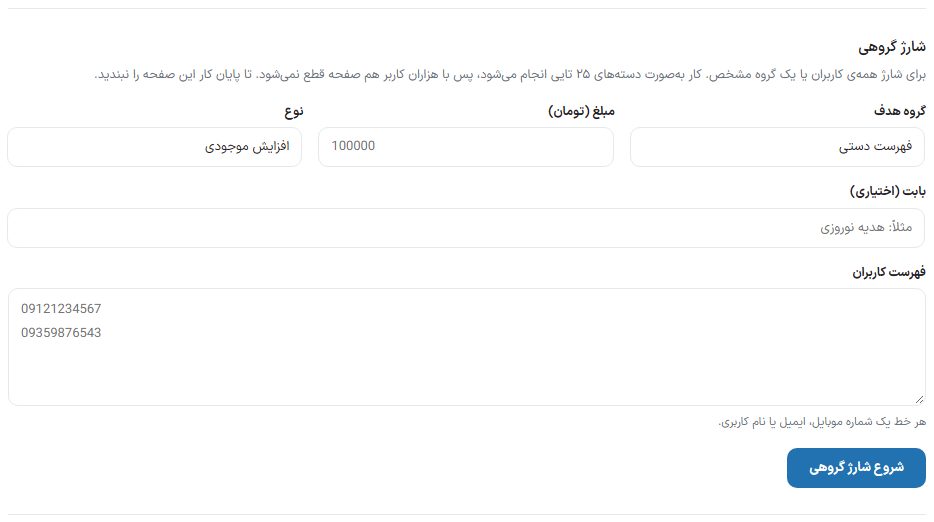
Bulk top-up
| Option | What it does |
|---|---|
| Target group | “Manual list”, “All users” or one of the “Role: …” options for a user role (for example customer, shop manager or vendor). |
| Amount (Toman), type, reason | The same boxes as the single-user top-up. |
| User list | Only for “Manual list”: one mobile number, email or username per line. |
| Start bulk top-up | The work runs in batches of 25, so even with thousands of users the page doesn't time out. Don't close this page until it finishes. |
Wallet withdrawal
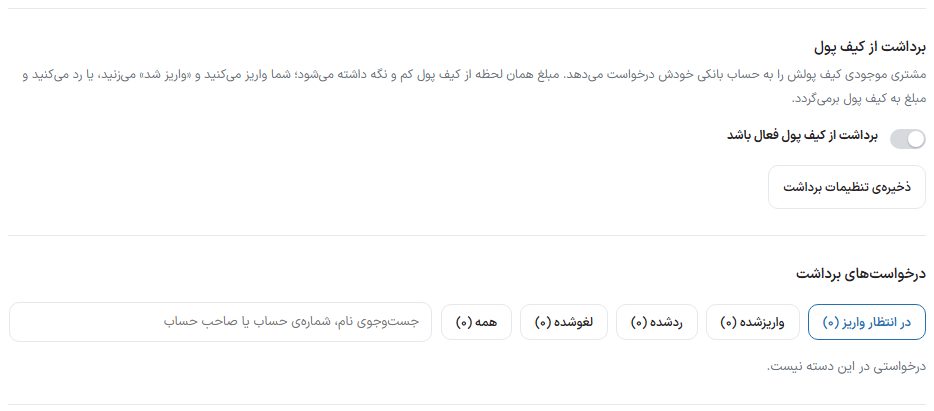
A customer requests their wallet balance to their own bank account. The amount is deducted from the wallet and held at once; you make the deposit and press “Deposited”, or reject the request and the amount returns to the wallet. It is off by default and until the “Wallet withdrawal is active” switch is on, only that switch and the “Save withdrawal settings” button are shown; turning it on opens the options below.
| Option | What it does | Default |
|---|---|---|
| Wallet withdrawal is active | Off means the customer doesn't see the withdrawal box and no request is accepted. | Off |
| Withdrawal methods | “Deposit to IBAN (Sheba) number”, “Deposit to card number” or both. The customer registers whichever is on once in their account. | IBAN (Sheba) |
| Minimum and maximum amount of each withdrawal | A maximum of zero means no cap; the amount never exceeds the balance. | 100,000 and no limit |
| Fixed and percentage fee | Deducted from the amount itself and never exceeds it; the customer sees the “deposit amount” before submitting. | Zero |
| Identity check before withdrawal | “No check”, “Only users who are authenticated (Shahkar)”, or “Authenticated and the bank account is in the name of the same national ID”. The third is checked with the Authentication section's “National ID and IBAN” or “Card and national ID” service, and each account costs an inquiry fee only once. | No check |
| Note for the buyer | One sentence under the withdrawal box title, for example the deposit time. | Empty |
This box's “Save withdrawal settings” button is separate from the bottom save bar. If you choose an identity check whose service isn't on in Authentication, a red warning with a link to that section appears under the box.
Withdrawal requests
- The “Withdrawal requests” box has the tabs “Awaiting deposit”, “Deposited”, “Rejected”, “Canceled” and “All” with each one's count, and a “Search name, account number or account holder” box. The “Awaiting deposit” tab shows open requests with customer name, their current wallet balance, amount, fee and “deposit amount”. The full IBAN or card is visible right there and has a “Copy” button.
- Transfer the deposit amount to that account at the bank.
- Press “Deposited”, write the “Deposit tracking number” and “Submit”. The customer sees the number in their history and is notified if the “Withdrawal deposited” SMS and email are on.
- To reject, press “Reject request” and write the reason; the amount returns to the wallet at once and the reason is sent to the customer.
Each customer has only one open request at a time and while it's pending they can cancel it themselves. The customer sees the withdrawal box in their account, “Wallet” section; in the dedicated app, the “Wallet withdrawal” tile on the wallet page.
User balances
In the “User balances” box at the bottom of the page “Total wallet balances” and “Users with a balance” are written, with a table of the columns “User”, “Email”, “Balance” and “Last transaction”. Find a specific user with “Search user…” and the “Search” button.
FAQ and troubleshooting
The wallet payment option doesn't appear on the checkout page.
This option shows only when the wallet and “Pay for the order with wallet balance” are on, the buyer is logged in and their balance is above zero.
Cashback hasn't reached the customer's account.
Cashback is credited only when the order becomes “Completed”. If orders stay in “Processing” or “Shipped”, complete them after delivery.
How does a customer top up their wallet?
In their account, “Wallet” section, they write the amount or press one of the suggested buttons and pay through one of the active gateways.