

Guides / Site content / Shipping terms
Shipping terms
You build the /shipping builds: shipping methods, delivery time, and the cost of each. Steps come three per row on desktop and stacked on mobile, with the site's own header and footer.
Where is it? Rafina Panel → Site content → Shipping terms
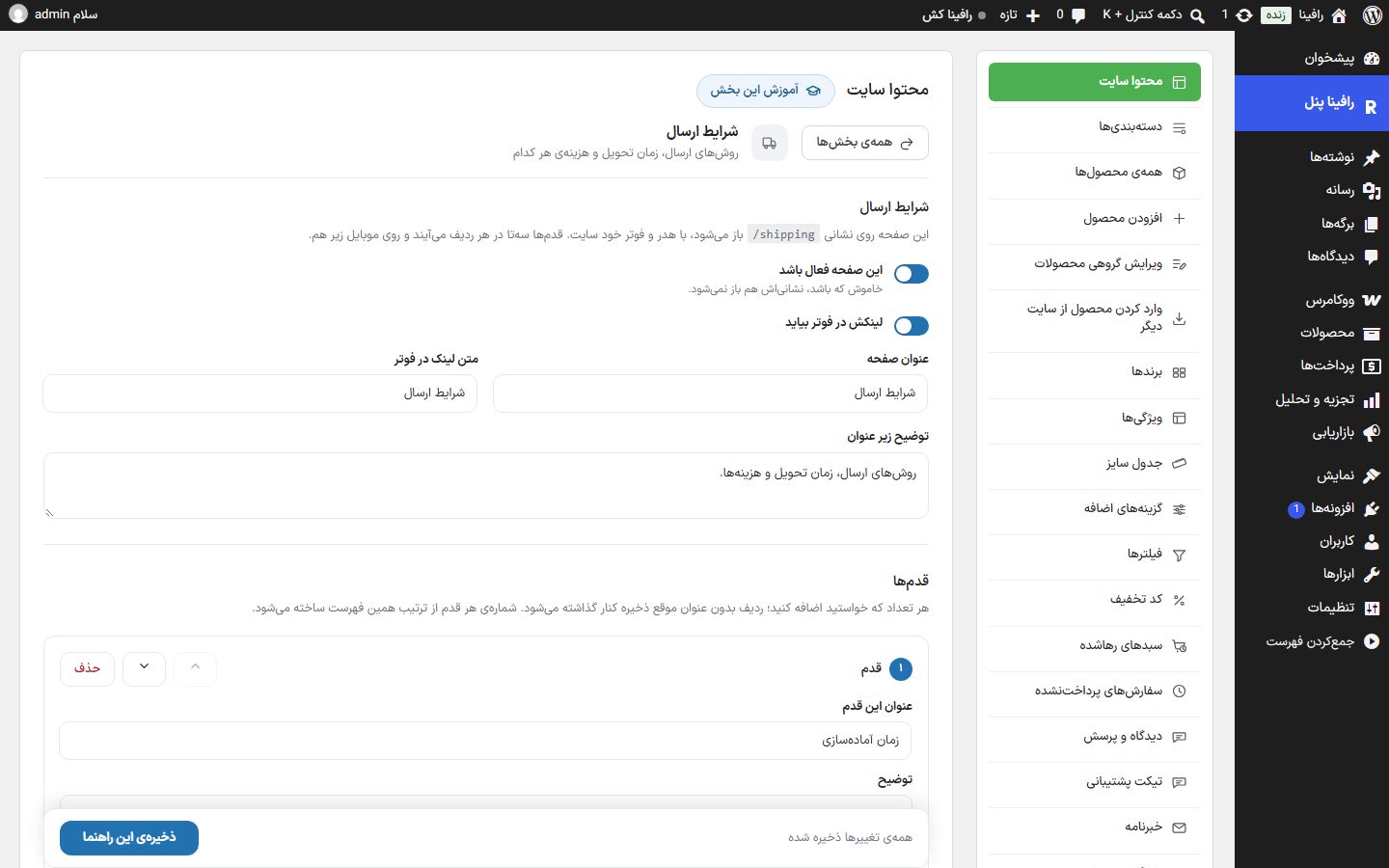
"Buying guide", "Returns", and "Shipping terms" are three identically shaped pages, all built the same way. The other two pages: Buying guide, Returns.
Page settings
| Option | What it does | Default |
|---|---|---|
| This page enabled | When turned off, the address /shipping does not open either. | On |
| Link appears in the footer | This page's link is automatically placed in the footer's "Quick access" column; if you have manually placed the same address in the footer, it is not added again. | On |
| Page title | The title at the top of the page. | Shipping terms |
| Footer link text | The link text in the footer. If empty, the page name ("Shipping terms") is used. | Shipping terms |
| Description under the title | A short sentence under the title. | Shipping methods, delivery time, and costs. |
NoteA page with no steps does not appear on the site, even with the toggle on, and does not get a footer link.
Steps
Add as many steps as you like. Each step's number is built from the order of this list, and a row with no title is dropped when saving. On a fresh install, six steps are ready: preparation time, shipping methods, shipping cost, delivery time, parcel tracking, and parcel not collected, and you can change their text to match your store's terms.
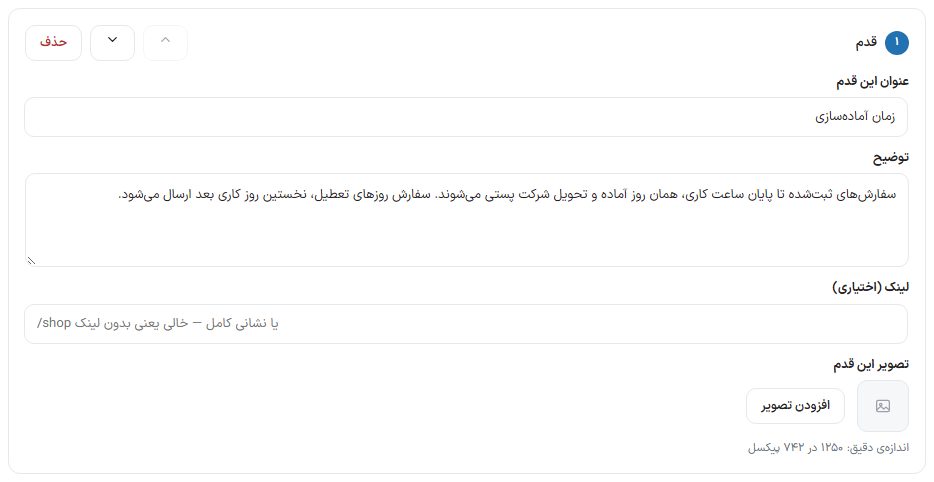
| Option | What it does |
|---|---|
| This step's title | The title of the step card. Without a title, the step is not saved. |
| Description | A short text for the step; a blank line creates a new paragraph. |
| Link (optional) | The address the step card goes to, such as /shop or a full address. Empty means no link. |
| This step's image | The image at the top of the card. Exact size: 1250 × 742 pixels. A smaller or icon-like image also fits in the frame and is not cropped. |
| Move up one row / move down one row | Move the step in the list. |
| Delete | Removes the step. |
- Click "Add step" at the bottom of the list.
- Write the title and description and, with "Add image", choose the step's image from the media library.
- Fix the order with the up and down buttons.
- Click "Save this guide".
On the site
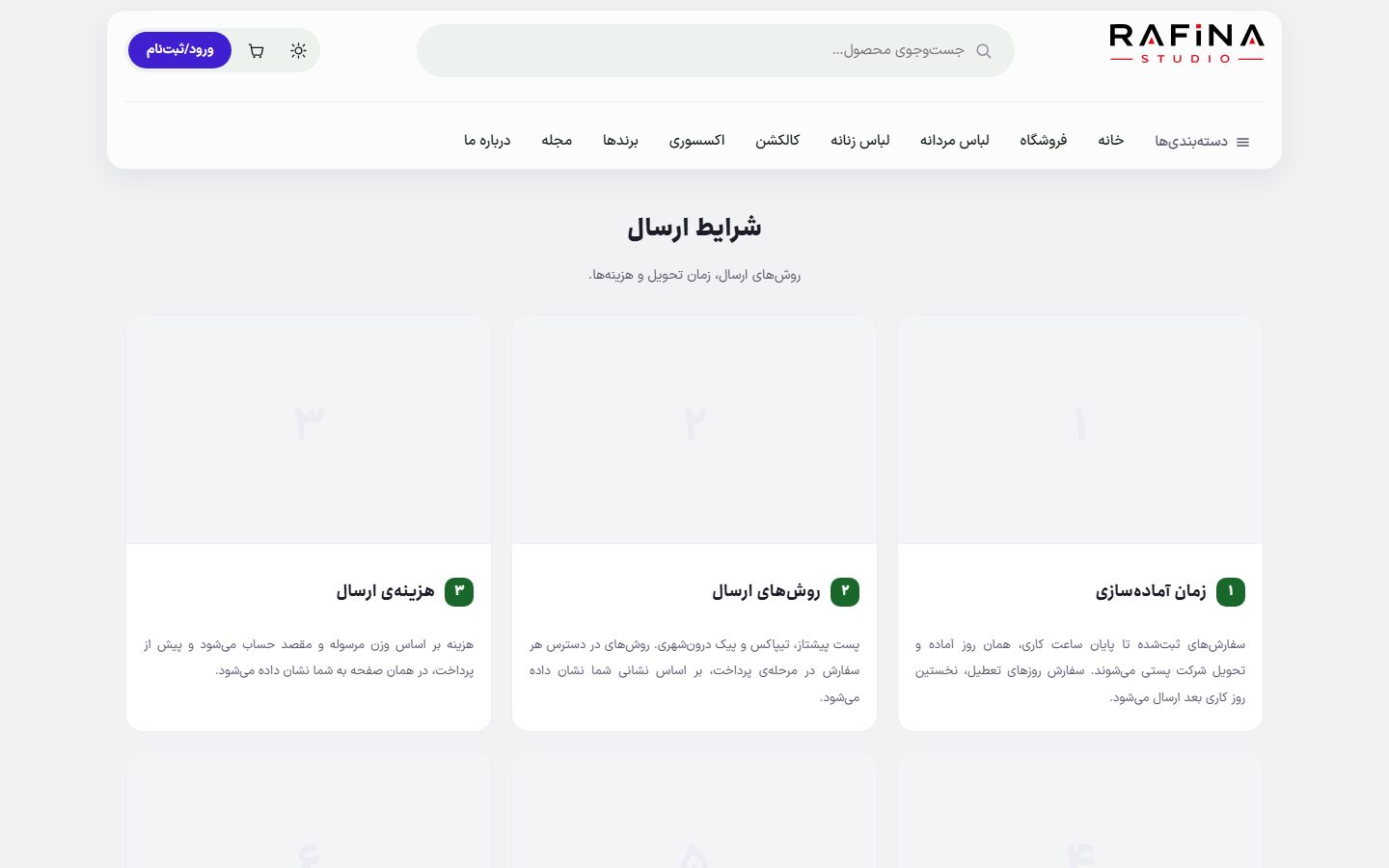
/shipping On the site.