

SMS panel
The site's SMS messages (login code, order placement and shipping, cart reminder and admin news) connect to your SMS panel from this page. Nine Iranian panels are supported and you can add a backup panel so no message is lost.
Where is it? Rafina Panel → SMS panel
The page has two tabs: “Panels and keys” and “SMS templates”.
Setup
- In the “Panels and keys” tab, choose your panel card in “Main panel”.
- Enter the panel key in “Panel keys” and press “Save panel settings”.
- In “Status and test” write your own number and press “Send test”.
- In your SMS panel create a template (pattern) for each message and wait for its approval. Copy the template text from this page.
- In the “SMS templates” tab, write the approved “Template code” in front of that message, check with “Send test message” and tick “Active”.
- Press “Save templates”.
The “Panels and keys” tab
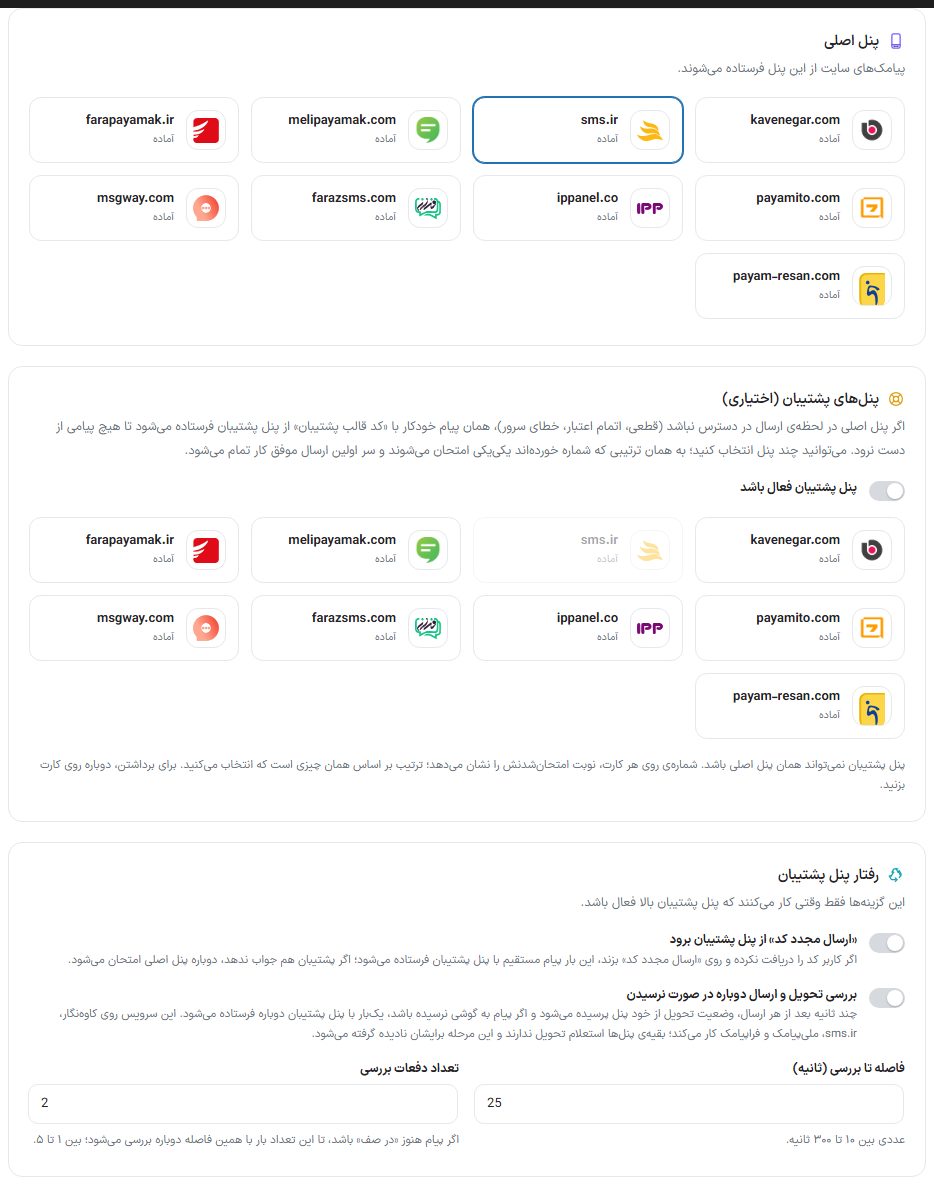
Main panel
The site's SMS messages are sent from this panel. Click your panel's card (each card shows the panel's website and a “Ready” label): Kavenegar (kavenegar.com), sms.ir, Melipayamak (melipayamak.com), Farapayamak (farapayamak.ir), Payamito (payamito.com), ippanel.co, Faraz SMS (farazsms.com), Rah Payam (msgway.com) or Payam Resan (payam-resan.com).
Backup panels (optional)
If the main panel is unavailable at the moment of sending (outage, credit exhausted, server error), the same automatic message is sent from the backup panel with the “backup template code”.
| Option | What it does |
|---|---|
| Backup panel is active | The backup's main switch. Then click one or more panels' cards; the number on each card is its turn to be tried. A backup panel can't be the same as the main panel. Click the card again to remove it. |
| “Resend code” goes through the backup panel | If the user didn't get the code and pressed “Resend code”, this time the message goes directly through the backup panel; if the backup doesn't respond either, the main panel is tried again. |
| Check delivery and resend if it doesn't arrive | A few seconds after each send, the delivery status is asked from the panel itself, and if the message didn't reach the phone, it is sent once more through the backup panel. It works on Kavenegar, sms.ir, Melipayamak, Farapayamak, Payamito and Payam Resan; the rest skip this step. |
| Interval before checking (seconds) | Between 10 and 300 seconds. |
| Number of checks | If the message is still “queued”, it is checked again this many times at the same interval; 1 to 5. |
The “Backup panel behavior” options only work when the backup panel is on.
Panel keys
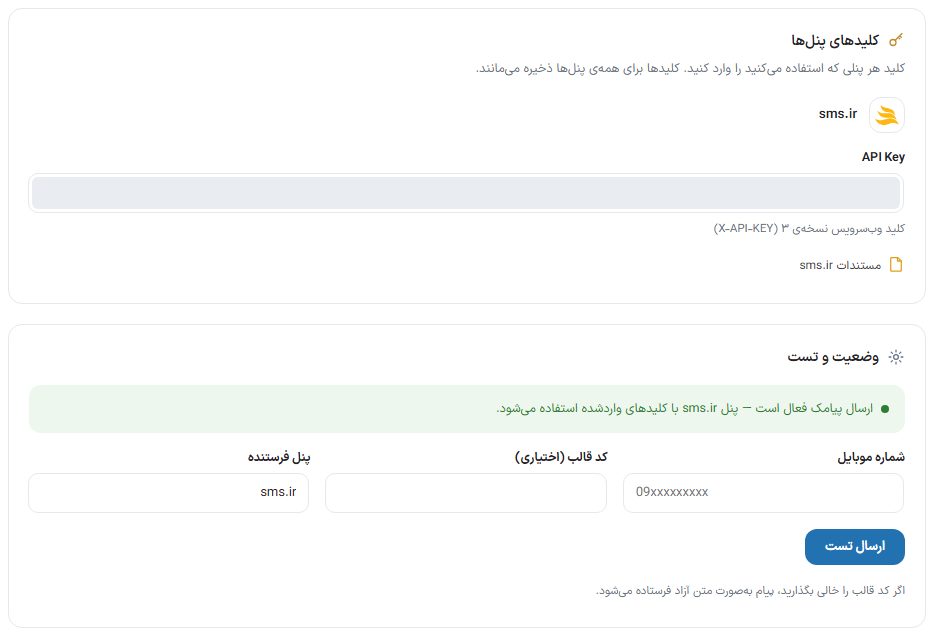
Enter the key of every panel you use. In this box only the fields of the main panel and the backup panels you chose are shown. Keys stay saved for all panels and aren't deleted when you change panel. Beside each panel is its “Documentation” link.
| Panel | Fields |
|---|---|
| Kavenegar | “API Key” from the Kavenegar panel ← Settings ← Web service. |
| sms.ir | “API Key”, the web service key, version 3 (X-API-KEY). |
| Melipayamak, Farapayamak and Payamito | “Username” and “Password or API key” (the same panel login password, or the API key if the panel gave a separate one). |
| ippanel | The web service “API Key”. If you get a 401 error, regenerate the key from the panel's web service section. |
| Faraz SMS | “API Key” from the Faraz panel ← Settings ← Web service key. |
| Rahpayam | “apiKey” from the Rah Payam panel ← Projects. Each message's template code is the Rah Payam pattern ID. Rah Payam doesn't send free text. |
| Payam Resan | “ApiKey” is the account key. Each message's template code is the approved template key. |
Status and test
The top of the box says whether SMS sending is active and with which panel. For a test, enter “Mobile number”, “Template code (optional)” and “Sender panel”, and press “Send test”. If you leave the template code empty, the message is sent as free text (some panels don't accept free text on the transactional web service). The panel's own error is shown right there.
Latest events
A list of the latest sends and errors with time. If a message didn't arrive, look here first.
The “SMS templates” tab
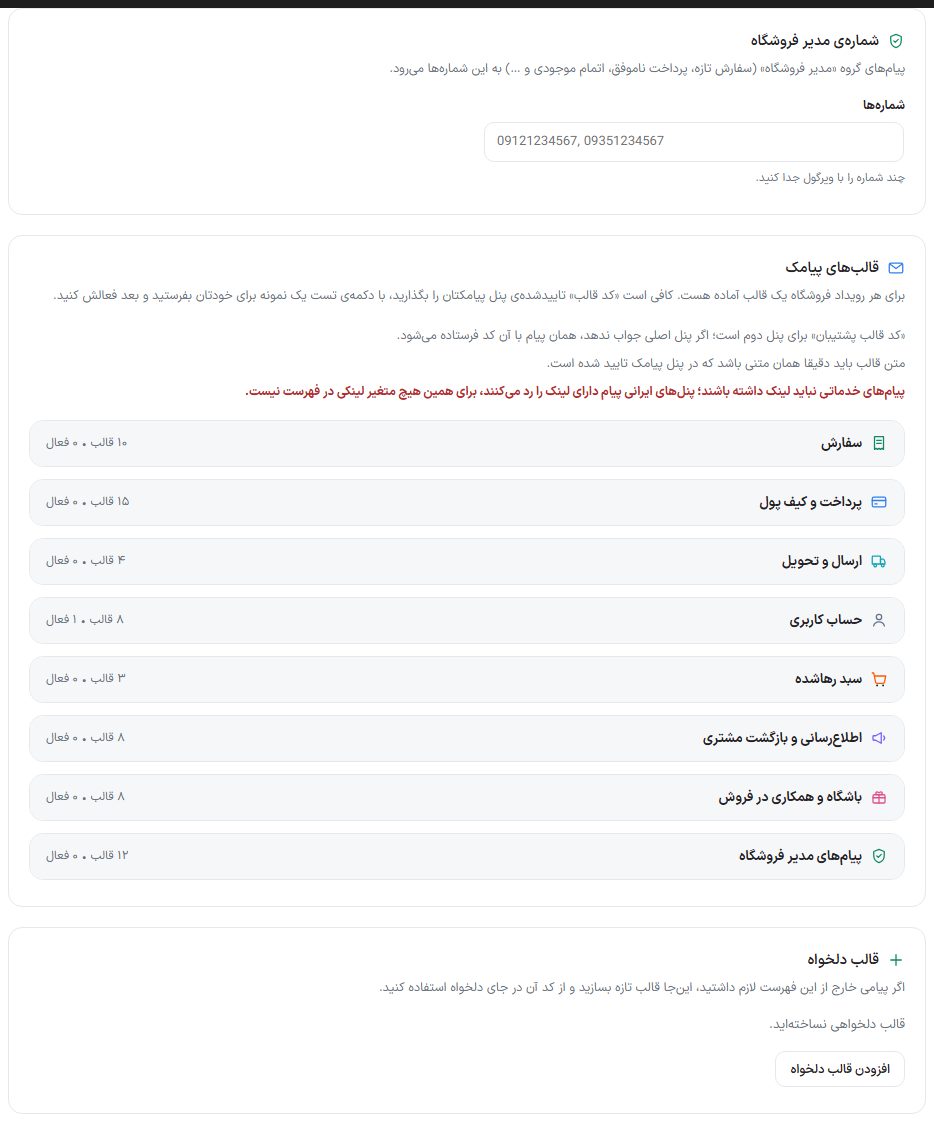
| Option | What it does |
|---|---|
| Shop manager number / numbers | Messages in the “Shop manager” group (new order, failed payment, out of stock and so on) go to these numbers. Separate several numbers with commas. |
There is a ready template for every store event, in the groups “Order”, “Payment and wallet”, “Shipping and delivery”, “User account”, “Abandoned cart”, “Notifications and customer win-back”, “Club and affiliate” and “Shop manager messages”. All templates except the login code and the password recovery code are off from the start so no message you haven't seen gets sent.
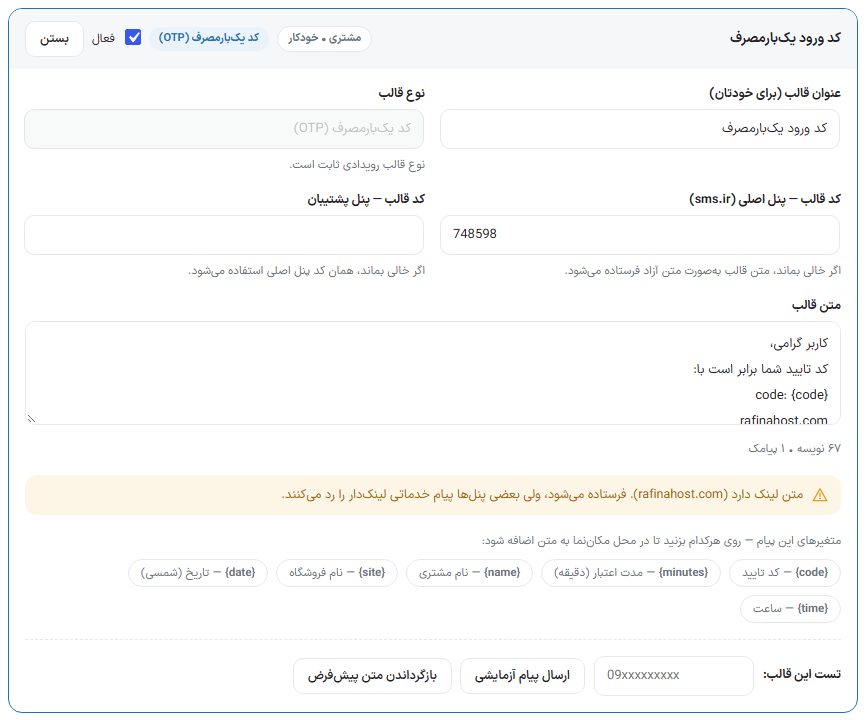
| Option | What it does |
|---|---|
| Row labels | Recipient (customer or admin), automatic or manual, and the template type. |
| Active | Until ticked, this message isn't sent. |
| Edit / Close | Opens or closes the row. |
| Template title (for yourself) | Seen only in this panel. |
| Theme type | Fixed for event templates; selectable for a custom template (one-time code, digital goods code, notification, abandoned cart reminder, authentication, launch notification (coming soon), other). |
| Template code — main panel | Beside the label the main panel's name is written, for example “Template code — main panel (sms.ir)”. The approved pattern code in the main panel. If left empty, the template text is sent as free text. |
| Template code — backup panel | The code of the same pattern in the backup panel. Empty means the same code as the main panel. |
| Template text | Must be exactly the text approved in the SMS panel. Below it the character and SMS counts are written, and if the text contains a link a yellow warning appears. |
| This message's variables | Tap any to add it at the cursor position in the text, for example {code} verification code, or {name} customer name. |
| Test this template | Enter a number and press “Send test message”. |
| Restore default text | Restores the template text to the original version. |
Custom template
If you need a message outside this list, create a new template with “Add custom template”. “Delete template” removes a custom template.
FAQ and troubleshooting
I get the message “Panel host is unreachable” or a timeout error (cURL 28).
Your site's server has no route to the SMS panel; the problem isn't the key or template. Ask host support to open outbound access to that panel's host on port 443, or add a backup panel.
“{code}” shows up raw in the SMS.
If you have a pattern-based template, the pattern text in the SMS panel itself must be written with that panel's own placeholder syntax. If it's free text, restore the template with “Restore default text” and edit it again.
Melipayamak returns “InvalidData”.
The number of variables in the approved pattern doesn't match the template text, or the pattern code isn't approved. The message template shows the exact reason in Persian.