

Size chart
A size chart is created once and applied to any number of products: all products, several categories, or products you tick yourself. It appears on the product page beside the “Size guide” or in its tab.
Where is it? Rafina Panel → Size chart
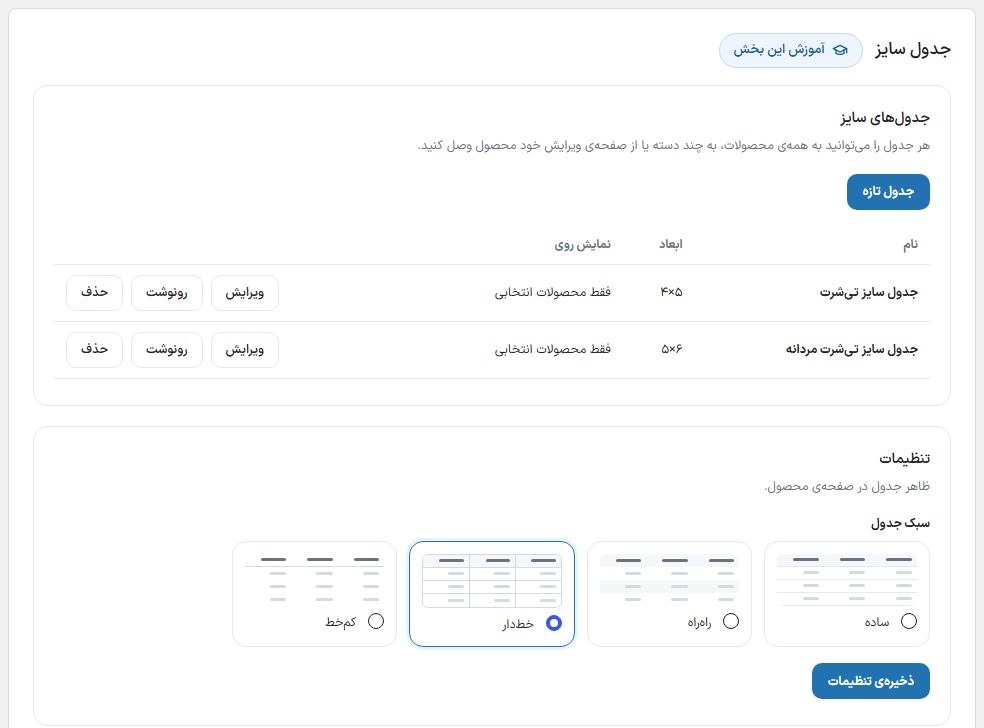
Creating a chart
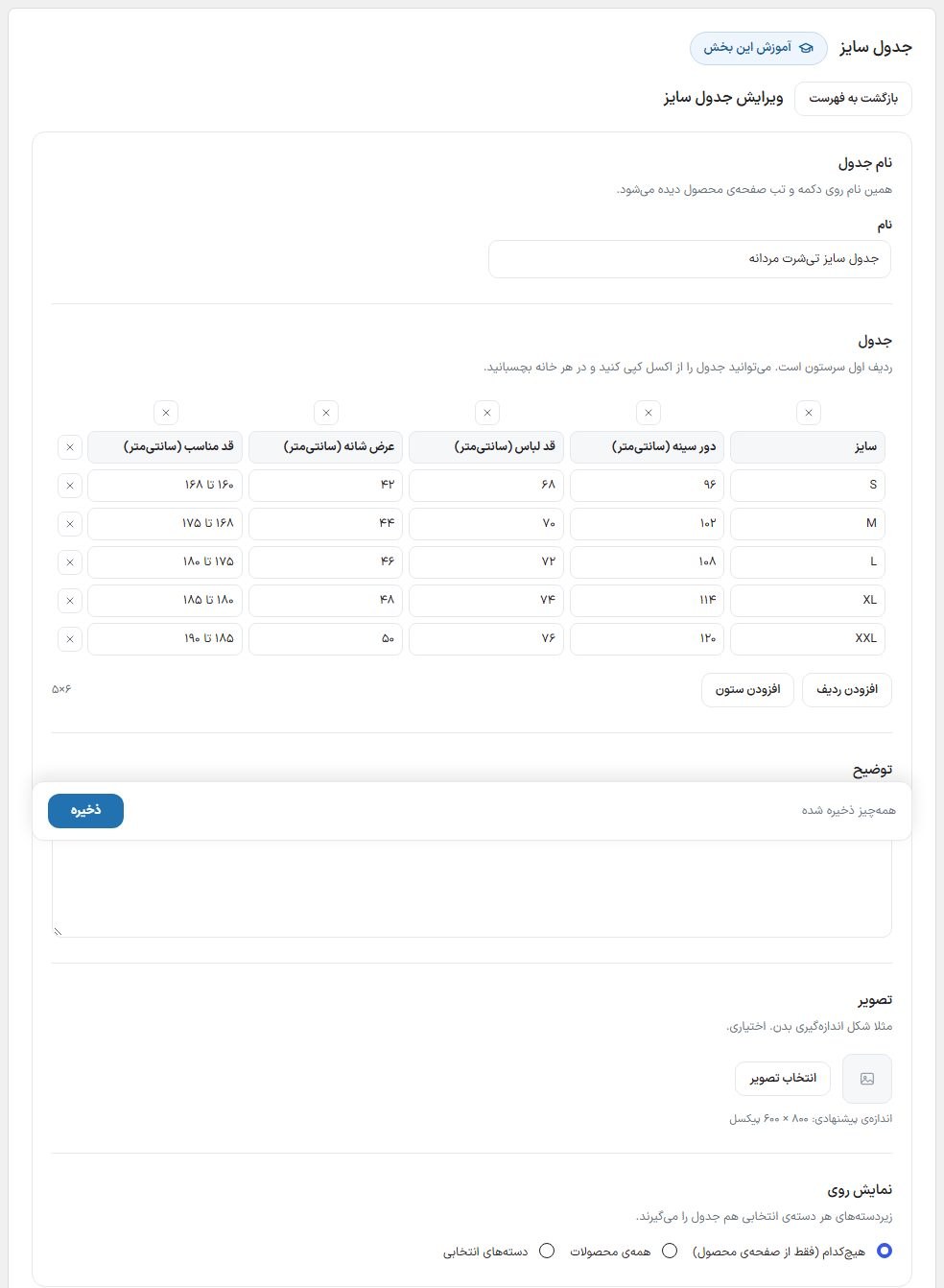
- Press “New chart” and write the chart's name; this same name appears on the button and tab on the product page.
- Fill in the table cells. The first row is the column header. “Add row” and “Add column” grow the table, and the cross beside each row or above each column removes it.
- Copy a table you have in Excel or Google Sheets and paste it into one cell; the whole table fills from that cell.
- If you like, add a description (for example the measuring method) and an image (for example a body measuring diagram; suggested size 800 × 600 pixels).
- Choose “Show on” and press “Save”.
Show on which products
| Option | What it does |
|---|---|
| None (from the product page only) | In the chart list's “Show on” column it says “Selected products only”. An automatic chart doesn't attach to a product; on each product's edit page, in the “Theme size charts” box, tick it. |
| All products | Appears on every store product. |
| Selected categories | Appears on products of the ticked categories and their subcategories. |
If a product gets several charts, switch buttons appear above the charts on the product page. The product's own size guide (text and image you write on the product edit page) still works and sits above the charts.
Settings
| Option | What it does | Default |
|---|---|---|
| Table style | Simple, striped, lined or light-lined. Colors come from the site colors and it has night mode too. | Plain |
| Show YITH plugin charts | Visible only when the plugin is installed and active. On means the plugin's charts also appear on the theme's product page. | On |
With the YITH Product Size Charts plugin
Both ways work; use whichever you prefer:
- With the plugin only: Create the charts in the plugin itself and attach them to a product, category or all products. The theme shows them on the product page with the same assignment; you don't need to do anything in Rafina Panel.
- Moving from the plugin to the theme: While the plugin is active, press “Import charts” on this page. Each plugin chart is copied to a theme chart with the same assignment (product, category, all) and from then on it shows once, not twice. Pressing again creates no duplicates. After that you can deactivate the plugin.
The theme's product page doesn't use the plugin's tabs and window, so the plugin's style and color settings have no effect on it; the look comes from this page's “Table style”. The stylesheet the plugin fetches from Google's server isn't loaded on the theme's pages.
Frequently Asked Questions
I created the chart but it doesn't appear on the product.
Check “Show on”: with “None”, only a product ticked on its edit page gets the chart. A chart with no filled cell, description or image isn't shown either.
A chart appears twice.
If you imported a chart from the plugin and then deleted its theme copy, the plugin version shows again. Either keep the theme chart, or turn off “Show YITH plugin charts”.