

Orders
The order list and order page are the same WooCommerce pages in the Rafina skin with a few new tools: the “Shipping” status, tracking code and digital item code, card-to-card receipt review, the multi-installment payment table, buyer origin, and printing invoices and shipping labels.
Where is it? Dashboard → WooCommerce → Orders
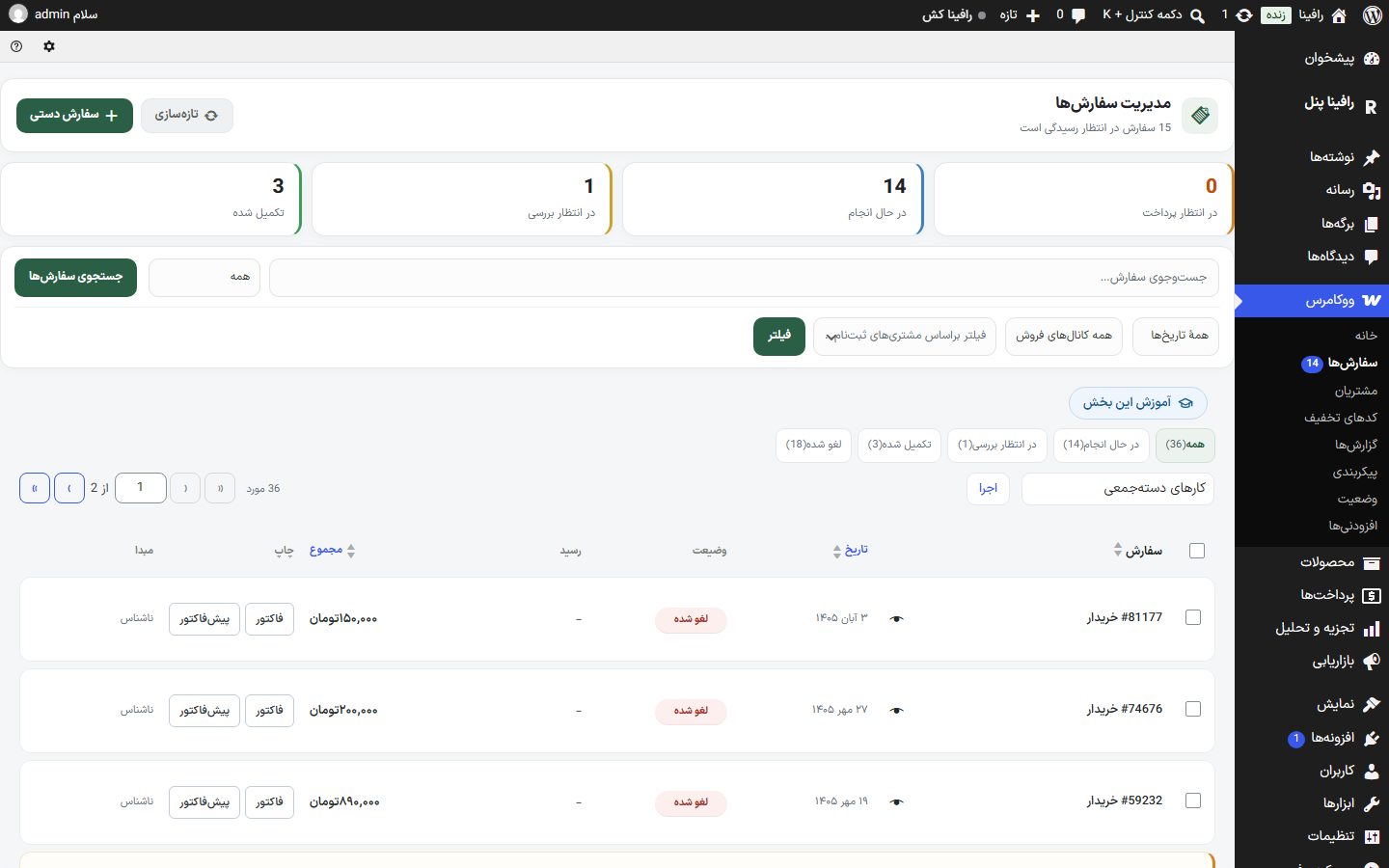
Order list
| Option | What it does |
|---|---|
| Order management | The card at the top of the page with the count of orders awaiting attention, the “Refresh” button, and “Manual order” (creating an order from the dashboard). |
| Count cards | Pending payment, processing, awaiting review, completed. Clicking a card narrows the table to that status. |
| Search and filters | Order search (by ID, customer email, customers, or products), date filter, sales channel, and registered customer. |
| Bulk actions | In addition to WooCommerce status changes: Change status to Shipping, Print invoices and Print shipping labels (only orders that have a physical item). Tick several orders, choose the action, and click “Apply”. |
| “Receipt” column | The card-to-card payment status of each order: awaiting receipt, under review, approved, rejected, expired, canceled. “Review” opens the receipt review window right there. |
| “Print” column | The “Invoice”, “Proforma” (only before payment), and “Label” (physical items only) buttons; each opens in a new tab ready to print. |
| “Origin” column | Where the buyer came to the site from: direct visit, search on Google and other engines, Torob, social networks, or a referring site. |
| The status button in the row | On a “Processing” order a “Shipping” button appears, and on a shipping order a “Complete” button appears. |
| Receipts awaiting review (N) | A link beside the statuses that shows only card-to-card orders awaiting review. The same count is also seen on the dashboard top bar. |
“Shipping” status
The theme adds a new status after “Processing”. A shipping order counts as paid (in reports and downloads) and gets an orange label. In the user panel the buyer sees the “Shipping” status with the tracking code and a “Track parcel” button.
- When you record a tracking code on a “Processing” order and click “Update”, the order automatically becomes “Shipping” (if you chose a different status yourself at that moment, that one stays).
- The “Shipped” message with the tracking code itself goes out by SMS and email; the general “Status changed” message isn’t sent for this status so the buyer doesn’t get two messages.
- If “I received the item” or “Auto-complete several days after shipping” is on in Shipping a shipping order becomes “Completed” when the buyer confirms or after that many days.
- With the “WooCommerce Shipping” plugin in Tapin mode, the Tapin barcode automatically becomes the order’s tracking code and Tapin statuses are also read as “Shipping”.
Order edit page
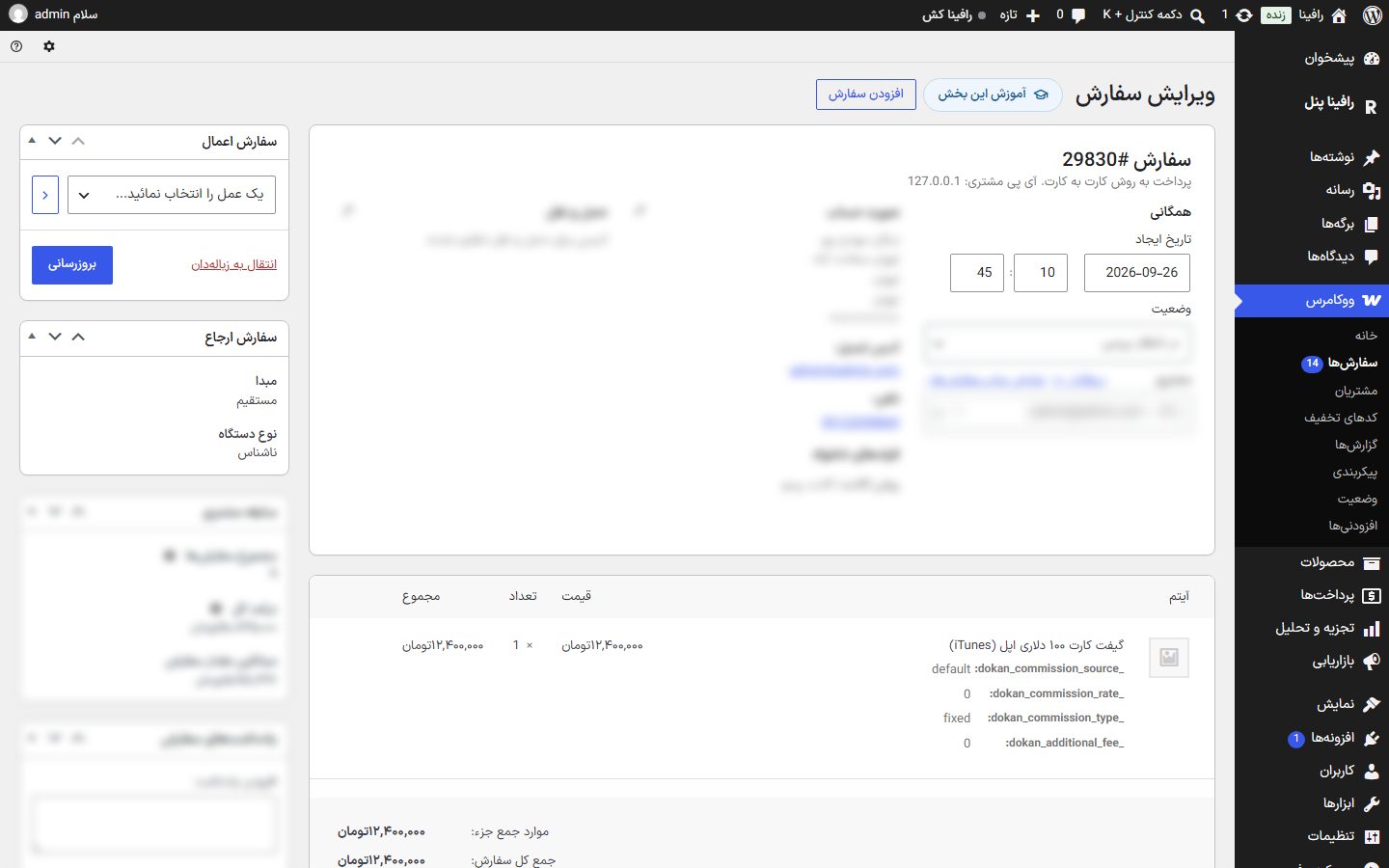
The order “Status” drawer also has the “Shipping” option. If your checkout page has “Custom fields” (Pre-Payment Page), the buyer’s answer appears under the billing address with the title “Custom fields”. The theme’s boxes:
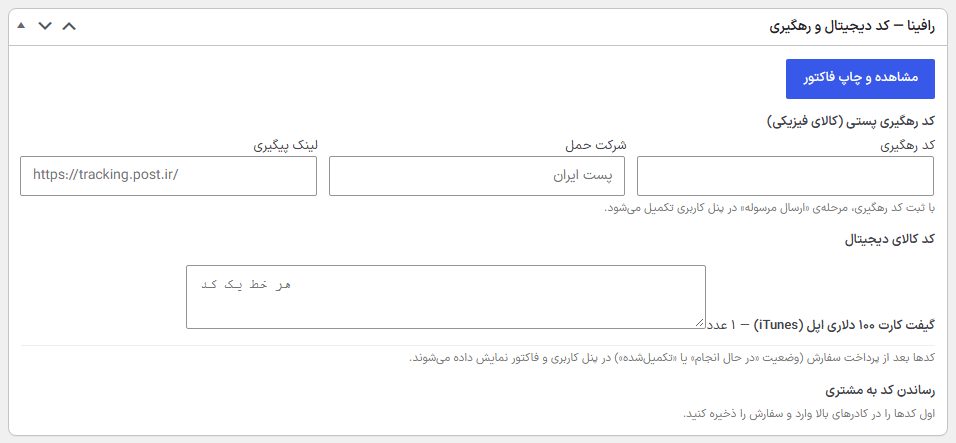
Rafina — Digital code and tracking
| Option | What it does |
|---|---|
| View and print invoice | Opens the order invoice in a new tab. For a physical-item order, “Print shipping label” is beside it. |
| Tracking code | The parcel code; recording it completes the “Parcel shipped” step in the buyer’s user panel. |
| Shipping company | For example Iran Post. |
| Tracking link | The address of the shipping company’s tracking page, for example the post tracking site. |
| Digital item code | One box per order item: one code per line. After payment (processing or completed), codes are seen in the buyer’s user panel and invoice. If the number of codes doesn’t match the quantity, it warns you. |
| Delivering the code to the customer | After saving the codes, the “Send codes by SMS” button sends them to the buyer’s number. The text is read from the “Digital item code” template in SMS panel and the last send is recorded under it. |
Card-to-card receipt
Only on orders paid with the card-to-card gateway. It shows the status, payment ID, amount, receipt deadline, buyer, and recorded receipts.
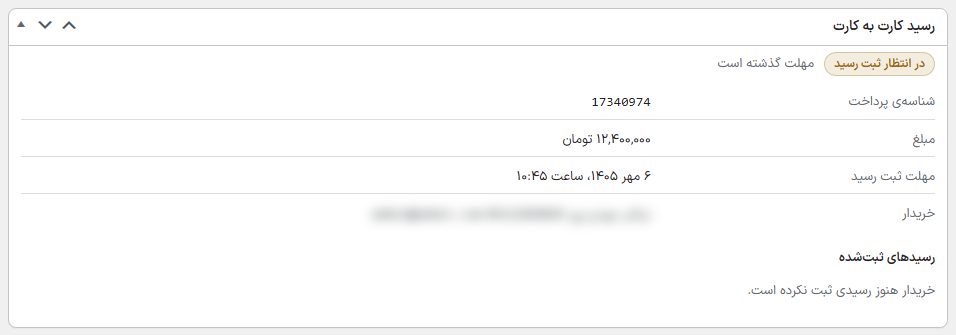
| Option | What it does |
|---|---|
| Each receipt | Deposited to (which account), paying card (masked), card owner, deposit time, tracking number, receipt recorded time, receipt image, and after review, the rejection reason and the reviewer. |
| Approve payment | After a confirmation, the order is recorded as paid and the “Payment approved” SMS and email go out. Before approving, see the deposit in your bank account. In multi-installment payment, only that installment is approved. |
| Reject receipt | A ready reason (the deposited amount doesn’t match the order amount, the receipt image isn’t legible, no deposit seen in the account, the receipt doesn’t belong to this order) or a written reason, and “Record rejection”. This same text is sent to the buyer, who can send a receipt again until the deadline. |
Set up accounts, deadline, and limits in Payment gateway ← Card to card.
Pay in several installments
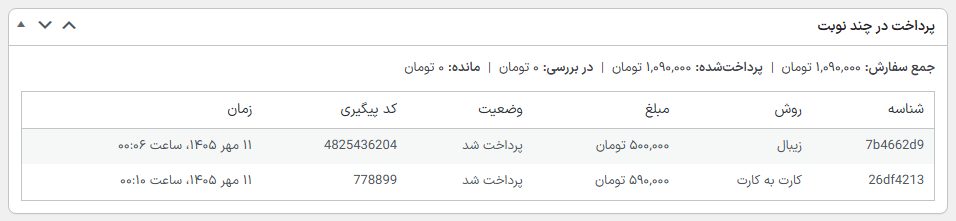
Only on a multi-installment order. At the top of the box: order total, paid, under review, and balance; and a table of installments with ID, method (gateway or card to card), amount, status, tracking code, and time. The order is held until fully paid.
Buyer entry source
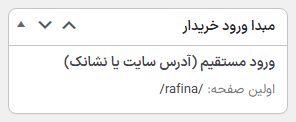
Where the buyer came from (for example “Direct visit (site address or bookmark)”, “Google search”, Torob, Instagram, Telegram, or the referring site’s address) and the “first page” they saw. The source of the first visit is recorded; returning from the payment gateway does not change it.
Printing invoices and shipping labels
The shipping label size and what appears on it are set in Shipping Label . Options: 5×7 (small, no item list), 10×15 portrait, 15×10 landscape, A5, A4 portrait and A4 landscape. The invoice appearance is in Invoice . To print several orders at once, tick them in the orders list and choose “Print invoices” or “Print shipping labels”.
Shipping a physical order
- Open the “Processing” order and print using “View and print invoice” and “Print shipping label”.
- After handing the parcel to the post, enter the tracking code and, if needed, the carrier and tracking link.
- Click “Update”; the order becomes “Shipped” and a shipping message with the code is sent to the buyer.
- Once the parcel arrives, mark the order “Completed” (or let the buyer or auto-completion do it).
Frequently Asked Questions
The “Label” button is missing for an order.
The order contains only virtual or downloadable items; shipping labels are generated only for physical items.
“Proforma invoice” is not in the print column.
A proforma invoice only makes sense before payment; a paid order gets an invoice.
I saved the tracking code but the status did not change to “Shipped”.
The automatic switch only happens from the “Processing” status. Orders that are pending review or already completed are left untouched.