

Users
The “Users” row in the Rafina Panel menu opens WordPress's own users page. The theme added a few columns and boxes to it so you can see and set each user's mobile number, authentication status and affiliate program right there.
Where is it? Rafina Panel → Users (the same WordPress “Users ← All Users”)
New columns in the users list

| Column | What it shows |
|---|---|
| Join date | The user's sign-up day in the Jalali date. Clicking the column header sorts the list by join date. |
| Authentication | “Not verified” or “Verified” with the verification date, for users who passed the site's authentication section (national ID and mobile inquiry). |
Add User
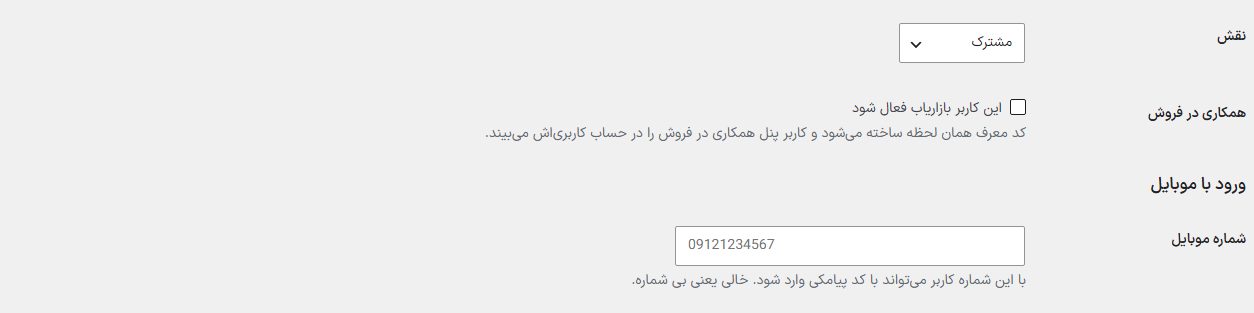
| Option | What it does |
|---|---|
| Affiliate program: make this user an active affiliate | The referral code is created at once and the user sees the affiliate program panel in their account. This row is visible only to the Shop manager and Administrator. Affiliate program guide |
| Mobile login: mobile number | With this number the user can sign in with an SMS code. Empty means no number. A wrong number gives “The mobile number isn't valid; write something like 09121234567.” and a number that belongs to another user gives “This mobile number belongs to another user.”. |
Edit User
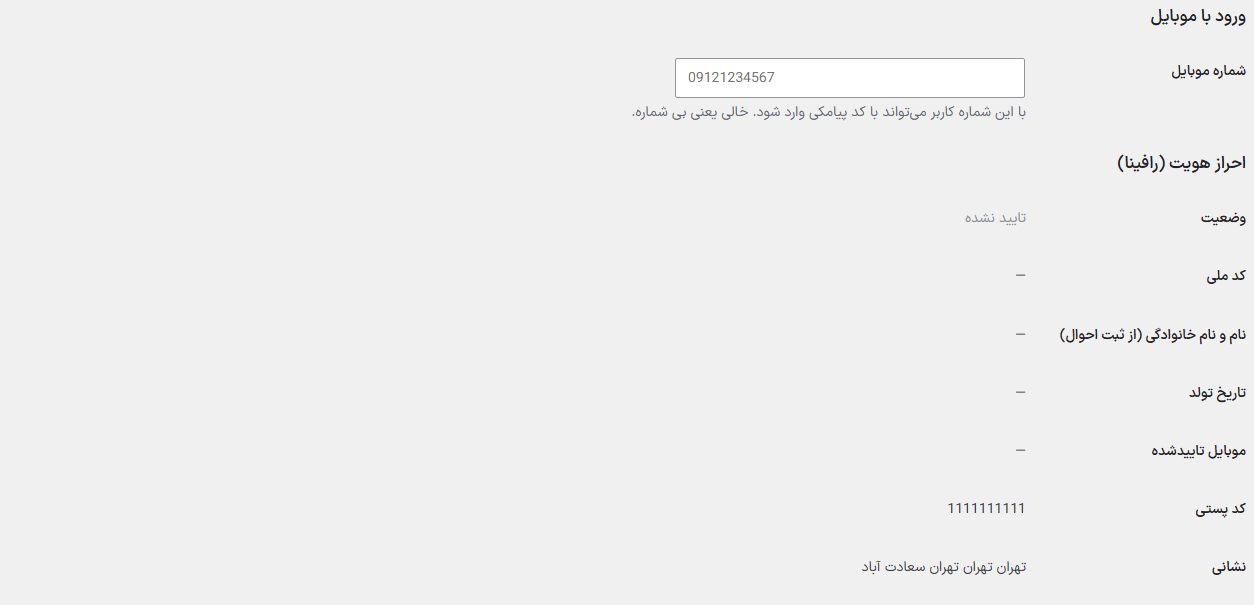
Mobile login
The same “Mobile number” box as the add user form; for changing or clearing the user's SMS login number.
Authentication (Rafina)
Read-only and shows the user's authentication result:
| Row | What it shows |
|---|---|
| Status | “Verified” with date, or “Not verified”. |
| National ID | The registered national ID. |
| First and last name (from the civil registry) | The name returned from the inquiry. If locked, “Locked (the user can't change it)” is written beside it. |
| Date of birth | The registered date of birth. |
| Verified mobile | The number that matched the national ID. |
| Postal code | From the user's billing information. |
| Address | From the user's billing information. |
| National ID card image | Only when the “Capture the national ID card image in the user profile” switch is on in “Authentication” or the user previously uploaded an image: two frames “Card front” and “Card back” (or “Not uploaded”); clicking opens the full image in a new tab. If reading the card with Zohal is on, its result appears under the frames: “Matches the account's national ID”, “Doesn't match the account's national ID”, “National ID couldn't be read” or “Not checked”. |
Affiliate bank account
Visible only for a user who is an affiliate and only to the Shop manager and Administrator: “IBAN (Sheba) number”, “Card number” and “Account holder name”. An empty IBAN means the registered account is cleared and the affiliate can register again themselves. If “Lock bank info” is on in the affiliate program settings, the account can be changed only from here.
User wallets
A user's wallet balance isn't on the WordPress users page. To see all users' balances, charge or deduct one user's balance and bulk charge, go to the “Wallet” section. Wallet guide
Frequently Asked Questions
A user who signed up by SMS has their mobile number as username; should I change it?
No need. The username isn't shown to anyone on the site, and sign-in is with that number and an SMS code.
The authentication box shows “—” for everything.
This user hasn't authenticated yet. Authentication happens in the customer's account when Rafina Panel's “Authentication” section is on.