

Store
This section controls which buttons appear on each product card, what appears above the product list, and how the site goes into showcase mode if you want to pause sales temporarily.
Where is it? Rafina Panel → Site content → Checkout path → Store
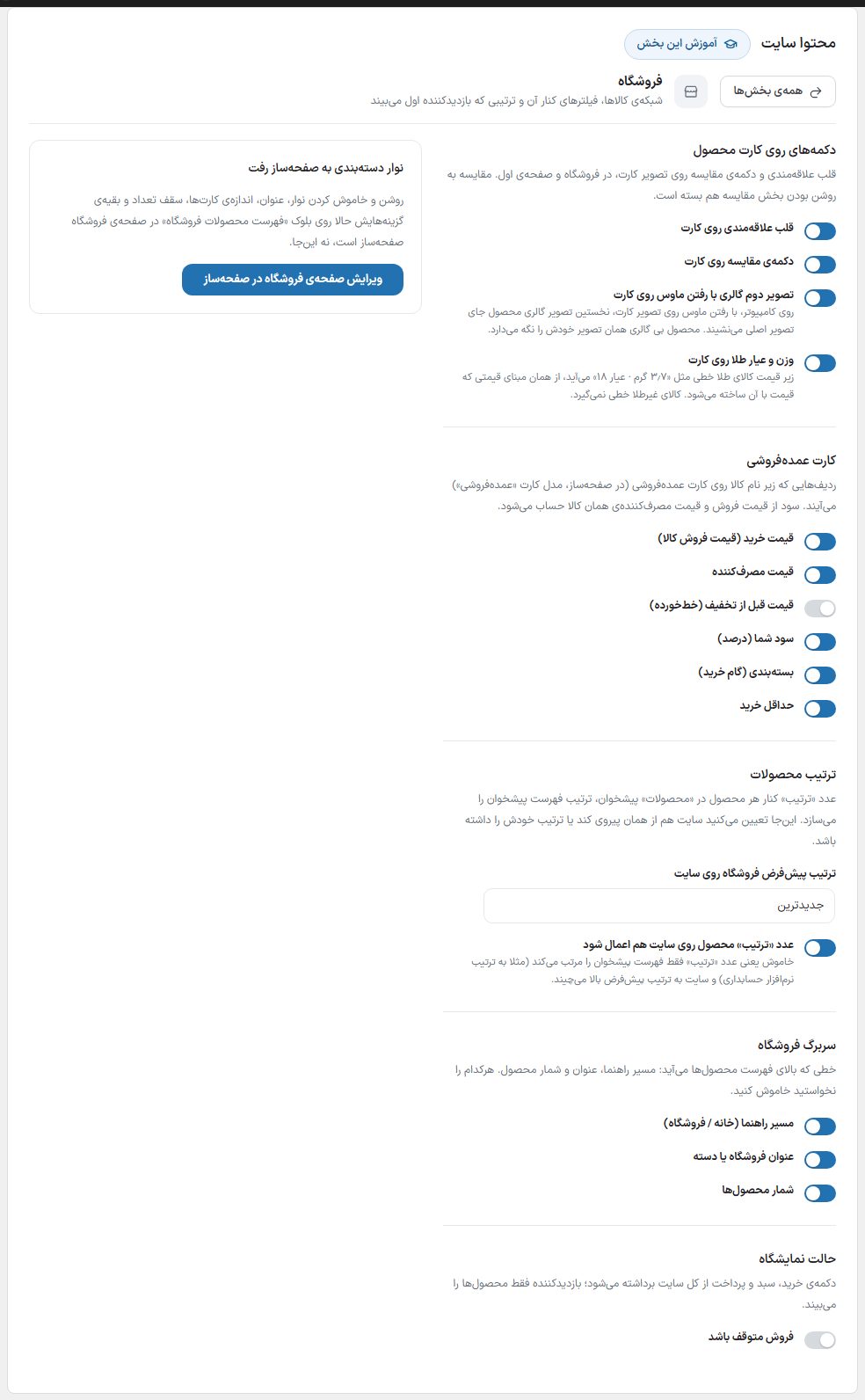
Product card buttons
These options affect the product card, both on the shop page and categories and in the homepage product rows and page builder blocks.
| Option | What it does | Default |
|---|---|---|
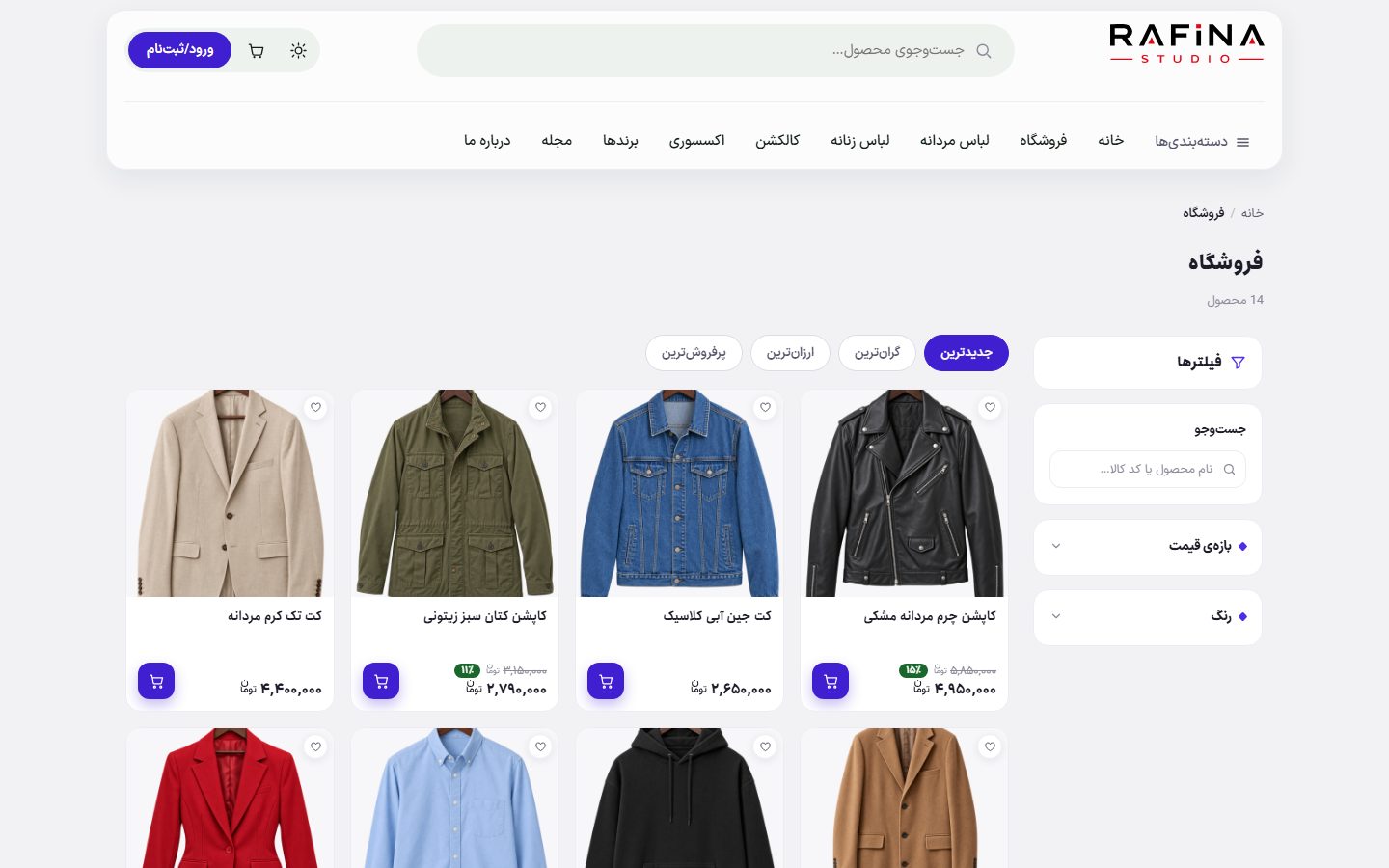
| Wishlist heart on the card | Adds a small heart in the corner of the card image. The buyer clicks it to add the product to their wishlist without the page changing. | On |
| Compare button on the card | Adds a button next to the heart for adding the product to the comparison window. This button is visible only when the comparison section in Product Page is also turned on. | On |
| Second gallery image on mouse hover | On desktop, when the mouse moves over the card image, the first image of the product gallery replaces the main image and returns when the mouse leaves. A product without a gallery keeps its own image. It has no effect on mobile. | On |
| Gold weight and karat on the card | A line like “3.7 g · 18 karat” appears under the price of gold items. Weight and karat are read from the same pricing basis the price is built from (basis, amount, and gold shop profile in product edit page). Non-gold items get no line. On the product page, “Weight” and “Karat” rows are also added to the specs. | On |
Wholesale card
The rows that appear under the item name on the Wholesale card page builder. Any row that isn’t ticked is not drawn, and the order of rows is fixed.
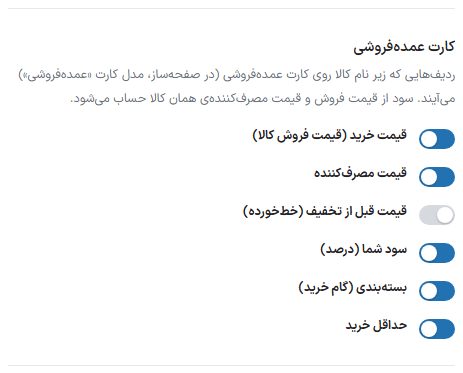
| Option | What it does | Default |
|---|---|---|
| Purchase price (item selling price) | The WooCommerce “price” that the wholesale buyer pays. | On |
| Consumer price | From the “Consumer price” field of the product edit page; an item without it gets an empty row. | On |
| Price before discount (struck through) | The price before the special sale, only when the item has a discount. | Off |
| Your profit (percent) | The gap between the consumer price and the purchase price, in percent. | On |
| Packaging (purchase step) | Packaging unit and its quantity from Minimum purchase and unit. | On |
| Minimum purchase | The smallest order quantity for that item. | On |
Shop header
The line above the product list on the shop page and each category page. Turn off any you don’t want.
| Option | What it does | Default |
|---|---|---|
| Breadcrumb (Home / Shop) | The small trail at the top of the page showing the buyer where they are and taking them back on click. | On |
| Shop or category title | The large “Shop” title or the name of the category the buyer is in. | On |
| Product count | A small number under the title, such as “34 products”. | On |
Product order
Each product’s “order” number (the order column in the dashboard products list) can be kept for the dashboard only, with a different order on the site.
| Option | What it does | Default |
|---|---|---|
| Default shop order on the site | “Newest” or “Best selling”; the sort the buyer sees the first time. | Newest |
| Apply the product “order” number on the site too | When off, the order number only arranges the dashboard list and the site follows the option above. | On |
Showroom mode
Turn this mode on when you want products to be visible but nobody to be able to buy (for example during stocktaking or phone-only sales). The buy button, cart, and checkout are removed from the entire site.
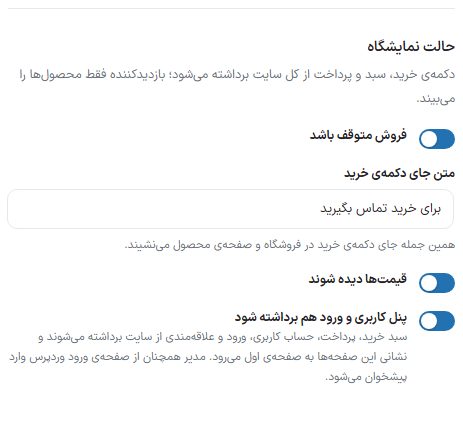
| Option | What it does | Default |
|---|---|---|
| Pause sales | The main switch for showcase mode. When on, no product can be purchased: not from the product page, not from the card, and not any other way. | Off |
| Buy button placeholder text | Visible only when the switch is on. This sentence replaces the buy button in the shop and product page; if left empty, “Call to buy” is written. | Call to buy |
| Show prices | Only with the switch on. When off, product prices are hidden too. | On |
| Also remove user panel and login | Only with the switch on. Cart, checkout, account, login, and wishlist are removed from the site and their addresses redirect to the homepage. The admin can still sign in to the dashboard from the WordPress login page. | On |
Category bar
The “Category bar moved to the page builder” box in this tab says that turning the category bar above the shop on or off, its title, card size, count limit, and other options are now on the “Shop product list” block in the page builder’s shop page. The “Edit shop page in page builder” button takes you straight there.
Save
Until a change is saved, the bottom bar shows “You have unsaved changes”. Click “Save shop settings” to apply the changes on the site.
Frequently Asked Questions
I turned on the compare button but it isn’t on the cards
This button also depends on the “Product comparison” section being on in the Product page tab. Turn on “Compare button on the product page” there.
With showcase mode, how do I sign in to the dashboard myself?
From the WordPress login address (or a custom login address you set in “Settings ← Site identity”). Showcase mode only closes the theme’s own login page.