

eNamad
Place the code for the electronic trust badge (eNamad), Samandehi, Zarinpal, and the like here. The badge appears in the footer and on a separate page.
Where is it? Rafina Panel → Site content → Site frame → eNamad
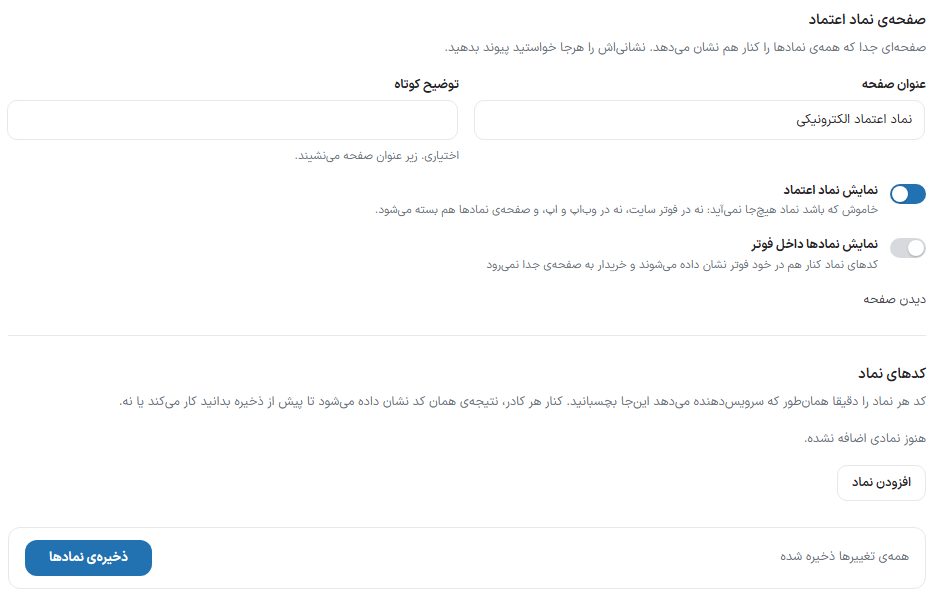
Setup
- Copy the badge code from the eNamad panel (or another provider).
- Click "Add badge" and keep the "Provider code" model.
- Paste the code exactly as the provider gave it into "Light mode code".
- Click "Save badges" and use "View page" to see the result.
Trust badge page
A separate page that shows all badges side by side; link to its address wherever you like. The "View page" button opens it.
| Option | What it does |
|---|---|
| Page title | Title of the badges page. |
| Short description | Optional. Sits under the page title. |
| Showing the trust badges | When turned off, the badge appears nowhere: not in the site footer, not in the web app and app, and the badges page is closed too. |
| Show badges in the footer | The badge codes are shown side by side in the footer itself, and the buyer does not go to a separate page. |
Badge codes
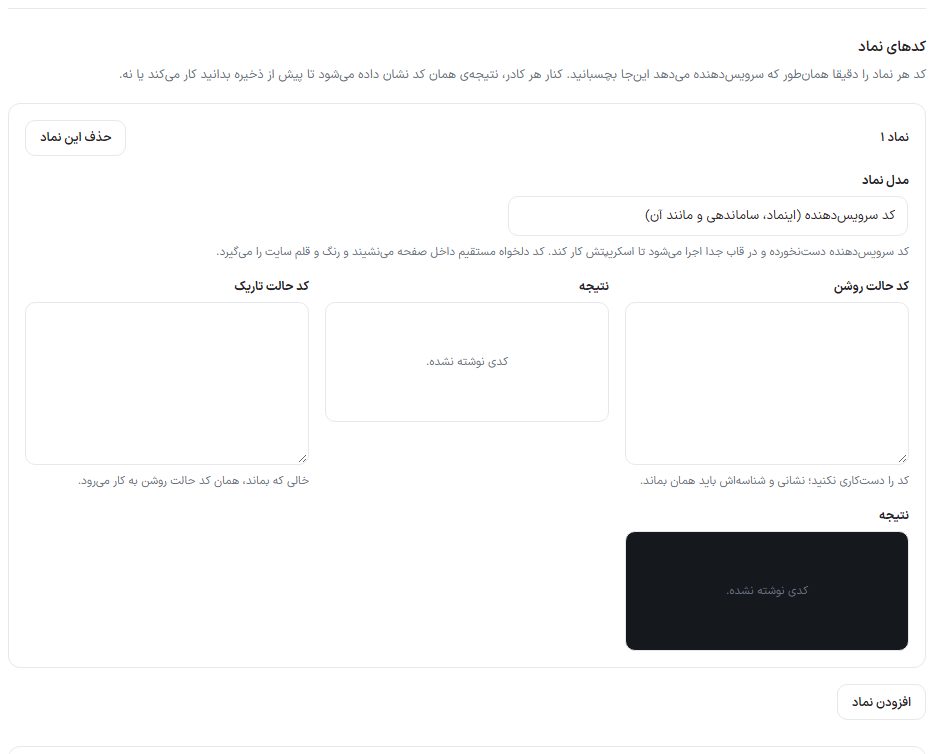
Paste each badge's code exactly as the provider gives it. Until you create a badge, the sentence "No badge added yet." is shown. "Add badge" creates a card for each badge: "Badge 1", "Badge 2"… Beside each box, the result of that code is shown so you know before saving whether it works.
| Option | What it does |
|---|---|
| Badge model | "Provider code (eNamad, Samandehi, and the like)": the code runs untouched in a separate frame so its script works. "My own custom HTML code": the code is placed directly in the page and takes the site's colors and font; scripts do not run in this model. |
| Light mode code | The badge code. Do not tamper with it; its address and ID must stay the same. |
| Dark mode code | A separate code for the dark theme. If left empty, the light mode code is used. |
| Result | Code preview. If the code contains a script, its result is not shown here and runs only on the site itself. |
| Delete this badge | Removes the badge card. |
FAQ and troubleshooting
I saved the code but it became empty
For an admin without permission for full HTML, only the script code of known providers (eNamad, Samandehi, Zarinpal) with an https address is accepted and anything else is removed; in this case a message states the reason. Paste the official code verbatim.
The badge preview is empty
If the code contains a script, the panel preview cannot run it. Check it on the site itself with "View page". If you set the model to "Custom HTML code" and the code has a script, switch the model back to "Provider code".
The badge shows but eNamad says the domain is not registered
eNamad identifies the domain from the address of the page the badge is on. The official eNamad code has an attribute that sends this address even on a host that blocks sending it; the theme keeps that attribute, even for an admin without permission for full HTML. If it is still not recognized, copy the code verbatim again from the eNamad panel and save.