

Email panel
The site’s emails (login code, order, shipping, ticket, and admin news) are sent from your own email server. On this page you connect the server and write each event’s email text.
Where is it? Rafina Panel → Email panel
The page has two tabs: “Email settings” and “Email templates”.
Setup
- From your email host (usually the same as the site host), get the SMTP server address, port, encryption type, username, and mailbox password.
- In “Email settings”, fill in the fields, turn on “Email sending enabled”, and click “Save email settings”.
- In “Status and test send”, write your own address and click “Send test email”.
- In “Email templates”, enable each message you want and click “Save templates”.
“Email settings” tab
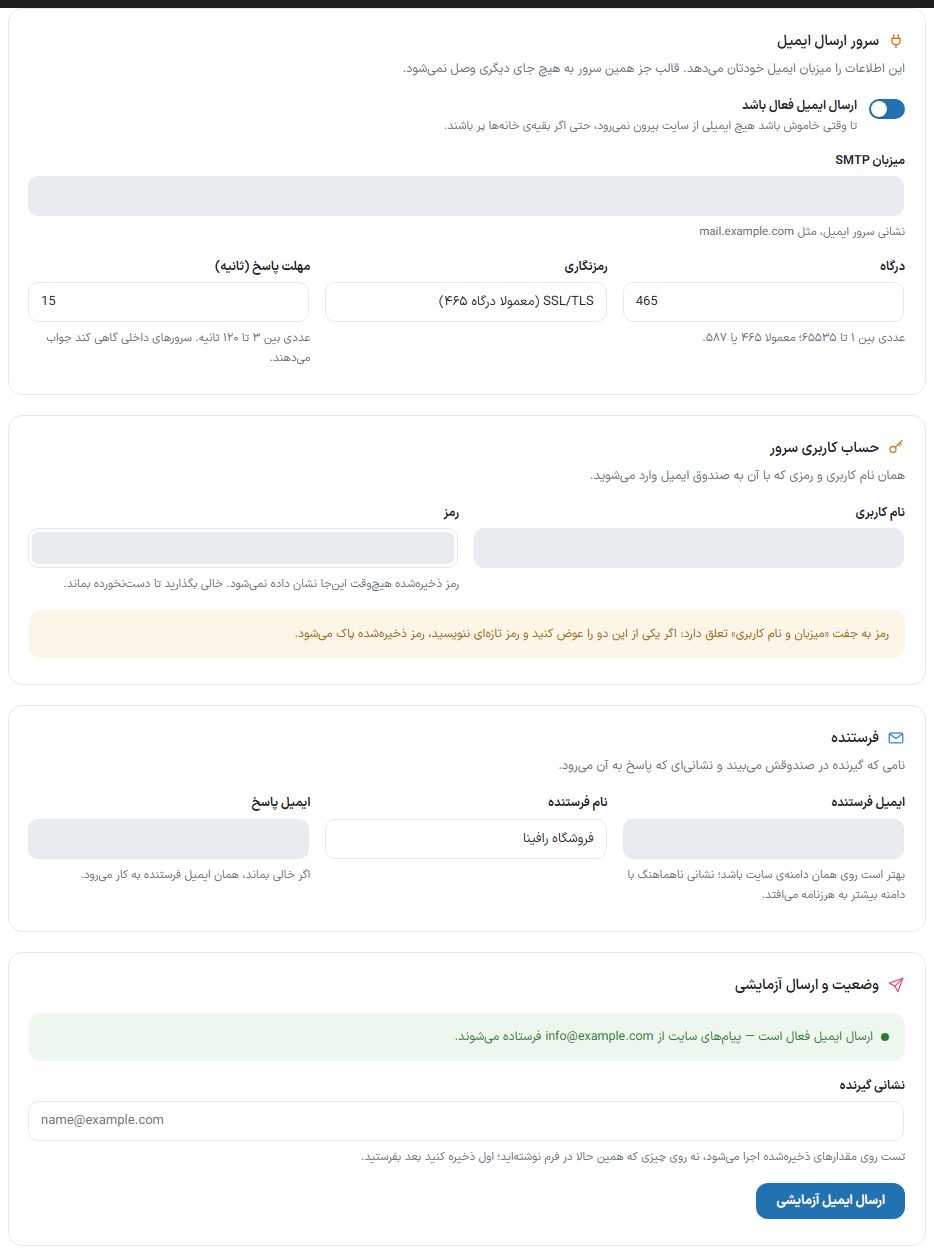
Email sending server
Your own email host provides this information. The theme connects to nothing else but this server.
| Option | What it does |
|---|---|
| Email sending enabled | While off, no email leaves the site, even if the other fields are filled in. |
| SMTP host | The email server address, like mail.example.com. |
| Gateway | A number between 1 and 65535; usually 465 or 587. |
| Encryption | “STARTTLS (usually port 587)”, “SSL/TLS (usually port 465)”, or “No encryption”. |
| Response timeout (seconds) | Between 3 and 120 seconds. Domestic servers sometimes respond slowly. |
Server account
| Option | What it does |
|---|---|
| Username | The username you use to sign in to the mailbox, usually the email address itself. |
| Password | The mailbox password. The saved password is never shown; leave empty to keep it unchanged. |
Sender
| Option | What it does |
|---|---|
| Sender email | The address seen in the recipient’s inbox. It is best on the site’s own domain; an address that doesn’t match the domain is more likely to land in spam. |
| Sender name | The name the recipient sees, usually the store name. |
| Reply email | The recipient’s reply goes to this address. Empty means the sender email. |
Status and test send
Above the box it says whether email sending is enabled and from which address. Write the “Recipient address” and click “Send test email”. The test runs on the saved values, not on what you just typed; save first, then send.
“Email templates” tab
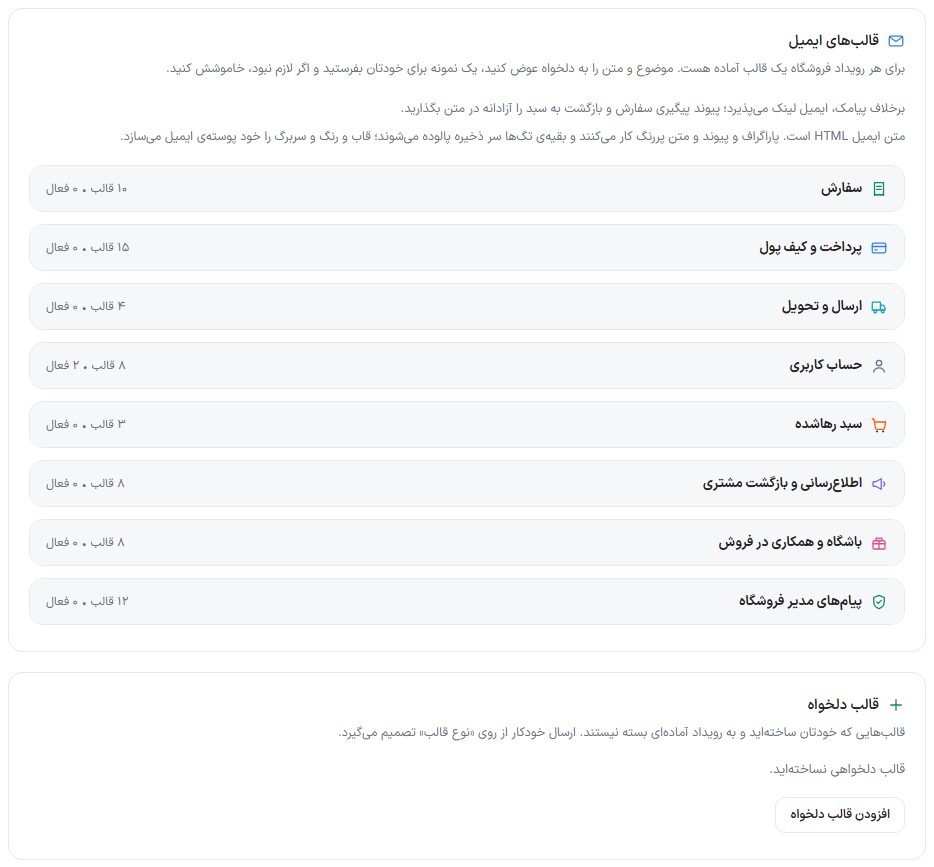
There is a ready template for every store event, in the same groups as the SMS panel: order, payment and wallet, shipping and delivery, user account, abandoned cart, notification and customer win-back, club and affiliate program, and store admin messages. Change the subject and text as you like, send yourself a sample, and turn it off if it’s not needed. Except for the login code and password recovery code, all are off by default.
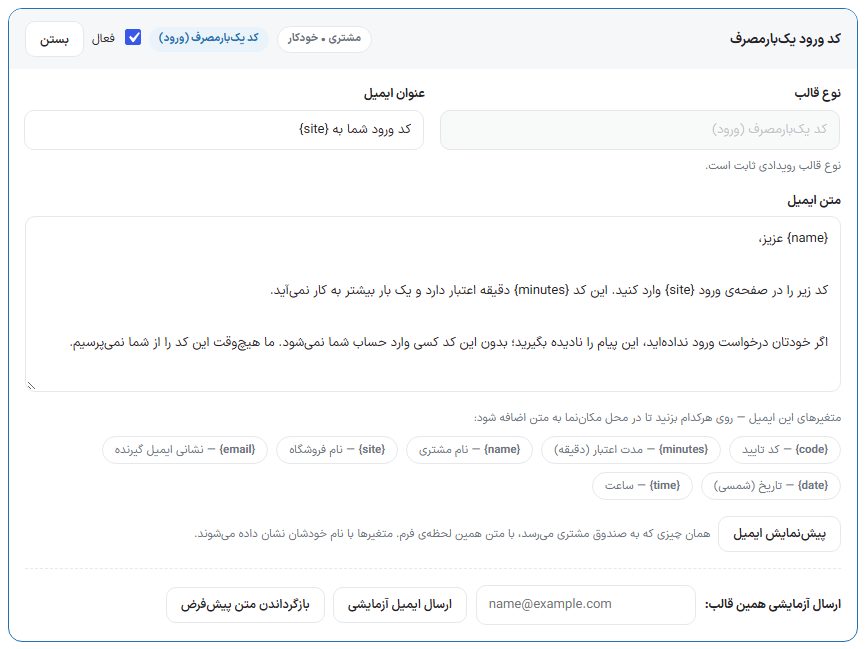
| Option | What it does |
|---|---|
| Active | Until ticked, this email is not sent. |
| Theme type | Fixed for event templates. In a custom template you choose one of “One-time code (login)”, “Welcome to new user”, “Order notification”, “Digital item code”, or “Other”. |
| Email subject | The subject seen in the inbox. It accepts variables, for example {site}. |
| Email body | HTML text. Paragraphs, links, and bold text work and other tags are removed on save; the frame, colors, and header are built by the email shell itself. A link alone on a line automatically becomes a button. |
| Variables of this email | Click any one to add it at the cursor. Some templates also have ready blocks, such as the order status bar or the items table. |
| Email preview | Shows what reaches the customer’s inbox with the form’s current text; variables are shown by their own names. |
| Test send of this template | Enter an address and click “Send test email”. |
| Restore default text | Returns the text to the original version. |
Custom template
Templates you create yourself that aren’t tied to a ready event. Their automatic sending is decided by the “Template type”. Create one with “Add custom template”.
FAQ and troubleshooting
The test email doesn’t arrive.
Save first. The port and encryption must match (587 with STARTTLS, 465 with SSL/TLS). Check the spam folder too, and put the sender email on the site’s own domain.
Sending stopped after changing the host.
When the host or username changes, the saved password is deleted; write the password again and save.
After payment, “A critical error has occurred” appeared.
Some hosts have disabled PHP’s own mail sending (the function mail()). The theme now catches the error there and payment goes through to the successful order page, but emails don’t go out. Write the SMTP details in “Email settings”, or ask the host’s support to enable mail() .
Does a theme update change an email text I wrote?
No. Only untouched templates are updated with the new version; your handwritten text stays.