

Guides / Site content / Shipping label
Shipping Label
The label you stick on each order's parcel: the recipient's address and postal code, sender, order number, and, if you want, the item list. For orders that contain physical items, it opens and prints from the order list (the "Print" column) or from the order page itself.
Where is it? Rafina Panel → Site content → Checkout path → Shipping Label
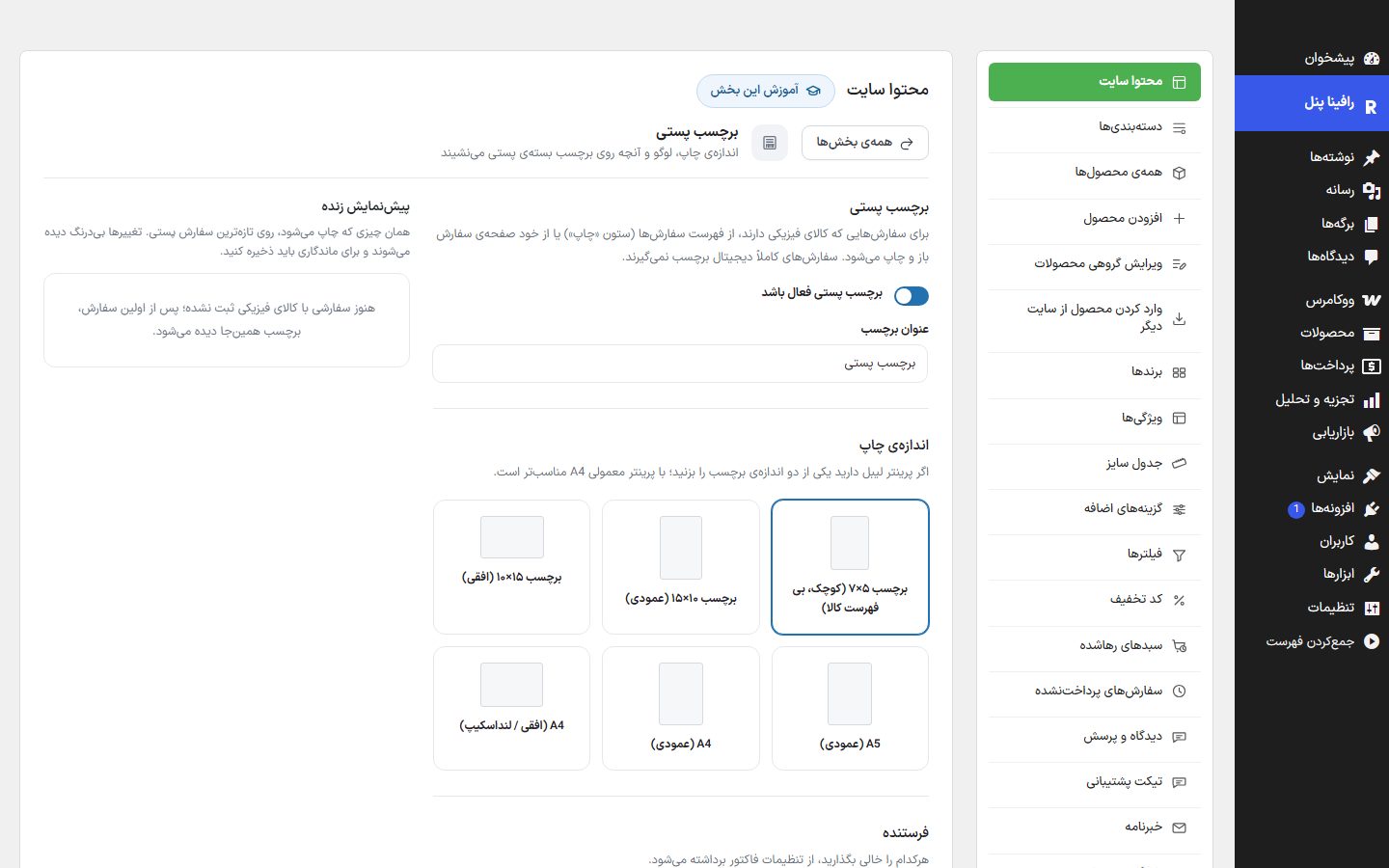
The live preview is what gets printed, on the latest shippable order. Until there is an order with a physical item, the message "No order with a physical item has been placed yet" appears in place of the preview. Fully digital orders get no label.
Size and sender
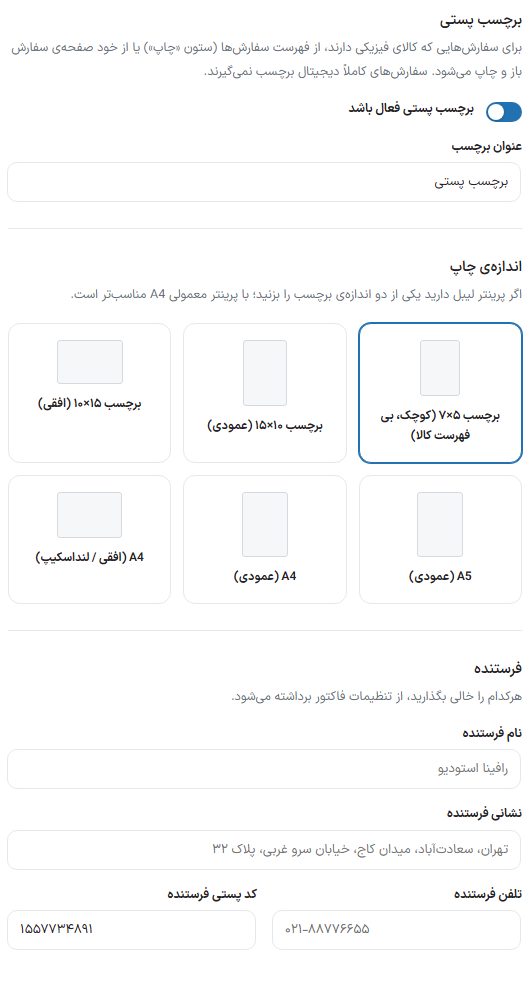
| Option | What it does | Default |
|---|---|---|
| Shipping label enabled | When off, the label print button does not appear in the list and the order page. | On |
| Label title | — | Shipping Label |
| Print size | If you have a label printer, choose one of the label sizes; an ordinary A4 printer suits another option. Options: 5×7 label (small, no item list), 10×15 label (portrait), 15×10 label (landscape), A5 (portrait), A4 (portrait), A4 (landscape). | 10×15 (portrait) |
| Sender name, sender address, sender phone, sender postal code | Leave any of them empty and it is taken from Invoice . | Empty |
5×7 labelTo fit on small paper, the item list and sender address are not printed on it, and the sender appears on one line (name — phone).
Logo and label content
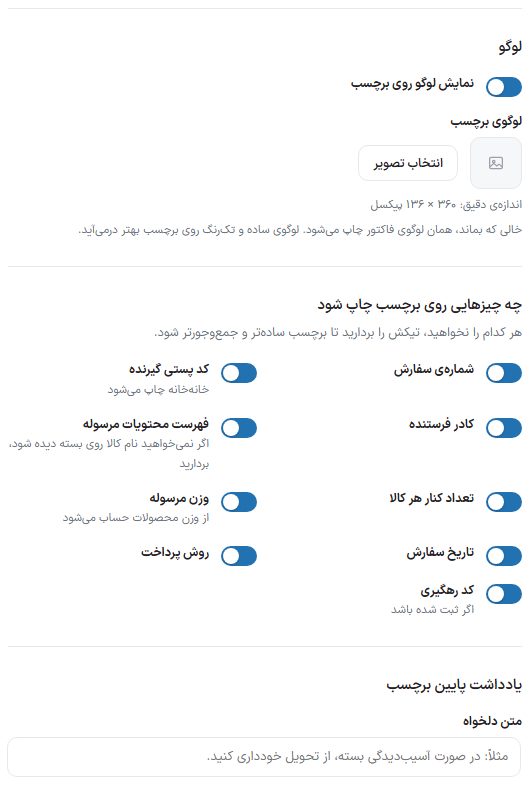
| Option | What it does | Default |
|---|---|---|
| Show logo on the label | — | On |
| Label logo | Exact size: 360 × 136 pixels. If left empty, the invoice logo is printed. A simple, single-color logo looks better on a label. | — |
| Order number | — | On |
| Recipient postal code | Printed digit by digit so the postal worker can read it easily. | On |
| Sender box | — | On |
| Parcel contents list | Turn it off if you don't want the item names visible on the parcel. | On |
| Quantity beside each product | — | On |
| Package weight | Calculated from the product weights. | On |
| Order date | — | On |
| Payment method | — | On |
| Tracking code | If one has been recorded for the order. | On |
| Note at the bottom of the label | A custom text, such as "If the parcel is damaged, refuse delivery". | Empty |
Printing the label
- Go to the orders list in the dashboard (Orders).
- In the "Print" column of that order's row, click the label button; or do it from inside the order page.
- In the browser's print window, set the paper size to the size you chose here and set the margin to "None".
Frequently Asked Questions
There is no label button for an order
That order has no physical (shippable) item; downloadable and virtual items get no label.