

Pre-Payment Page
This step sits between the cart and the bank gateway: the buyer gives their address and details, chooses the shipping and payment method, and, if they have a wallet balance, pays part or all of the amount from it. In this tab you decide which fields are asked and what the page looks like.
Where is it? Rafina Panel → Site content → Checkout path → Pre-Payment Page
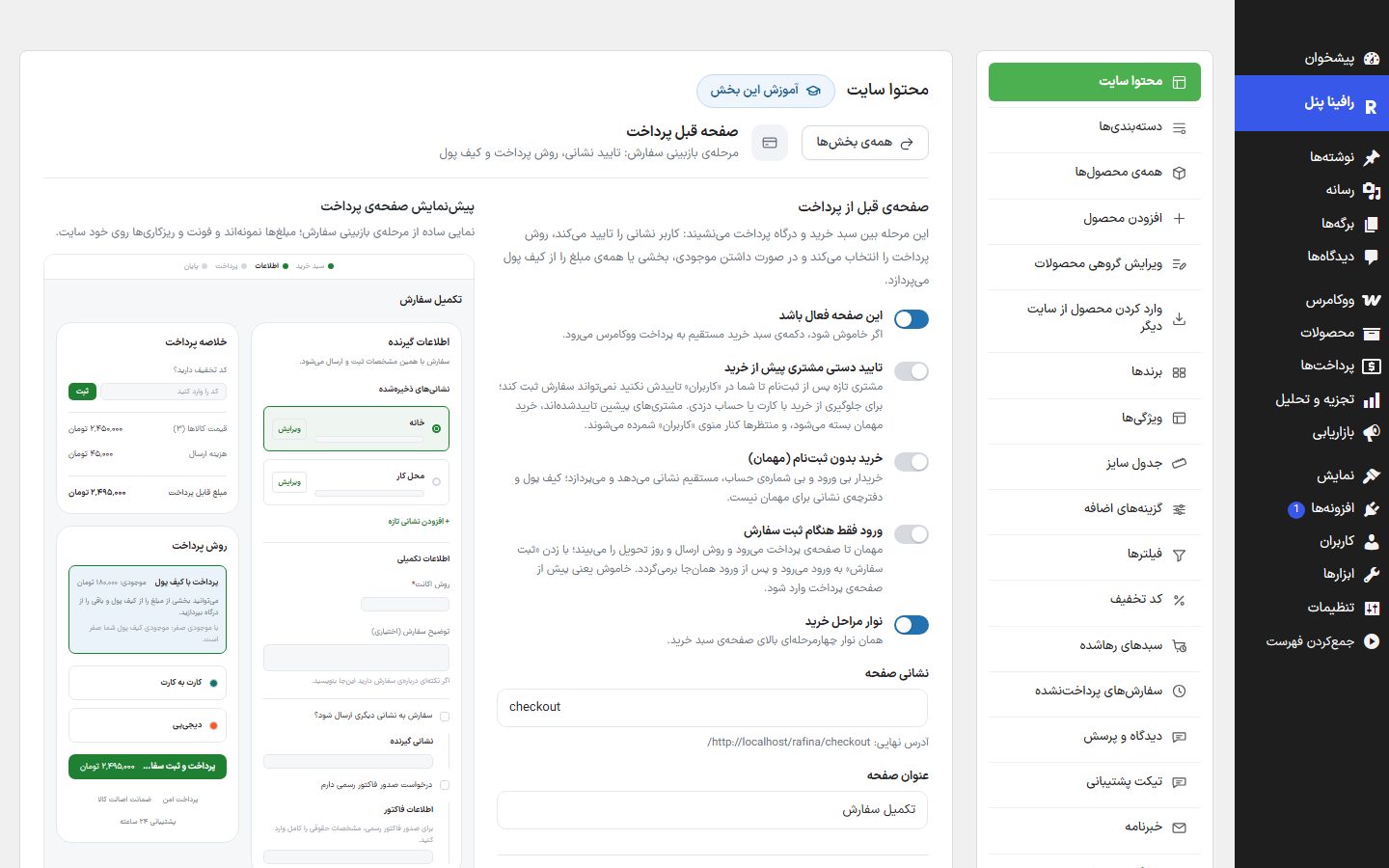
Pre-payment page
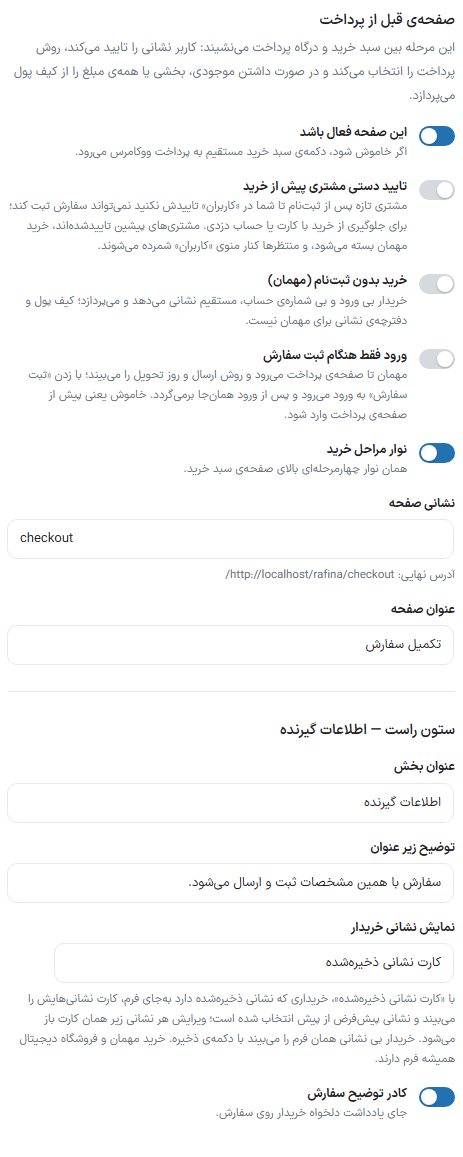
| Option | What it does | Default |
|---|---|---|
| This page enabled | If turned off, the cart button goes straight to WooCommerce's checkout. | On |
| Manual customer approval before purchase | A newly registered customer cannot place an order until you approve them in "Users"; this prevents purchases with stolen cards or accounts. Customers from before the toggle was turned on are approved, store staff are never blocked, and guest checkout is closed. In "Users" there is a "Purchase approval" column, an "Approve for purchase" link under the name, a bulk action, and an "Awaiting purchase approval" filter, and the number of those waiting appears beside the "Users" menu. A waiting customer who clicks "Place order" sees the message "Your account has not been approved yet". | Off |
| Purchase without signing up (guest) | The buyer gives their address and email directly and pays, without logging in or creating an account. The wallet and address book are not for guests. When off, a logged-out buyer goes from the cart to the login page. | Off |
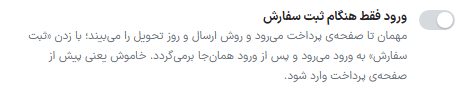
| Login only when placing the order | Only when guest checkout is off. The guest goes as far as the payment page and sees the shipping method and delivery day; on clicking "Place order" (or wallet) they go to login and, after logging in, return to the same place. The address they wrote before logging in is kept and becomes their default if their address book is empty. Off means they must log in before the payment page. | Off |
| Checkout steps bar | The same four-step bar at the top of the cart page. | On |
| Page address | The last part of this page's address. The full final address is written under the box. | checkout |
| Page title | — | Order complete |
Right column — recipient information
| Option | What it does | Default |
|---|---|---|
| Section title | — | Recipient information |
| Description under the title | — | The order is placed and shipped with these details. |
| Show the buyer's address | Full form (the usual): The buyer sees the address form every time. Saved address card: A buyer with a saved address sees a card of their addresses instead of the form, with the default address preselected; editing any address opens under its card and each card also has a delete button. A buyer with no address sees the same form with a "Save address" button. Guest checkout and the digital store always have the form. | Full form |
| Order notes box | The spot for the buyer's custom note on the order. | On |
Recipient form fields
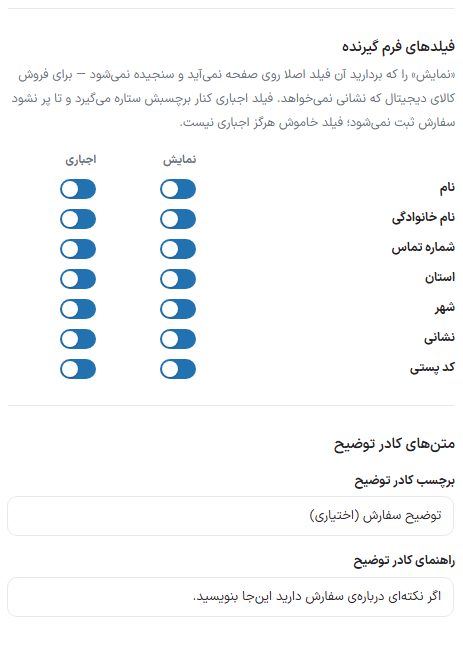
There are seven fixed fields: first name, last name, phone number, province, city, address, and postal code. Each has two checkboxes:
- Show: Unchecking it means that field does not appear on the page at all and is not validated; for example, for selling a digital item that needs no address. All are on by default.
- Required: A required field gets an asterisk beside its label and the order is not placed until it is filled. A field that is off is never required. All are required by default.
| Option | What it does | Default |
|---|---|---|
| Notes box label | The text above the order notes box. | Order notes (optional) |
| Notes box placeholder | The faint sentence inside the box. | If you have anything to say about the order, write it here. |
Second address and official invoice
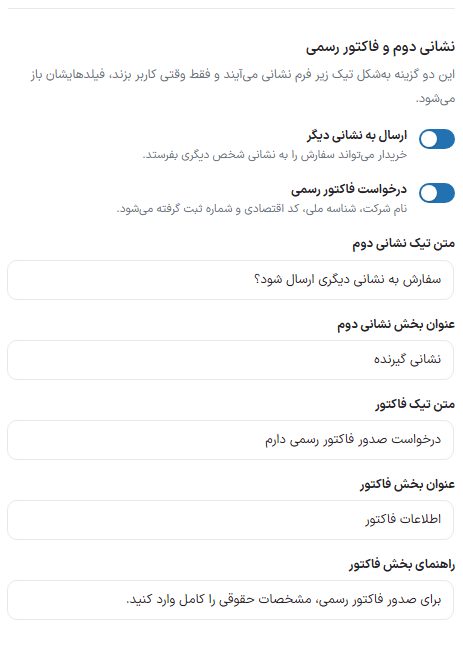
| Option | What it does | Default |
|---|---|---|
| Ship to another address | The buyer can send the order to another person's address; the fields open only when they check the box. | On |
| Request official invoice | The company name, national ID, economic code, and registration number are collected. | On |
| Second address checkbox text | — | Should the order be shipped to another address? |
| Second address section title | — | Recipient address |
| Invoice checkbox text | — | I request an official invoice |
| Invoice section title | — | Invoice details |
| Invoice section hint | — | To issue an official invoice, enter the legal details completely. |
Left column — summary and payment
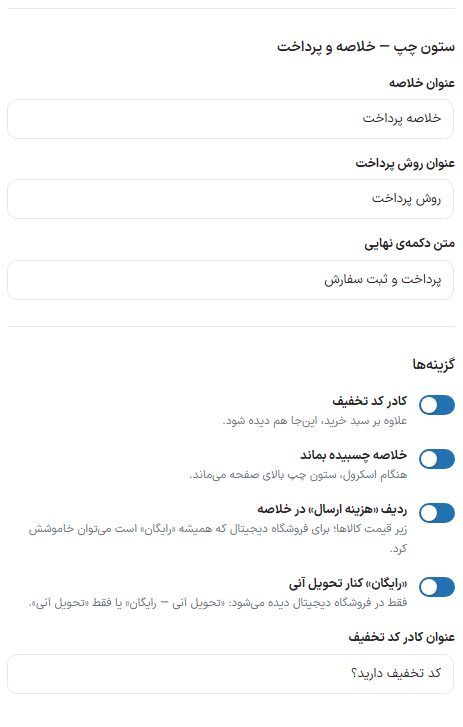
| Option | What it does | Default |
|---|---|---|
| Summary title | — | Payment summary |
| Payment method title | — | Payment method |
| Final button text | The button that places the order and takes the buyer to the gateway. | Pay and place order |
| Discount code box | Show here in addition to the cart. | On |
| Keep the summary sticky | While scrolling, the summary column stays at the top of the page. | On |
| "Shipping cost" row in the summary | Under the price of the items. It can be turned off for a digital store where it is always "Free". | On |
| "Free" beside instant delivery | Seen only in the digital store: "Instant delivery — Free" or just "Instant delivery". | On |
| Discount code box title | — | Have a discount code? |
Wallet payment, badges, and look
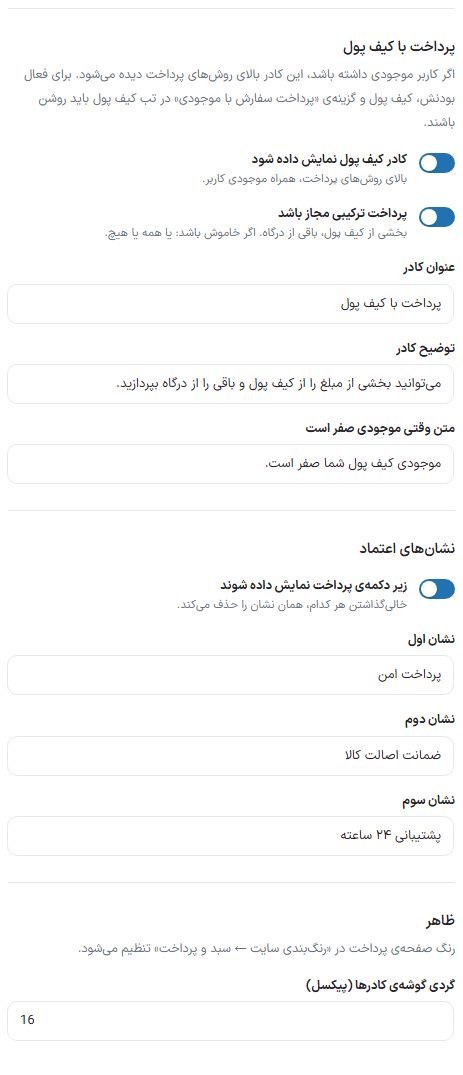
| Option | What it does | Default |
|---|---|---|
| Show the wallet box | Above the payment methods, with the user's balance. For it to work, Wallet and the "Pay order from balance" option in the Wallet tab must be on, and the buyer must be logged in and have a balance. | On |
| Allow split payment | Part from the wallet, the rest from the gateway. If off: all or nothing. | On |
| Box heading | — | Pay with wallet |
| Box description | — | You can pay part of the amount from the wallet and the rest from the gateway. |
| Text when the balance is zero | — | Your wallet balance is zero. |
| Trust badges: show under the pay button | Three short texts under the button. Leaving any one empty removes that badge. | On; secure payment, authenticity guarantee, 24-hour support |
| Box corner roundness (pixels) | The corner radius of this page's boxes. The payment page color is set in Site color scheme ← Cart and payment. | 16 |
Custom fields
Every field you create here appears under the address form on the payment page in the "Additional information" box and the buyer's answer is recorded on the order; for example, the recipient's national ID, a convenient delivery time, or the username of an account you are selling. The answers are seen on the order edit page and in the WooCommerce order email.
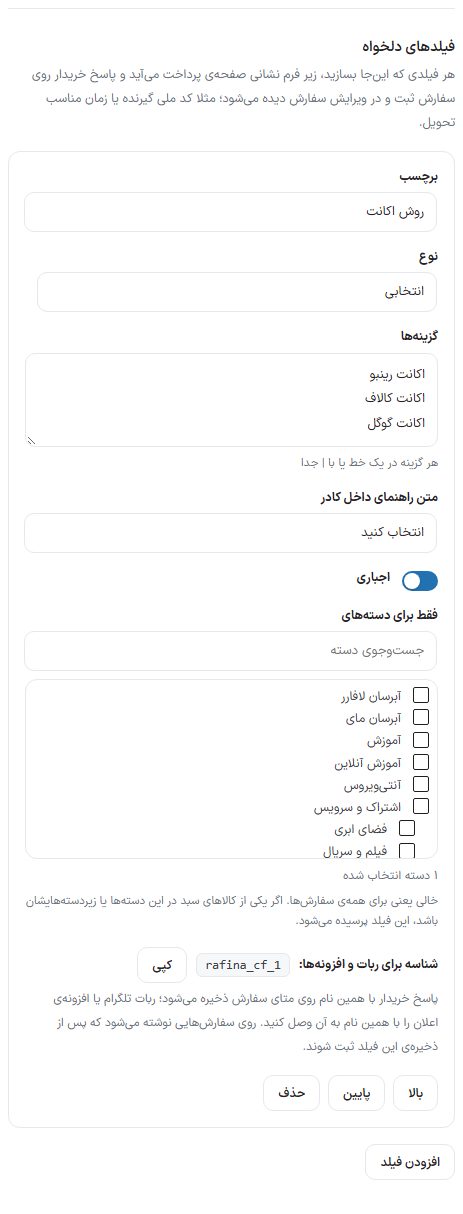
| Option | What it does |
|---|---|
| Label | The name the buyer sees above the field. A field with no label is not saved. |
| Type | Short text (one line), long text (multi-line), or select (options dropdown). |
| Options | Only for the "select" type. Each option on one line or separated by | . An answer outside this list is not accepted. |
| Box placeholder text | The faint sentence inside the field. |
| Required | Until it is filled, the order is not placed and the message "Enter label" appears. |
| Only for categories | The store's category list with search. Empty means for all orders. If any item in the cart is in these categories or their subcategories, this field is asked. |
| Identifier for bots and plugins | A name such as rafina_cf_1 under which the buyer's answer is saved in the order meta. The "Copy" button takes it so you can connect a Telegram bot or notification plugin to it. It is written on orders placed after this field is saved. |
| Up, down, delete | Changes the order of fields on the page and deletes a field. |
FAQ and troubleshooting
My store is digital; how do I remove the address?
In Shipping Just turn on "Instant delivery"; the payment page automatically asks only for name and number. Or uncheck show for province, city, address, and postal code in "Recipient form fields".
The wallet box doesn't show
This box appears only for a logged-in buyer with a balance above zero, and the wallet and "Pay order from balance" must be on in the Wallet tab.
I created a custom field but it doesn't appear on the page
If you chose a category for it, it is asked only when an item from those categories is in the cart. After creating it, also click the "Save payment page settings" button.