

Guides / Site content / Search
Search
What the buyer sees after clicking the search box, before typing: suggested products, popular search phrases, and a banner.
Where is it? Rafina Panel → Site content → Site frame → Search
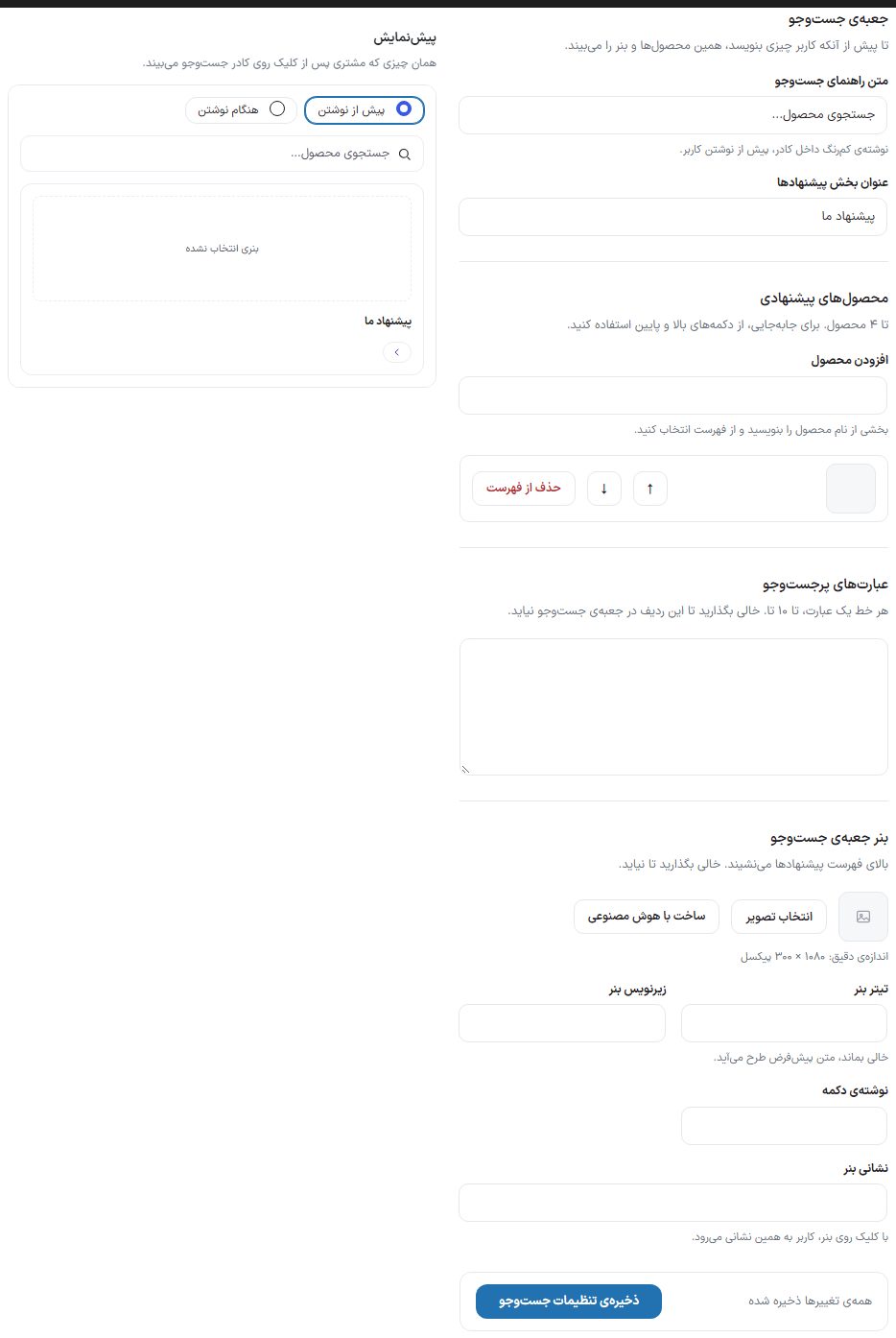
Search box
Until the user types anything, they see these products and the banner.
| Option | What it does |
|---|---|
| Search placeholder text | The faint text inside the box, before the user types. |
| Suggestions section title | The headline above the suggested products, such as “Our picks”. |
| Suggested products | Up to 4 products. In the “Add product” box, type part of the product name and pick from the list. Use the ↑ and ↓ buttons to reorder, and “Remove from list” to remove one. |
| Popular search phrases | One phrase per line, up to 10. If left empty, the store shows the names of your best-selling categories instead; clicking any of them searches for it. |
Search box banner
Sits above the suggestions list. Leave empty to hide it; without an image, the banner is not shown on the site.
| Option | What it does |
|---|---|
| Choose image | Exact size 1080 × 300 pixels. There is also a “Generate with AI” button next to it. |
| Banner headline | If left empty, the design’s default text is used. |
| Banner subtitle | The second line on the banner. |
| Button text | Banner button text. |
| Banner address | Clicking the banner takes the user to this address. |
Click “Save search settings”. The preview beside the page is what the customer sees after clicking the search box, and it has two states: “Before typing” and “While typing”.
NotePressing Enter in the header search box takes the buyer to the search results page with filtering and sorting.