

Guides / Site content / Story
Stories
Story circles sit at the top of the homepage like Instagram. Each circle is a “highlight”, and you put any number of photos or videos inside it.
Where is it? Rafina Panel → Site content → Home page → Home page sections → Stories
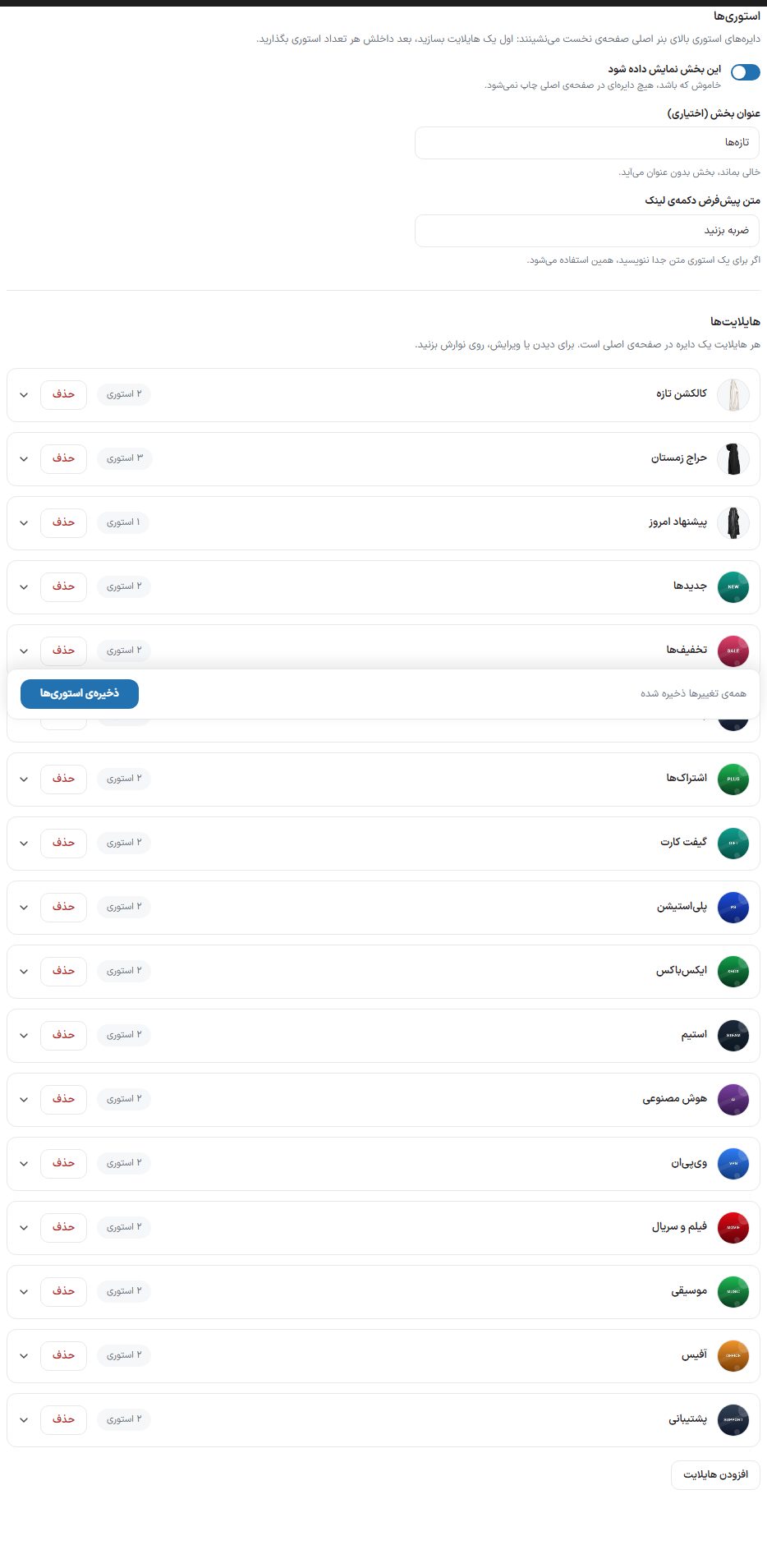
Setup
- Turn on the “Show this section” switch.
- Click “Add highlight”. A new bar named “Untitled” is created; click it to open it.
- Choose the circle cover (exact size 300 × 300 pixels) and write the “Title under the circle”.
- With “Add story” (at the bottom of that highlight’s stories list), add the photo or video of each story (exact size 1080 × 1920 pixels, vertical).
- Finally, click “Save stories”. Until you save, the bottom bar shows “You have unsaved changes”.
General section settings
| Option | What it does |
|---|---|
| Show this section | When off, no circle is printed on the homepage. Highlights are not deleted. |
| Section title (optional) | The headline above the circles, such as “What’s new”. If left empty, the section appears without a title. |
| Default link button text | The text of the button shown on a story with a link, when you haven’t written separate text for that story. |
Highlights
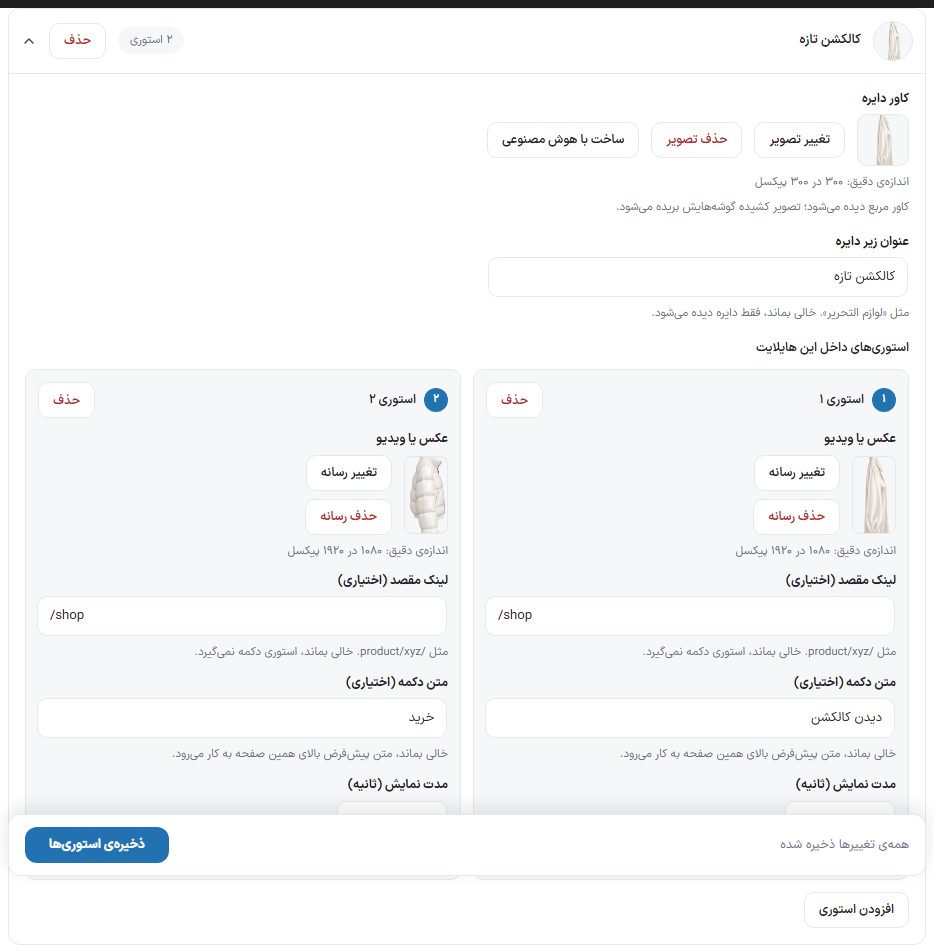
Each highlight is one circle on the homepage. Each highlight’s bar has a name, its story count, and a “Delete” button; click the bar to open its settings. Deleting a highlight also removes all its stories, and you are asked first.
| Option | What it does |
|---|---|
| Circle cover | The image shown inside the circle. Exact size 300 × 300 pixels; the cover is shown square, and a stretched image gets its corners cropped. The “Choose/Change image”, “Remove image”, and “Generate with AI” buttons are beside it. |
| Title under the circle | The text under the circle, such as “Stationery”. If left empty, only the circle is shown. |
| Stories in this highlight | The stories list. A highlight that has no stories yet does not appear on the homepage. |
Fields of each story
| Option | What it does |
|---|---|
| Photo or video | That story’s media. Exact size 1080 × 1920 pixels. Use “Change media” and “Remove media” to replace or delete it. A “Video” badge appears on videos. |
| Destination link (optional) | The address the button on the story goes to, such as /product/xyz. If left empty, the story gets no button. |
| Button text (optional) | The text of that button. If left empty, the “Default link button text” at the top of the page is used. |
| Display duration (seconds) | Between 1 and 60 seconds. A video takes its duration from the file itself and ignores this number. |
NoteIn the page builder, the “Story” element (“Media” group) has only its own “Section title”; the “Set up stories” button under “Highlights and photos” opens this same page in the “Story” window. Both places write the same setting; whatever you change here shows on every page that has a Story element.
FAQ and troubleshooting
I created the highlight but it isn’t on the page
A highlight with no stories is not shown. Add at least one story with a photo or video and save. The “Show this section” switch must also be on.
The circle cover looks cropped
The cover is shown square. Use a 300 × 300 square image so nothing is cropped.