

GuidesGetting Started
Updating the Theme
A new version of Farin replaces the previous one through the same install route, “Appearance → Themes”. Panel settings, products, Elementor pages and orders are in the database and are not changed by replacing the theme.
Where is it? WordPress dashboard → Appearance → Themes → Add Themes
Before updating
- Make a backup. Take a full backup (files and database) from your host. You can also keep Farin's own settings in a file from Backup and Transfer .
- Do not write in the theme files. Any change you made directly in the files of the
farinfolder is wiped out by the update. Put extra code in Custom Code ; it stays there. - Check the version. The installed version is written in “Appearance → Themes → Theme Details”.
Installing the new version
- Get the new version's file. From the Rafina downloads section, download the new version's
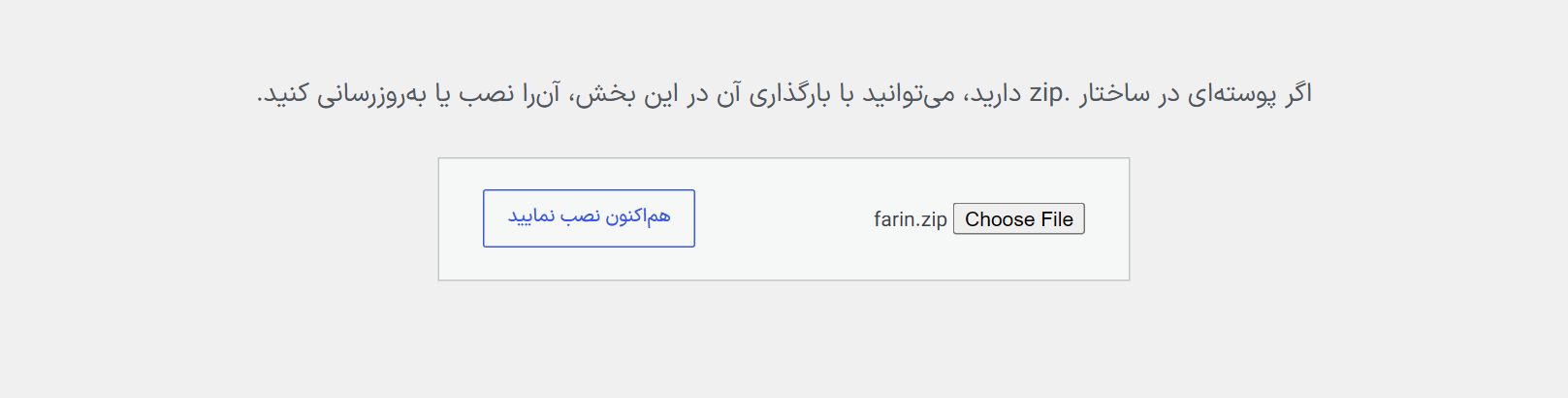
farin.zipfile. - Appearance → Themes → Add Themes → Upload Theme. Choose the file and click “Install Now”.
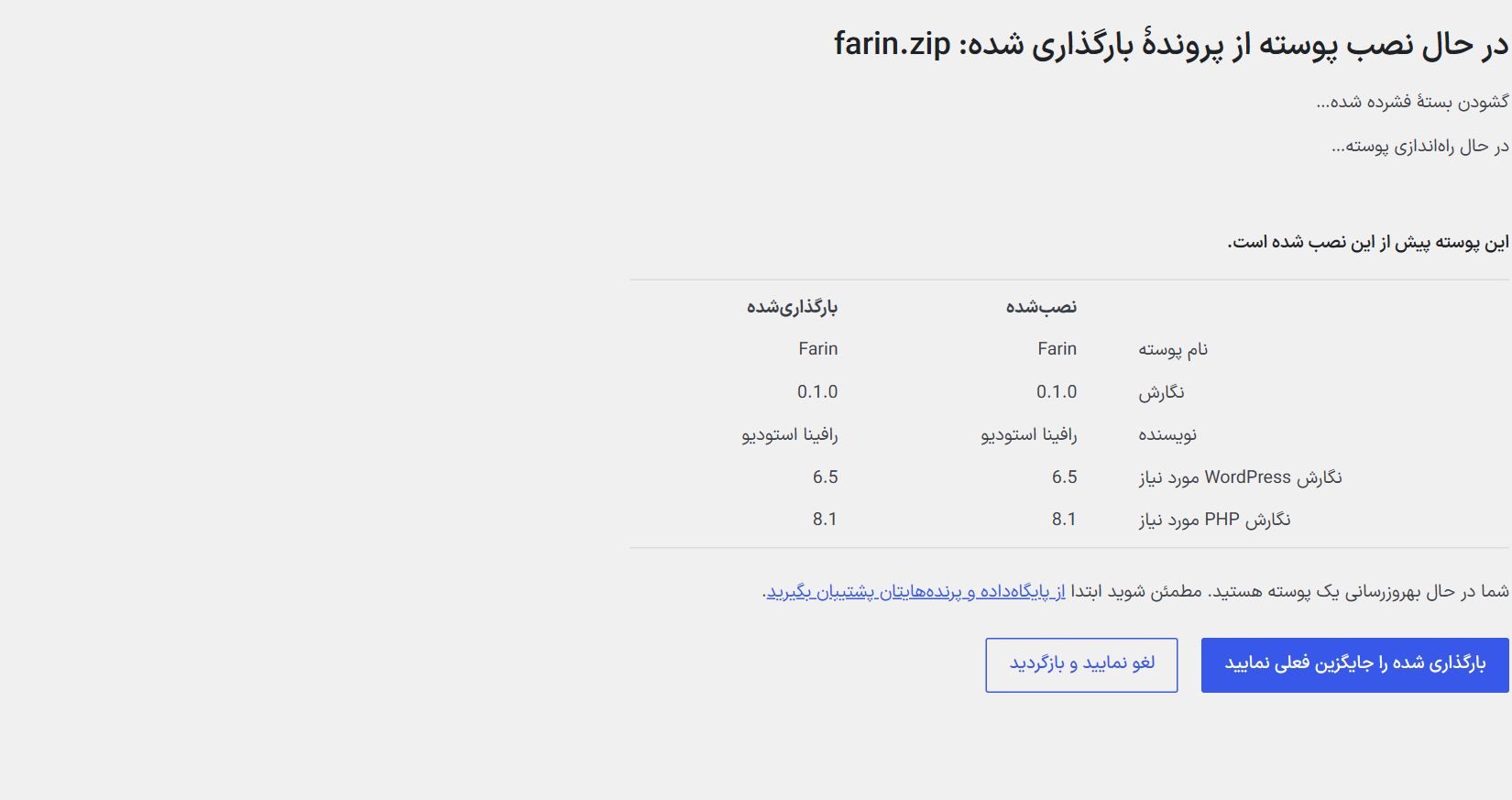
- Click “Replace current with uploaded”. WordPress sees that Farin is already installed and shows the installed and new versions side by side.
- Wait for the “Theme updated successfully” message. The theme stays active and does not need to be activated again.
After updating
- Clear the cache. If you have a cache plugin (LiteSpeed, Rocket and the like) or host cache and a CDN, clear all of them once so the theme's new files reach visitors.
- Look at the site once. Open the home page, a product and the checkout page on both phone and computer.
- Open the Farin panel. The new sections of each version appear in the panel; your previous settings are still in place.
Media files and WebPImages, WebP versions and media folders are in the uploads folder, not the theme folder; the update does not touch them.
Frequently Asked Questions
The “Replace current” button did not appear and a second theme was installed.
The folder name inside the zip file must be farin . If you unzipped and re-zipped the file, the folder name may have changed. Delete the new theme and upload the original file.
The site looks broken after the update.
It is almost always cache. Clear the plugin, host and browser cache. If you use Elementor, also click “Regenerate Files” in “Elementor → Tools”.
I want to go back to the previous version.
Upload the previous version's zip file the same way and click “Replace current”. Panel settings stay in place.
Farin Theme · 1405