

Popup
A popup is a window that opens on the page a few seconds after a visitor arrives. Use it for discount news, a gift code, a newsletter form, or a promotional banner, and decide for yourself where, when, and how many times it is seen.
Where is it? Farin → Site content → Trust and Notifications → Popup
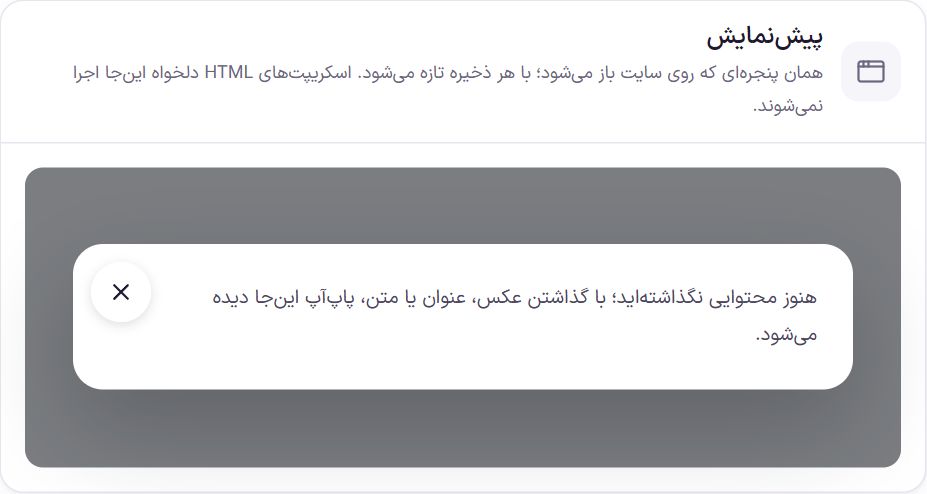
“Custom HTML” scripts do not run in the preview; see their result on the site itself. If the popup is on but has no image, heading, text, or HTML, a warning appears under the preview and the window does not open on the site.
Setup
- Add the content. In the “Content” box, write at least an image, a heading, or text.
- Add a button. If you want the buyer to go to a page, fill in the text and address of the button in “Buttons”.
- Choose the pages. In “Which pages”, say where the window should open.
- Turn on “Popup is on”. Open the site in a browser incognito window and see the result.
Popup display
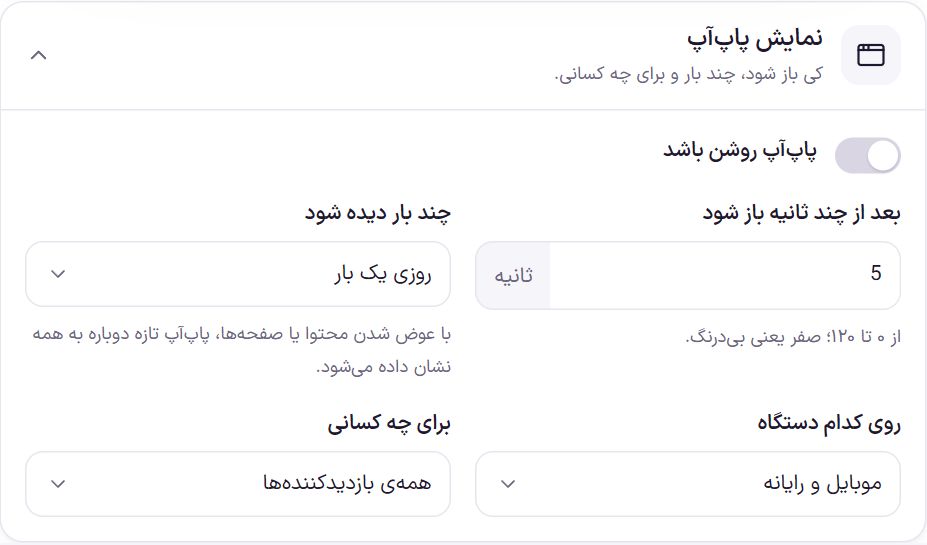
| Option | What it does | Default |
|---|---|---|
| Popup is on | The main switch. When off, no popup file is loaded on the site. | Off |
| Open after a number of seconds | The gap between the page opening and the window opening, from 0 to 120 seconds. Zero means immediately. | 5 seconds |
| How many times it is seen | “Every time the page opens”, “Once until the browser is closed”, “Once a day”, “Once a week”, or “Only once”. Each visitor’s browser remembers this. | Once a day |
| On which device | “Mobile and computer”, “Computer only”, or “Mobile only”. A screen narrower than 768 pixels counts as mobile. | Mobile and computer |
| For whom | “All visitors”, “Only those who are not logged in”, or “Only logged-in users”. For example, show a sign-up offer only to guests. | All visitors |
Which pages
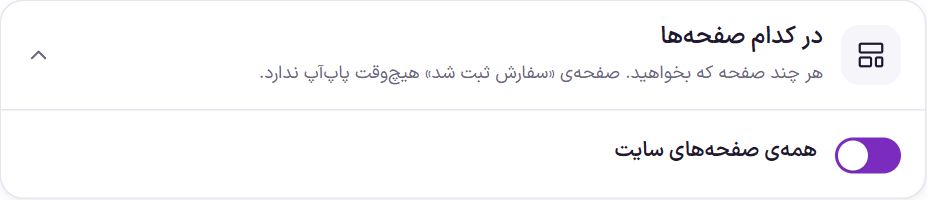
“All site pages” is on by default. If you turn it off, a list of store places appears and you turn each one on separately:
- Home page, shop (all products), product category and tag pages, product page
- Search results, cart, checkout, account
- Blog and post archives, post page
Under this list, the “Pages” section shows all of the site’s published pages with a search box. Tick any page and the window opens there too.
The “Order placed” page never has a popup, because the buyer has just paid. On pages you have not selected, no popup file is loaded and those pages’ speed does not change.
Content
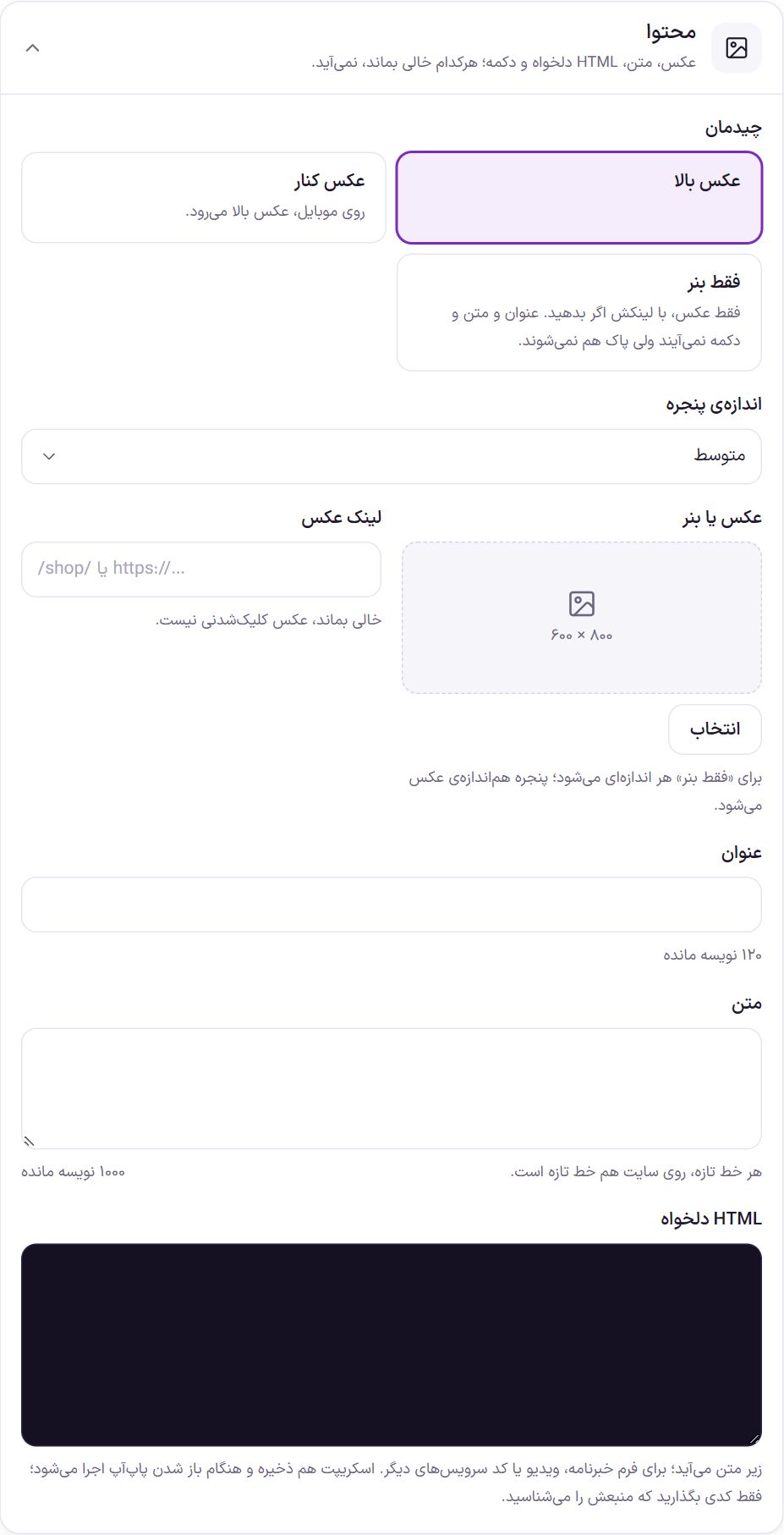
| Option | What it does | Default |
|---|---|---|
| Layout | “Image on top”: the image above the text. “Image beside”: the image beside the text; on mobile the image moves to the top. “Banner only”: just the image, with its link if you provide one. In “Banner only”, the heading, text, and buttons are not shown but are not deleted either. If you have not added an image, the “Image on top” layout is always used. | Image on top |
| Window size | “Small”, “Medium”, or “Large”. | Medium |
| Image or banner | An image from the media library. The suggested size is 800 × 600. For “Banner only” any size works and the window takes the image’s size. | Empty |
| Image link | The address that opens when the image is clicked, such as /shop/. Leave empty and the image is not clickable. | Empty |
| Title | The window heading. Up to 120 characters. | Empty |
| Text | The text under the heading. Each new line is a new line on the site too. Up to 1000 characters. | Empty |
| Custom HTML | It appears under the text. For a newsletter form, a video, or code from other services. This code runs only when the window opens. | Empty |
script tag and events like onclick are removed on save and you see a message about it.Buttons
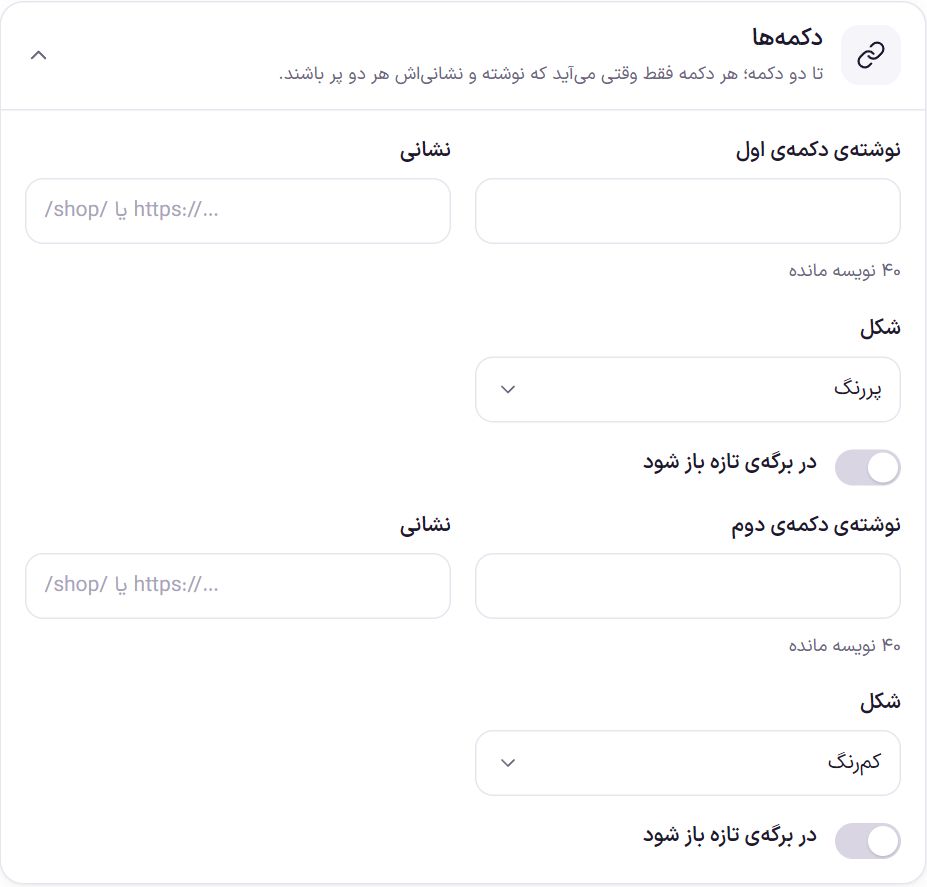
| Option | What it does | Default |
|---|---|---|
| First / second button text | The text on the button, such as “See the discounts”. Up to 40 characters. | Empty |
| Address | Where the button goes; an on-site address such as /shop/ or a full address. | Empty |
| Style | “Solid” is filled with the “Solid button” color; “Light” is simpler and suits a secondary action. | First solid, second light |
| Open in a new tab | When on, the address opens in a new browser tab and your site stays open. | Off |
Colors
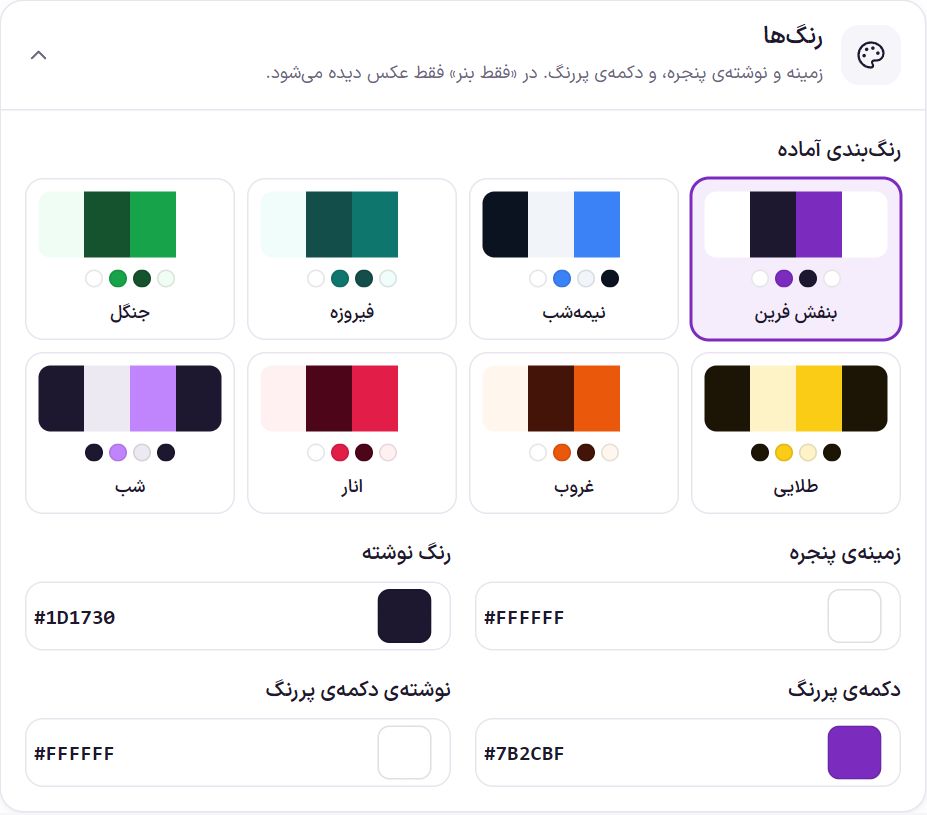
You have eight ready-made palettes: Farin purple, midnight, turquoise, forest, golden, sunset, pomegranate, and night. Each changes the four colors below at once. After that you can change each color separately or type the color code.
| Option | What it does | Default |
|---|---|---|
| Window background | The window’s background color. | #FFFFFF |
| Text color | The color of the heading and text. | #1D1730 |
| Solid button | The color of the button whose style is “Solid”. | #7B2CBF |
| Solid button text | The text color on that button. | #FFFFFF |
In the “Banner only” layout only the image is visible and these colors have no effect.
Window behavior
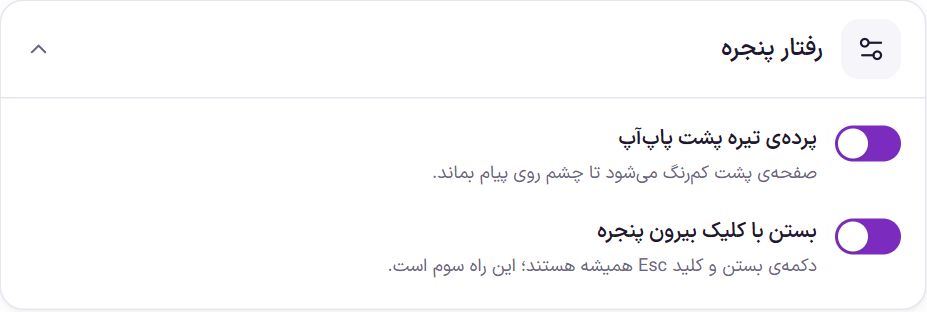
| Option | What it does | Default |
|---|---|---|
| Dark overlay behind the popup | The page behind the window is dimmed so the eye stays on the message. | On |
| Close by clicking outside the window | Clicking the page outside the window closes it. The close button and the Esc key are always there; this is the third way. | On |
Frequently Asked Questions
I turned the popup on but it does not open on the site.
Check these: the window has content (there is no warning under the preview); the page you opened is selected in “Which pages”; “On which device” and “For whom” are not excluding you. If you have seen and closed the window once, according to “How many times it is seen” it will not open again for a while; open the site in a browser incognito window.
I want everyone to see the popup again.
Just change the content, for example the heading or text. The popup counts as a new version and is shown to everyone again.
Does it work with a caching plugin?
Yes. How many times the window has been seen is stored in the visitor’s own browser, not on the server. Just clear the site cache after changing the settings so pages pick up the new version.
Farin Theme · 1405