

Categories
This section does two jobs: in “Categories” you create and arrange product categories and give them images and descriptions. In “Header menu” you decide how categories open from the site’s top menu. Both sections work with WooCommerce; without it you see a message to activate it.
Where is it? Farin → Categories
Categories

All product categories appear here as a tree; subcategories appear indented under their main category. Beside the Persian name are the Latin name (if you gave one) and the number of products in each category.
The buttons beside each row:
- New subcategory: Opens the create-category window with “Parent” already set to this category.
- Edit: Changes all of the category’s information.
- View category page: Opens this category’s page on the site in a new tab.
- Delete: Asks first and tells you how many products will be left without this category and how many subcategories will move up one level. The products themselves are not deleted.
Category order
Grab the handle beside a category and drag it. Moving works only among categories at the same level (with one parent category). This same order is used in the category menu, the store’s category list and everywhere on the site.
Creating or editing a category
- Click “New category”. For a subcategory, click the “New subcategory” button beside the main category.
- Give the category a name and place. Write the “Name” and, in “Parent”, choose the category above it.
- Add an image and a description. They are optional, but the category page is more complete with them.
- Click “Save”. The list refreshes in place.
| Option | What it does |
|---|---|
| Name | The category name, shown everywhere on the site. Required. |
| Latin name | Optional, such as Mobile Phones. It appears under the title of the category page banner and beside the name in this list. |
| Slug (in the address) | Part of the category page’s address. If left empty, it is built from the name. A duplicate name or slug is not accepted. |
| Parent | The category above. A category cannot be the child of itself or of its own subcategories. |
| Image or icon | Suggested size 200 × 200. It appears in the category menu, the store’s category list and the category banner. |
| Description | It has two modes: “One line under the title (top of page)” or “Article at the bottom of the page (for SEO)”. In article mode, an “Article title” also appears. |
| Text | The description text. For an article you can write simple HTML (h2, p, ul, strong, a). A long article is shown collapsed and has a “Continue” button. |
/en/) instead of the Persian, and an empty field means the Persian is used. The “Same Latin name” button beside the name field puts the Latin name into it in one click. Under “Slug (in URL)” there is also an “English slug”: a word of lowercase English letters, digits and hyphens that replaces the Persian slug in the English category URL (English slug). When English is off, these fields are hidden and what you wrote is not deleted.Header menu
This section sets the shape of the category menu in the header, both for the “Store categories” option in the main menu and for the “Category button”. If neither is in the header, a warning appears at the top of this section. To add it, go to Header and in “Main menu” click “Add store categories”, or place the “Category button” in the header layout.
Menu style
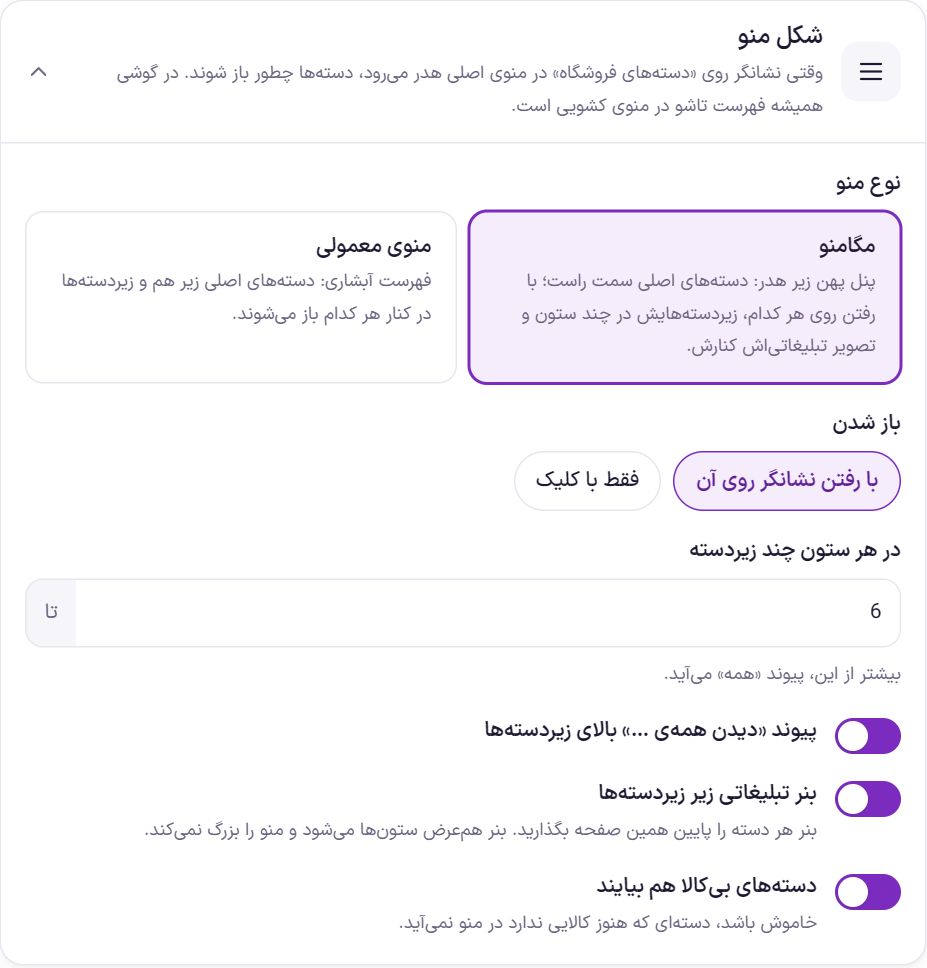
| Option | What it does | Default |
|---|---|---|
| Menu type | “Mega menu”: a wide panel under the header; main categories on the right, and when you hover over each, its subcategories in several columns with its promo banner beside them. “Regular menu”: a cascading list; main categories stacked and subcategories beside each one. | Mega menu |
| Opening | Mega menu only. “On hover” or “On click only”. | On hover |
| Subcategories per column | Mega menu only, from 2 to 30. If there are more subcategories, an “All” link appears. | 6 |
| “See all …” link above the subcategories | Mega menu only. A link to the main category’s page above the columns. | On |
| Promo banner under the subcategories | Mega menu only. You set each category’s banner in the box at the bottom of this page. The banner matches the width of the columns and does not enlarge the menu. | On |
| What goes in the menu | Regular menu only. “Main categories only” or “Main categories and subcategories”; subcategories open beside their main category. | Main categories and subcategories |
| Include categories with no products | When off, a category that has no products yet does not appear in the menu. | On |
On phones, whatever the menu style, categories are always a collapsible list in the slide-out menu.
Main categories in the menu

The order of this list is the same as the order in “Categories”. For each main category you have two options:
| Option | What it does | Default |
|---|---|---|
| Remove “category name” from the menu | Removes the category from the header menu; its subcategories go with it. The category itself and its page stay in place. | Off |
| Promo banner for “category name” | Mega menu only. A horizontal image, such as 1080 by 260. The banner’s height in the menu is fixed and the image fills it. “Delete” removes the banner. | Empty |
Frequently Asked Questions
If I delete a category, what happens to its products?
The products are not deleted; they are just no longer in this category. Before deleting, the confirmation window tells you how many products will be left without this category. Its subcategories are not deleted either and move up one level.
Categories do not appear in the header.
If you see a warning above “Header menu”, you have not yet placed categories in the header. Add “Store categories” to the main menu or place the “Category button” in the header layout. If “Include categories with no products” is off, a category with no products does not appear in the menu.
Where does the icon beside categories in the menu come from?
From that category’s “Image or icon”. In “Categories”, click the edit button and add an image.
Farin Theme · 1405